Smart QR Code Generator
Send one QR code to different links based on the scanner's device, the time, or the day. Set the rules once and update them anytime without reprinting.


What Is a Smart QR Code?
Use the same QR code to open regional offers, show different language versions, or switch between lunch and dinner menus.
You can update the destinations and rules anytime without reprinting your QR code.

Smart QR Code Rules You Can Set
Control what opens after a scan based on location, language, device, date, time, and more. Use one condition or combine several for more specific requirements.
Country / Region
Open the relevant regional store using approximate IP-based location.
Language
Open content that matches the browser language.
Device
Open the right app store for iOS or Android.
Date / Date Range
Show a promotional page during the campaign dates.
Day
Display different weekday and weekend menus.
Time
Switch between breakfast, lunch, and dinner menus.
Location / Geofencing
Open location-specific content within an area defined by coordinates and a radius.
Scan Count
Switch from a launch offer to a regular campaign page after a scan threshold.
Browser
Direct people to a browser-compatible destination.
Combine rules for more specific experiences
Add multiple conditions to decide when a destination opens.
Set destination priority and a fallback
Destinations are checked from top to bottom. The first destination whose rules match opens, so place more specific rules before broader ones.
Add a fallback destination for scans that do not match any rule. This could be your main website, general product page, or store locator.
Benefits of a Smart QR Code
Here's why you should use a Smart QR code:
- One QR code, multiple destinations: Direct people to different content using the same printed QR code.
- More relevant experiences: Show content based on location, language, device, or timing.
- Updates without reprinting: Change your destinations and smart rules as your needs evolve.

Who Should Use Smart QR Codes?
A Smart QR code is ideal for:


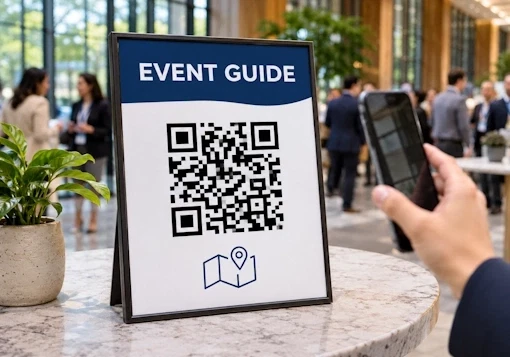
Create and Manage Smart QR Codes With QRCodeChimp
Here's why QRCodeChimp is the perfect solution for creating Smart QR codes:


How to get more scans on your Smart QR Codes?
Follow these best practices to get more scans on your Smart QR code:
Make it easy to scan
Make your Smart QR code large enough to be easily scanned. Your QR codes should be at least 0.8 x 0.8 inches for seamless scanning.


Make it visually appealing
Make your QR code compelling to get more scans. Use unique shapes, colors, and other customization features to give your Smart QR code a perfect look.
Make it actionable
Add a call to action (CTA) to your Smart QR code to make it actionable. You can use stickers with CTAs to inspire action.


Promote it well
Promote your Smart QR code across channels. The more people you reach, the more scans you'll get.
How to Get More Scans on Your Smart QR Codes?
Here's how a Smart QR code works:


Frequently Asked Questions
- How to create a Smart QR Code?
- How can people use a Smart QR code?
- Can I edit the contents of a Smart QR code?
- What if I don't add a destination when smart rules don't match?
- How is a Smart QR Code different from a standard dynamic URL QR code?
- How is a Smart QR Code different from a Multi-URL QR Code?
- Does a language rule translate my content?
- Do location-based rules require permission?
- What happens if someone declines precise location access when scanning my Smart QR code?
Frequently Asked Questions
How to create a Smart QR Code?
Follow these steps to create a Smart QR code:
Step 1: Select the Scan Destination
Select the scan destination from the available options and enter the data.
Note: You can also select from the list of saved QR codes.

Step 2: Add the Smart Rules
Click on the '+ Smart Rule' button and choose any options (Device, Day, Time) that suit your preference.

Step 3: Apply the Smart Rules
Click on the 'Apply Rule' button.

Step 4: Add More Destinations
Click on the '+ Add More' button to add more destinations.
Note: Follow steps 1, 2, and 3 for a new destination.

Step 5: Enter the Optional Destination
Click on 'When smart rules don't match' and enter the destination to redirect people to the desired destination if rules don't match (Optional).

Step 6: Design Your QR Code
Click on 'Design Color and Decorate QR Code' to customize your QR Code design (ex: adding color, shape, sticker).
Note: Click on the 'x' icon of the 'Customize QR Code' popup to save changes.

Step 7: Save and Download
Save the QR Code by clicking on the 'Save QR Code' button, entering the QR name, and then clicking on 'Save.'
Note: Make sure to scan your QR Code from different devices (iOS and Android) before printing for production.

How can people use a Smart QR code?
Users need to scan the Smart QR code. They will be redirected to the destination based on the rules they satisfy. Users won't notice any difference in the scanning experience.
Can I edit the contents of a Smart QR code?
Yes, you can edit the contents of a Smart QR code. Since a Smart QR code is dynamic by default, you can edit the smart rules and the QR code's contents without reprinting.
What if I don't add a destination when smart rules don't match?
If you don't add a destination when smart rules don't match, users will be redirected to a “No rules set’ page. Therefore, we recommend adding a destination URL if the smart rules don't match for a better user experience.
How is a Smart QR Code different from a standard dynamic URL QR code?
A standard dynamic URL QR code opens one configured destination, which you can update later. A Smart QR Code adds rules that automatically select a destination based on conditions such as location, language, device, or scan time.
How is a Smart QR Code different from a Multi-URL QR Code?
A Smart QR Code automatically selects a destination based on your rules. QRCodeChimp’s Multi-URL QR Code opens a page containing multiple links, allowing people to choose which one to visit.
Use the Multi-URL QR Code generator when you want to display a selection of links.
Does a language rule translate my content?
No. A language rule opens the destination you assign to a particular browser language. You need to provide the corresponding language version of your content.
Do location-based rules require permission?
Country / Region rules use approximate IP-based location by default. If you enable Use precise location, people must grant location permission.
Location / Geofencing rules require location permission to check whether the device’s precise location falls within your configured area.
What happens if someone declines precise location access when scanning my Smart QR code?
For Country / Region rules, the QR code uses approximate IP-based location instead.
For Location / Geofencing rules, it follows your selected action in Advanced settings: open the fallback destination, show a message, or use approximate IP-based location rules.
Hear What Our Customers Have to Say About QRCodeChimp!