Brand consistency is vital for establishing credibility and recognition. Just as using the brand logo in your products is essential, keeping the same QR code across marketing materials is equally important. The idea is to build a cohesive brand identity through uniquely created QR codes so that customers instantly recognize your brand when they see them.
Now, we’ll show you the steps to create QR codes exactly as you have already done before. You don’t need to remember how you made them the first time. Just follow these steps:
Steps to make a copy of your QR code
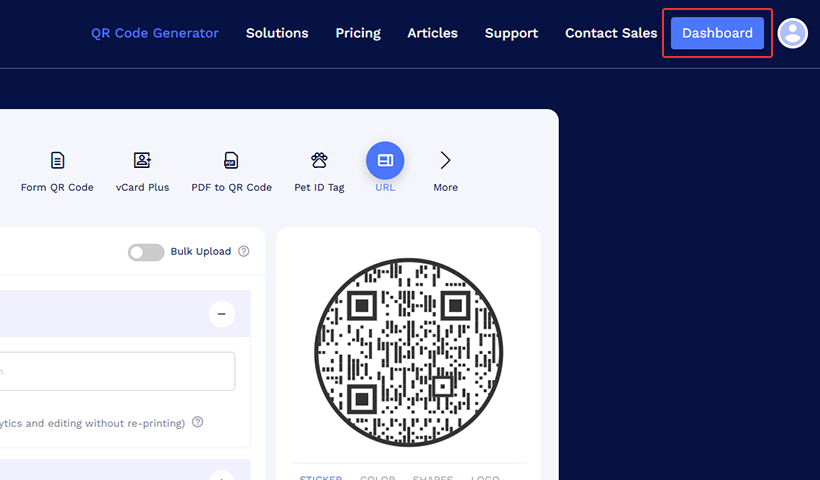
Step 1: Log in with your account
Log in with your QRCodeChimp account and go to the ‘Dashboard’.
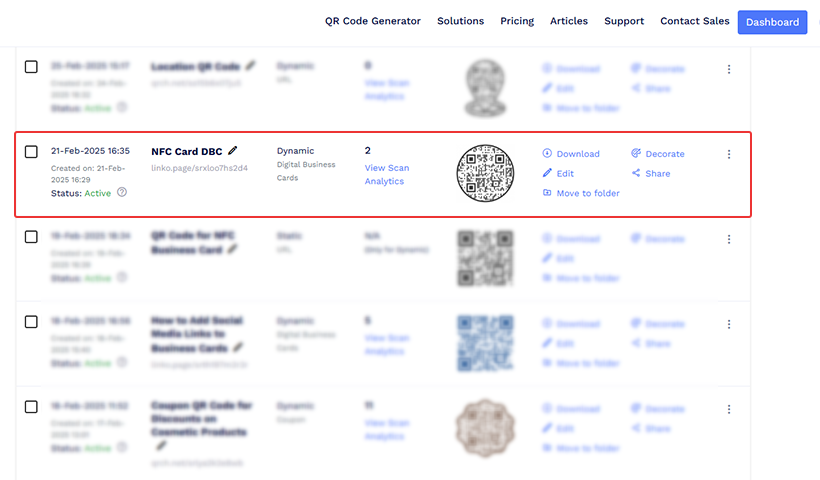
Step 2: Locate the QR code
Find the QR code in your Dashboard that you want to make a copy of.
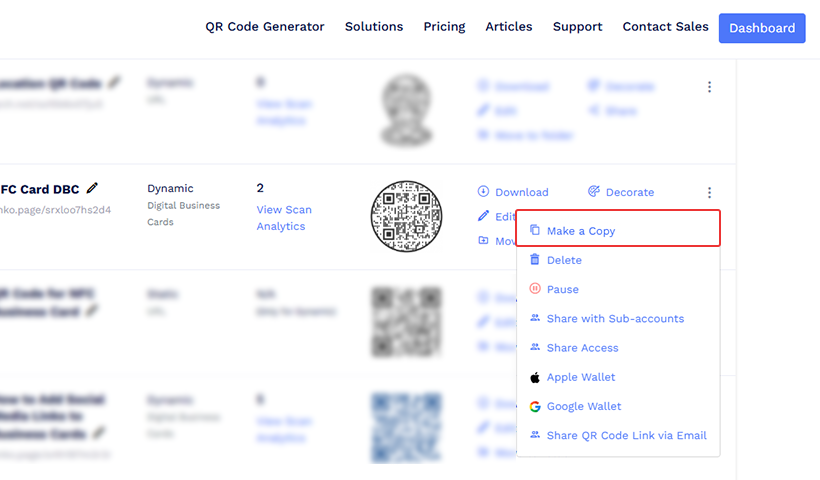
Step 3: Click on the More option (three dots)
Click the More option (three dots) next to the QR code and select the ‘Make a Copy’ option.
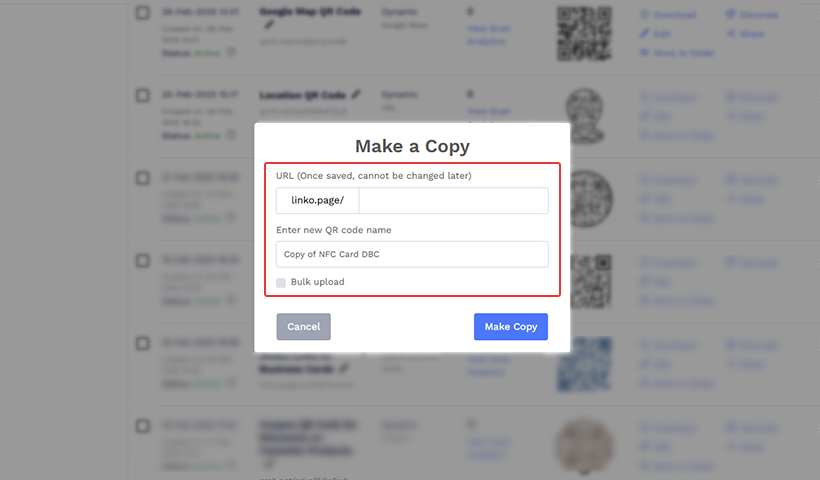
Step 4: Name the QR code
A pop-up will appear on the screen. Enter text in the URL, which will be your short URL that starts with “linko.page/…” and enter the new QR code name. Then click on the’ Make copy’ button to complete the process.
How to save the same style for your landing page?
We’ll explain how to save the page design for your landing page. The same steps will be used for any of your solutions, whether a product QR code, form QR code, Pet ID tag, or anything else.
Step 1: Log in with your QRCodeChimp account and navigate to the ‘Dashboard.’
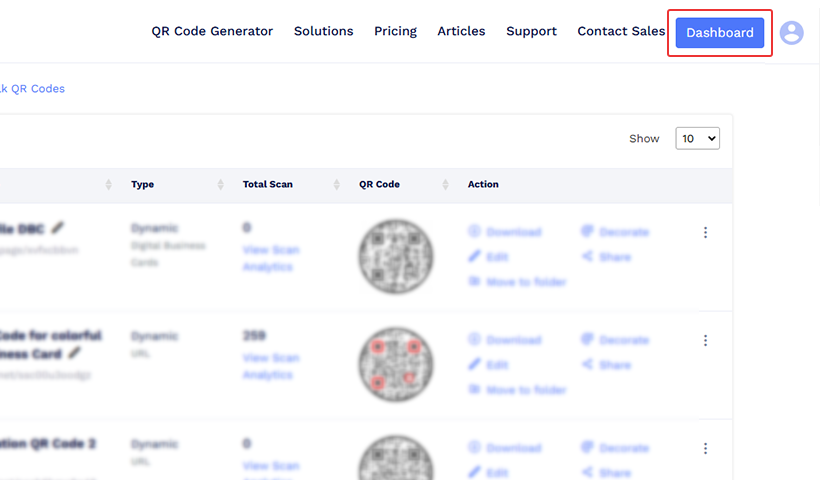
Step 2: Find the QR code for which you want to save the landing page.
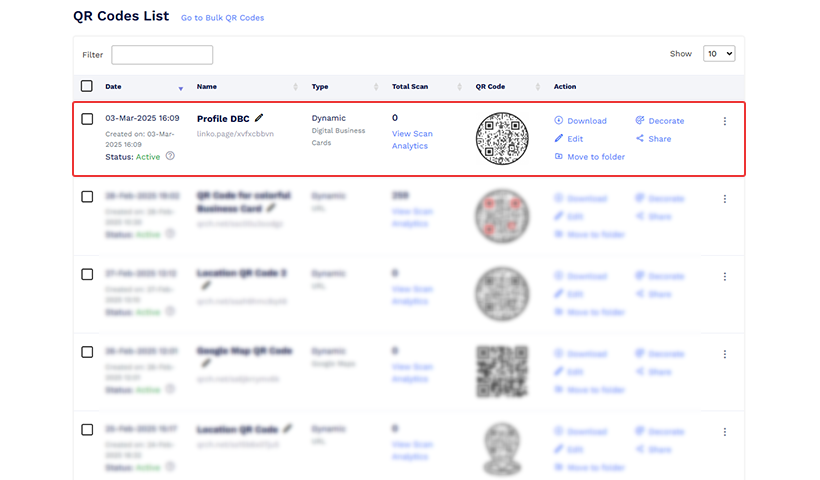
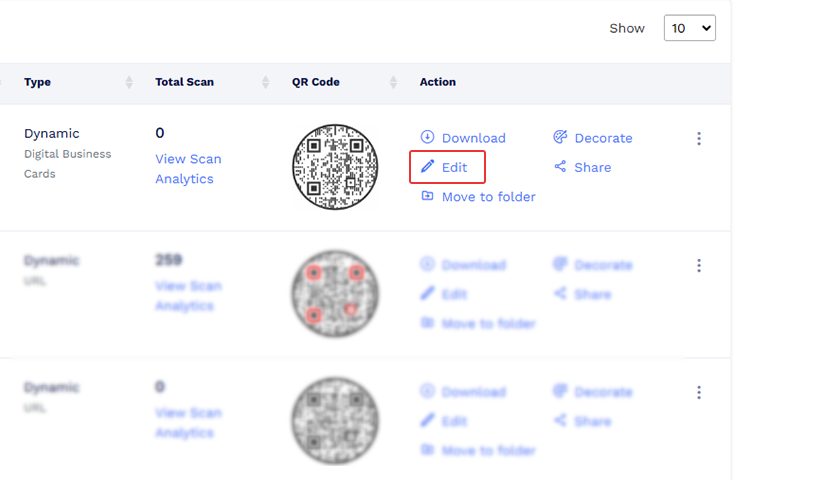
Step 3: Click the ‘edit’ option to land on the ‘Content’ section.
Step 4: Click the ‘Design / Settings’ tab and scroll down to find the ‘Save this style’ option.
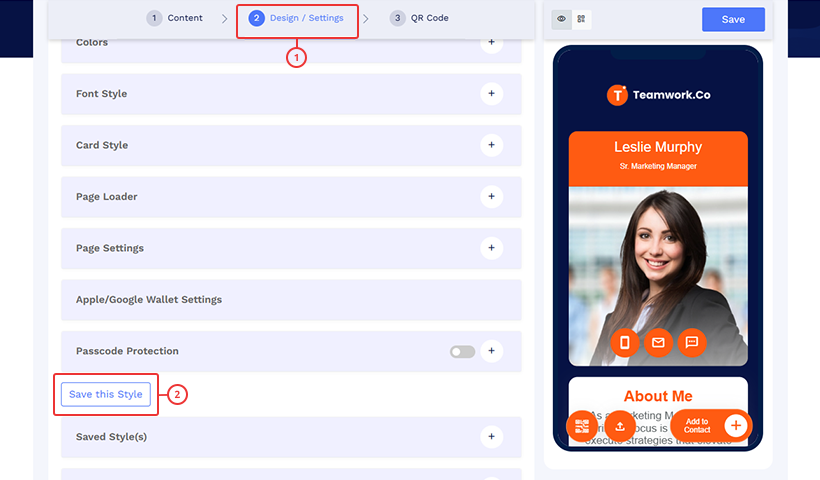
Step 5: Click it. A pop-up will appear asking for ‘Style Name.’ Give the name and save it.
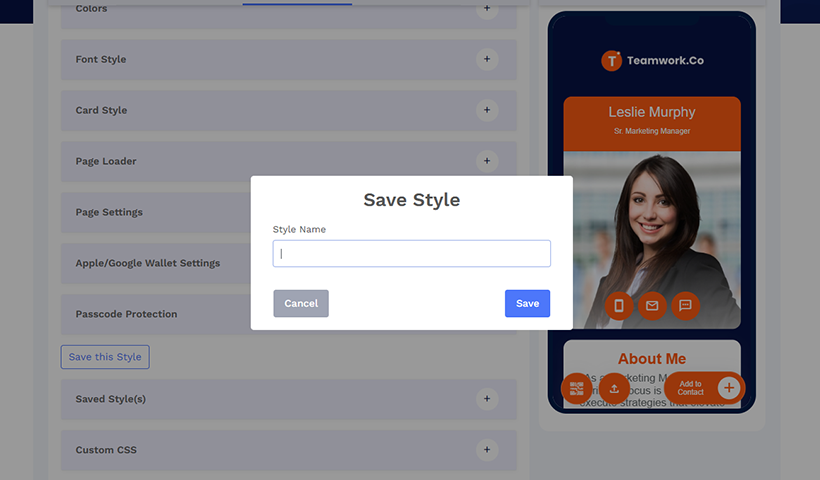
Step 6: Check if your style is saved in the ‘Saved Style(s)’ section.
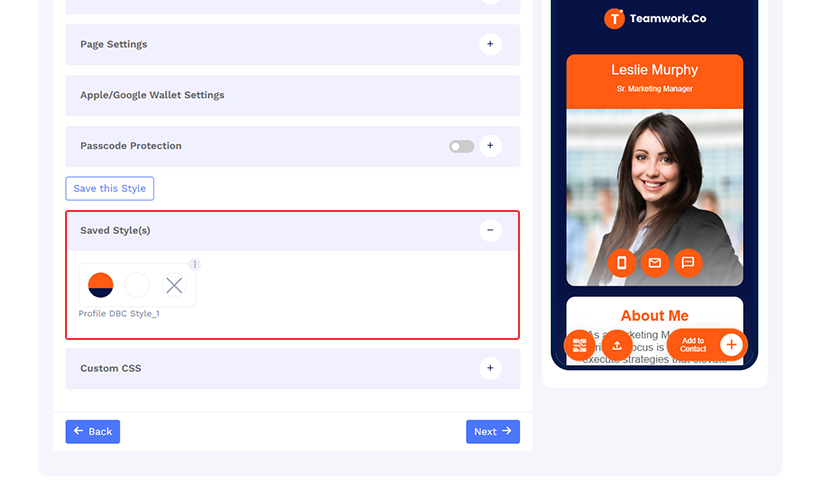
Note: When creating a QR code for the same solution next time, just go to the ‘Saved Style(s)’ section and you’ll find them. You wouldn’t need to start from scratch.
If you need any other assistance from our support team, you can reach out to us at support@qrcodechimp.com.
You may also like
Approval-Based Digital Business Cards: A Smarter Workflow for HR Teams
Discover how approval-based digital business cards help HR teams ensure branding consistency, prevent misuse, and manage employee cards at scale.
Best Digital Business Card Makers for 2026 – Secure, Enterprise, and Scalable
Discover the best digital business card platforms for 2026. Compare the top 8 solutions with features like branding, CRM integration, analytics, and enterprise-grade security to find the right fit for your team or business.
How a Consumer Electronics Brand Fixed Its Post-Purchase Gap Using Form QR Codes
Learn how a consumer electronics brand improved warranty registration and post-purchase engagement using Form QR Codes. Discover the strategy, implementation, and results.
QRCodeChimp’s Analytics Dashboard: A Step-by-step Guide
A guide to QRCodeChimp’s analytics dashboard. Leverage the unique advanced features and metrics to optimize your marketing campaigns.
Most Popular
Contact Sales
