In today’s world of evolving digital threats, safeguarding your online privacy and security is crucial. At QRCodeChimp, we offer Multi-Factor Authentication (MFA) to enhance your account security.
MFA adds an extra layer of protection by requiring more than just a password. With the rise in hacking incidents, it’s essential to take proactive measures to protect sensitive data.
People are often the weakest link in security, as they may choose easy-to-guess passwords or share them. MFA strengthens security by generating random codes, typically accessible only on personal devices like smartphones, which are carried almost everywhere.
In this article, we’ll explore Multi-Factor Authentication (MFA) and guide you through activating it for enhanced online security.
Why Multi-Factor Authentication?
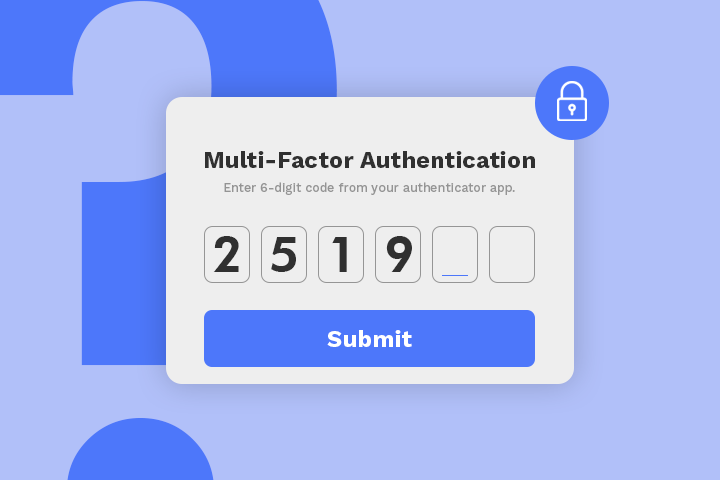
MFA requires users to verify their identity through a secondary factor, making it much harder for unauthorized individuals to access accounts, even if passwords are compromised. Key security and industry standards, including SOC2, recommend enabling MFA for all account access.
When you enable MFA in your QRCodeChimp account, you need to install an Authenticator app on your smartphone. An Authenticator app is a mobile application that generates time-sensitive one-time passwords (OTPs) or uses a secure algorithm to provide a secondary layer of authentication for online accounts.
What is an Authenticator app?
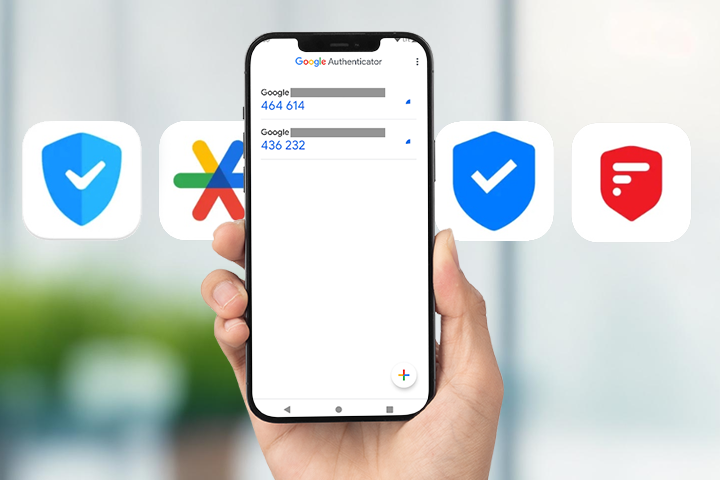
An authenticator app is a security tool significantly designed to generate time-sensitive, one-time passcodes (OTPs) or codes for multi-factor authentication (MFA). These apps enhance the security of online accounts by requiring users to provide a secondary authentication code, typically generated on their mobile devices, in addition to their regular username and password.
We recommend you to download Google Authenticator or Microsoft Authenticator to get the authentication codes.
You can easily download the Authenticator App by scanning the QR code below.

Scan to Download
Google Authenticator

Scan to Download
Microsoft Authenticator
How to enable Multi-Factor Authentication for your QRcodeChimp account?
Main account
Step 1:
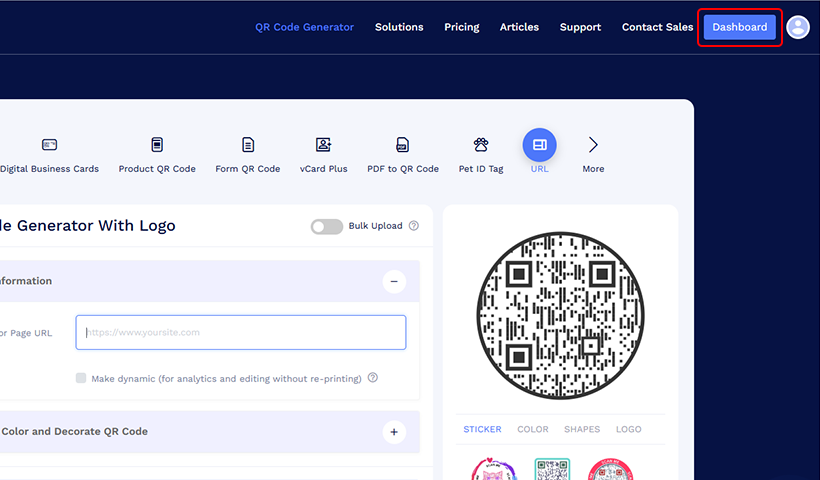
Sign in with your QRCodeChimp’s account and click on Dashboard
Step 2:
Click on the Settings menu on the navigation panel. Then click on Security, Email, Password.

Step 3:
Enable the Main account in Two-factor authentication.

Step 4:
Upon enabling two-factor authentication, a pop-up for setting up two-factor authentication will display on the screen.

Step 5:
Scan the QR code in the pop-up using your authentication app, such as Google Authenticator, and enter the generated verification code in the input box on the pop-up.
Note: Ensure to download an authenticator app first to complete this process, and then input the corresponding verification code below.
Upon completing the above steps, a pop-up will appear confirming that you have successfully enabled two-factor authentication.
Moving forward, to log in, you will have to enter your user ID and password and sign in. Simply open the authenticator app, and the associated account’s code will be generated for use.
Sub account
Step 1:
Sign in with your QRCodeChimp account and click on Dashboard
Step 2:
Click on the Settings menu on the navigation panel. Then click on Security, Email, Password.
Step 3:
Enable the Sub-account in Two-factor authentication.

Step 4:
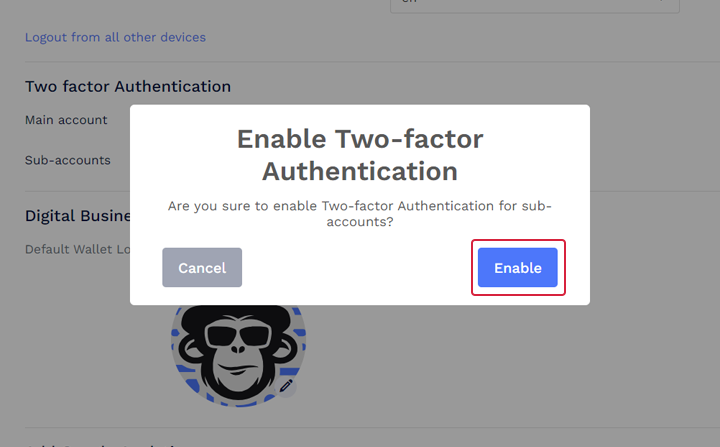
A pop-up window will appear. Then click on the Enable button.
Step 5:
You get a pop-up saying Two-factor authentication is successfully activated.
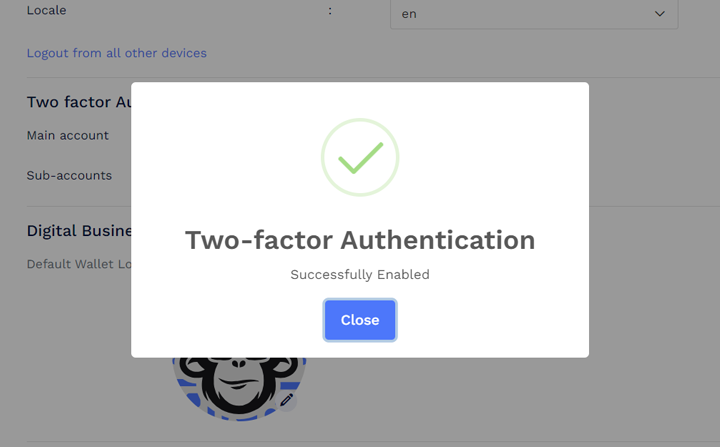
Once the two-factor authentication is activated, users will have to enter their user ID and password and sign in. Further, a pop-up for setting up two-factor authentication will be displayed on the screen.
Scan the provided QR code on the pop-up using any authentication app, for example, Google Authenticator, and input the corresponding verification code below.
The next time the sub-account user attempts to log in, they will need to enter their user ID and password and sign in as usual. Further, open the authenticator app, and the associated account’s code will be generated for use.
Key benefits of Multi-factor authentication:
Enhanced Security
MFA significantly improves the security of your QRcodeChimp account by adding an additional layer of authentication. Even if malicious actors manage to obtain your password, they would still need the second factor to gain access, providing an extra barrier against unauthorized access.
Protection from Phishing Attacks
Traditional login credentials can be vulnerable to phishing attacks, where users unknowingly provide their username and password to malicious actors. Multi-factor authentication eventually mitigates this risk by requiring a secondary verification step, making it more challenging for attackers to compromise accounts through phishing.
Compliance with Security Standards
Many regulatory standards and industry best practices generally recommend or require the implementation of Multi-Factor Authentication. By adopting MFA, QRCodeChimp explicitly aligns itself with these standards, ensuring a higher level of security and compliance.
Conclusion
At QRcodeChimp, the security and privacy of our users are of utmost importance. The introduction of Multi-Factor Authentication is a proactive step to enhance the protection of your account and sensitive information. We encourage all users to enable MFA to enjoy the benefits of an additional layer of security. Together, let’s create a safer and more secure online environment for everyone.
You may also like
Approval-Based Digital Business Cards: A Smarter Workflow for HR Teams
Discover how approval-based digital business cards help HR teams ensure branding consistency, prevent misuse, and manage employee cards at scale.
Best Digital Business Card Makers for 2026 – Secure, Enterprise, and Scalable
Discover the best digital business card platforms for 2026. Compare the top 8 solutions with features like branding, CRM integration, analytics, and enterprise-grade security to find the right fit for your team or business.
QRCodeChimp’s Analytics Dashboard: A Step-by-step Guide
A guide to QRCodeChimp’s analytics dashboard. Leverage the unique advanced features and metrics to optimize your marketing campaigns.
How to Make a QR Code for a Link?
Explore how to create a QR code for a link like your website, social media, or YouTube. QR codes will enhance traffic and engagement on your digital platforms.
Most Popular
Contact Sales
