Did you know you can scan a QR code directly from a picture, be it screenshot or saved image on your smartphone? For instance, your childhood friend sent an image QR code through WhatsApp, asking you to lend some money for urgent needs. If nobody was around, what would you do?
No worries! You can still send money to your friend without using another device to scan the code. All you need to do is save the code in your photo gallery and use some inbuilt features, such as Google Lens, the Google/Apple Photos app, or the Safari app, to scan the code and complete the transaction using your phone.
Let’s explore how to scan a QR code from the photos app or photo gallery for iPhone or Android users.
Steps to scan a QR code from the Photos app on your iPhone/iPad
Scanning a QR code from the Photo app on an iOS device is easy. Starting with iOS 15, Apple integrated a feature that allows users to directly interact with QR codes found in photos and screenshots stored in the Photos app.
Here’s how you can use it:
Step 1: Open your Photos app.
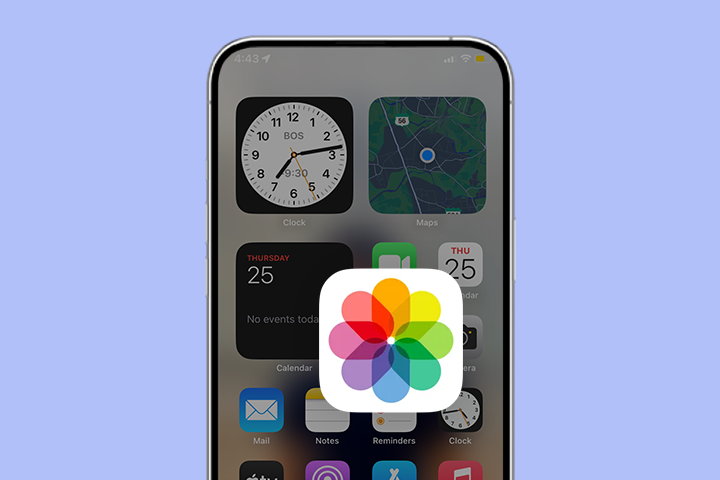
Step 2: Scroll through your albums and open the photo that contains the QR code.
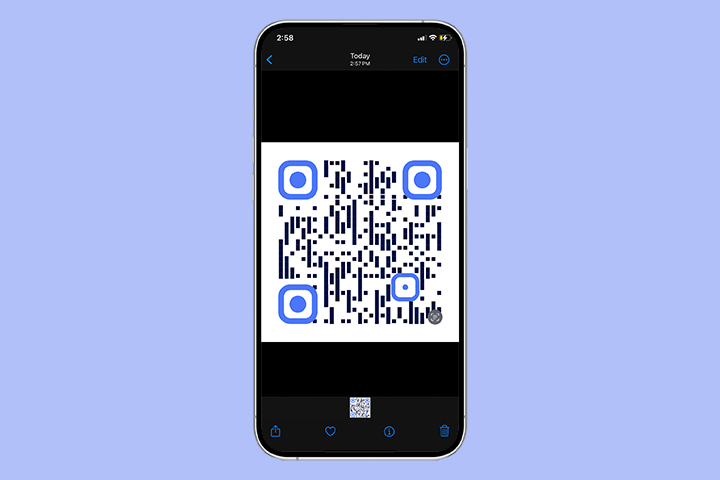
Step 3: Press and hold on to the QR code. A pop-up with a default browser will appear like “Open in Safari” or “Open in Chrome.”
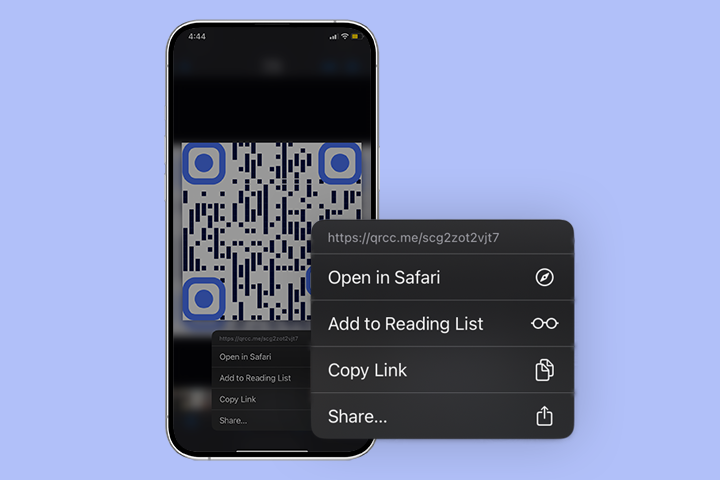
Note: If you use the payment QR code image, a pop-up will display shortcuts to banking apps stored on your phone. You can easily send money using the app.
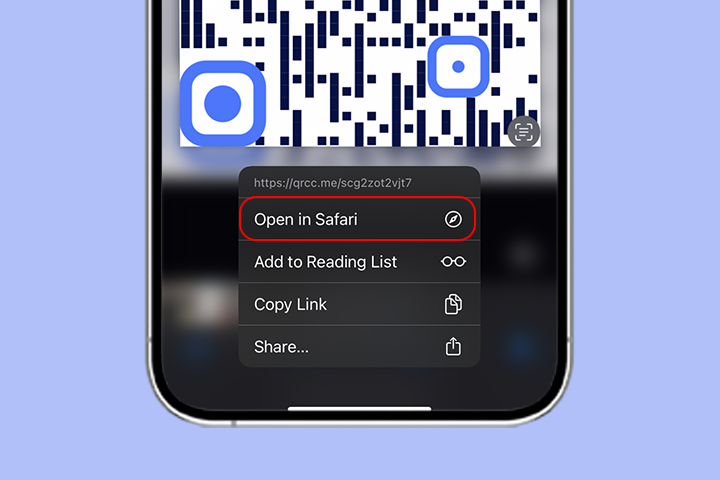
Step 4: Click the displayed browser to complete the scanning process.
Read more: How to Scan QR Code on Mac.
Steps to scan a QR code from the photo gallery of Android users
Android users can scan the image QR code from your photo gallery. Here’s how:
Step 1: Open your photo gallery.
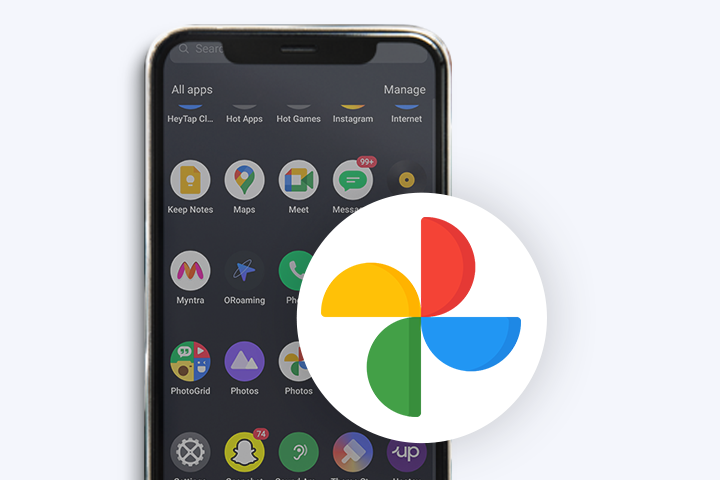
Step 2: Tap the photo QR code to open.
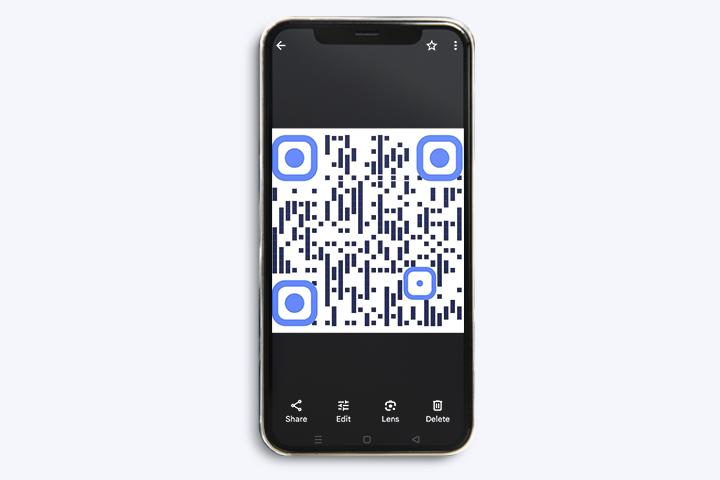
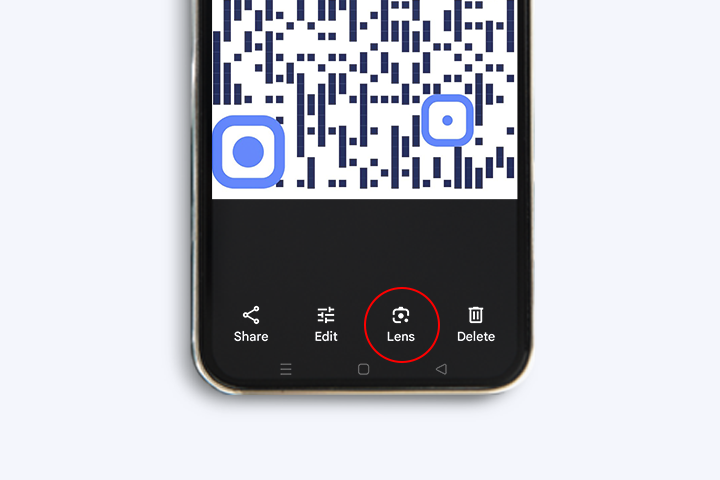
Step 3: Click the ‘Lens’ option to display the link.
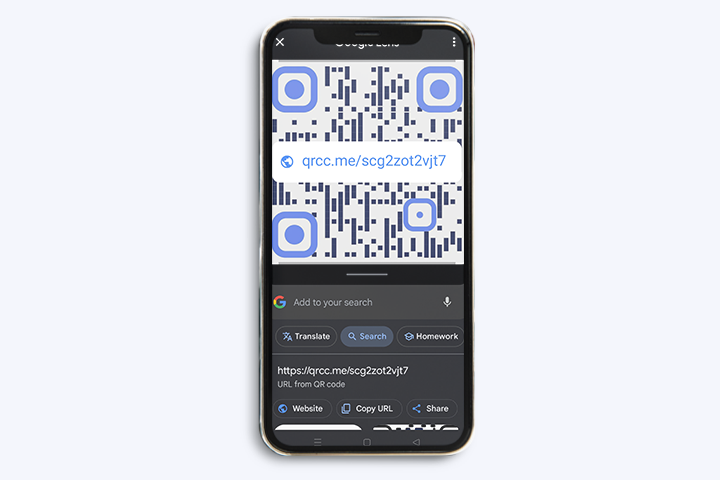
Step 4: Click the displayed QR code link on your phone. Now, the scan is completed.
Steps to scan a picture QR code using Google Lens
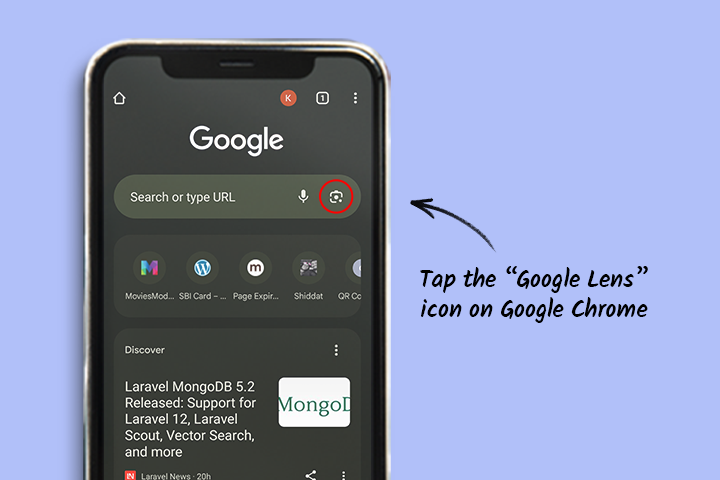
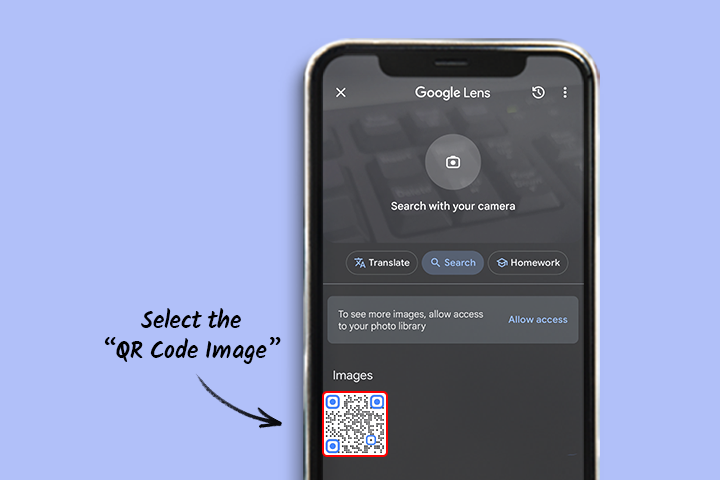
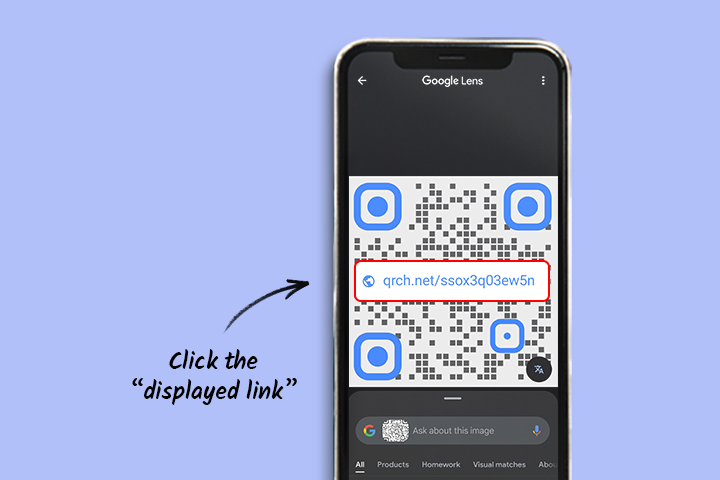
Android and iPhone users can scan a QR code image through Google Lens on Chrome. Here are the steps:
Step 1: Tap the “Google Lens” icon on Google Chrome
Step 2: Find the QR code picture you want to scan and open it.
Step 3: Click the displayed link on the code, and the scan is completed.
Read more: How to generate and scan a QR code on a Chromebook
Scan a QR code using a third-party scanner app
If you don’t have Google Lens or prefer another app, follow these steps to use a third-party QR code scanner:
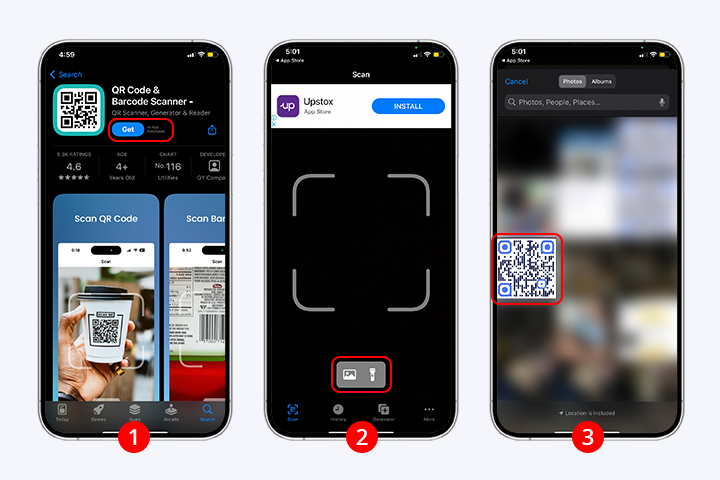
Step 1: Search for “QR code scanner” in the Google Play Store/App Store.
Step 2: Pick an app with good reviews and security features, then download it.
Step 3: Now, open it and allow the necessary permissions.
Step 4: When the app supports scanning from a gallery, select this option and choose the photo with the QR code. The app will read the QR code and display the information.
How to check if your Android automatically scans QR codes
To see if your Android device’s camera app can scan QR codes automatically, follow the steps:
Step 1: Open your camera app.
Step 2: Locate the settings icon, typically a gear symbol.
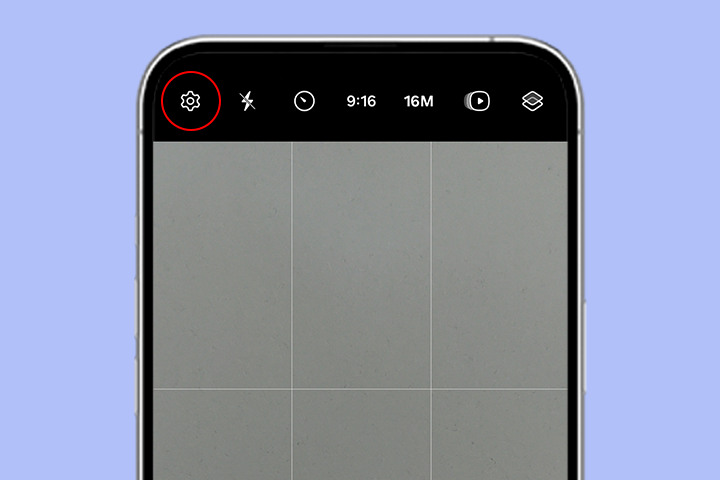
Step 3: Look for a QR code option in the settings, like “Scan QR codes” or “Google Lens.”
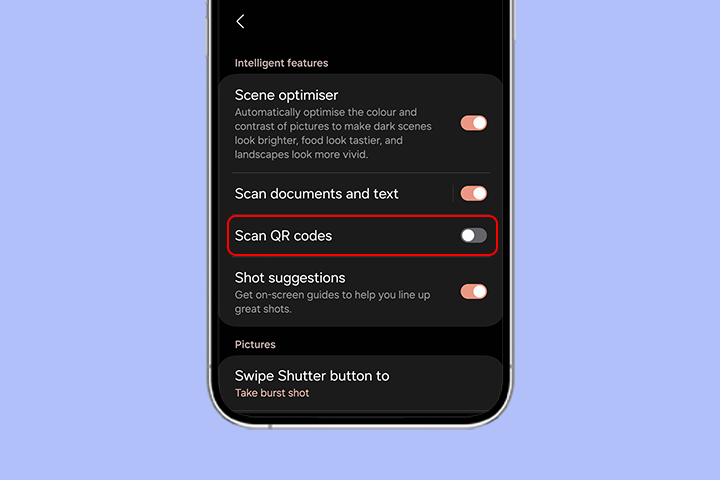
Step 4: If there’s a QR code scanning feature, turn it on.
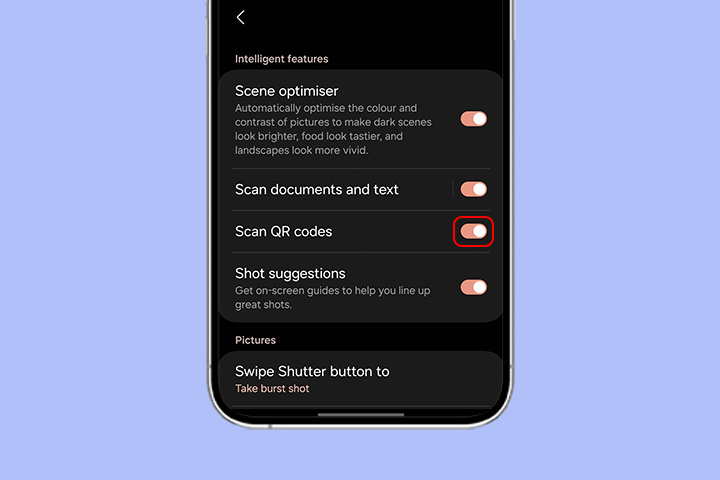
Step 5: Test it by pointing your camera at a QR code. If it scans successfully, a notification will appear.
Conclusion
QR codes are now essential in our digital world, offering easy access to diverse information. Android and iOS users can effortlessly scan QR codes from the Photo app or gallery upon receiving an image QR code via email or screenshot. You don’t need to print a QR code to access the information, just scan it from your phone.
Frequently asked questions
Can I scan QR codes from Google Photos?
Yes, you can scan QR codes from Google Photos. To do so, open the image/photo QR code from the phone gallery. Next, launch Google Lens and click on the QR code link to complete the process.
How to scan a QR code from a saved picture?
Find the QR code in your phone’s gallery or photo app. For iOS users, press and hold the code. A pop-up will instantly appear with a link to open it directly.
Do I need an app to scan a picture QR code?
Most Android or iOS devices have built-in features for scanning a picture QR code. If necessary, you can install a third-party scanner app.
Can I edit the content of a QR code after scanning it from a picture?
No, you can’t directly edit a QR code’s content after scanning. However, if you created a dynamic QR code, you can change its destination URL or content using the QR code management platform where it was made.
How to scan a QR code from a picture on Samsung?
Open the Gallery app on your Samsung device and select the image with the QR code. Then, tap the Bixby Vision or Google Lens icon (depending on your model), and let it scan and interpret the QR code.
Can I scan the saved QR code image on a laptop?
Yes, you can scan the QR code on a laptop or desktop by uploading the image or pasting the image link on a browser like Google Chrome.
You may also like
Approval-Based Digital Business Cards: A Smarter Workflow for HR Teams
Discover how approval-based digital business cards help HR teams ensure branding consistency, prevent misuse, and manage employee cards at scale.
Best Digital Business Card Makers for 2026 – Secure, Enterprise, and Scalable
Discover the best digital business card platforms for 2026. Compare the top 8 solutions with features like branding, CRM integration, analytics, and enterprise-grade security to find the right fit for your team or business.
How a Consumer Electronics Brand Fixed Its Post-Purchase Gap Using Form QR Codes
Learn how a consumer electronics brand improved warranty registration and post-purchase engagement using Form QR Codes. Discover the strategy, implementation, and results.
QRCodeChimp’s Analytics Dashboard: A Step-by-step Guide
A guide to QRCodeChimp’s analytics dashboard. Leverage the unique advanced features and metrics to optimize your marketing campaigns.
Most Popular
Contact Sales
