Do you want a powerful tool to connect with your clients and grow your brand simultaneously? That’s what adding social media on a business card does. With 5.17 billion users in 2024, social media has become vital for broader audience connection and brand promotion.
Integrating social media links into your business card can improve online visibility and increase followers whenever you have a new connection. This way, prospective customers or clients can effortlessly view your business information and follow social media or promotional posts.
This guide will show how to add social media to a business card, making it a dynamic extension of your professional brand.
A step-by-step guide to adding social media on a business card
If you’re a new user of QRCodeChimp and wish to create a digital business card by adding social media links, learn how to create a digital business card.
Or, if you’ve already created one, sign in to QRCodeChimp and navigate to the Dashboard.
Step 1: Choose and edit your card
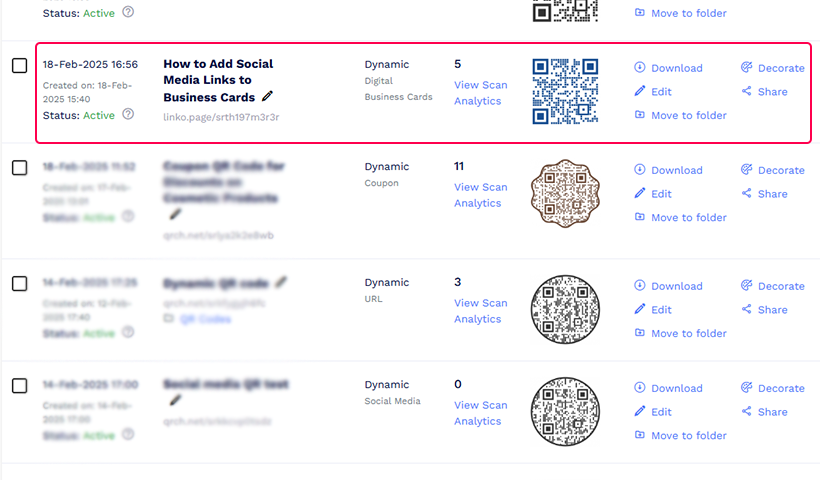
Select the card you want to add social media links. Click the ‘edit’ option in the Action column.
Step 2: Navigate to the Social Links section
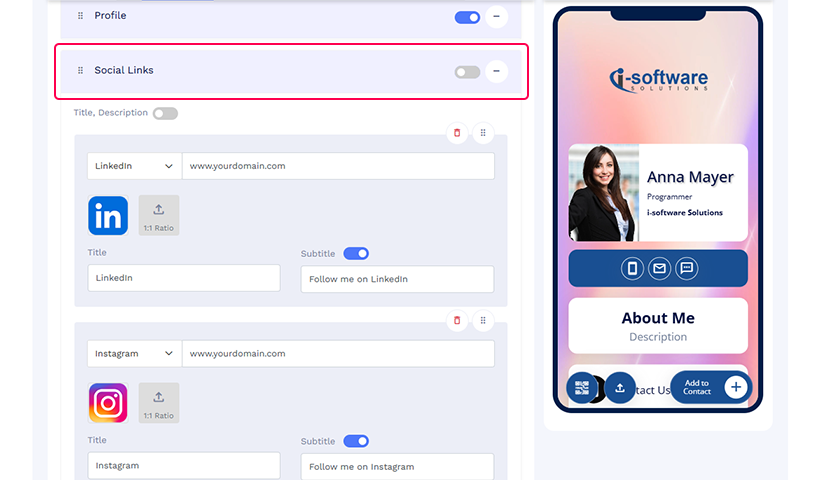
Scroll down to find Social Links in the Content section.
Step 3: Enable Social Links
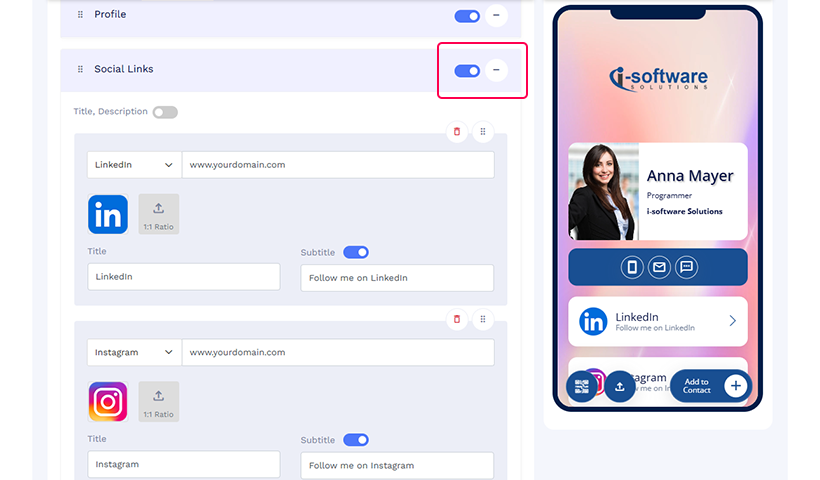
Ensure the Social Links section is enabled. To do so, click the toggle on.
Step 4: Enter your social media links
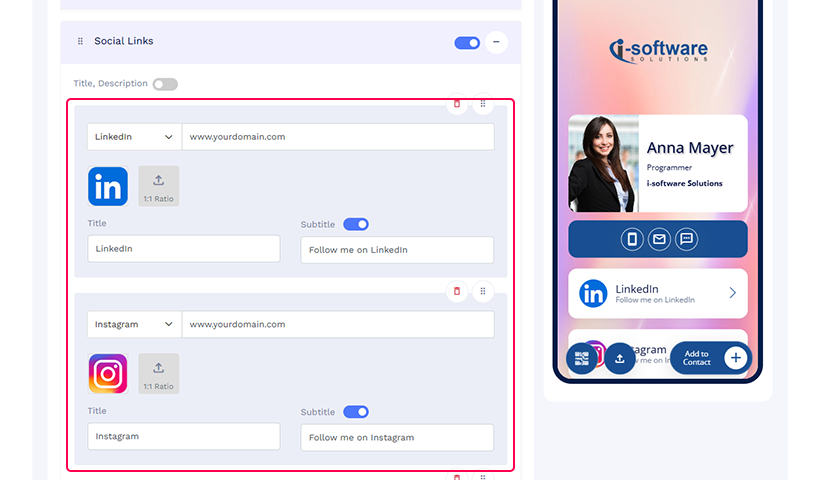
Enter the direct links to your social media accounts. For each account, you can add a title and subtitle.
Step 5: Customize icon appearance
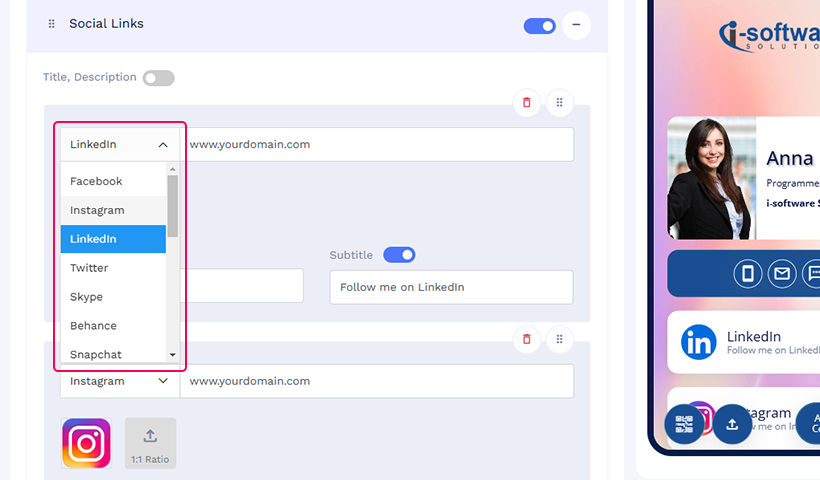
Choose icons that reflect your brand’s style. QRCodeChimp offers the platforms’ default icons, but you can also upload your own.
Step 6: Recheck the links
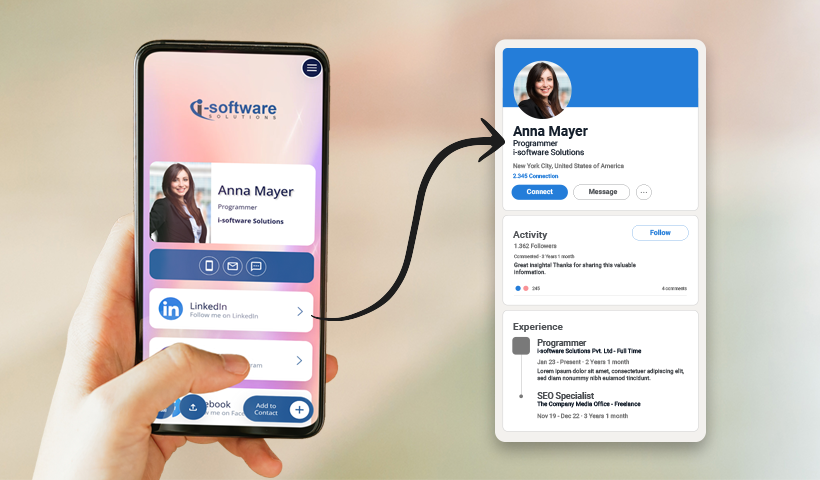
Check the live preview (landing page) shown on the right to see how your social media section looks. Then, click the icons to confirm their accuracy.
Step 7: Save your digital business card
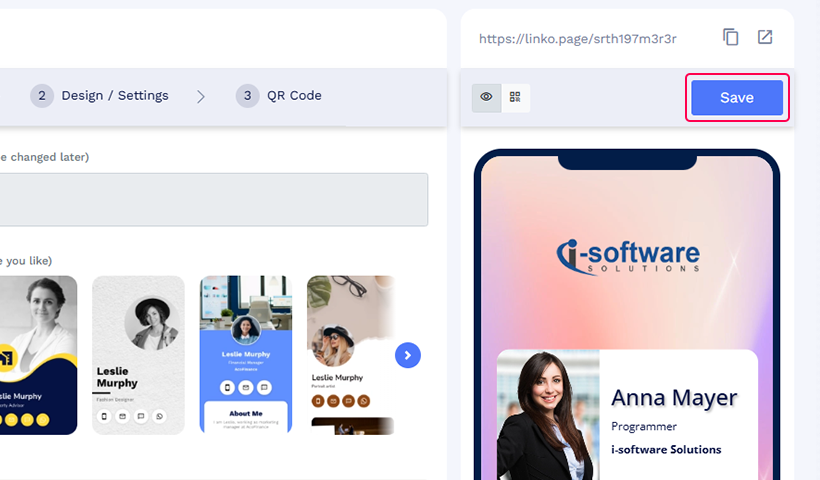
Once you’re happy with the setup, click the Save button to complete the process. Now, you have successfully added social media links to your business card.
Why add social media links to your business card?
Here are a few reasons to add social media to your cards:
🌐 Expand your network
Quickly bring your fresh connections (potential clients, partners, and industry influencers) to your social media handles.
↗️ Drive traffic to your platforms
Use your digital business card to guide visitors directly to your latest content and promotions.
🩵 Improve engagement
Encourage interactions that lead to meaningful conversations and deeper connections with your audience.
👥 Increase followers and connections
Make it effortless for new contacts to follow your profiles, expanding your network organically.
💡Learn more: Advanced Features of Digital Business Cards.
Best practices for adding social icons to business cards
Following these best practices will ensure your card functions perfectly.
- Match the colors of your social icons with your brand’s color palette.
- Use design elements that reflect your overall brand style for a cohesive look.
- Preview your card to check that each social icon directs to the correct profile.
Conclusion
Your digital business card with social media links is a powerful tool that enhances your professional image and connectivity. Adding these links can expand your network, boost your online presence, drive traffic to your profiles, and improve engagement with your audience.
Take charge of your professional branding by optimizing your business card today. Update your card with relevant social media links, making it easier for clients, partners, and peers to connect with you instantly.
Frequently asked questions
How many social media links should I add to digital business cards?
Keep your selection focused to avoid overwhelming your audience.
- Include only the platforms where you are most active and relevant.
- Aim for three to four links to maintain a clean layout.
Which icons should I use for social media on a business card?
Choose icons that reflect professionalism and align with your brand identity.
- Use official brand icons when possible for clear recognition.
- Ensure icons are high quality.
- If you have a strong theme, you can use different icons that match it.
Where to show social media on a business card?
The placement of social media icons plays a key role in usability and aesthetics. Place the icons in an easily visible area, such as right below contact details.
Are there free business cards with social media icons available?
Yes, QRCodeChimp offers a free business card with social icons. You can customize, track, and network better!
Do you have business cards with social media icon templates?
QRCodeChimp offers pre-designed templates featuring social media icons. You can easily customize these templates with your information and links.
You may also like
Approval-Based Digital Business Cards: A Smarter Workflow for HR Teams
Discover how approval-based digital business cards help HR teams ensure branding consistency, prevent misuse, and manage employee cards at scale.
Best Digital Business Card Makers for 2026 – Secure, Enterprise, and Scalable
Discover the best digital business card platforms for 2026. Compare the top 8 solutions with features like branding, CRM integration, analytics, and enterprise-grade security to find the right fit for your team or business.
QRCodeChimp’s Analytics Dashboard: A Step-by-step Guide
A guide to QRCodeChimp’s analytics dashboard. Leverage the unique advanced features and metrics to optimize your marketing campaigns.
Link Click Analytics in QRCodeChimp: How To Find Your Top Performing Links
Learn how to track link click analytics in QRCodeChimp, identify top-performing links, and optimize QR code campaigns using link-level insights and analytics.
Most Popular
Contact Sales
