You printed 5,000 flyers, shared your digital business card on LinkedIn, and ran a promo via WhatsApp. People scanned your QR codes, but you have no idea what actually worked.
Sound familiar?
This is a common problem for marketers and agencies using QR codes. Without tracking, you’re flying blind. You don’t know which campaign brought in traffic, which channel drove the most clicks, or where to focus your budget.
That’s where UTM tracking comes in.
By adding UTM parameters to your QR code links, you turn every scan into a data point. It’s like attaching a tracking device to your campaigns; so you know what’s working, what’s not, and where to double down.
In this article, we’ll show you how to set up UTM tracking on QRCodeChimp—both at the account level and for individual QR codes—so you can measure results, optimize smarter, and get the ROI your efforts deserve.
Let’s begin.
What are the UTM parameters?
UTM (Urchin Tracking Module) parameters are short tags attached to a URL that enable your analytics tools to understand the traffic source. They don’t change the content of the page itself; instead, they provide insights into how visitors get to your site.
QRCodeChimp allows you to set these parameters at two levels:
1. Account level – Set it up once in your settings, and all links in your landing page QR codes will follow that tracking setup.
2. QR code level – Add UTM parameters while creating a QR code; the links in that specific code will be tracked accordingly.
Let’s understand UTM tracking from the example below:
https://www.yourlinks.com/?utm_source=flyer&utm_medium=qr&utm_campaign=spring_saleLet’s break it down:
- utm_source – Where the visitor came from (e.g., flyer, newsletter)
- utm_medium – The channel (e.g., QR code, email)
- utm_campaign – The name of your campaign (e.g., spring_sale)
With this setup, you can:
- See which link placements are actually working
- Understand which campaigns lead to conversions
- Focus your efforts on what’s delivering results
Why should you combine UTM tracking with QR codes?
QR codes are amazing. You can put them on anything and direct people to your landing page. Pairing UTM tags with dynamic QR codes unlocks real insights like:
- Compare results across different placements—online and offline
- Measure ROI based on hard data, not hunches
- Optimize your campaigns with clarity and confidence
How to set up UTM tracking on QRCodeChimp
Let’s walk through how to set up UTM tracking and take your QR code marketing to the next level.
1. Account-level UTM tracking
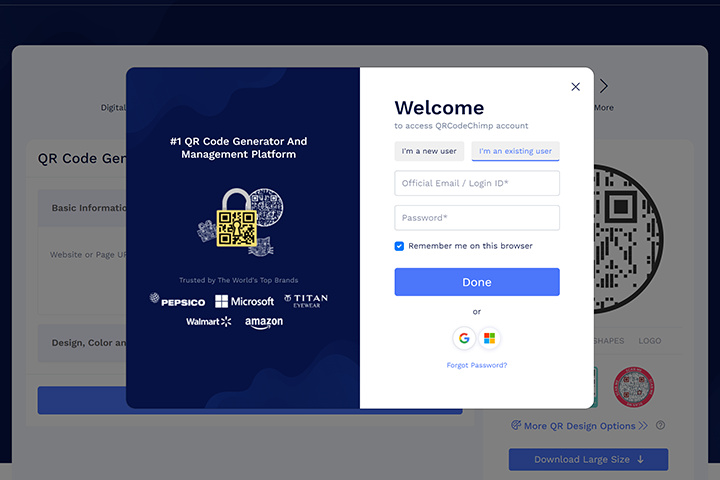
Step 1: Log in to your QRCodeChimp account.
Step 2: Go to your Dashboard.

Step 3: Click on UTM Tracking from the left panel.

Step 4: Toggle UTM Tracking to ON.

Step 5: Add UTM parameters.

Example:
- utm_source
- utm_medium
- utm_campaign
Step 6: Click Add Parameter to include more.

Step 7: Click Save.

2. QR code level
Whether you are creating a QR code or have already created it, follow these steps:
Step 1: Create or edit your component-based (dynamic) QR code.

Step 2: Visit the Design / Settings tab.

Step 3: Scroll down to UTM Tracking and switch the toggle on.

Step 4: Click the + button and click +Add Parameter.

Step 5: Enter UTM parameters.

Example:
- utm_source
- utm_medium
- utm_dept
Step 6: Scroll down and click Next.

What happens when you delete UTM parameters?
The QR codes created before deleting the parameters will still have them. To remove them, you must edit each QR code and disable UTM tracking from the Design/Settings tab.
When to use account-level vs. QR code-level UTM parameters?
Use account-level UTM parameters for a consistent setup across multiple landing page QR codes. It saves time and ensures uniform tracking.
Use QR code-level UTM parameters when you need campaign-specific tracking. For example, placing QR codes on different channels—like posters, flyers, or email—you’ll want to set UTM tags based on the source.
What happens if you set UTM parameters at the account and QR code levels?
The QR code-level UTM parameters override the account-level ones. Only the QR-specific tags will be used.
Example:
Account-level UTM parameters
- utm_source=mark
- utm_medium=qr
- utm_campaign=spring_sale
QR-level UTM parameters
- utm_source=billboard
- utm_medium=qrcodes
- utm_campaign=sale
Final URL: https://www.yourlink.com/?utm_source=billboard&utm_medium=qrcodes&utm_campaign=sale
Where to see insights?
You can track your QR code traffic in Google Analytics (GA4) under Acquisition → Traffic Acquisition. Look at the Session default channel group and Source/Medium fields to see which campaigns or QR placements bring visitors.
For a step-by-step walkthrough, check out Where and how to track QR code in Google Analytics.
Wrapping up: Turn clicks into insights that matter
Setting up UTM tracking on QRCodeChimp takes just a few minutes, and the benefits go a long way. Whether you set it at the account level for consistency or at the QR code level for campaign-specific insights, you get clear, actionable data on how your links perform.
With UTM tracking, you can stop guessing and start measuring. See exactly where your traffic comes from and make smarter, faster marketing calls.
So whether you’re sharing digital business cards, running print ads, or juggling multichannel campaigns, UTM tracking helps you connect the dots and prove what’s working.
Frequently asked questions
What is UTM tracking, and why should I use it with QR codes?
UTM tracking lets you add short tags (called parameters) to your URLs. These tags tell tools like Google Analytics where your traffic came from—helping you measure which campaigns, channels, or placements drive results. When used with dynamic QR codes, it gives you clear insights into performance.
Do I need a paid QRCodeChimp plan to use UTM tracking?
No. UTM tracking works with all dynamic QR codes, even on the free plan. Just make sure you’re logged in to access the feature.
Can I use UTM tracking with static QR codes?
No. Static QR codes don’t support editable links or tracking features, so UTM tracking is only available for dynamic QR codes.
Where can I see UTM tracking results?
Check Google Analytics or any tool that supports UTM parameters. Filter by utm_source, utm_medium, or utm_campaign to see how each link performs.
What UTM parameters should I use?
Start with the basic three:
- utm_source (e.g., newsletter, billboard)
- utm_medium (e.g., qr_code, print)
- utm_campaign (e.g., spring_sale)
You can also use optional ones like utm_term or utm_content for deeper analysis.
Can I edit UTM parameters later?
Yes. With dynamic QR codes, you can update UTM tags anytime—no reprinting required.
What happens if I delete UTM parameters from my account?
QR codes created before deletion will still keep the old UTM tags. To remove them, you must edit each QR code and disable the UTM tags from the Design/Settings tab.
What if I set UTM parameters at both the account and QR code level?
The QR code-level parameters take priority. The account-level UTM tags for that code will be ignored.
You may also like
Approval-Based Digital Business Cards: A Smarter Workflow for HR Teams
Discover how approval-based digital business cards help HR teams ensure branding consistency, prevent misuse, and manage employee cards at scale.
QRCodeChimp’s Analytics Dashboard: A Step-by-step Guide
A guide to QRCodeChimp’s analytics dashboard. Leverage the unique advanced features and metrics to optimize your marketing campaigns.
Link Click Analytics in QRCodeChimp: How To Find Your Top Performing Links
Learn how to track link click analytics in QRCodeChimp, identify top-performing links, and optimize QR code campaigns using link-level insights and analytics.
When Excel Broke: How QRCodeChimp Simplified Digital Business Cards for a Fast-Growing IT/ITES Enterprise
Discover how a fast-growing IT/ITES enterprise replaced Excel uploads with QRCodeChimp’s form-based automation to create branded digital business cards faster, with HR control.
Most Popular
Contact Sales
