NFC business cards are transforming the way professionals connect. With just a tap, you can instantly share your contact information, social media handles, digital portfolio, and more without requiring apps or paper. Because of their ease and efficiency, 55% of users now prefer NFC cards.
The NFC business card market was valued at USD 24.65 million in 2024 and is projected to reach USD 71.22 million by 2033, growing at a CAGR of 9.7%. With their rising popularity, it’s crucial to understand how these cards function across different smartphones.
This guide will walk you through the simple steps to use NFC business cards on both iPhone and Android devices, helping you make a polished, tech-savvy impression every time.
Let’s dive in!
How to check if your phone has NFC
Before trying to use an NFC business card, confirming whether your phone supports NFC is necessary.
On Android:
- Go to Settings and search for “NFC” in the search bar.
- If NFC appears in the results, your device supports it.
- If not, your phone likely doesn’t have NFC functionality.
On iPhone:
- iPhones from iPhone 7 onwards support NFC.
- iPhone XS and newer have background tag reading enabled, meaning they can scan NFC tags automatically when unlocked.
How to use NFC business cards on iPhone
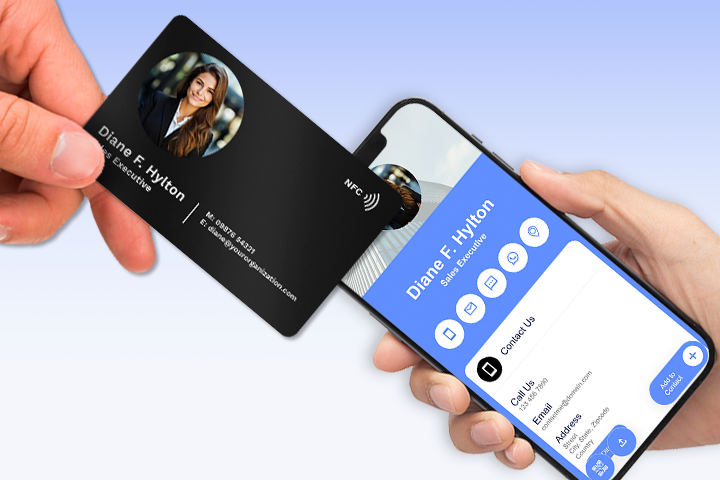
Using an NFC card on your iPhone is super easy. iPhones have NFC enabled by default, so you do not need extra setup.
How to read NFC business cards with iPhone?
To read an NFC business card with your iPhone, hold the card close to the top of your phone. A notification (such as ‘website link’ or ‘contact details,’ depending on the information encoded on the card) will instantly appear on your screen. Click on the notification to view the NFC card information.
Which position is the best to tap NFC business cards on my iPhone?
The best position to tap your NFC business card on your iPhone is where the NFC antenna is located. It is generally located on the back of the iPhone, usually at the top.
🔗 Explore more: NFC Business Cards: A Comprehensive Guide
How to use NFC Business Cards on Android
Using NFC cards with your Android phone is easy. When attending business meetings or conferences, people exchange contact details using these cards. Therefore, knowing how to use NFC cards on your device is essential.
How to enable NFC settings on Android?
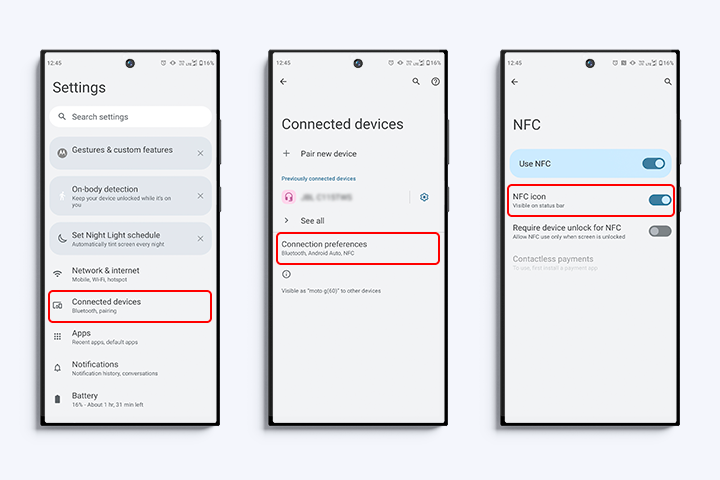
Unlike an iPhone, Android users need to go to settings and enable NFC on their phones. Follow the steps below to enable NFC on your Android phone.
Generic steps to enable NFC:
- Go to Settings.
- Navigate to Connections or Connected devices.
- Select Connection preferences
- Toggle NFC on.
Brand-specific steps:
Samsung
Settings → Connections → NFC and contactless payments → Toggle on.
OnePlus/Motorola/Google Pixel
Settings → Connected devices → Connection preferences → NFC → Toggle on.
Xiaomi/Redmi/POCO
Settings → Connection & sharing → NFC → Toggle on.
💡 Pro tip! Type “NFC” in the search bar in Settings to find it more quickly.
How to read NFC cards with Android?
You can easily read an NFC business card with Android by tapping it on your phone.
Gently tap or bring the NFC business card close to your phone. It may take a moment, but the details of the card will show on your phone.
Which position is the best to tap NFC business cards on an Android phone?
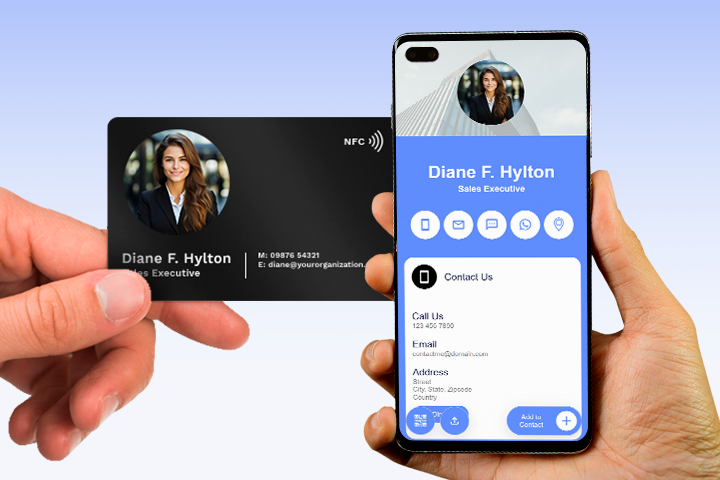
Your Android phone has a specific area where you can tap or hold your NFC card for instant reading. This “sweet spot” is where the NFC antenna is located, typically near the phone’s back camera.
The position of the NFC antenna varies depending on your phone’s brand, but it is generally located on the back. You may need to experiment by tapping the NFC card at different spots on the back of your phone to find the precise location where it reads instantly.
Popular NFC apps for iPhone and Android
Some popular NFC apps for iPhone and Android phones include NFC Tools, NFC TagWriter by NXP, and Smart NFC. These apps allow you to read, manage, and even program NFC tags for your business cards.
Conclusion
NFC business cards are becoming increasingly popular for professional networking and sharing contact information. Knowing how to use your iPhone or Android to read an NFC card is more important than ever. Hence, mastering this technology makes it easy to exchange contact details using NFC cards.
Frequently asked questions
Can I read NFC business cards on Android without using a specific app?
Yes, read NFC business cards on Android without using a specific app, as most Android phones come with built-in NFC reading capabilities. Just ensure NFC is enabled in your phone’s settings.
Is an internet connection required to use NFC business cards?
No. You can read the basic data stored on the NFC chip with your phone without an internet connection. However, you will need an internet connection if your card is linked to an online profile or website.
What are some useful NFC apps for iPhone and Android?
Some popular NFC-related apps for iPhone and Android include NFC Tools, NFC Tag Writer, and Smart NFC. These apps allow you to write and read data on NFC cards.
You may also like
Approval-Based Digital Business Cards: A Smarter Workflow for HR Teams
Discover how approval-based digital business cards help HR teams ensure branding consistency, prevent misuse, and manage employee cards at scale.
QRCodeChimp’s Analytics Dashboard: A Step-by-step Guide
A guide to QRCodeChimp’s analytics dashboard. Leverage the unique advanced features and metrics to optimize your marketing campaigns.
Link Click Analytics in QRCodeChimp: How To Find Your Top Performing Links
Learn how to track link click analytics in QRCodeChimp, identify top-performing links, and optimize QR code campaigns using link-level insights and analytics.
When Excel Broke: How QRCodeChimp Simplified Digital Business Cards for a Fast-Growing IT/ITES Enterprise
Discover how a fast-growing IT/ITES enterprise replaced Excel uploads with QRCodeChimp’s form-based automation to create branded digital business cards faster, with HR control.
Most Popular
Contact Sales
