Most QR code stickers say “Scan Me,” “Scan Here,” or “Scan Now.” All three tell people how to act, not why. On a menu, flyer, or product box, a code with no stated payoff gets skipped by anyone who isn’t already curious, and the print run you paid for earns fewer scans than it should.
QRCodeChimp now lets you create custom QR code stickers with your own message. Instead of a generic prompt, your sticker can say View Menu, Add Contact, Register Now, or Get 20% Off.
In QRCodeChimp, the frame around a QR code is called a sticker. You can customize the QR code sticker text on supported designs while keeping your QR code colors, logo, and overall design intact.
Custom sticker text is available to all users and works across all QRCodeChimp solutions.
Learn why we added custom text to QR code stickers, and how you can add it to increase your QR code scans and engagement.
Key Takeaways:
- Custom sticker text gives people a clear reason to scan.
- Match your CTA to the QR code’s purpose and placement.
- Keep sticker text short, specific, and easy to read.
- Customize fonts, colors, size, and positioning to match your brand.
- Test the final QR code design before printing or publishing.
- Why we introduced custom text for QR code stickers
- Why use custom text on QR code stickers?
- What can you customize in QR code stickers?
- How to add custom text to a QR code sticker
- What can you write on a QR code sticker?
- Tips for writing effective QR code sticker text
- Give people a reason to scan
- Frequently Asked Questions
Why we introduced custom text for QR code stickers
Many QRCodeChimp users wanted more flexibility than predefined sticker text, such as “Scan Me” or “Scan Here.”
Different QR codes serve different purposes. A restaurant may want to say View Menu, a digital business card may use Add Contact, while a promotional QR code may say Get 20% Off.
Additionally, brands may want to disclose upfront what people would receive by scanning the QR code, such as Download PDF or Join the Loyalty Program.
That feedback led us to introduce customizable text for supported QR code stickers, giving users more control over the call to action displayed around their QR codes.
Why use custom text on QR code stickers?
A QR code by itself may not tell people what will happen when they scan it. The text on the QR code frame gives them context before they decide whether to take action.
Compare:
- Scan Me → View Menu
- Scan Here → Add Contact
- Scan Now → Get 20% Off
- Scan the QR Code → Join the Loyalty Program
A specific QR code call to action tells people what they can expect after scanning and gives them a clearer reason to act. It also helps set the right expectation before they reach the destination.
Instead of relying on a generic ‘Scan Me’ QR code frame, you can make the message relevant to the content, offer, or action waiting on the other side.
What can you customize in QR code stickers?
Start by choosing a supported design from the Custom Stickers section. Depending on the selected sticker, you can customize:
- Sticker text
- Text size
- Font and available font weights
- Text, frame, panel, and icon colors
- QR code size
- QR code horizontal and vertical position
You can also use your existing QR code colors or apply custom colors to the sticker.
If your QR code already includes a logo, it stays in place, so you can create QR code stickers with logo, custom text, and brand colors together.
Note: Custom text is available for designs listed under the Custom Stickers section. Available customization options may vary slightly by sticker design.
How to add custom text to a QR code sticker
QRCodeChimp’s QR code sticker maker is built into the QR code editor, so you can customize sticker text while creating a new QR code or editing an existing one.
Step 1: Create or edit your QR code
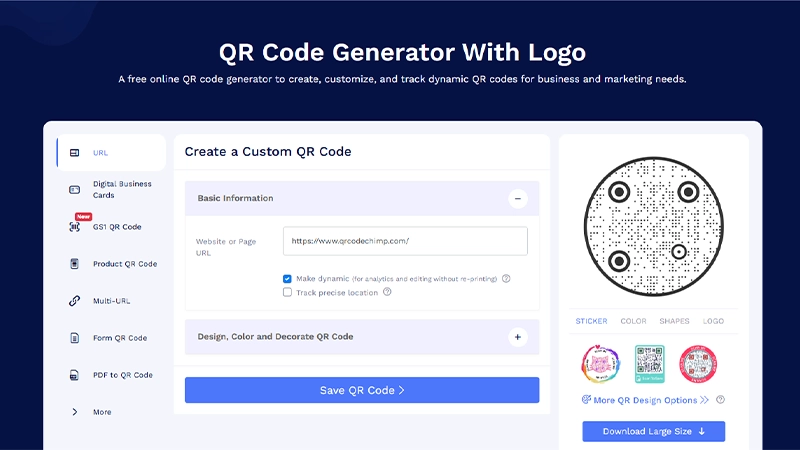
Choose any QRCodeChimp solution and enter the required information, or open an existing QR code for editing.
For this tutorial, we’ll use the URL QR code solution.
Step 2: Open More QR Design Options
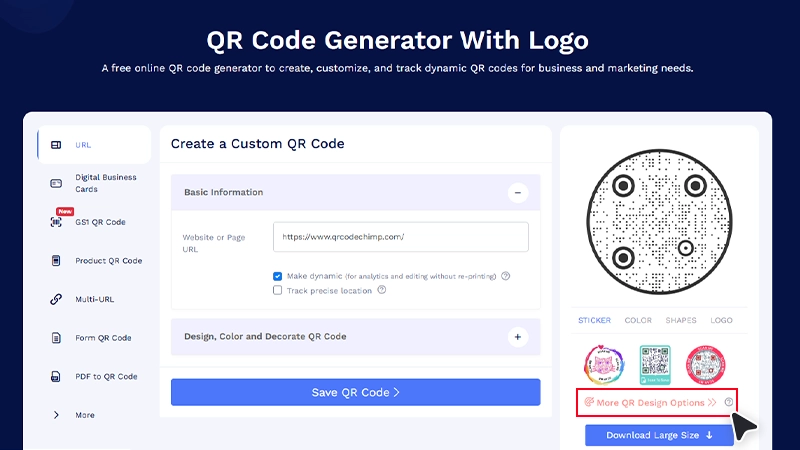
Go to the QR code customization section and click More QR Design Options. Alternatively, you can click the “Design, Color, and Decorate QR Code” tab to open the design options.
Step 3: Choose a custom sticker
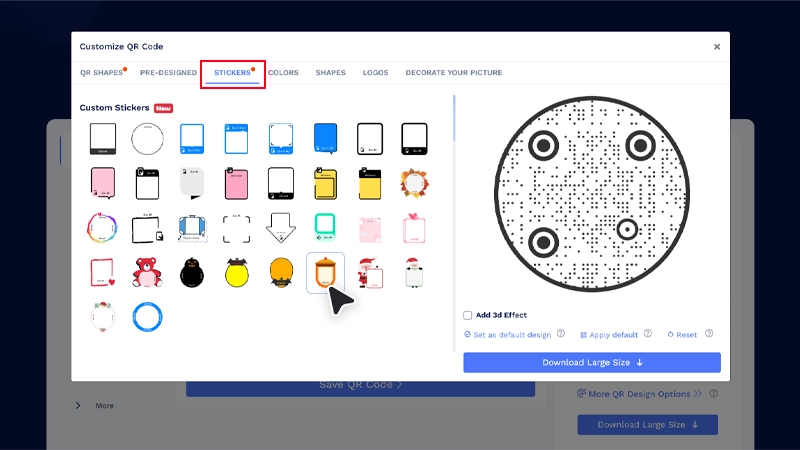
Open the Stickers tab and select a design from the Custom Stickers section. A Custom sticker pop-up will open.
Step 4: Add your sticker text
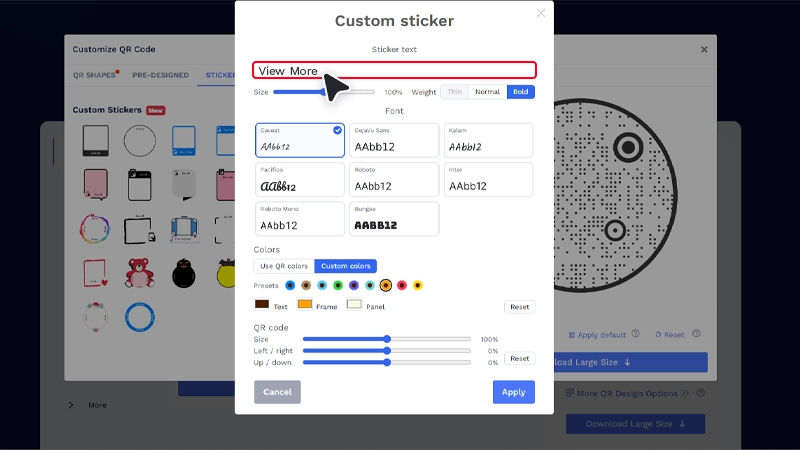
In the pop-up, replace the default text with your own message or CTA.
For example, you could use View Menu, Download Guide, Add Contact, or Claim Offer, depending on what your QR code does.
Tip: To edit the text later without changing the sticker design, click the selected sticker again to reopen the Custom sticker popup and update the text.
Step 5: Customize the sticker
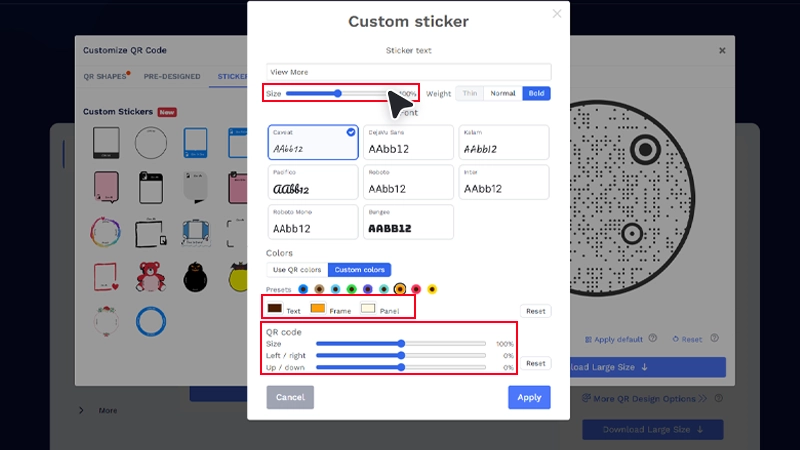
Adjust the text size, font, font weight, colors, QR code size, and QR code position to suit your design.
Preview changes as you customize the sticker to make sure the text and QR code stay clear.
Note: If the text is too long, it may not fit the frame. Reduce the size or shorten the text to fit it.
Step 6: Apply and save
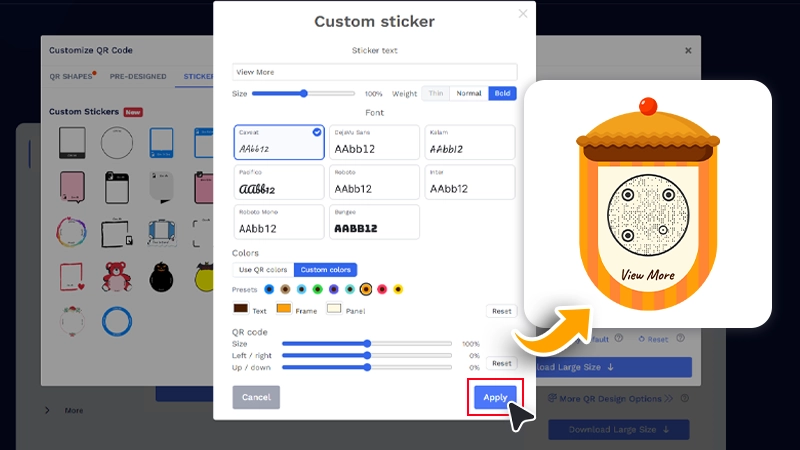
Once you’re satisfied with the design, click Apply, then save your QR code.
Always test the finished QR code before printing or publishing it.
What can you write on a QR code sticker?
Your QR code sticker text should match what people will find after scanning. Start with the purpose of the QR code, then choose the shortest phrase that clearly describes the result.
| Use case | Example sticker text |
|---|---|
| Digital business card | Add Contact, Let’s Connect |
| Restaurant | View Menu, Order Here |
| Promotion | Get 20% Off, Claim Offer |
| Product | View Details, Learn More |
| Reviews | Leave a Review, Share Feedback |
| Events | Register Now, Check In |
| PDF or brochure | View Brochure, Download Guide |
The best message also depends on where the QR code appears. A table tent can simply say Order Here because the context is obvious, while a flyer or sign may need a more specific message.
Tips for writing effective QR code sticker text
The right sticker text can make your QR code easier to understand and more compelling to scan. Keep these tips in mind when choosing your message.
✅Be specific and keep the message clear
People often read the sticker in a second, sometimes from a distance. Keep the message clear and easy to understand.
- Keep the message short. Two or three words are often enough.
- Tell people what they will get after scanning.
- Use a specific CTA instead of a generic prompt.
- Highlight the benefit when there is one.
- Match the message to the QR code’s purpose and placement.
- When you print QR code stickers, make sure both the text and QR code remain clear at the final print size.
- Test the complete QR code design before publishing or printing.
The difference is easy to see:
- Scan Here → Generic
- View Menu → Specific
- Get 20% Off → Benefit-led
✅Test different messages to see what works
Sometimes, two messages can both make sense for the same QR code. For example, a restaurant may choose between View Menu and Order Here, while a promotional QR code may use Claim Offer or Get 20% Off.
If you use dynamic QR codes, you can test different sticker messages across separate QR codes pointing to the same destination and compare scan activity in the QRCodeChimp dashboard.
This can help you identify which message works better for a particular placement or audience.
Remember that sticker text is part of the printed QR code frame design. If you change the text later, the updated version will appear in new downloads, but you’ll need to reprint previously printed stickers.
✅Be mindful of the text size and character length
Longer CTAs may provide more context, but QR code stickers have limited space. If the text is too long, it may not fit comfortably within the frame.
You can reduce the font size to make it fit, but text that is too small can become difficult to read, especially when viewed from a distance or printed at a smaller size.
Keep the message short enough to remain clear and readable. Aim for a balance between the amount of text and the font size so the CTA is easy to notice and understand.
Give people a reason to scan
A QR code sticker is the last thing someone sees before deciding whether to scan. Instead of relying on a generic prompt, use text that tells them what is waiting on the other side.
Create custom QR code stickers that match your brand, communicate a clear call to action, and tell people exactly why they should scan.
Frequently Asked Questions
Can I add custom text to any QR code?
Custom sticker text works across QRCodeChimp solutions, but you need to choose a supported design from the Custom Stickers section.
Does sticker text change the QR code itself?
No. The sticker text appears in the frame around the QR code and does not change the data encoded in it. However, always test the final design at the intended print size to make sure the QR code scans properly.
Is custom sticker text available to all users?
Yes. Custom sticker text is available to all QRCodeChimp users regardless of the plan.
Can I change the sticker text after printing?
You can edit the sticker text on the saved QR code and use the updated design for future downloads. However, already printed stickers will not update and will need to be reprinted.
How do I add a call-to-action frame around a QR code?
In QRCodeChimp, the frame around a QR code is called a sticker, and the call to action is the text displayed on it.
To add a call-to-action frame around a QR code, open More QR Design Options, go to Stickers, choose a design from the Custom Stickers section, replace the default text with your CTA, and click Apply.
You can also customize the text, frame, panel, colors, QR code size, and positioning to create a QR code frame design that matches your use case or brand.
You may also like
How to Make QR Code Stickers That Scan Reliably
Learn how to make QR code stickers that scan reliably. Choose the right QR type, size, design, file format, material, and placement before printing.
How to Create a Google Review QR Code for Your Business
Learn how to create a Google Review QR code using your Google review link. Customize, test, and download your QR code for print and digital use.
How to Create a QR Code for Your Amazon Wish List or Registry
Create a QR code for Amazon Wish List, baby registry, or wedding registry in 3 easy steps. Copy your link, generate, customize, and share by scan.
QRCode Monkey Alternative: QRCodeChimp vs. QRCode Monkey
Looking for a QRCode Monkey alternative? Compare QR Code Monkey and QRCodeChimp on static and dynamic QR codes, analytics, customization, pricing, digital business cards, bulk creation, and team features.
Most Popular
Contact Sales