Want customers to leave Google reviews without searching for your business manually? A Google Review QR code gives them a direct scan path to your review page.
To create one, copy your Google review link from your Google Business Profile, paste it into QRCodeChimp’s Google Review QR Code Generator, customize the design, test the QR code, and download it for print or digital use.
This guide shows you how to create a Google Review QR code for your business, test it properly, and use it across customer touchpoints.
What is a Google Review QR code?

A Google Review QR code is a QR code that sends customers to your Google review page. When customers scan it, they can open the review page and share their feedback.
Instead of asking customers to search for your business on Google, find the right profile, and look for the review option, you can give them one direct path.
This makes review collection easier at checkout counters, receptions, billing desks, receipts, invoices, packaging, delivery inserts, appointment cards, and follow up messages.
Why use a Google Review QR code?
A Google Review QR code makes it easier for customers to reach your review page without searching for your business manually.
It helps you:
- Reduce the steps needed to leave a review
- Collect reviews from offline touchpoints such as counters, receipts, packaging, and invoices
- Make review requests easier for staff to explain
- Use one scannable review path across print and digital materials
- Create a branded QR code that fits your customer-facing materials
The benefit is simple: customers are more likely to act when the review process is easy, visible, and available at the right moment.
How to get your Google review link
Before you create the QR code, make sure you have access to the Google Business Profile for the business or location you want customers to review.
Follow these steps:
Step 1: Sign in to the Google account connected with your Business Profile.
Open your Google Business Profile.
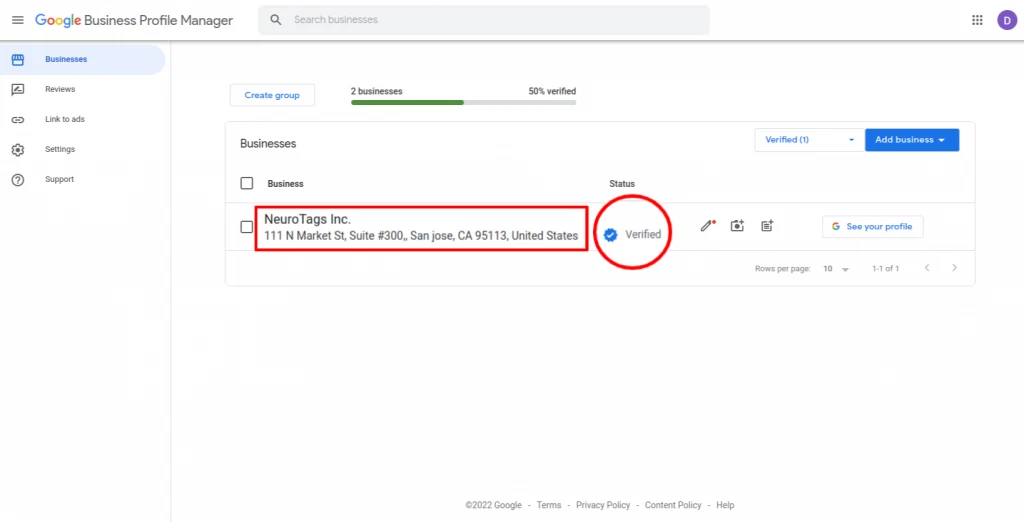
Step 2: Go to the reviews or review sharing option.
Step 3: Copy the review link for your business.
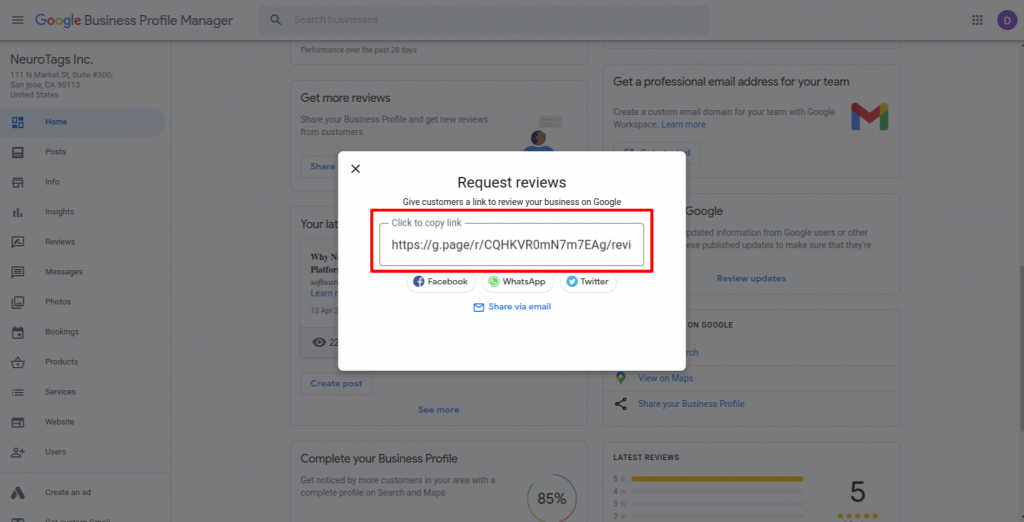
Step 4: Open the link in a browser to check that it points to the right business profile.
Once you have the review link, you can turn it into a QR code.
How to create a Google Review QR code
Follow these steps to create your Google Review QR code with QRCodeChimp.
Step 1: Open the Google Review QR Code Generator
Go to QRCodeChimp’s Google Review QR Code Generator.
This is the main page where you can create a QR code that sends customers to your Google review page.
Step 2: Paste your Google review link
Paste the review link copied from your Google Business Profile.
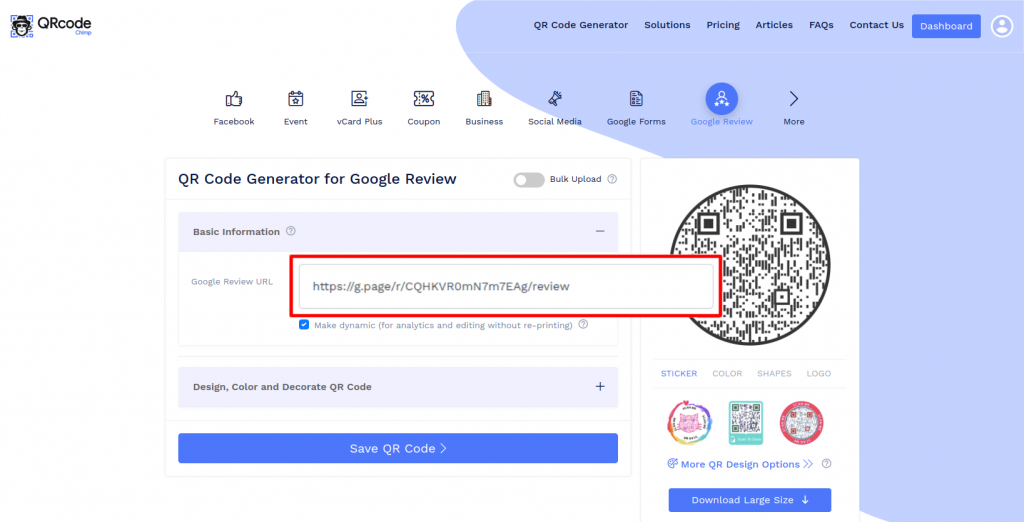
Check the link carefully before moving ahead. It should open the correct review page for the right business location.
Step 3: Customize your QR code
Customize the QR code to match your brand. You can use your brand colors, add your logo, and choose a QR code design that fits your printed or digital material.
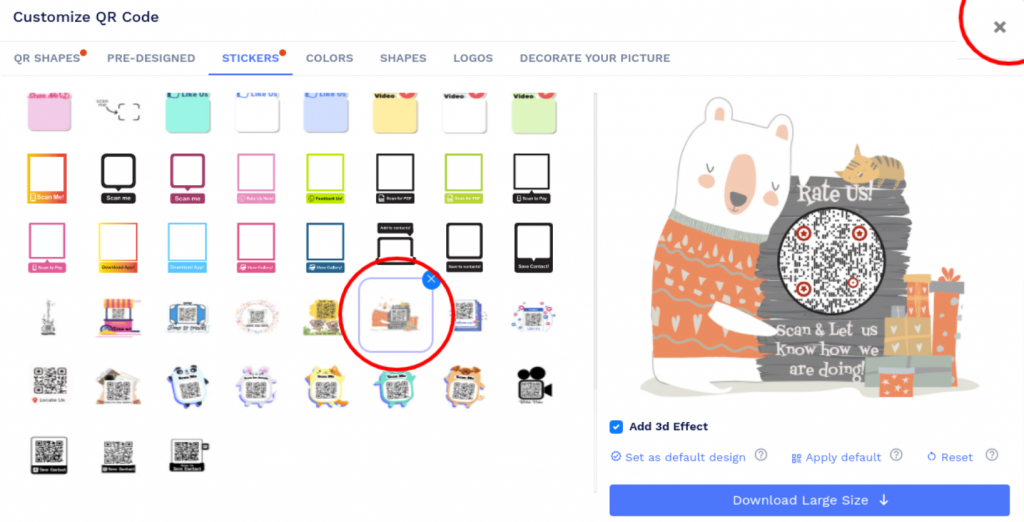
Keep the design clean and easy to scan. The QR code should look branded, but scanning should remain the priority.
Step 4: Save and download the QR code
After customizing the QR code, save it and download it in the format you need.
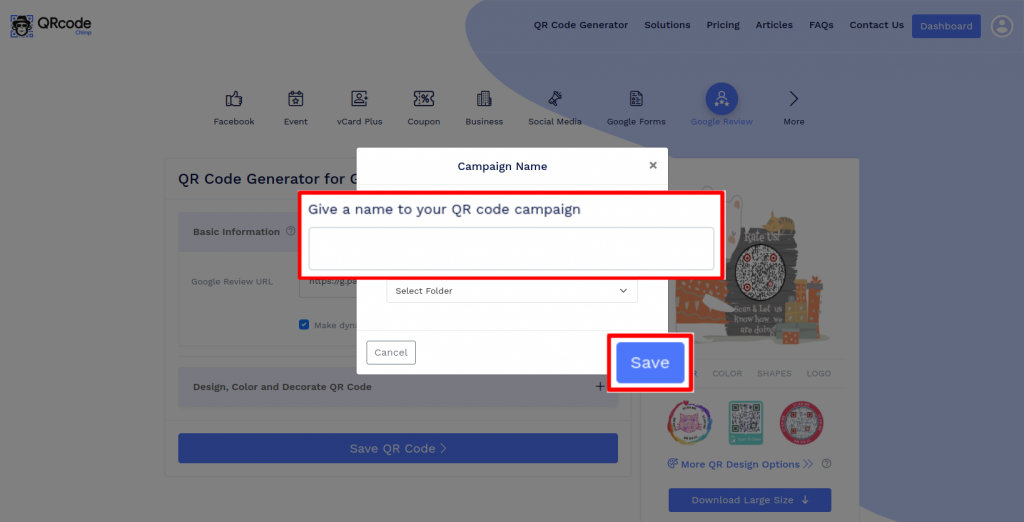
Use a high quality format for printed materials such as posters, table tents, invoices, packaging inserts, or checkout displays.
Step 5: Test the QR code
Before publishing or printing, scan the QR code with different phones.
Check that:
- The QR code scans quickly
- The review page opens correctly
- The business profile is correct
- The QR code works from the expected scan distance
- The printed size is easy to scan
Testing is especially important before large print runs.
Where to use your Google Review QR code
Once your QR code is ready, place it where customers are most likely to respond.
Good placements include:
- Billing counters
- Reception desks
- Receipts and invoices
- Product packaging
- Delivery inserts
- Appointment cards
- Table tents
- Thank you cards
- Service completion forms
- Follow up emails
The best placement depends on your business. A restaurant may use table tents and bills. A salon may use the checkout desk or appointment card. A service business may use invoices or job completion cards.
For placement strategy and timing, read our guide on how to get more Google reviews with a QR code.
Common mistakes to avoid
A Google Review QR code is simple to create, but small mistakes can reduce scans or send customers to the wrong place.
⚠ Using the wrong review link
Always check that the link opens the correct Google review page. This is especially important for businesses with multiple locations.
⚠ Not testing before printing
Do not send the QR code to print without testing it. Scan it from different devices and distances.
⚠ Making the QR code too small
A QR code on a receipt can be smaller than a QR code on a poster, but it should still be easy to scan.
⚠ Using unclear text
Customers should know what happens when they scan. Add a clear message such as “Scan to leave a Google review.”
⚠ Overdesigning the QR code
Branding is useful, but the QR code must remain scannable. Avoid low contrast, crowded designs, or poor print quality.
⚠ Sending all locations to one review page
For multi-location businesses, create separate Google Review QR codes for each location. This helps customers review the correct branch.
Why create your Google Review QR code with QRCodeChimp?
QRCodeChimp helps you create a branded Google Review QR code that is easy to use across print and digital touchpoints.
You can customize the QR code with your logo, colors, shapes, and scan message. You can also create dynamic QR codes when you need more flexibility, such as tracking scans or updating the destination later.
For the full feature set, visit QRCodeChimp’s Google Review QR Code Generator.
Conclusion
Creating a Google Review QR code makes it easier for customers to reach your review page without searching manually.
Get your Google review link, create your QR code with QRCodeChimp, customize it, test it, and place it where customers can scan at the right moment.
Ready to create yours? Use QRCodeChimp’s Google Review QR Code Generator and make reviews easier for your customers.
Frequently asked questions
How do I get my Google review link?
You can get your Google review link from your Google Business Profile. Open your profile, go to the review sharing option, and copy the review link.
Can I create a Google Review QR code for free?
Yes, you can create a Google Review QR code with QRCodeChimp. Visit the Google Review QR Code Generator to create and customize your QR code.
Can I add my logo to a Google Review QR code?
Yes. QRCodeChimp lets you customize your Google Review QR code with your logo, brand colors, QR shapes, and scan message.
Can I use one Google Review QR code for multiple locations?
It is better to create a separate QR code for each location. This ensures customers reach the correct Google review page for the branch they visited.
Where should I place my Google Review QR code?
You can place it on receipts, invoices, billing counters, receptions, packaging, delivery inserts, appointment cards, table tents, posters, and follow up messages.
How do I test my Google Review QR code?
Scan the QR code with different phones before printing or sharing it. Make sure it opens the correct review page and scans easily from the expected distance.
Should I use a static or dynamic Google Review QR code?
Use a static QR code for a simple, fixed review link. Use a dynamic QR code if you want scan tracking, campaign flexibility, or the ability to update the destination later.
You may also like
How to Add Custom Text to QR Code Stickers
Learn why we added custom text to QR code stickers, and how you can add it to increase your QR code scans and engagement.
How to Create a Circular QR Code With Logo + Best Practices and Mistakes to Avoid
Learn how to create a circular QR code (round or circle) with your logo, plus best practices, scannability tips, and mistakes to avoid. Free to start on QRCodeChimp.
GS1 Application Identifiers Explained: GTIN, Batch, Serial, Expiry, and More
This guide explains the most important GS1 Application Identifiers used for product identification, traceability, retail, and packaging.
How to Group Cards in QRCodeChimp Entra ID Setup
Learn to organize digital business cards effectively using QRCodeChimp Entra ID grouping. Simplify card management by group, filter, or all-in-one.
Most Popular
Contact Sales