Creating a QR code for your latest campaign, checking last month’s scan analytics, or finding leads from a recent event can now be as simple as sending a message. With QRCodeChimp’s new MCP integration, you can connect your account to AI assistants like ChatGPT and Claude and get these tasks done through everyday conversations.
Instead of navigating through different dashboard sections for every task, you can simply describe what you need. Your connected AI assistant can help you create QR codes, manage existing ones, retrieve analytics, and access valuable account information, all through natural-language prompts.
Let’s explore what this integration brings to your QRCodeChimp experience and how you can get started.
Key Takeaways:
- Create and update supported QR codes using simple AI prompts.
- Track QR code performance and scan analytics through AI.
- Access form responses and contacts directly in AI conversations.
- Find existing QR codes and folders without searching manually.
- Stay in control with permissions and confirmation before changes.
Meet a new way to manage your QR codes
You’ve probably used AI tools to write content, research ideas, or get answers. But what if they could also help you create QR codes, check campaign performance, and retrieve leads directly from your QRCodeChimp account?
That’s what QRCodeChimp’s new integration makes possible. It uses Model Context Protocol (MCP), a technology that allows AI assistants to connect with external applications and interact with their tools and data.
Once connected, your AI assistant can access supported QRCodeChimp features and perform tasks based on your instructions. You can ask your AI assistant to create a digital business card, update existing QR codes, analyze scan performance, check form responses, or find a QR code from an earlier campaign, all without navigating through multiple dashboard sections.
And you remain in control. The integration requires confirmation before creating or updating QR codes, while your QRCodeChimp account remains the central place to manage everything.
What can you do with QRCodeChimp’s MCP integration?
From creating and managing QR codes to analyzing campaign performance and finding existing codes, the integration helps you handle everyday QR code tasks through simple chat prompts.
✅ Create and update QR codes with a simple message
Need a QR code for a new campaign or want to update an existing one? Describe what you need, and your connected assistant can handle the supported creation or update process.
The integration supports individual dynamic URL, Digital Business Card, vCard, Email, SMS, and WhatsApp QR codes. You can specify details such as the QR code name, content, colors, and folder. Your assistant confirms the information before saving it, and all newly created or updated QR codes are available in your QRCodeChimp dashboard.
Try this prompt: Create a dynamic URL QR code for “https://example.com” named “Winter Menu”.
✅ Check QR code performance without opening reports
Want to know how your latest campaign performed? Ask your AI tool to retrieve scan analytics for a specific QR code, folder, or your entire account.
Depending on your plan, you can access scan totals, activity trends, geographical information, and device or browser data. Eligible plans also support detailed scan reports.
Try this prompt: How did “Cafe Feedback QR” perform in September?
✅ Access form responses directly from your AI conversation
Checking responses from a recent event, customer survey, or lead generation campaign? Your AI assistant can retrieve your QRCodeChimp forms and display the responses associated with a specific form or QR code.
You can view available form fields, submission statuses, and integration statuses without manually opening individual response records.
Try this prompt: Show the responses received this month for the form “London Event Survey”.
✅ Find the contacts you need
Looking for leads collected through your QR codes or digital business cards? The integration can retrieve contacts from your QRCodeChimp account, including their available contact details, tags, and sources.
You can also search by name or filter contacts by tag, source, QR code, or archived status to find the information you need.
Try this prompt: Show me all contacts tagged “Lead”.
✅ Find any QR code without digging through your dashboard
Need a QR code from an old campaign but can’t remember where you saved it? Just ask your AI assistant to find it. You can retrieve existing QR codes and filter them by name, type, or status, saving you the trouble of searching manually.
Try this prompt: “Show me all my active QR codes.”
✅ Get a quick overview of your QR code folders
If you manage QR codes across multiple campaigns, projects, or departments, keeping track of your folders is important. You can ask your connected AI assistant to list your regular and bulk QR code folders, along with the number of QR codes in each.
Try this prompt: “Which QR code folders do I have?”
Ready to try it? Here’s how to connect
Getting started with QRCodeChimp’s MCP integration is straightforward. You can currently connect QRCodeChimp with Claude or ChatGPT and start using supported features through natural-language prompts.
Connect QRCodeChimp with Claude
QRCodeChimp is available directly in Claude’s connector directory, so you don’t need to manually configure an MCP server. Follow these steps to establish the connection:
1. Sign in to your Claude account and navigate to Settings → Connectors.
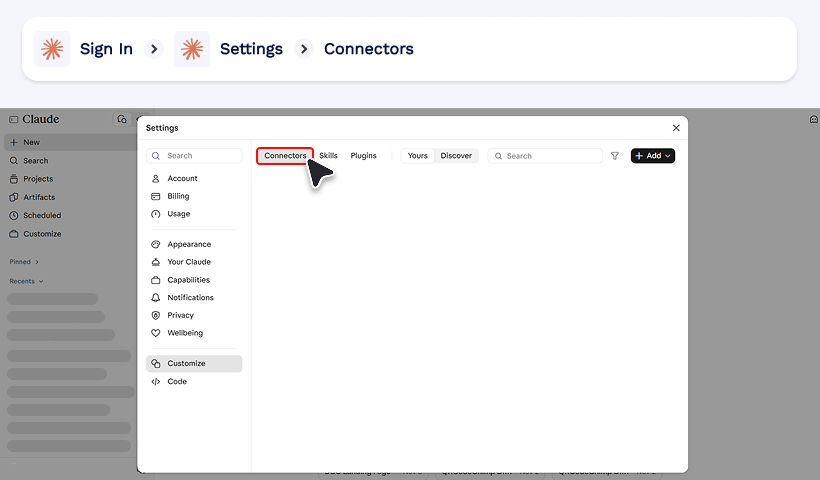
2. Search for QRCodeChimp or open the QRCodeChimp connector listing.
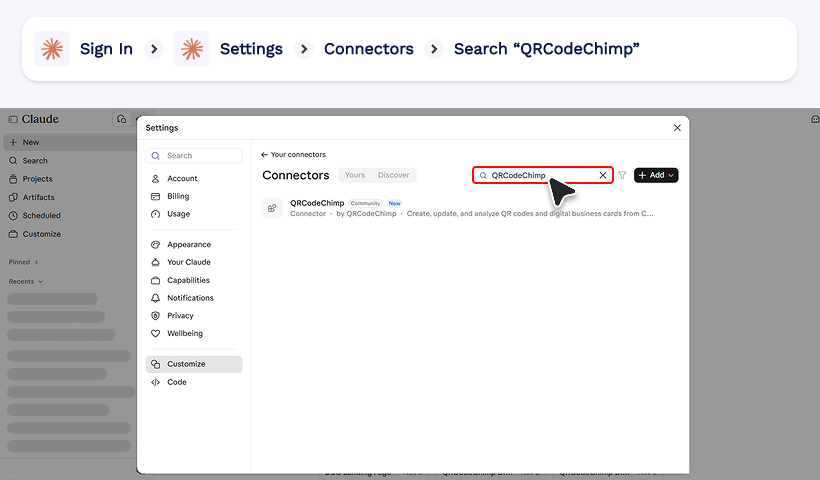
3. Select QRCodeChimp and click Connect to Claude. If you haven’t signed into your QRCodeChimp account, you’ll be prompted to sign in.
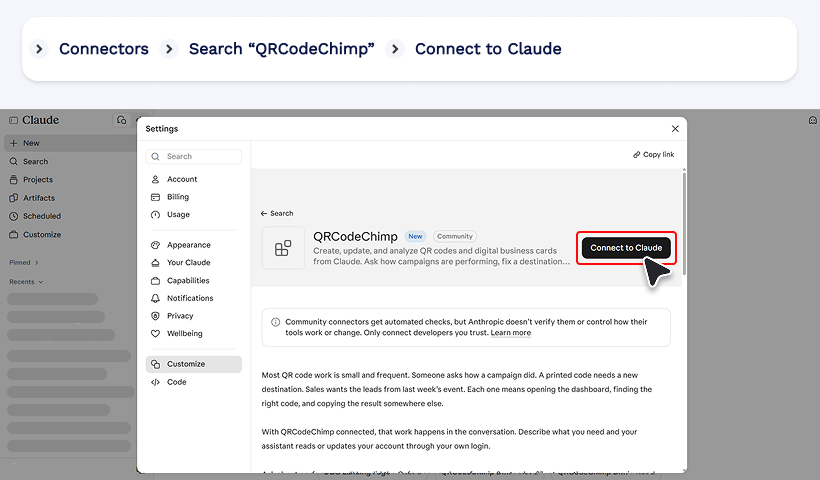
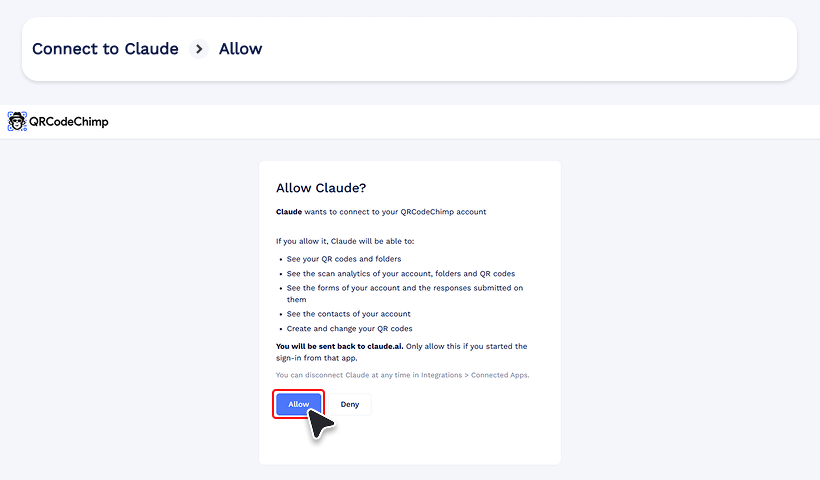
4. Review the requested permissions and click Allow.
5. Open a new Claude conversation and enter a prompt such as “List my QR codes.”
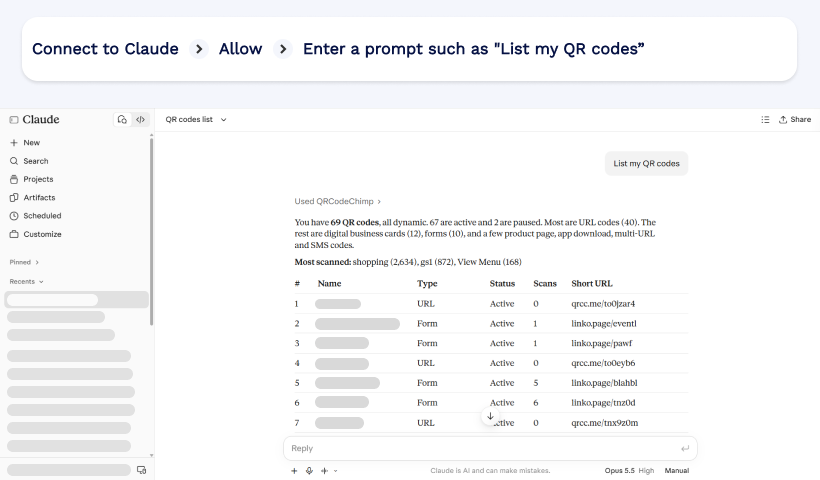
Claude may ask for permission the first time it uses a QRCodeChimp tool. Once you approve the request, it can retrieve the relevant information and display the results in your conversation.
Your QRCodeChimp account is now connected to Claude, and you can begin using the supported features.
Connect QRCodeChimp with ChatGPT
You can connect QRCodeChimp to ChatGPT by adding it as a custom MCP server. Here’s how to set it up:
- Sign in to your ChatGPT account and open Plugins.
- Click Add (+) and select Add custom MCP server.
- Enter QRCodeChimp as the connector name.
- Under Connection, enter the MCP server URL: https://mcp.qrcodechimp.com/mcp.
- Select OAuth authentication, review the security notice, and click Create as a plugin.
- Follow the connection prompts and click Allow on the QRCodeChimp authorization page.
- Once connected, open a conversation and select @QRCodeChimp to start using the integration.
To check whether everything is working, ask ChatGPT to show the QR codes in your QRCodeChimp account. The assistant will retrieve the available information and display the results in your conversation.
Note: Custom MCP connections depend on your ChatGPT plan and workspace permissions. Your workspace administrator may need to enable or approve the connection.
You can verify either connection by visiting QRCodeChimp → Integrations → Connected Apps and checking its status.
Your AI assistant can help. You’re still in control.
Connecting QRCodeChimp to an AI assistant gives it access to supported features, but it doesn’t take away your control over your QR codes or account information.
QRCodeChimp’s MCP integration follows account-based authorization and permission controls. You must sign in to your QRCodeChimp account and approve the requested permissions before establishing a connection. The integration doesn’t require an API key, and you don’t need to share your password directly with the AI platform.
The integration also distinguishes between reading information and making changes. Your assistant can retrieve permitted data, such as QR codes, analytics, form responses, and contacts. However, before creating or updating a QR code, it presents the details and asks for your confirmation. This helps you review the intended changes before they are saved.
Your existing QRCodeChimp account permissions and plan limits continue to apply. Any QR codes created through AI count toward your plan’s allowance, and requests that exceed those limits are rejected. You can also disconnect your AI assistant anytime by visiting Integrations → Connected Apps in QRCodeChimp.
When you request information through the integration, relevant account data is shared with your chosen AI service to process the request, subject to the provider’s privacy practices.
For more information, refer to QRCodeChimp’s MCP integration documentation.
A few things to know before you start
While the MCP integration supports several everyday QR code management tasks, some operations still require the QRCodeChimp dashboard. Currently, you can create or update one supported dynamic QR code at a time. Static QR code creation, bulk creation, and other QR code solutions are not supported through MCP.
The integration currently supports dynamic URL, Digital Business Card, vCard, Email, SMS, and WhatsApp QR codes. QR code lists, contacts, and form responses are retrieved in pages of up to 25 records, and you can request additional results when needed.
Analytics, form responses, and other features also remain subject to your existing QRCodeChimp plan and account permissions. The integration provides another way to access supported features without changing your plan’s capabilities.
Final thoughts
Whether you’re launching a new campaign, managing digital business cards, reviewing QR code performance, or checking your latest leads, QRCodeChimp’s MCP integration gives you a simpler way to handle these tasks.
By connecting QRCodeChimp to a supported AI assistant, you can turn everyday instructions into real actions without constantly switching between tools and dashboard sections. Your QR codes and account data remain in QRCodeChimp, while AI becomes another convenient way to work with them.
Frequently asked questions
What is MCP integration in QRCodeChimp?
MCP integration allows QRCodeChimp to connect with compatible AI assistants through Model Context Protocol. It enables users to create and update supported QR codes, retrieve analytics, view form responses, and access contacts using natural-language prompts.
Which AI assistants can I connect to QRCodeChimp?
QRCodeChimp currently supports MCP integration with ChatGPT and Claude. You can connect your QRCodeChimp account to either platform and access supported features directly through AI conversations.
Do I need technical knowledge to use the integration?
No. You don’t need coding knowledge or API keys to use QRCodeChimp’s MCP integration. Simply connect your account, authorize the required permissions, and start asking your AI assistant to perform supported tasks.
Can I create digital business cards using AI assistants?
Yes. You can create supported digital business cards by providing profile details such as your name, company, designation, phone number, and email address. Your connected assistant collects the necessary information and asks for confirmation before creating the card.
Can I view QR code analytics through an AI assistant?
Yes. You can retrieve analytics for individual QR codes, folders, or your entire account over a selected date range. Available metrics and detailed reports depend on your QRCodeChimp plan.
Can an AI assistant change my QR codes without my approval?
The QRCodeChimp MCP write tool requires confirmation before creating or updating a QR code. Your assistant presents the details for review, and the integration follows your existing account permissions and plan limits.
You may also like
Edible QR Codes: How to Make Them + Real-world Examples
An edible QR code is a scannable QR code printed or formed from materials safe to eat. Here's how to make edible QR codes, what to watch out for, and how to put them to good use.
GS1 Application Identifiers Explained: GTIN, Batch, Serial, Expiry, and More
This guide explains the most important GS1 Application Identifiers used for product identification, traceability, retail, and packaging.
Steps to Integrate Microsoft Entra ID (Azure AD) with QRCodeChimp
Learn how to connect Microsoft Entra ID with QRCodeChimp to automate digital business card creation, improve security, and simplify onboarding.
Blurry QR Code? Why It Happens and How to Fix It
Blurry QR code? Learn what causes poor QR clarity and how to fix low resolution, resizing, compression, printing, and design issues for reliable scanning.
Most Popular
Contact Sales