Creating event tickets involves more than generating a QR code.
Event organizers need tickets that clearly communicate event details, follow brand guidelines, and can be shared easily with attendees. A well-designed event ticket QR code helps streamline distribution and ensures a smooth experience for both organizers and guests.
This guide walks you through how to create event ticket QR codes, customize their design, and share them across digital and print channels. You’ll learn how to add essential event information, design tickets that scan reliably, and distribute them efficiently to your attendees.
How to make Event QR code tickets for large events at scale (Bulk creation)
QRCodeChimp’s bulk upload feature allows you to efficiently create QR code tickets at scale for large events.
If you’re new to event ticket QR codes, check out: Event Ticket QR Code: The Complete Guide for 2025
That said, here’s how to create QR code event tickets in bulk.
Log in to your QRCodeChimp account, navigate to the Event Ticket QR Code Generator, and follow the steps below.
Step 1: Enable bulk upload
Turn on the bulk upload feature, read the instructions carefully, and click ‘OK.’
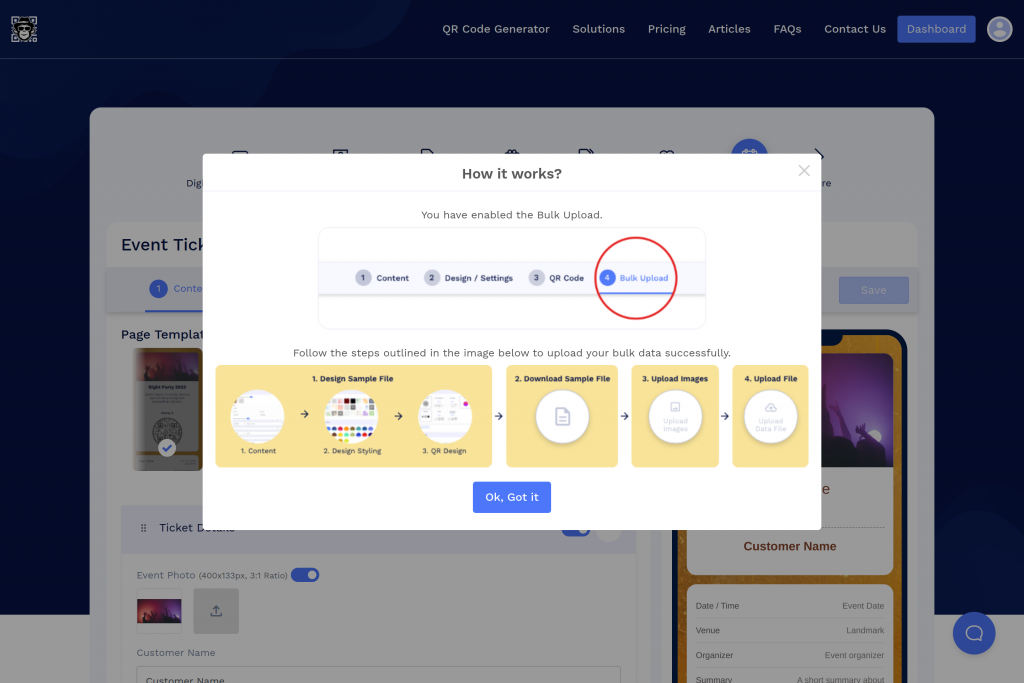
Step 2: Create a template for bulk upload
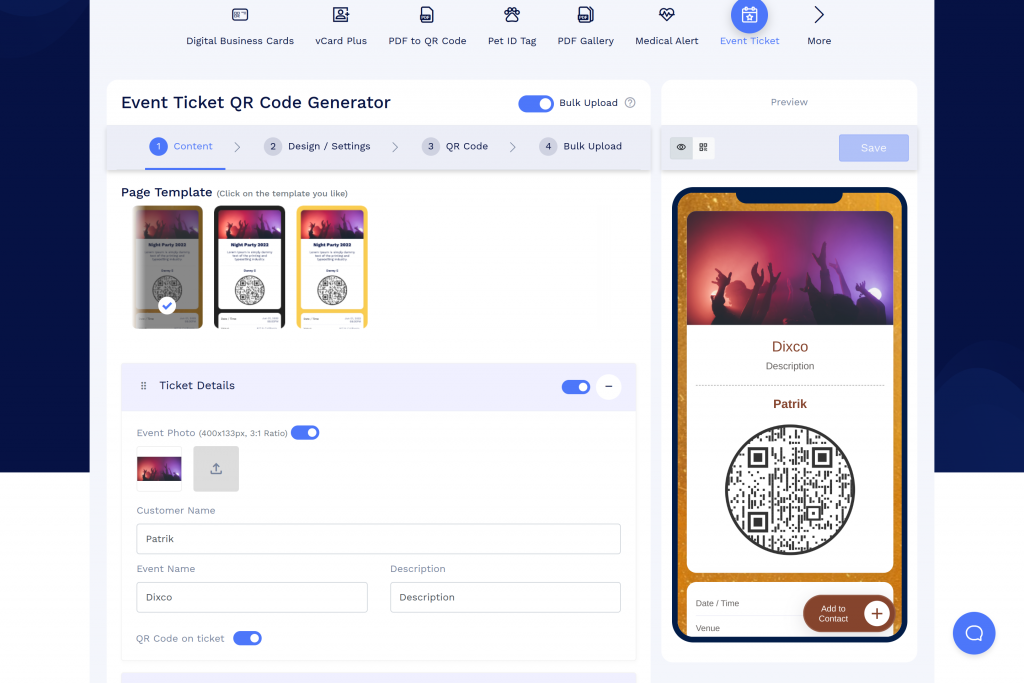
You need to create a template (think of it as a sample ticket) that will be used for all the tickets.
In the Content tab, choose the fields you want to include in your event ticket.
Step 3: Design your ticket
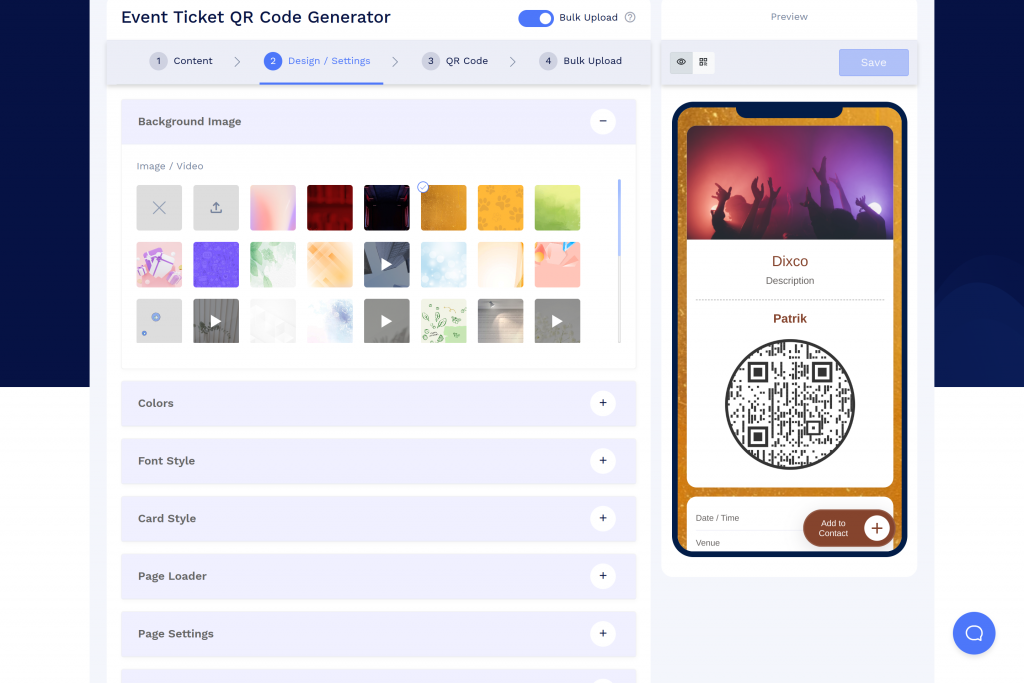
Set a background image or video for your event ticket. Then, choose the color, font style, card style, and page loader.
Step 4: Configure advanced settings
To set scan limits, enable the “Lock QR Code” option. If you want to create tickets for multi-day events, enable the “Reset the lock daily” option and set the reset time. Also, specify whether the QR code should lock only when scanned by the owner or a sub-account holder.
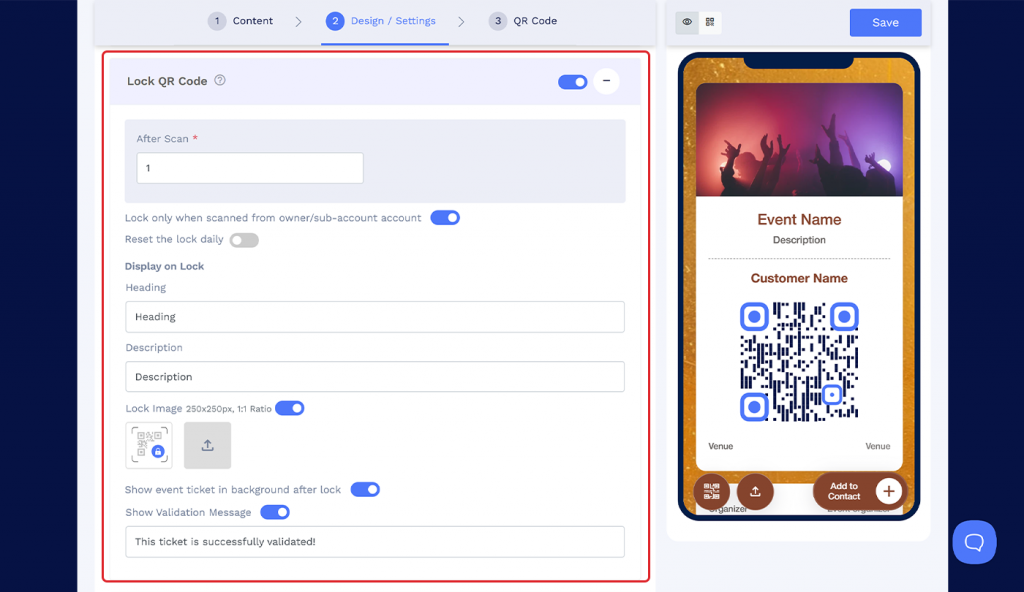
💡Learn more: Read the article to learn how to use the Lock QR Code feature to validate tickets and streamline check-ins.
Step 5: Customize the QR code
In the QR Code tab, personalize your QR code’s design using shapes, stickers, colors, and logos. Ensure that any pictures used do not obstruct the QR code’s readability.
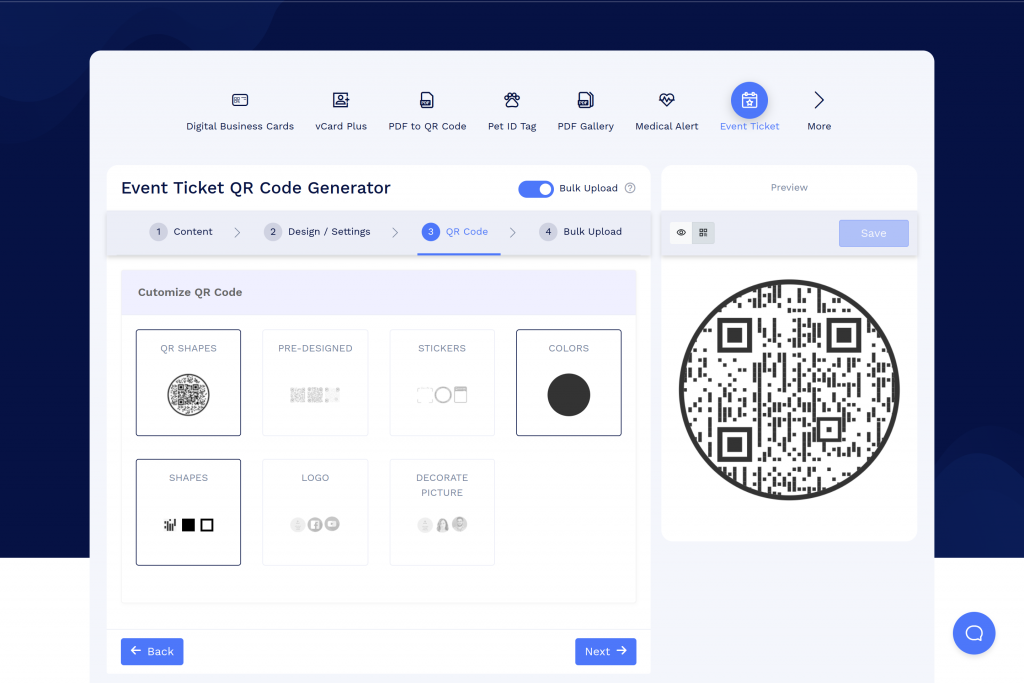
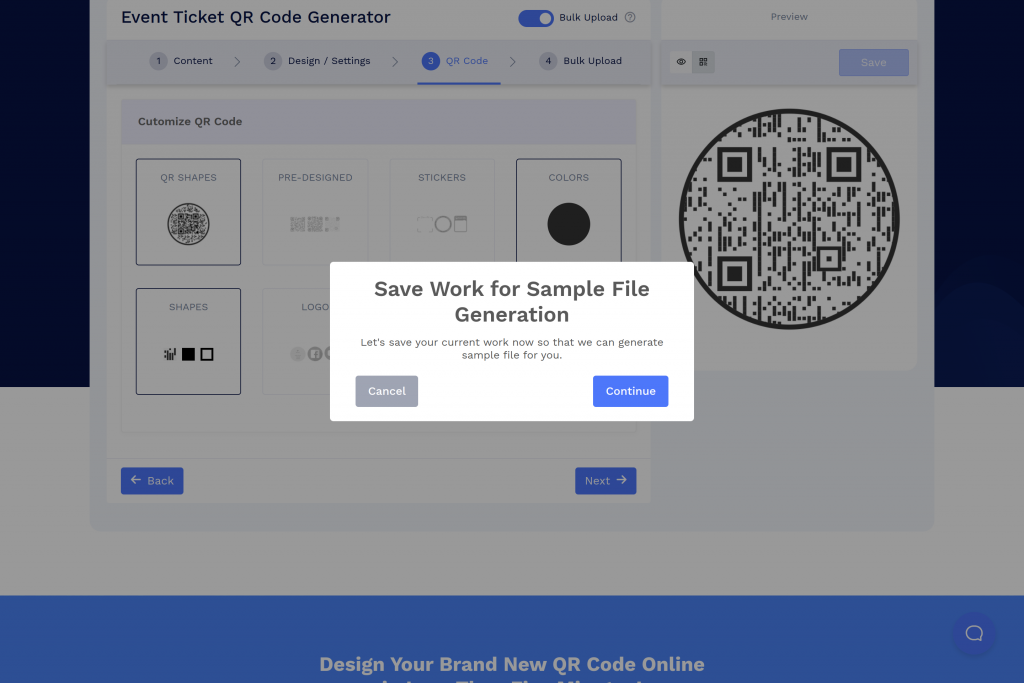
Step 6: Save your Bulk QR code
[6.1] Head to the Bulk Upload tab and click “Continue” under the “Save Work for Sample File Generation.”
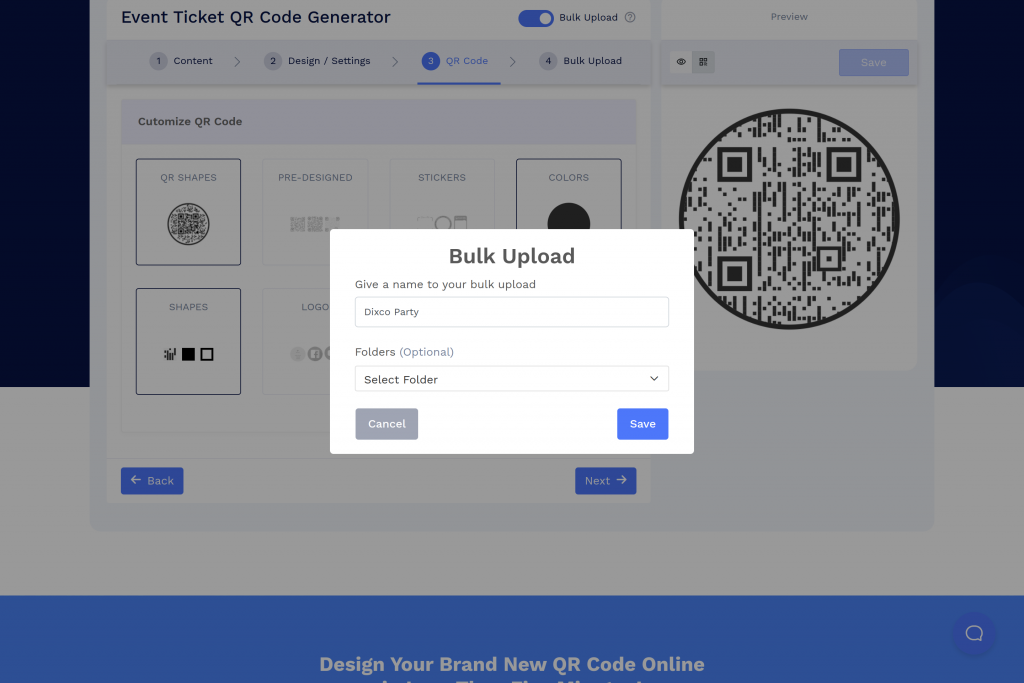
[6.2] Name your Bulk Upload and choose the folder to save your QR codes. Click Save.
Step 7: Prepare the bulk upload file
[7.1] Download the sample file provided by QRCodeChimp.
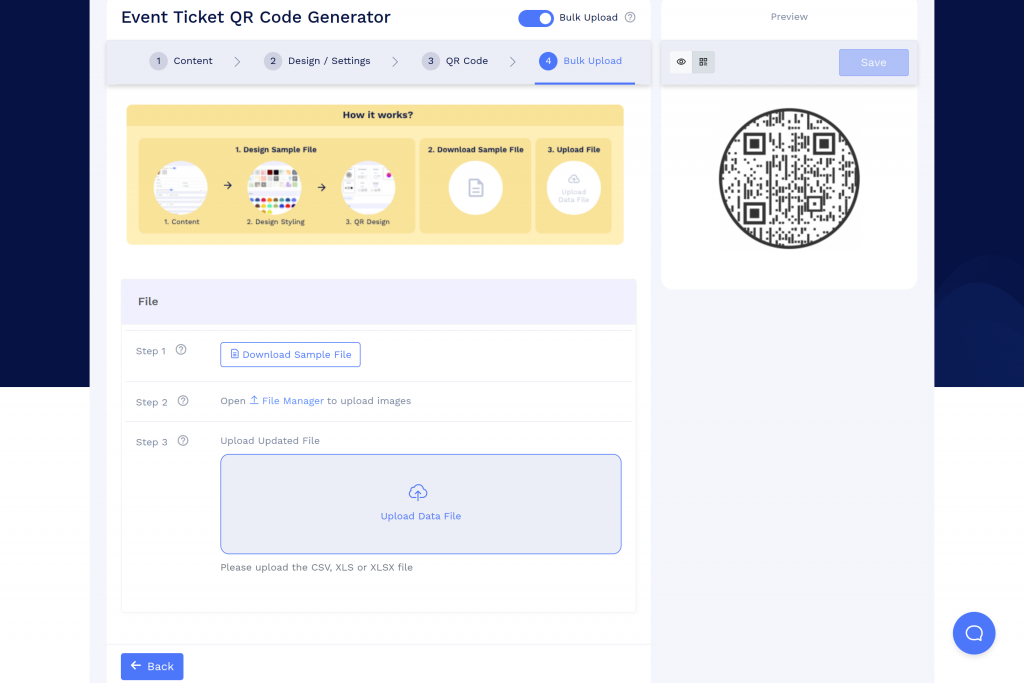
[7.2] Refer to the sample data and fill in the attendee details in the downloaded spreadsheet to create tickets for each attendee.
Each QR code requires a unique page code. To let QRCodeChimp generate one automatically, enter AUTO in the page code field. Do not leave this column blank.
Note: If you want to share tickets via email, enter the event ticket recipient’s email address in the ‘Email for ticket sharing’ column in the bulk Excel sheet.
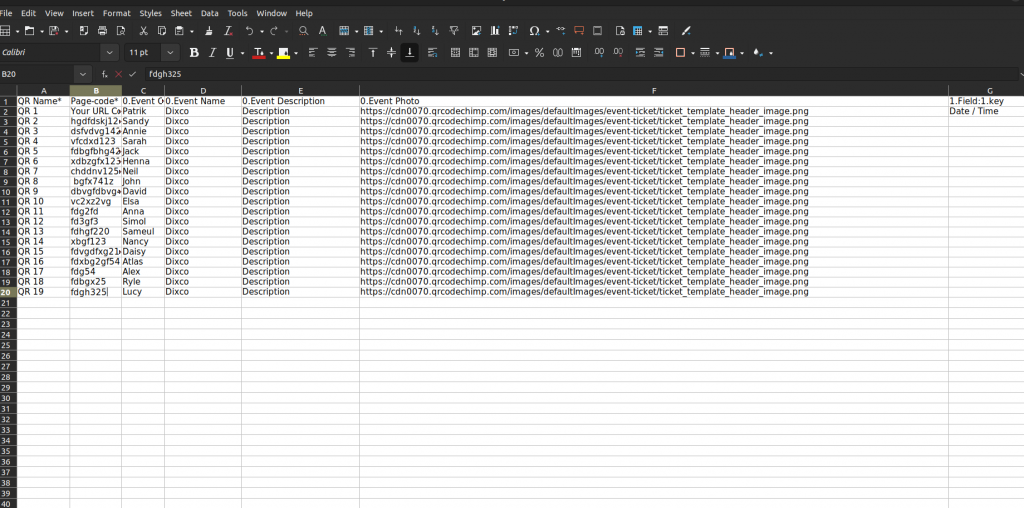
[7.3] Save the filled-in Excel sheet in CSV, XLS, or XLSX format.
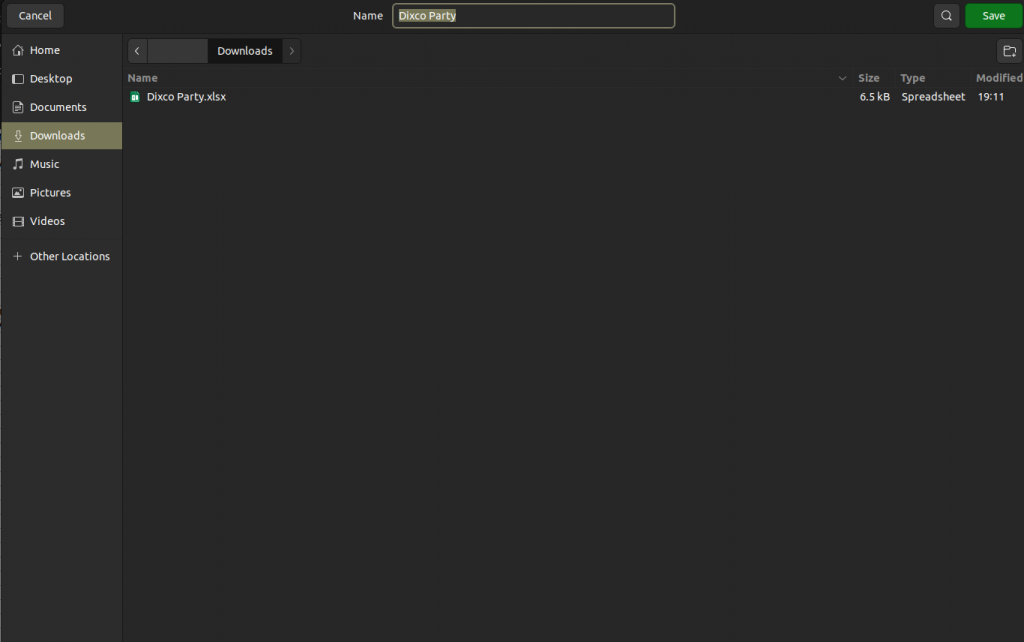
Step 8: Upload and generate Event Tickets
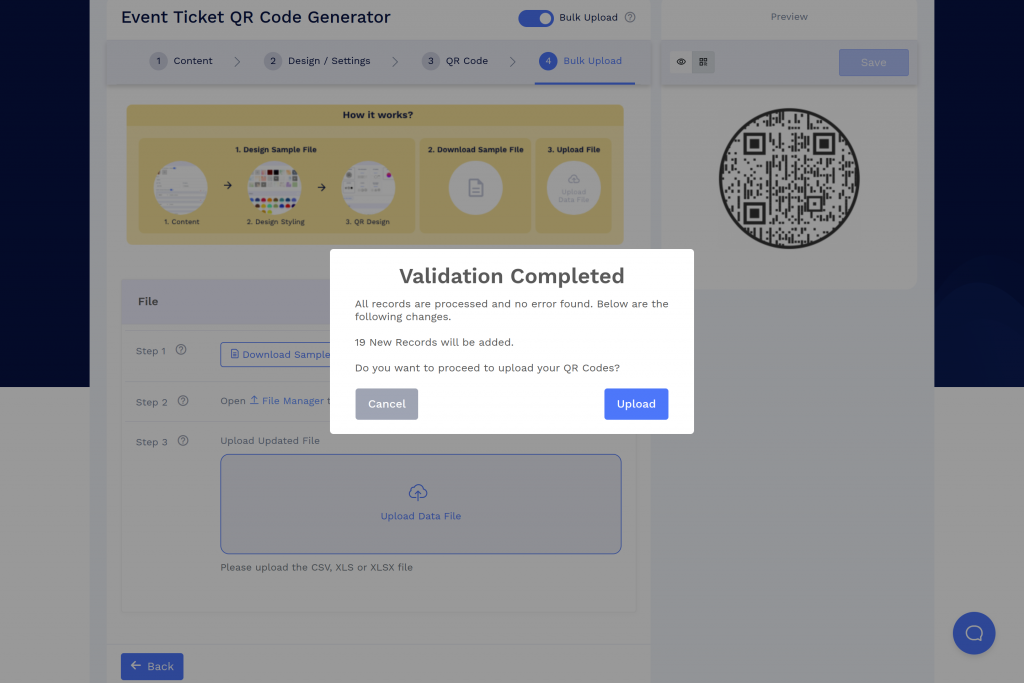
Upload the Excel sheet data file in CSV format and click “Upload.”
Step 9: Download your QR codes
[9.1] Go to your Dashboard to download the generated QR codes. They may take some time to create. After some time, click Refresh.
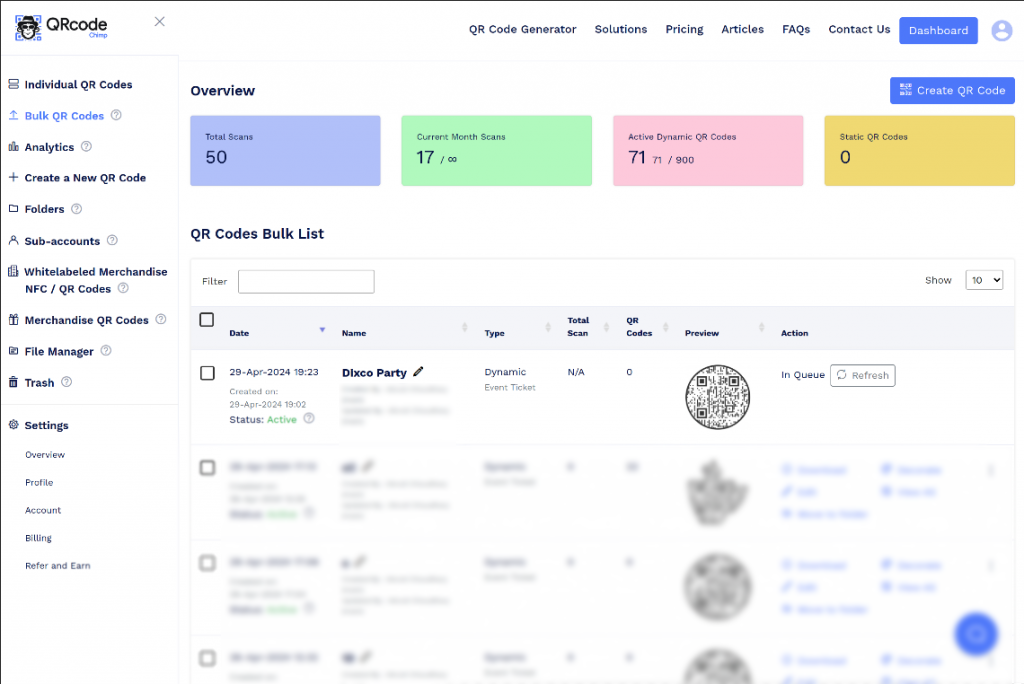
[9.2] In action items, click “Download” and select your preferred file format (PNG or PDF) and the size of the QR code (256px, 512px, 1024px, 2048px, or 4K). At last, click the Download button.
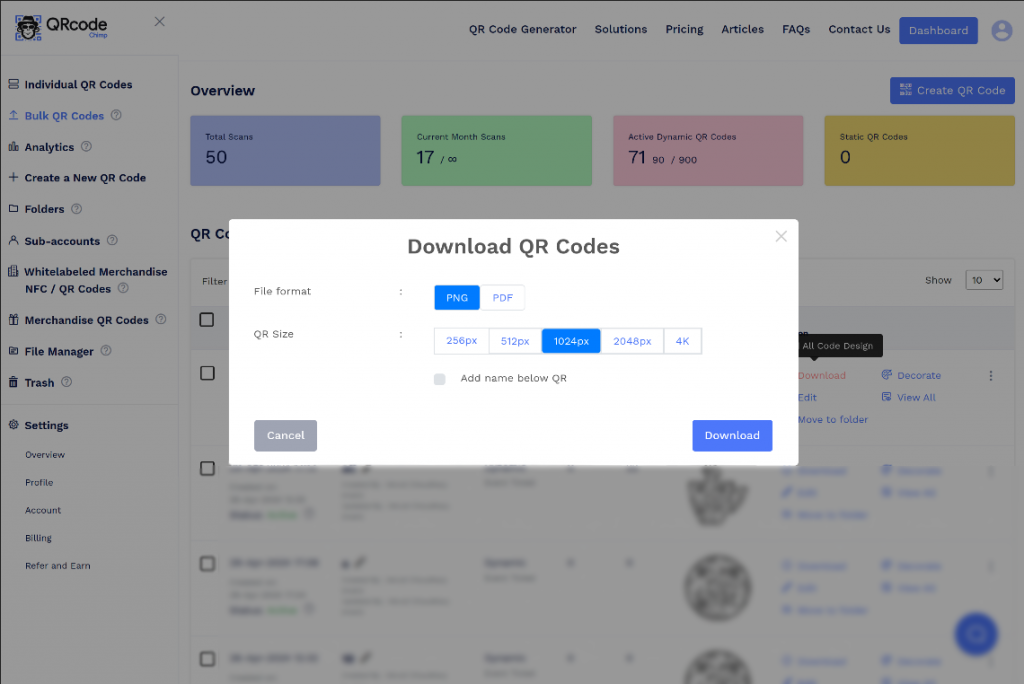
And your event ticket QR codes are ready for distribution.
💡Did you know?
QRCodeChimp provides detailed reports for bulk-created event tickets, helping organizers track event attendance effortlessly. Read the article Tracking Event Attendance with QR Code Ticketing to learn more.
How to share event ticket QR codes created in bulk
To share event tickets created in bulk, follow these steps:
Step 1. Go to the QRCodeChimp dashboard.
After you create the Event ticket QR codes in bulk with QRCodeChimp, it will be stored in your Dashboard.
Go to the Dashboard and click on “Bulk QR Codes” in the sidebar menu.
Step 2: Locate the event tickets
Find your Event Ticket QR code in the list of ‘Bulk QR Codes’.
Click on the three dots to open more options.
Step 3: Select “Share ticket via email“
After clicking on more options, choose the “Share Ticket via Email” option from the menu.
Step 4: Share the tickets with the recipients
A pop-up window will appear with the title “Share Event Ticket in Bulk.” Customize the event ticket colors as per your needs and enable RSVP if needed.
If you enable RSVP, the attendees will receive an RSVP (Yes, No, Maybe) option in the email containing the event ticket.
Now, click the “Share” button to send the tickets via email.
Note: Event tickets will be emailed to the email addresses mentioned in the “Email for ticket sharing” column in the bulk Excel file.
After sharing event tickets with the attendees, the next step is to validate them for hassle-free entry. Learn more about ticket validation: QR Code for Ticket Validation: Simplify Event Entry Operations
How to create and share an individual event ticket QR code
Let’s explore the step-by-step process for creating an Event Ticket QR Code to help event organizers enhance ticket security and manage entries effectively.
Step 1: Log in and access the solution
Log in to QRCodeChimp, navigate to the solutions page, and select the “Event Ticket QR Code” option.
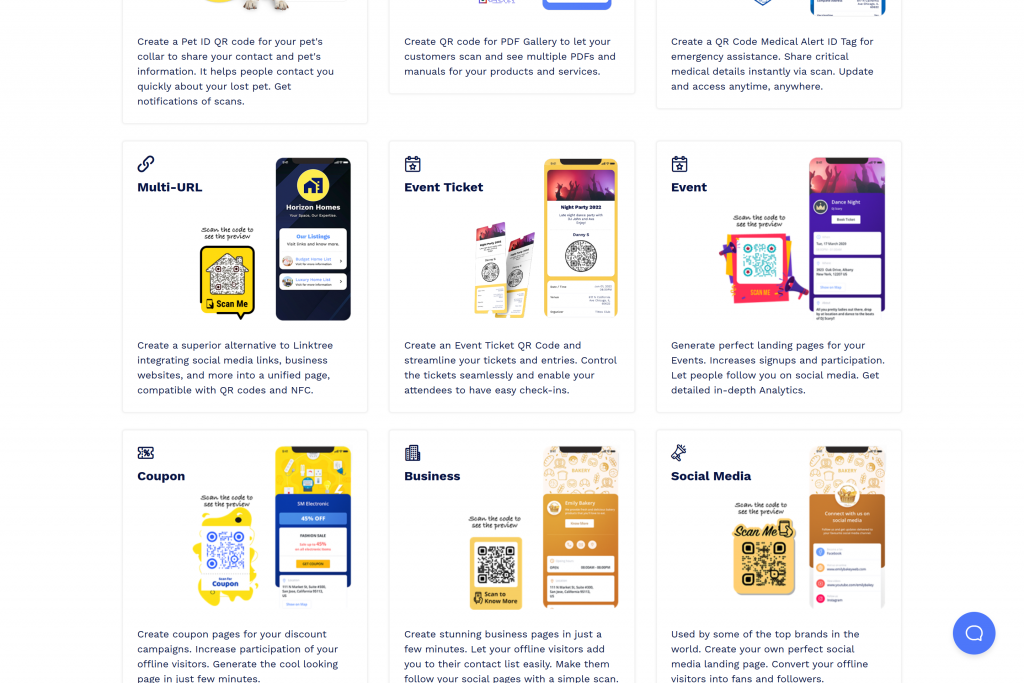
Step 2: Enter and customize event details
In the Content tab, enter the necessary ticket details.
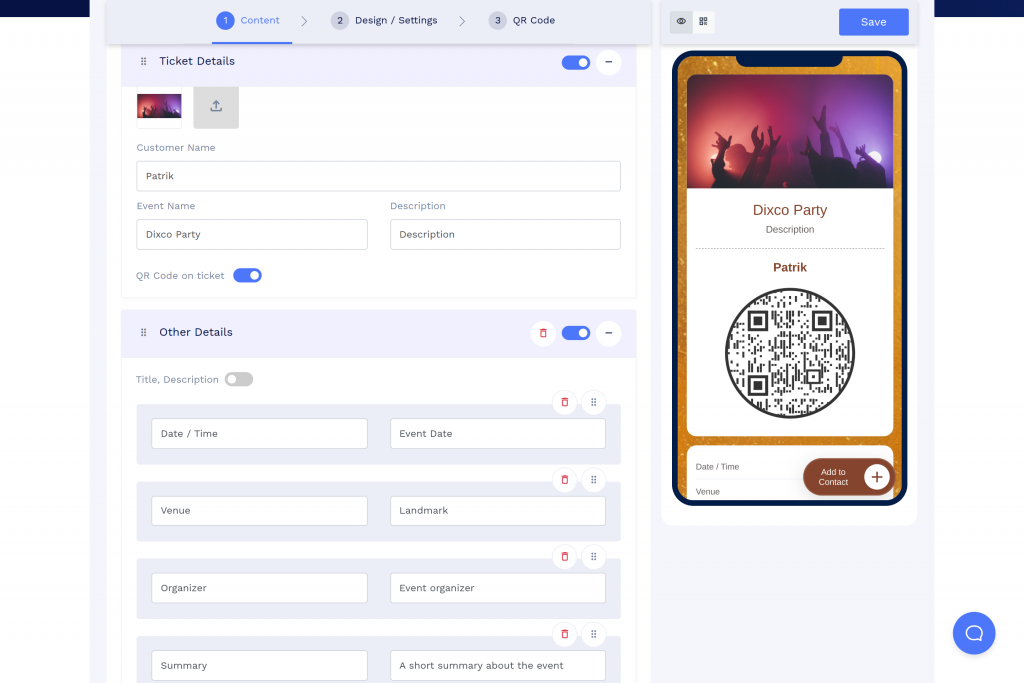
Note: You can enable or disable the QR code on the ticket option, depending on your requirements.
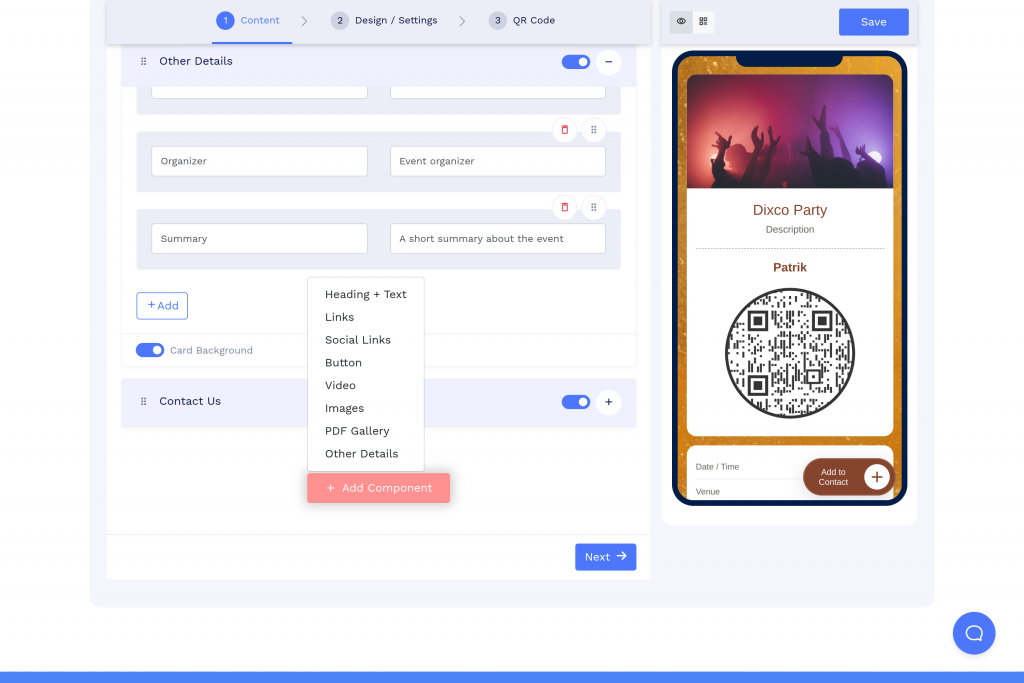
Step 3(Optional): Add additional event details
You can use the “Add Component” button to add social links, videos, images, and more to the ticket.
Step 4: Design your ticket
Click “Next” to open the Design/Settings tab. You can customize colors, font style, card style, and page loader settings here.
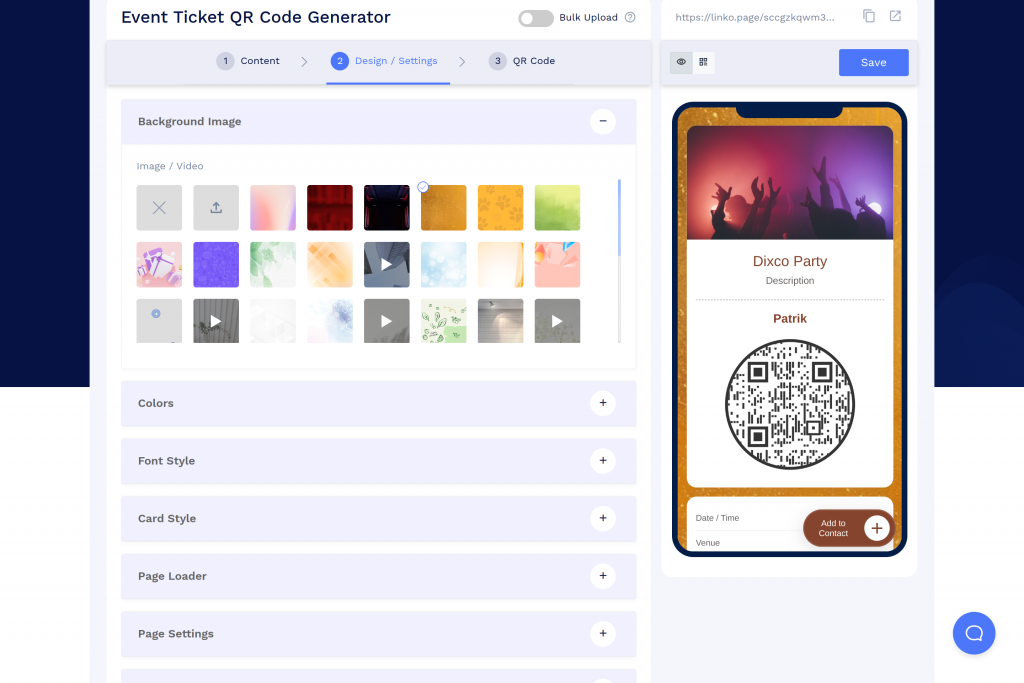
Step 5: Lock QR code after scans
Following this, the most appreciated feature of the event ticket QR code is “Lock QR Code After Scans.” You can enable this feature to lock the QR code after a certain number of scans.
You can also add security by specifying whether it should lock only when scanned by the owner or a sub-account holder.
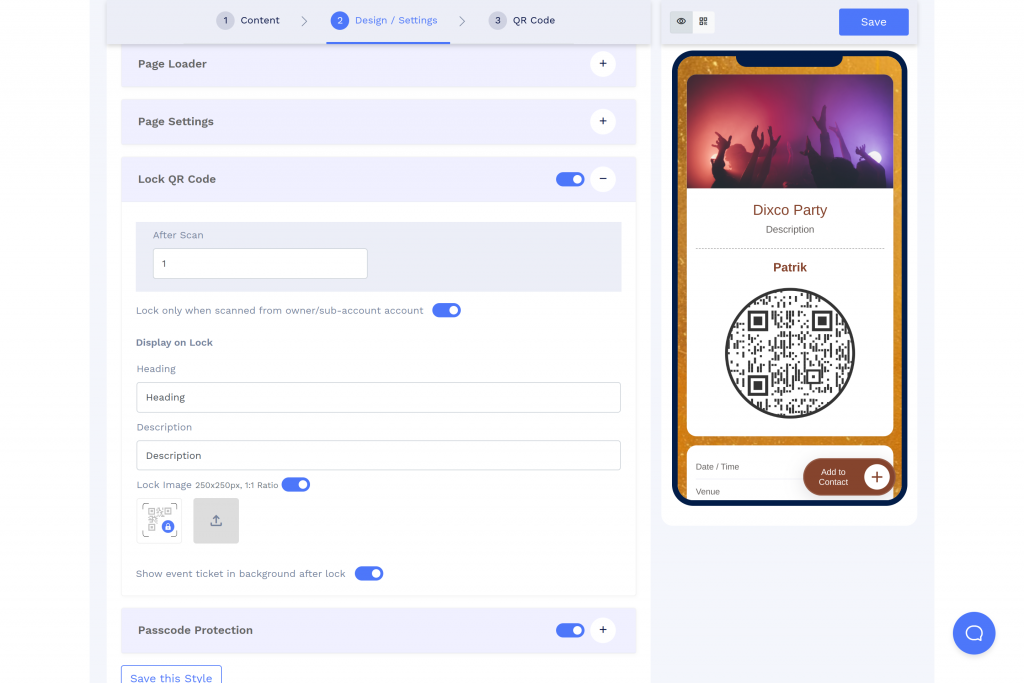
Note: The owner/ subaccount holder for the QR can be the creator of the QR code or ticket validator.
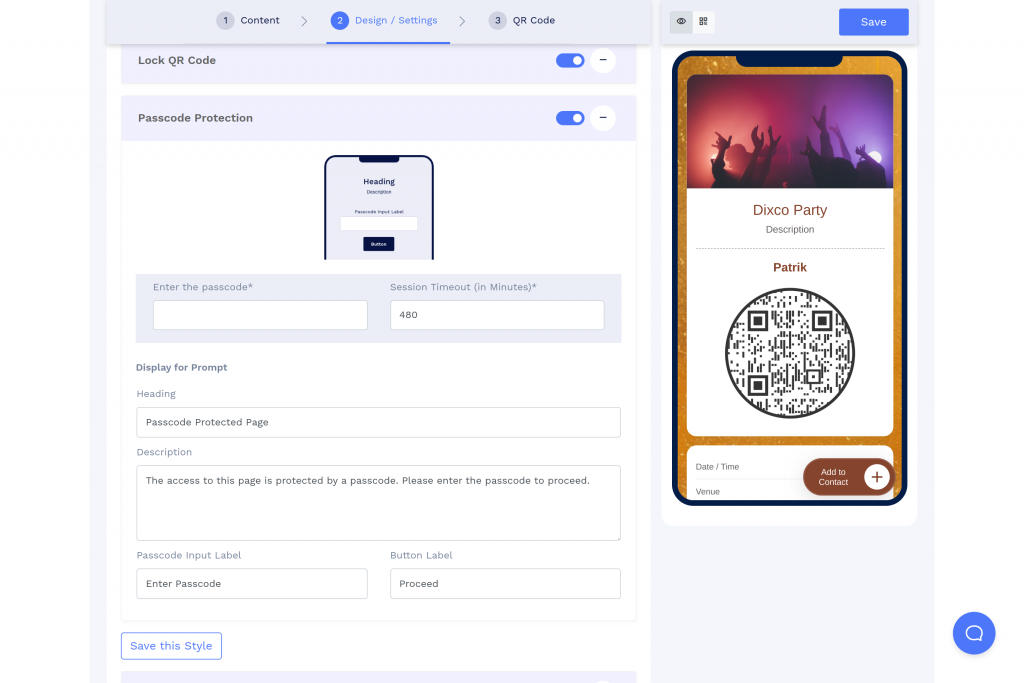
Step 6(Optional): Enable passcode protection
Set a passcode for additional access control and specify session timeout. Optionally, create a display prompt for the passcode.
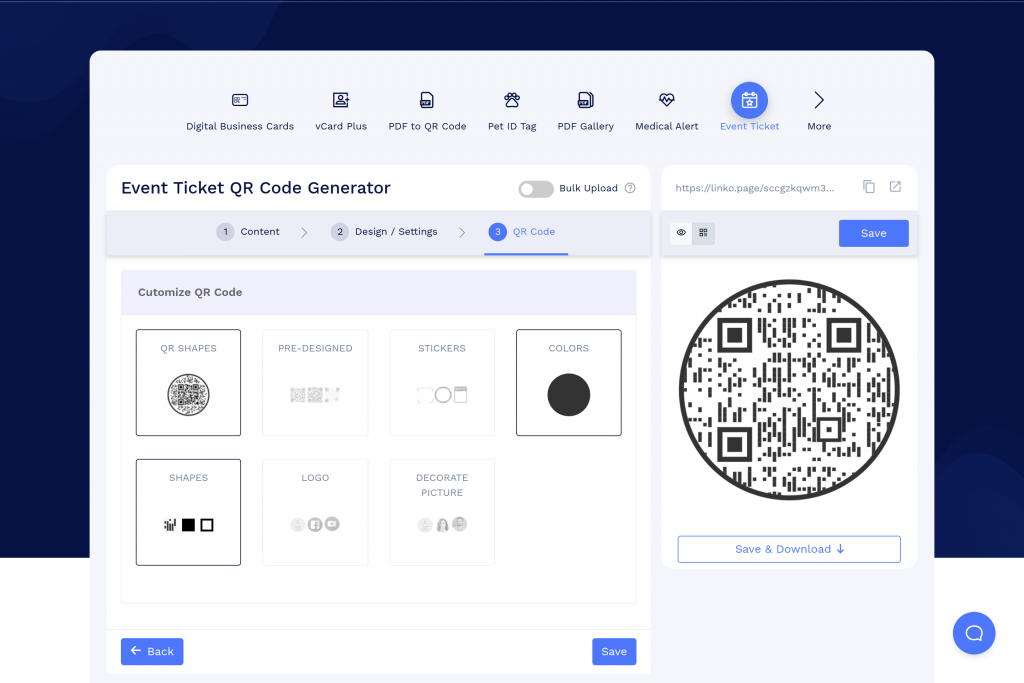
Step 7(Optional): Customize the QR code
In the QR Code tab, enhance your QR code with shapes, stickers, colors, and logos. Make sure added images do not hinder the QR code’s readability.
Step 8: Save and complete
Click “Save” to generate your Event Ticket QR code.
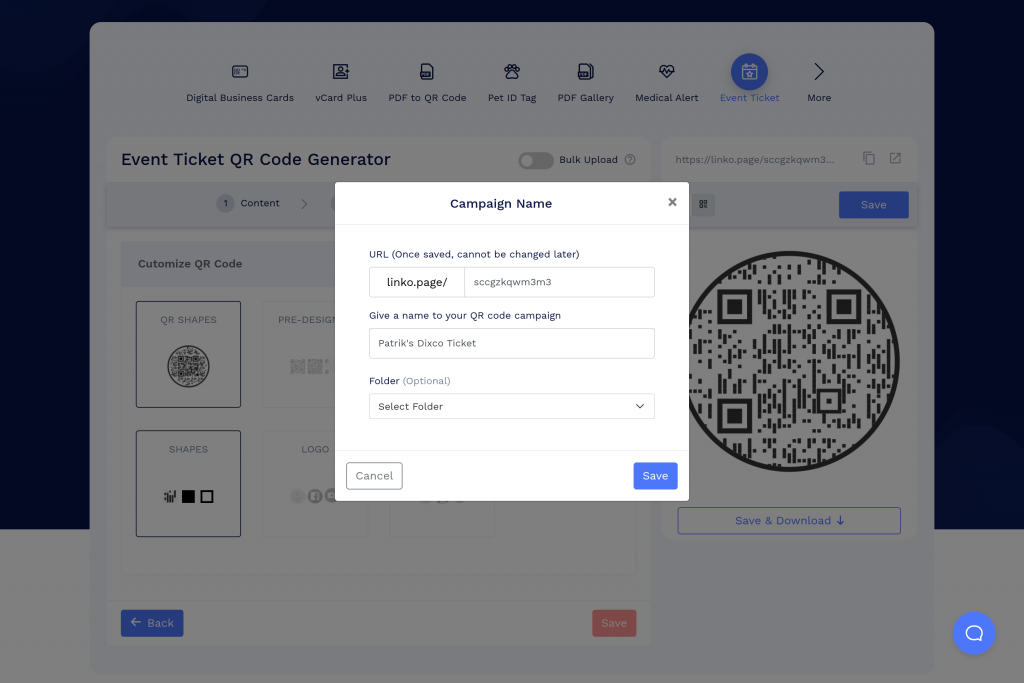
Congratulations! Your Event Ticket QR code is ready for use. If you have any further questions, feel free to reach out to our support team.
Step 9: Share your Event Ticket QR code
Once you’ve saved your Event Ticket QR code, go to the dashboard, find your event QR code ticket, and share it via email, WhatsApp, or other channels.
Tips for designing your event ticket
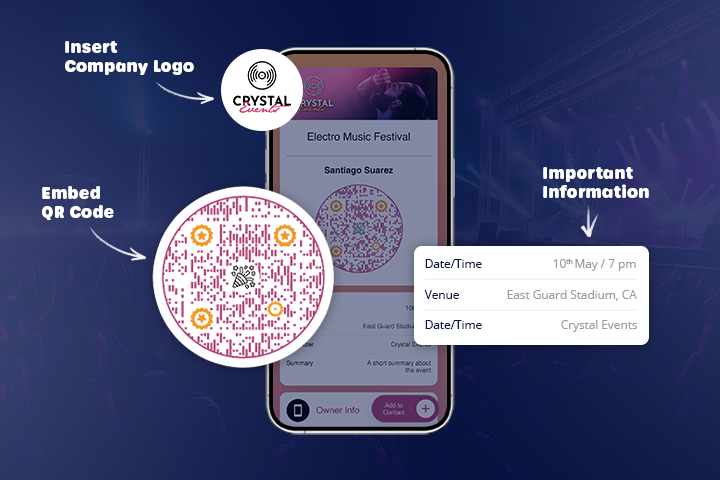
Now that you know how to design an event ticket, here are some tips to consider when creating your event ticket, especially when incorporating a QR code:
- Include a straightforward CTA like “Scan Here” prominently on the ticket.
- Ensure important details like date, time, and venue are bold and easy to spot.
- Add your event or company logo to reinforce your brand identity.
- Match the ticket’s color scheme with your event branding for visual cohesion.
- Customize your QR code with colors, borders, or a mini-logo to make it attractive yet readable.
- Embed QR codes or links to your event’s social media to boost engagement.
- Secure your QR code with a password to ensure only ticket holders have access.
Benefits of using event ticket QR code
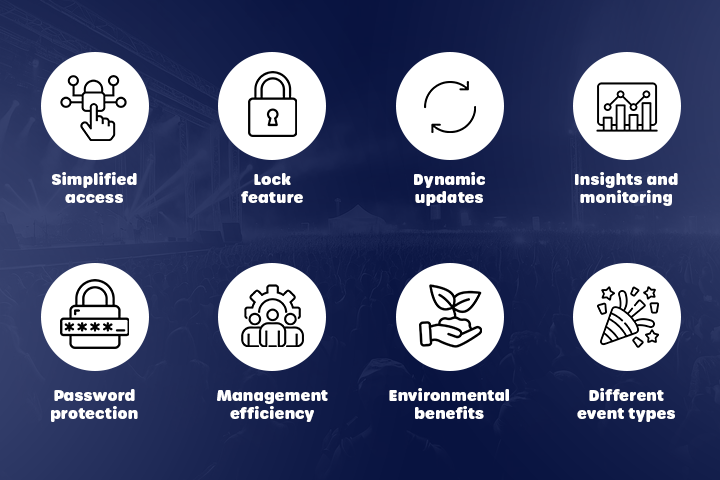
Using QR Code tickets for your event offers numerous benefits that can enhance the overall experience for organizers and attendees. Here’s a concise overview of the key advantages:
- Simplified access: QR Code tickets streamline entry and provide all essential event details in one place, enhancing attendee convenience.
- Lock feature: QR codes can lock after a set number of scans to prevent unauthorized use.
- Dynamic updates: Information within the QR Code can be updated in real time, eliminating the need to reissue tickets.
- Insights and monitoring: Allows for precise tracking of entries and exits, reducing fraud risks.
- Password protection: Ensures that only authorized ticket holders can access the tickets.
- Management efficiency: Speeds up the check-in process, reduces queues, and allows quick ticket validation.
- Environmental benefits: Reduces physical ticket needs, decreases paper waste, and supports sustainable event practices.
- Useful for different event types: QRCodeChimp is adaptable for various event sizes, from intimate workshops to large festivals, providing a reliable and scalable ticketing solution.
Conclusion
QR code-powered event tickets go beyond functionality; they add an element of intrigue and a touch of modern flair. Imagine the possibilities: use them on posters and flyers, sneak them into social media posts, or even print them directly on your event ticket.
Let QRCodeChimp be your partner in creating event tickets that are as captivating as the event itself. Sign up for a free account today and see the magic unfold!
Frequently asked questions
How to price event tickets?
This depends on factors like event type, duration, target audience, and operational costs. Research similar events to understand the pricing landscape.
Where to sell event tickets online?
Numerous online platforms offer ticketing services, often with varying fees. Explore different platform options, or choose social media platforms with built-in ticketing features.
How to make your own tickets for an event for free?
You can create event tickets for free using QRCodeChimp, the QR code generator. However, you can only create 10 dynamic QR codes (including event QR codes) and need a paid plan to create more. You can explore QRCodeChimp pricing plans to choose the right plan to meet your requirements.
You may also like
Approval-Based Digital Business Cards: A Smarter Workflow for HR Teams
Discover how approval-based digital business cards help HR teams ensure branding consistency, prevent misuse, and manage employee cards at scale.
QRCodeChimp’s Analytics Dashboard: A Step-by-step Guide
A guide to QRCodeChimp’s analytics dashboard. Leverage the unique advanced features and metrics to optimize your marketing campaigns.
Link Click Analytics in QRCodeChimp: How To Find Your Top Performing Links
Learn how to track link click analytics in QRCodeChimp, identify top-performing links, and optimize QR code campaigns using link-level insights and analytics.
When Excel Broke: How QRCodeChimp Simplified Digital Business Cards for a Fast-Growing IT/ITES Enterprise
Discover how a fast-growing IT/ITES enterprise replaced Excel uploads with QRCodeChimp’s form-based automation to create branded digital business cards faster, with HR control.
Most Popular
Contact Sales
