At Apple’s Worldwide Developers Conference 2025, one design update stole the spotlight: the stunning iOS 26 “Liquid Glass” look. Inspired by VisionOS and rooted in the glassmorphism aesthetic, this new UI style features translucent layers, soft blurs, and sleek depth effects that give apps a futuristic, frosted-glass appearance.
Now the exciting part is that you can bring this trending, Apple-style visual to your own digital business card using QRCodeChimp. With just a few clicks and a simple CSS tweak, your card can mirror the same high-end design that’s turning heads in the iOS world.
In this guide, we’ll walk you through exactly how to apply the iOS 26 glass look to your digital business card, step by step. Get ready to impress your clients and connections with a card that’s not just smart, but stunning.
Let’s begin.
How to create the iOS 26 glass look on your digital business card
Enhance your digital business card with the sleek iOS 26 glass look. Follow the simple steps given below:
Step 1: Log in to your QRCodeChimp account.
- To edit an existing digital business card, go to the Dashboard and click ‘Edit’ next to your card.
- To create a new digital business card, go to the Digital Business Card solution and fill in your details.
🤩 New to digital business cards? Check out our Digital Business Card: A Complete Guide.
Step 2: Go to the Design and Settings tab.

Step 3: Scroll down and open the Custom CSS section.

Step 4: Copy and paste the following CSS code into the Custom CSS field. Then, click ‘Next.’
.extra_button_wrapper button, .qrc_addtocontact, .edit_qrpageButton .hamburger_btn, .hamburger_dropdown_menu {
background:#00000050;
box-shadow: 0 4px 30px rgba(0, 0, 0, 0.1);
backdrop-filter: blur(6.7px);
-webkit-backdrop-filter: blur(7.7px);
border: 1px solid rgba(255, 255, 255, 0.29);}
.hamburger_dropdown_menu a{
color:#fff;}
.qr_cc_card{
background:#ffffff50;
box-shadow: 0 4px 30px rgba(0, 0, 0, 0.1);
backdrop-filter: blur(6.7px);
-webkit-backdrop-filter: blur(7.7px);
border: 1px solid rgba(255, 255, 255, 0.29);}

Step 5: Click Save to apply the changes.

Your digital business card will now display a sleek glass effect. ✨
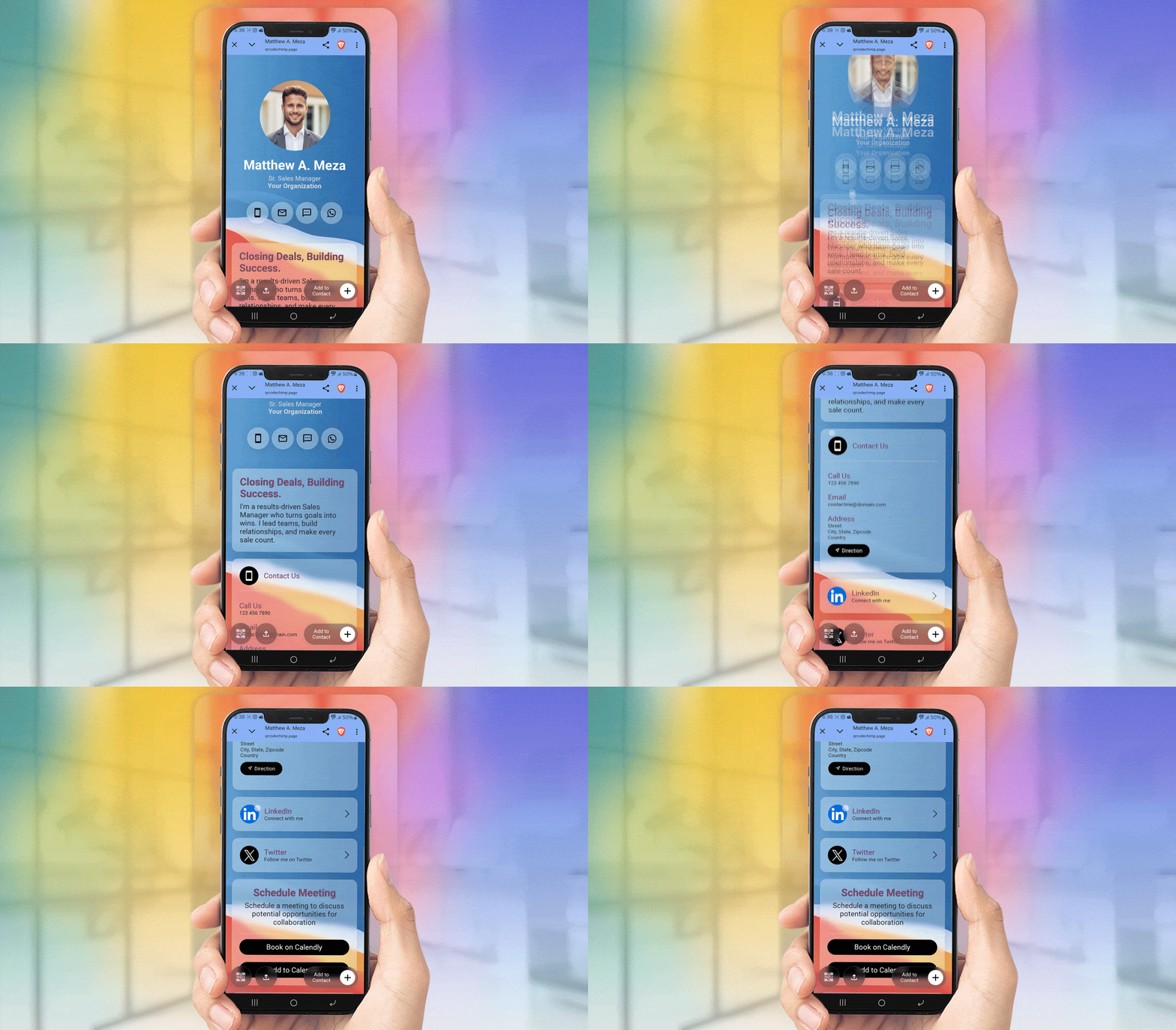
🚀 Pro tip! Use a textured or patterned background image for your card instead of a plain or solid one — it enhances the glass effect. Also, ensure that the font color contrasts well with the background, making the text more readable.
Final thoughts
Apple users are going gaga over the new iOS 26 update. The glassmorphism trend isn’t entirely new; nonetheless, Apple’s take on it has everyone talking!
But why should QRCodeChimp users care? Because you can now bring the iOS 26 glass look to your digital business card, giving it a sleek, frosted-glass feel. Plus, the new Apple-inspired aesthetic not only makes your business card look gorgeous but also leaves a bold first impression on your clients and connections.
Frequently asked questions
What is the iOS 26 glass look?
The “Liquid Glass” look is Apple’s latest stunning UI design for its upcoming iOS 26 version. It uses glassmorphism (a translucent, frosted-glass effect) to create a sleek layered appearance.
What type of background works best with the glass effect when I apply it to my digital business card?
It’s always better to use a textured or patterned background image when applying the glass effect to your digital business card. It helps enhance the glass look.
Does the iOS 26 glass look affect the functionality of digital business cards?
No. The glass effect is purely visual and, therefore, doesn’t affect the functionality of your digital business card.
You may also like
How Retail Stores Can Collect Customer Feedback Without Staff Prompts
Set up a feedback QR code for retail stores to collect customer feedback without relying on staff prompts. Learn where to place it and improve responses.
Are QR Codes Effective for Marketing? What Research Shows
Are QR codes effective for marketing? See what current research shows, what drives scans, and how to measure engagement, conversions, and ROI.
How Small Food Brands Can Use GS1 QR Codes to Turn Sourcing Claims Into Proof
Discover how GS1 QR codes for small food brands turn sourcing claims into proof, build shopper trust, and prepare for the 2027 checkout shift.
GS1 Sunrise 2027 Migration Guide: Moving From UPC and EAN Barcodes to GS1 QR Codes
Use this GS1 Sunrise 2027 migration guide to plan dual marking, verify product data, test packaging and POS systems, and scale your 2D barcode rollout.
Most Popular
Contact Sales
