Creating QR code pet tags in bulk is a smart move for businesses and organizations that work with multiple pets and need smart, modern, and hassle-free identification. These scannable QR code tags store important details including owner information, medical records, and emergency contacts, which help both animal-related businesses and pet parents.
Whether you’re a custom pet accessory seller, a shelter, a veterinary clinic, a breeder, a pet insurance provider, or a municipal pet registrar, you’d need pet ID tags in bulk to either add value to your products or streamline your tasks. However, manually creating hundreds or even thousands of unique QR codes is time-consuming and inefficient. That’s where bulk QR Code generation comes in.
In this article, we’ll explore the step-by-step process of generating pet tags in bulk.
A step-by-step guide to create pet tags in bulk
To begin with, log in to QRCodeChimp and select the Pet ID Tag solution. Then, follow the steps to complete the process:
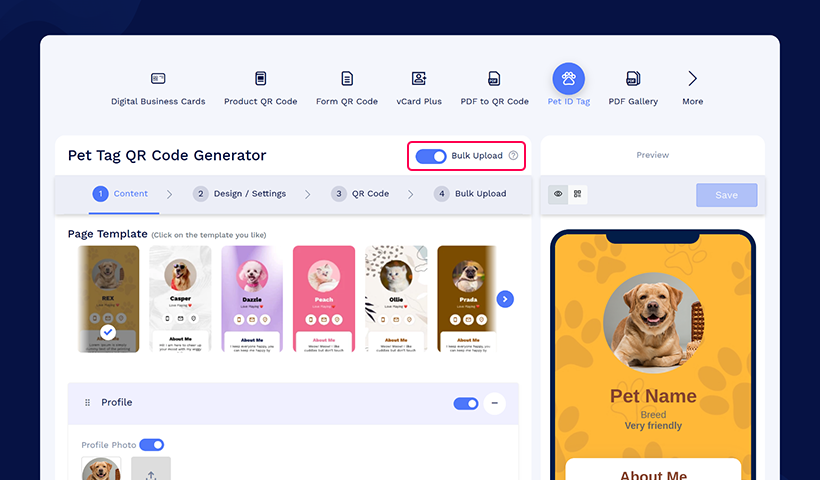
Step 1: Enable the bulk upload button
Turn on the ‘Bulk Upload’ toggle to enable bulk creation. Instantly, a pop-up titled ‘How it works’ will appear on the screen, outlining the steps to create pet ID tags in bulk. Click the ‘Ok, Got it’ button and proceed with the steps.
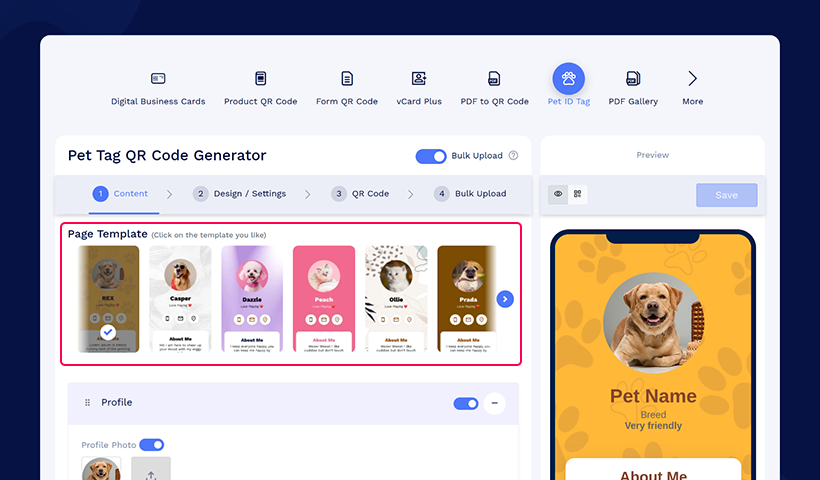
Step 2: Select the landing page template
Choose a template for your pet tag. You have options to choose from 11 templates.
Step 3: Customize the fields in profile section
Customize the fields shown in the profile section by adding, deleting, or rearranging them as needed. To include additional fields, click the Add More button.
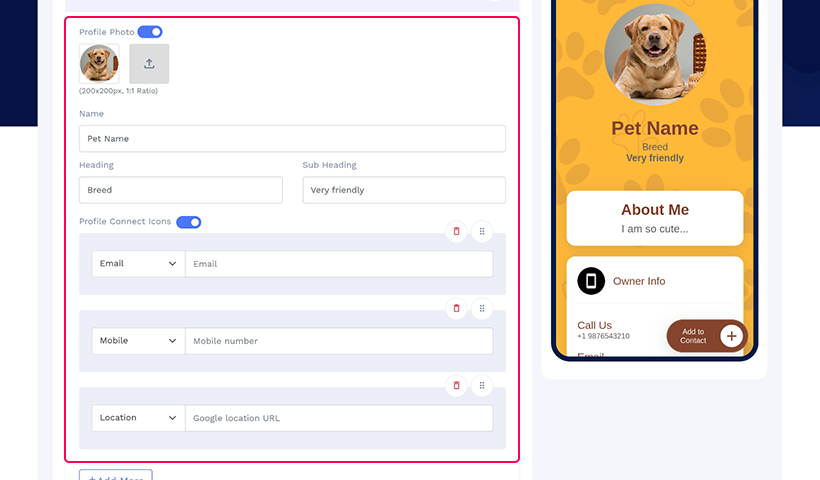
📌 Pro-Tip: Enable the profile connect icons options to let users directly contact, mail, or locate you.
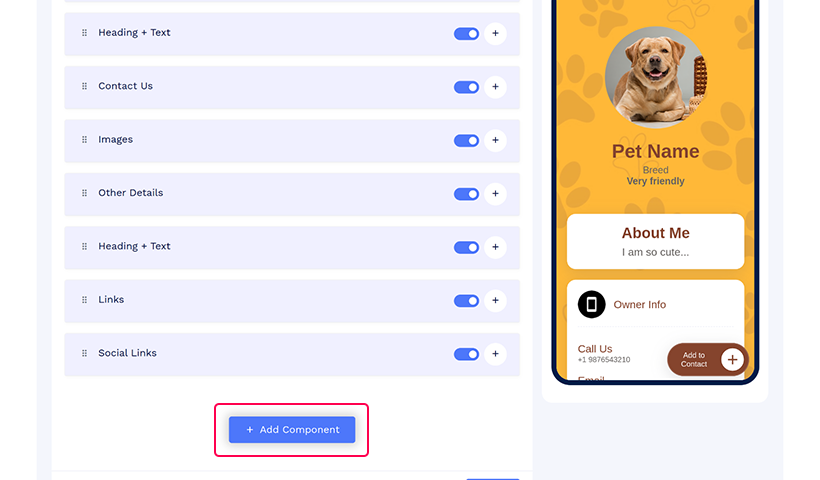
Step 4: Add additional components
Click Add Component to add additional sections such as a button, video, etc. (optional).
Step 5: Customize the design
Click ‘Next’ to land on the ‘Design/Settings’ tab, which allows you to customize the page design with multiple options: background image/video, colors, page loader, page settings, and passcode protection.
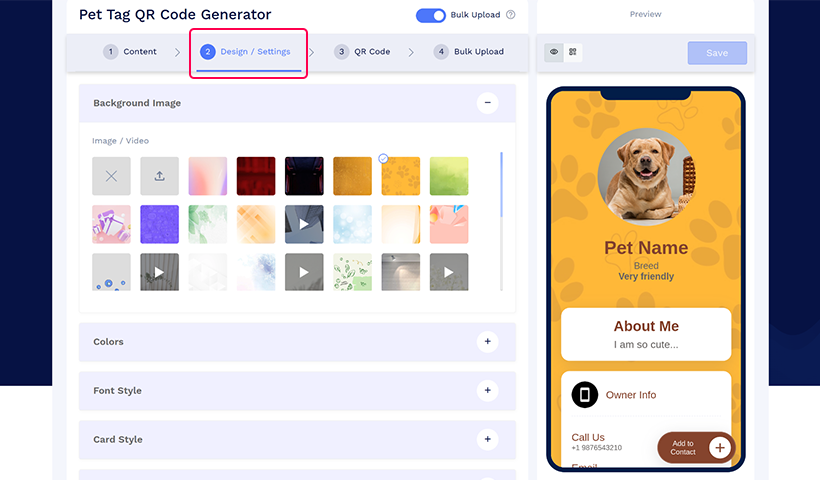
Note: Enable the ‘email me on scan’ option under the Page Settings and enter your email to get email alerts when someone scans it.
📌 Pro-tip: In the Design/settings tab, scroll down and find the option ‘Save Style.’ The background image, font style, color🎨, and page loader will be saved, allowing you to create the pet ID tags with the same designs and colors for your next bulk creation. This is especially useful if you want to maintain brand identity.
Step 6: Customize your QR code design
Click on the ‘QR Code’ tab to customize your QR Code design, such as adding shape, color, and sticker.
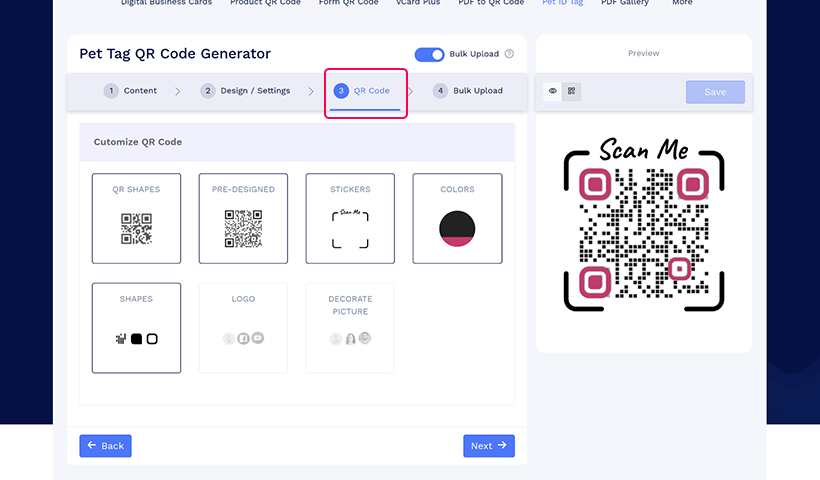
Note: Click the ‘x’ icon on Customize QR Code popup to save changes.
Step 7: Save work for sample file generation
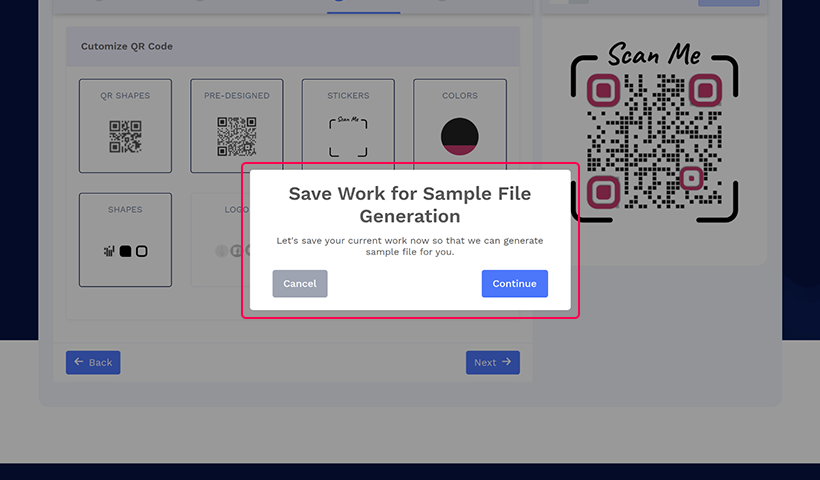
Click ‘Next.’ A pop-up will appear for saving your current work to generate a sample file. Click on ‘Continue’.
Step 8: Name the bulk upload
Give a name to your bulk upload. Select the folder in which you want to save your bulk (optional) and click Save.

Step 9: Download the sample file
Each QR code must have a unique page code. You can enter it manually or let us create it. To auto-generate one, enter AUTO in the page code field. Do not leave this field empty.
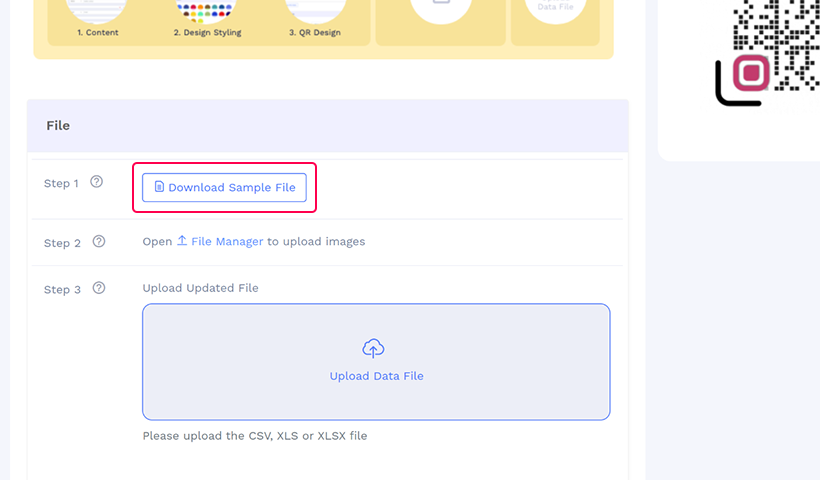
Download the sample file and fill out all relevant information in the Excel sheet.
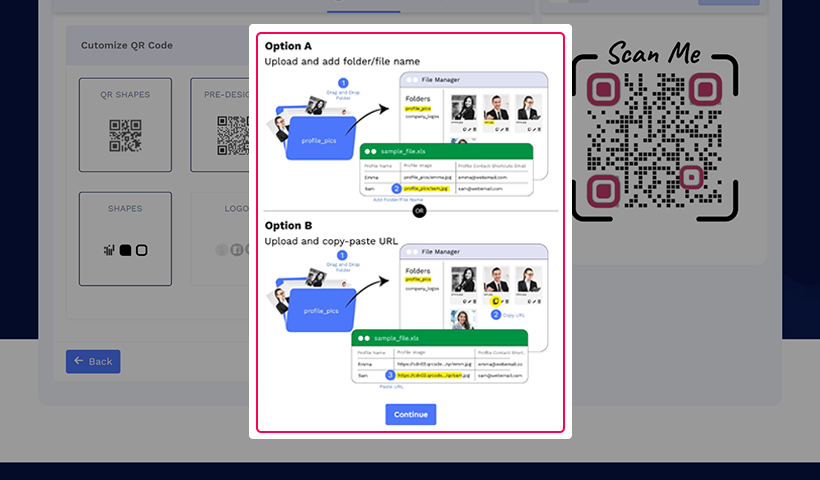
Step 10: Upload the images
Click File Manager to upload the image of your pet(s).
Step 11: Upload the data file
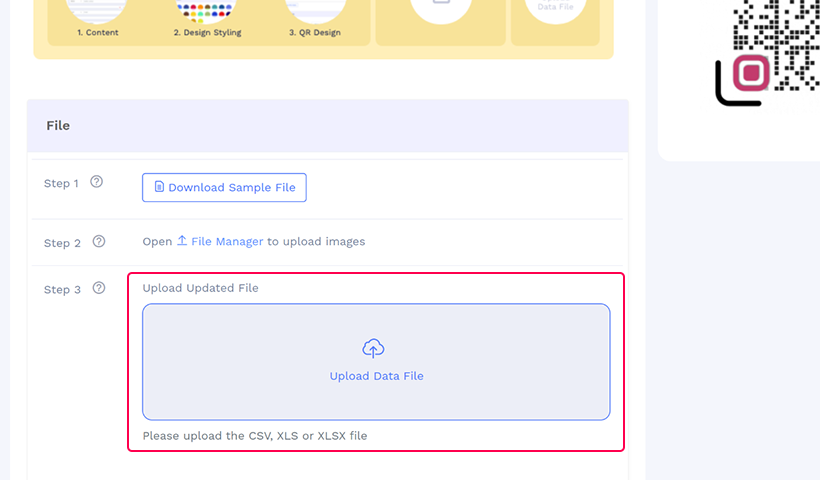
Upload the sample file that you downloaded and saved the data.
Step 12: Validation completed
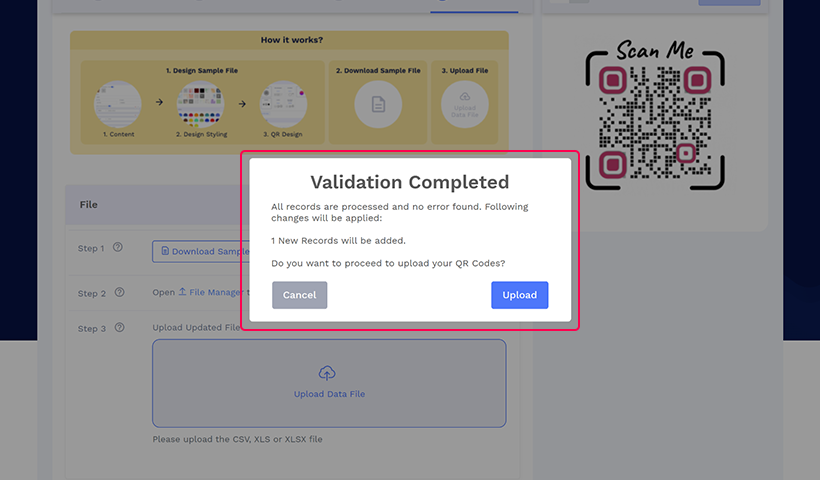
A pop-up will appear on the screen, confirming once the validation is completed. Click Upload and you will redirected to the Bulk QR Code Dashboard. The upload process will run in the background.
Step 13: Check the status in the Dashboard.
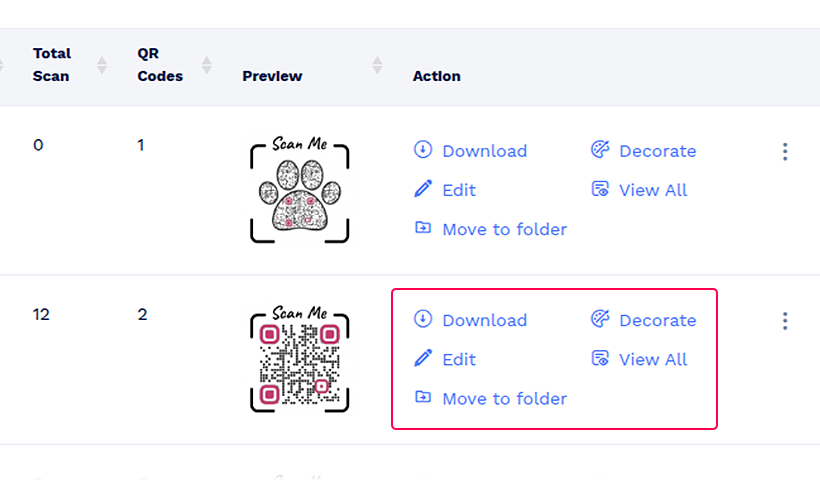
Click Refresh for your bulk batch to view its current processing status. Once processing is complete, the QR Codes column will show the number of generated QR codes, and the other batch actions will become available.
Step 14: Download or view all
You can either download or view all the pet tags created in bulk.
Benefits of creating pet tags in bulk
✅ Time-saving: Instead of ordering one-by-one pet tags, creating them in bulk saves time and effort.
✅ Consistency in quality: Bulk creation ensures all tags have a uniform design. This maintains consistency.
✅ Availability: Having ready-made pet tags means no last-minute rushes. Pet store owners or rescue organizations need ready-made pet tags immediately for every new pet that arrives or when a customer needs one.
🤔Did you know?
You can sell pet ID tags under your company brand using QRCodeChimp’s White-labeled merchandise feature.
Conclusion
Bulk pet ID tag is a simple yet effective solution for managing multiple pets. With customizable options and efficient production methods, the solution offers both convenience and peace of mind for pet owners or store managers. QRCodeChimp’s innovative pet ID tag solution makes designing, producing, and managing high-quality tags a breeze.
So what are you waiting for? Get started and create your bulk pet ID tag today.
Frequently asked questions
What information should I include on the pet ID tag?
The minimum requirement to include on a pet ID tag is your pet’s name and your contact information (phone number or email address). You can also include additional information such as your pet’s breed, medical conditions, etc.
Why create pet ID tags in bulk?
Creating pet ID tags in bulk helps pet shelters, pet sitters, or pet owners manage multiple pets. It saves time and effort compared to making individual tags for each pet.
You may also like
QR Code Ticketing for Events: Planning, Best Practices, and Mistakes to Avoid
Learn how QR code ticketing works, set entry and re-entry rules, plan multi-day validation, prepare check-in teams, and avoid common event mistakes.
How Gyms Can Use Form QR Codes for Membership Inquiries and Feedback
Use Form QR Codes for gyms and fitness studios to collect inquiries and class feedback. Turn every scan into useful member data with QRCodeChimp's custom forms.
QR Code Printing Requirements: What to Check Before the Print Run
Learn how to print QR codes that scan reliably. Check size, resolution, format, contrast, quiet zone, material, placement, and proof testing.
Flowcode Alternative 2026: More Features at a Better Price
Looking for a Flowcode alternative? See how QRCodeChimp offers smart routing, retargeting, circular QR codes, enterprise controls, and higher capacity at a lower price.
Most Popular
Contact Sales
