Your customers often need more than one link. They may want to visit your website, check an offer, browse your social profiles, watch a video, download a PDF, or contact you.
Creating a separate QR code for every destination quickly becomes cluttered and difficult to manage.
A better approach is to create one QR code for multiple links. When scanned, it opens a mobile-friendly page where people can choose the link they need. With a dynamic Multi-URL QR code, you can also update those links later without reprinting the QR code.
Here’s how to create one and organize it effectively.
- Can One QR Code Have Multiple Links?
- How to Create a QR Code for Multiple Links: Step-by-step
- Examples: How to Organize Links on Your Multi-Link Page
- Should You Use One QR Code or Separate QR Codes?
- Before You Print: A Quick Checklist
- Track Scans and Improve Your Multi-Link Page
- Create One QR Code for All the Links Your Audience Needs
- Frequently Asked Questions
Can One QR Code Have Multiple Links?
Yes. A Multi-URL QR code opens one mobile-friendly landing page containing multiple links. People scan the QR code once and then choose the link they want to visit.
For example, the same QR code could give users access to your:
- Website
- Online store
- Social media profiles
- Videos
- PDFs or brochures
- Booking page
- Offers
- Support resources
Because the page is dynamic, you can add, remove, or rearrange links later without changing or reprinting the QR code.
💡Tip: Keep the landing page focused. Add only the links users are likely to need after scanning.
How to Create a QR Code for Multiple Links: Step-by-step
With QRCodeChimp, you can create a customizable Multi-URL landing page and connect it to one dynamic QR code.
Before you begin, gather the links you want to share and decide which ones are most important. You may also want to keep your logo, brand colors, images, or other content ready.
Sign in to your QRCodeChimp account and open the Multi-URL QR Code Generator solution.
Step 1: Customize your page URL
Enter a page code to customize the URL of your Multi-URL page.
Your URL will follow this format:
https://linko.page/yourpagecode
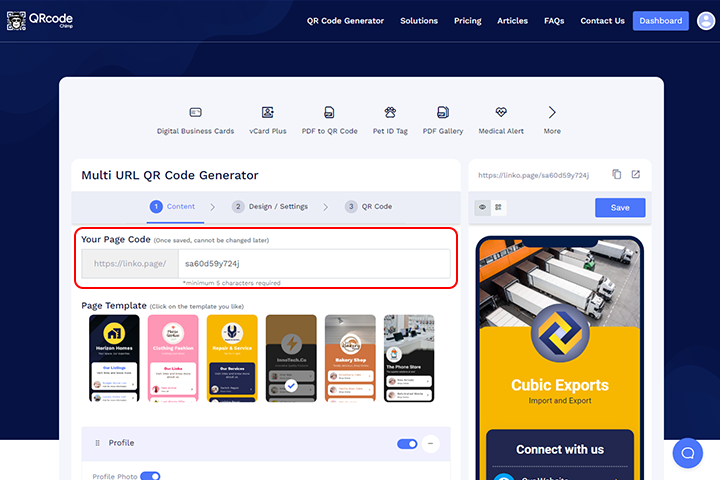
Customizing the page code is optional.
Note: Choose the page code carefully. Once the QR code is saved, the page code cannot be changed.
Step 2: Select a template
Choose a template that suits your content and brand.
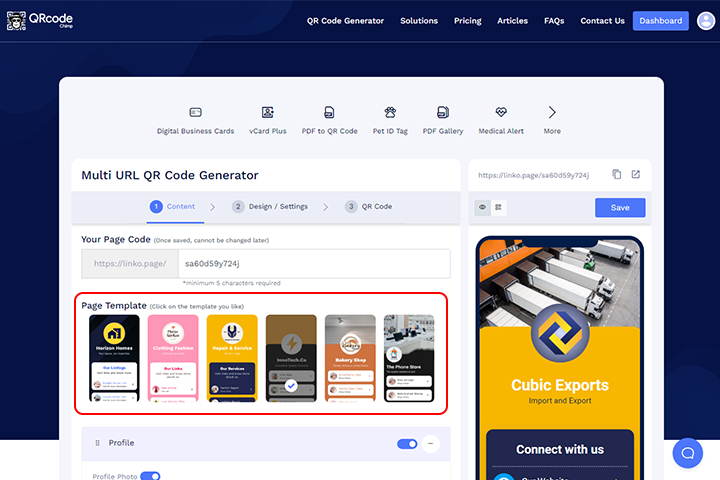
You can customize colors, fonts, backgrounds, and other design elements later, so start with a layout that works well for the information you want to display.
Step 3: Add your details and links
Add the links you want people to access from the page.
Give each link a clear, action-oriented label. For example:
- Shop New Arrivals
- View Menu
- Book an Appointment
- Watch Product Demo
- Download Product Guide
- Follow Us on Instagram
- Get Customer Support
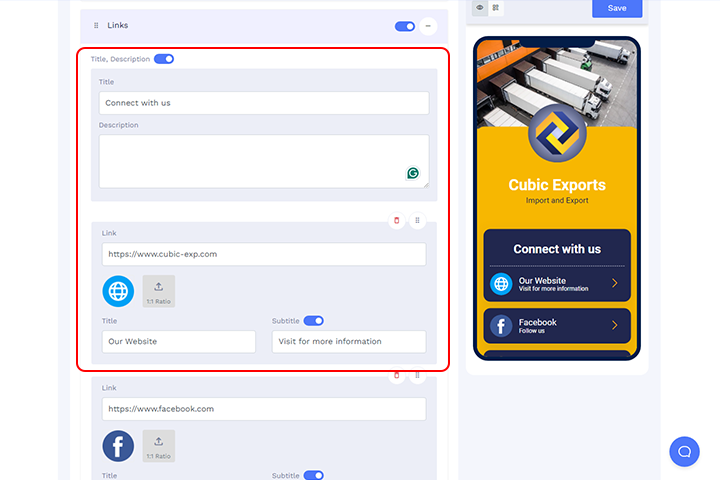
You can move, hide, or delete components based on what you want users to see.
Arrange the links by importance rather than simply adding them in the order you think of them.
💡Tip: Put the most important link first and use clear labels such as “View Menu,” “Book an Appointment,” or “Download Product Guide” instead of generic text like “Click Here.”
Step 4: Add contact details (Optional)
If relevant, use the Contact Us section to add information such as your phone number or email address.
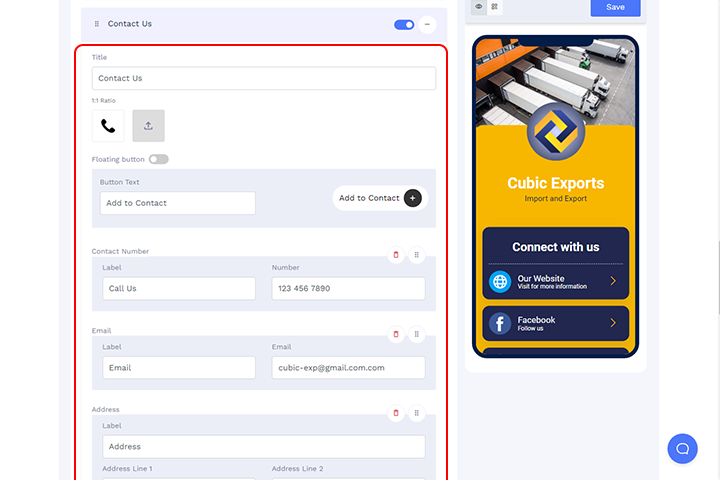
This step is optional. Skip it if contact information does not support the purpose of the page.
Step 5: Add additional components
Select Add Component to add more types of content to your page.
Depending on your requirements, you can include components such as buttons, images, videos, PDFs, or testimonials.
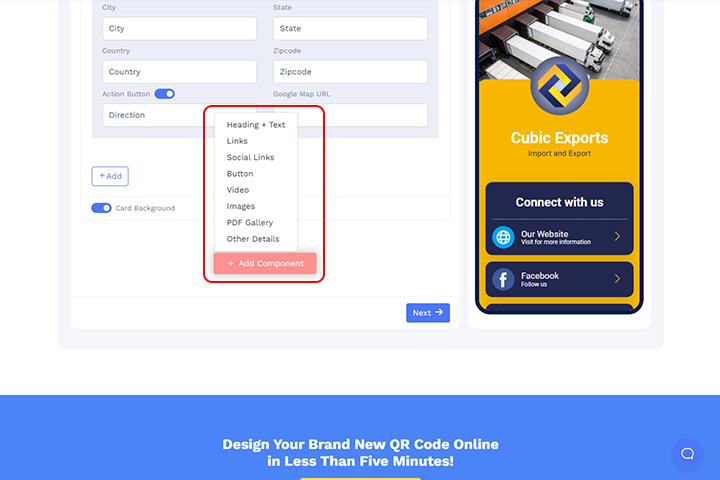
Use additional components selectively. The goal is to make the page more useful, not simply to fill it with content.
Step 6: Customize the page design
Go to Design/Settings and customize the appearance of your Multi-URL page.
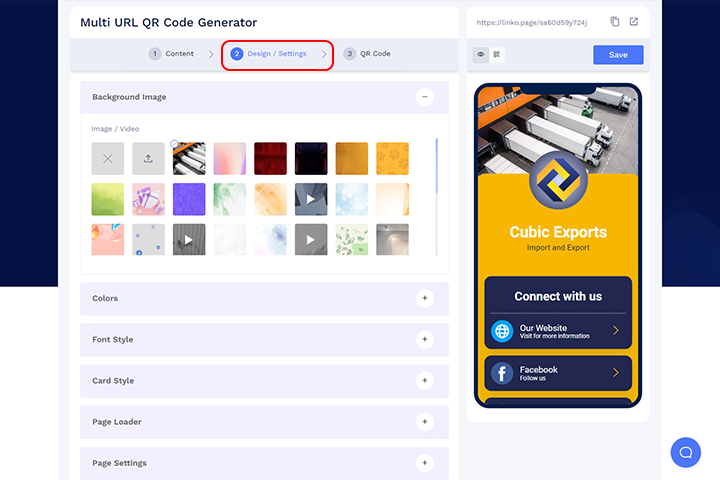
You can personalize elements such as background, colors, fonts, card style, and Page loader.
Match the page to your brand while keeping it simple and easy to navigate on a mobile screen.
💡Tip: If you plan to create more Multi-URL pages with the same branding, save the design as a page style by Clicking Save this Style button. You can reuse the saved style later to maintain a consistent look across pages.
Step 7: Customize the QR code
Go to the QR Code tab and personalize your QR code.
You can customize elements such as its shape, colors, logo, and sticker.
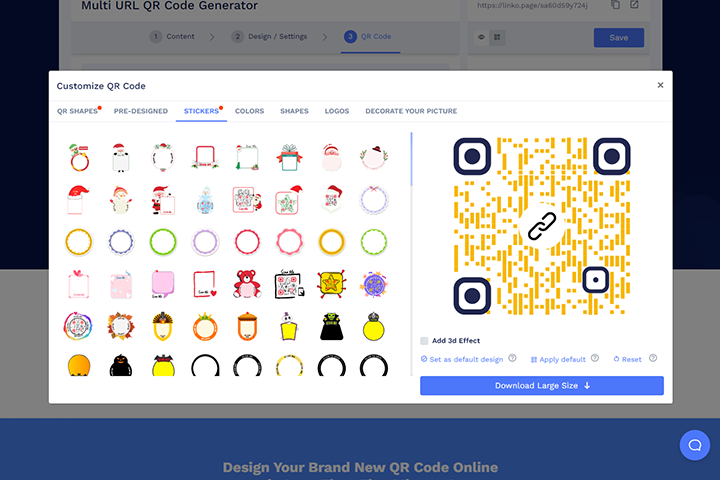
Make sure the final design has sufficient contrast and remains easy to scan.
Step 8: Save and download
Select Save, give your QR code a recognizable name, choose a folder if required, and save it.
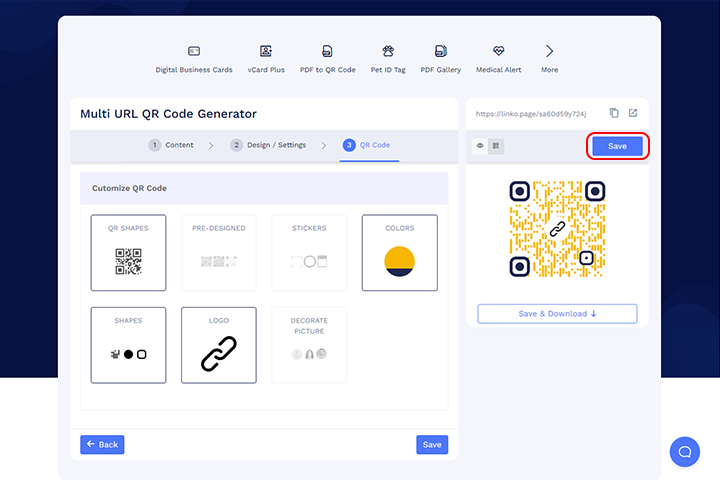
Before using the QR code in production, scan it and check that the landing page and every important link work correctly.
Once tested, download the QR code in the format and resolution suitable for where you plan to use it.
Examples: How to Organize Links on Your Multi-Link Page
Creating the page is only half the job. The links you include, their labels, and their order determine how easily users can find what they need.
Here are a few examples.
Retail store launching a seasonal collection
A fashion retailer could organize the page like this:
- Shop the Spring Collection
- Get 15% Off
- Find a Store
- View the Lookbook
- Follow Us on Instagram
Restaurant or café
A restaurant could use:
- View Menu
- Reserve a Table
- Order Online
- Today’s Offers
- Leave a Google Review
Someone scanning at the restaurant will most likely want the menu first, so it should not be buried below promotional or social links.
Product packaging
A product QR code page could prioritize:
- Watch Setup Video
- Download User Manual
- Register Warranty
- Contact Support
- Buy Again
Here, setup and support information comes before the repeat-purchase link because it is more relevant immediately after someone buys the product.
Event or conference
An event page might contain:
- View Today’s Schedule
- Find the Venue
- Meet the Speakers
- Share Feedback
- View Sponsor Offers
Prioritize information attendees need during the event and place secondary actions further down the page.
Should You Use One QR Code or Separate QR Codes?
A QR code for multiple links is useful, but it is not the right choice for every situation.
👉 Use one Multi-URL QR code when:
- The same audience may need several related resources.
- Users should be able to choose their destination.
- Your links may change over time.
- You want one clean QR code instead of several codes on the same material.
For example, a product package may need to provide a manual, setup video, warranty registration, customer support, and reorder link. These destinations naturally belong together.
👉 Use separate QR codes when:
- There is one specific action you want users to take.
- Different QR codes serve different audiences or campaigns.
- You need to measure individual placements separately.
- Combining destinations could make the next step less clear.
For example, if one QR code is exclusively for making a payment and another is for submitting feedback, separate QR codes usually provide a clearer experience.
The simplest rule is: use one QR code when the links belong to the same user journey; use separate QR codes when the actions have different purposes.
Before You Print: A Quick Checklist
Once your Multi-URL QR code is ready, review both the landing page and the QR code itself.
✅ Put the most important link first
Don’t make users scroll to find the main action.
If most people scanning the QR code are likely to want your menu, product page, registration link, or support page, put it at the top.
✅ Use clear link labels
Tell people exactly what they will get after tapping.
Use:
Download User Manual
instead of:
Click Here
Clear labels make the page easier to navigate and help users make faster choices.
✅ Keep the page focused
Just because you can add multiple destinations doesn’t mean every possible link belongs on the page.
Remove links that are outdated, rarely useful, or unrelated to why someone would scan the QR code.
✅ Keep the QR code easy to scan
Use good contrast between the QR code and its background, and maintain sufficient clear space around it.
Avoid excessive customization that makes the code difficult for a phone camera to detect.
✅ Test the printed version
A QR code that scans perfectly from your computer screen may behave differently once printed.
Test a sample at the actual size, material, and expected scanning distance before producing it in large quantities.
Also scan it using both iOS and Android devices and open every important link on the landing page.
💡Read more: Why QR Codes Become Blurry and How to Fix Them
Track Scans and Improve Your Multi-Link Page
A dynamic Multi-URL QR code also allows you to measure how people interact with it.
Depending on your plan, QRCodeChimp analytics can provide information such as scan activity over time, location and device insights, and engagement with links on supported landing pages.
Use these insights to improve the page rather than simply collecting data.
For example, suppose a link near the bottom of your page consistently receives strong engagement. Moving it closer to the top may make it easier for more visitors to find.
Similarly, if an important link receives very little engagement, review its label, position, and relevance.
Regularly checking your page also gives you an opportunity to remove outdated links and keep the experience useful.
💡Read more: Learn how QRCodeChimp analytics can help you understand QR code scans, locations, devices, and link engagement.
Create One QR Code for All the Links Your Audience Needs
Multiple links don’t have to mean multiple QR codes.
With a Multi-URL QR code, you can organize related destinations on one mobile-friendly page, give users one simple code to scan, and update the content whenever your links change.
The result is cleaner printed material, easier link management, and a simpler experience for the people scanning your QR code.
Frequently Asked Questions
Can I create a single QR code for multiple URLs?
Yes. Create a Multi-URL QR code that opens a landing page containing all the URLs you want to share. Users scan one QR code and then select the destination they want to visit.
How does a Multi-URL QR code work?
The QR code opens a mobile-friendly landing page. You add multiple links or other content to this page, and users choose which destination they want after scanning.
Because the page is dynamic, you can update its content later without changing the printed QR code.
Is it free to create a QR code for multiple links?
Yes. You can create a Multi-URL QR code with QRCodeChimp’s Free plan, subject to the plan’s dynamic QR code and monthly scan limits.
If you need higher scan limits or additional features, you can upgrade to a paid plan.
Can I edit the links after printing the QR code?
Yes. A Multi-URL QR code is dynamic, so you can add, remove, rearrange, or update links on its landing page without reprinting the QR code.
The existing QR code will continue to open the updated page.
How many links can I add to one QR code?
You can add multiple links to a Multi-URL page. More importantly, include only the destinations that are useful to the person scanning.
A focused page with well-organized links usually provides a better experience than a long page filled with unrelated destinations.
Do people need an app to scan a Multi-URL QR code?
No. Most modern smartphones can scan QR codes directly using the phone’s camera or built-in QR scanning functionality.
Once scanned, the Multi-URL page opens in the user’s browser.
Can I use a Multi-URL QR code as my link-in-bio page?
Yes. A QRCodeChimp Multi-URL page has its own shareable URL, so you can add it directly to your Instagram, TikTok, LinkedIn, YouTube, or other social media bio. You can use the same page’s QR code on printed materials, packaging, merchandise, posters, or other offline channels.
Can I put all my social media accounts in one QR code?
Yes. You can add links to multiple social media profiles to one landing page and share them through a single QR code.
If your main goal is specifically to connect people to your social profiles, you can also explore QRCodeChimp’s Social Media QR Code solution.
You may also like
How to Combine Multiple Links Into One Link
Combine multiple links into one shareable link and QR code. Use it in bios, emails, messages, or print, and update your links anytime.
How to Generate QR Codes in Bulk
Create hundreds of unique QR codes from one spreadsheet. Learn how to prepare your file, choose static or dynamic codes, fix upload errors, and download the whole batch.
Best Free Alternative to Linktree QR Codes: Meet QRCodeChimp
Frustrated with Linktree’s limits? QRCodeChimp gives you flexible multi-URL pages, advanced design options, and QR integrations made for growth and engagement.
Shape QR Codes: 15 QR Code Shapes for Different Business Use Cases
QR codes don't have to look like plain squares. Here is how to choose the right QR code shape, keep it scannable, and create one for your business.
Most Popular
Contact Sales