Did you know many businesses now offer physical products with empty QR codes that customers can personalize after purchasing?
With QRCodeChimp, sellers can create these merchandise QR codes for free and affix them to their products. Following a purchase, buyers have the option to personalize these QR codes by claiming them and filling in their own information. As a result, when someone scans the QR code on the product, they will be able to view the details provided by the product owner.
If you have bought a product with a QRCodeChimp merchandise QR code, such as a digital business card, pet ID tag, or another type, this guide will assist you in personalizing your QR code step by step.
💡Did you know? QRCodeChimp also offers white-labeled merchandise QR codes, allowing sellers to sell QR codes under their own brand rather than QRCodeChimp’s. Schedule a meeting with our experts to learn more!
Merchandise QR code claim process
Here are steps to claim QRCodeChimp’s merchandise QR code:
Step 1: Scan the QR code
Scan the QR code or tap NFC on your digital business card.
Step 2: Get started
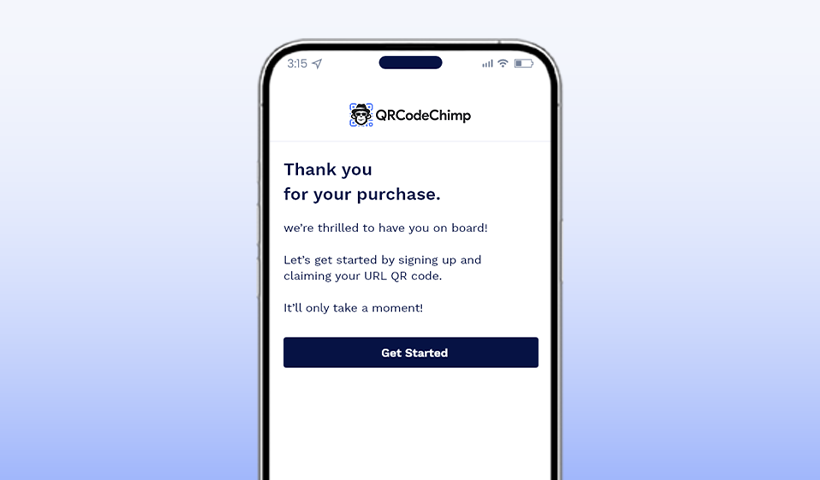
As the QR code is scanned, a pop-up will appear, click on Get Started.
Step 3: Sign up for your account
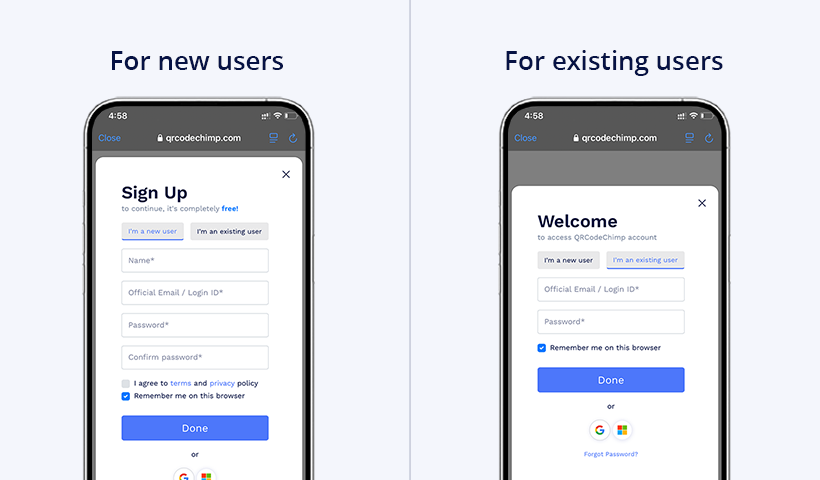
If you are an existing QRCodeChimp user, then Sign in to your QRCodeChimp account. If you are new, select the option ‘I’m a new user’.
How to personalise your digital business card QR code on mobile
Step 1: Set up your profile

You have successfully claimed your digital business card. Now, to set up your profile, click on the Next button.
Note: To add advance features, you can copy or share the link to your desktop via email or messaging apps. Once you receive the link, open it on your desktop, login, and continue with completing your profile.
Step 2: Select the template

Select the template that you like for your Digital business card and click the Next button.
Step 3: Upload your photos
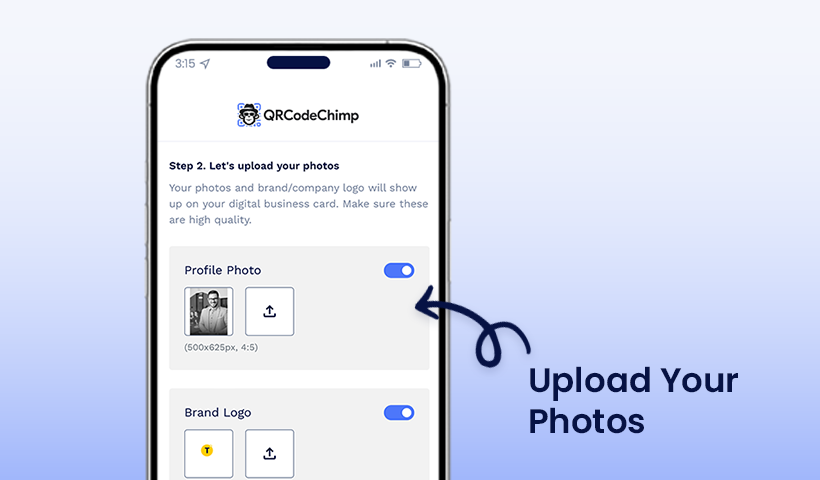
Upload your profile picture and business logo for your digital business card.
Step 4: Add your details
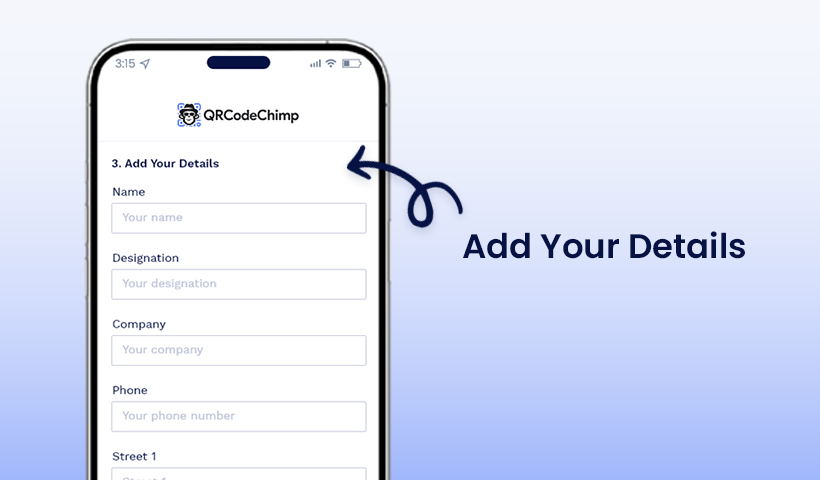
Add the details such as your name, designation, company, email, address, etc. Enable the ‘Email me on scan’ radio button to get email notifications when someone accesses your card. Now, click Next.
Step 5: Preview your profile

Check your profile and click Save to finish the process.
Step 6: Name your QR code

A pop-up titled ‘Campaign name’ will appear on the screen. Give your digital business card a name and click ‘Save.’
Step 7: Ready to share
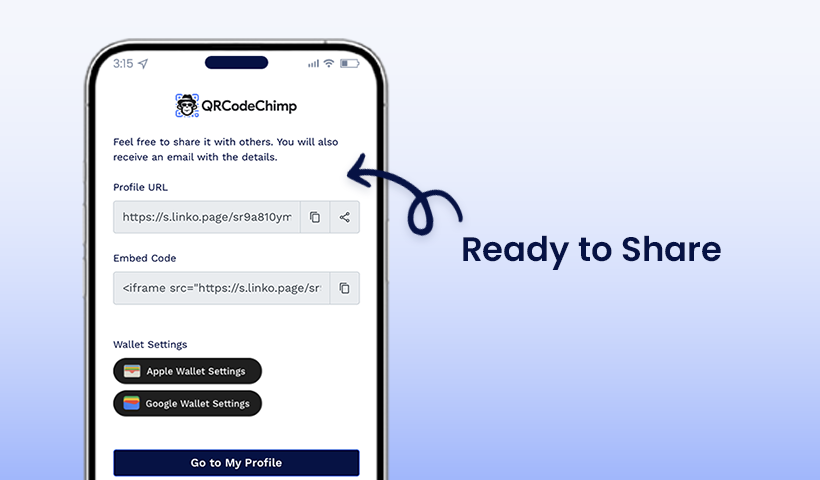
Your digital business card is now ready to be shared.
You can also watch this quick video to learn the steps to claim your digital business card.
How to personalize pet tag QR code on mobile
To claim QRCodeChimp’s merchandise Pet tag QR code, first follow the merchandise QR code claim process steps, then proceed with the following steps to add the details:
Step 1: Select the template

Select the template that you like for your Pet tag and click the Next button.
Step 2: Upload the image

Now, upload the image of your pet and click the Next button.
Step 3: Add the details
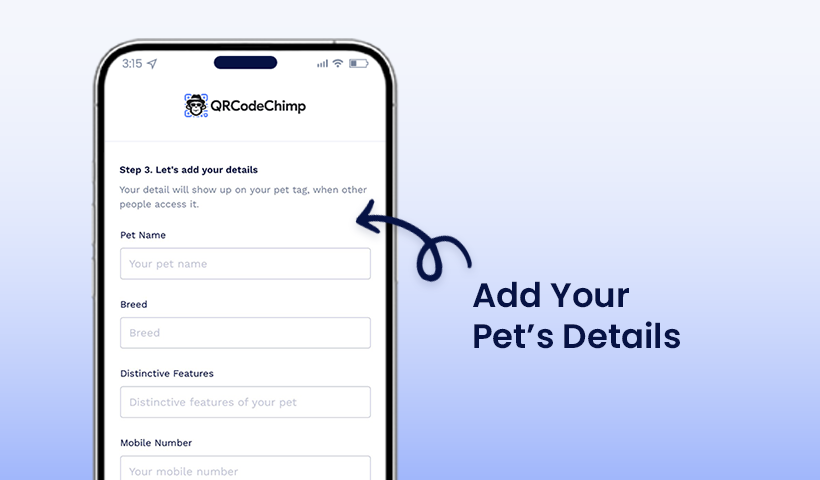
Here, add the details of the pet, such as the pet’s name, breed, owner’s contact information, etc. Enable the email me on scan option to get an email alert.
Step 4: Preview the profile

Check your profile and click Save to finish the process.
The pet tag QR code is now ready to be printed on your pet’s tag.
🚨Important note: Please ensure that you do not delete your merchandise QR code from your QRCodeChimp account. Deleting the QR code will cause it to stop working on your pet ID tag or any other merchandise. If you accidentally delete it, the QR code will remain in your account’s trash for up to 30 days, allowing you to restore it. After that, QR codes are permanently removed from the trash and cannot be recovered.
Conclusion
QR codes have become an integral part of various processes, offering a seamless and efficient way to share information. The claiming process, as outlined in this guide, is straightforward and user-friendly. By following the step-by-step instructions, individuals can successfully claim their QR codes and unlock the associated benefits.
Frequently asked questions
What if I forget the password of my QRCodeChimp account?
If you forget the password for your QRCodeChimp account, you can reset it.
Can I change the information associated with my QR code after claiming it?
Yes, you can update the information linked to your merchandise QR code by signing into your QRCodeChimp account. After login, go to your QRCodeChimp account dashboard, locate your QR code, and click Edit to update the information linked to the QR code.
Why should I claim my QR code?
Claiming your QR code ensures you have control over its associated information and can access any features.
You may also like
GS1 Application Identifiers Explained: GTIN, Batch, Serial, Expiry, and More
This guide explains the most important GS1 Application Identifiers used for product identification, traceability, retail, and packaging.
Steps to Integrate Microsoft Entra ID (Azure AD) with QRCodeChimp
Learn how to connect Microsoft Entra ID with QRCodeChimp to automate digital business card creation, improve security, and simplify onboarding.
Bulk QR Codes for Business: Use Cases and Benefits
Discover how bulk QR codes for business can streamline product packaging, employee cards, events, multi-location campaigns, inventory, and more
How to Send QRCodeChimp Form Responses to HubSpot
Learn how to connect QRCodeChimp Forms with HubSpot, map form fields, send responses directly to your CRM, and verify successful data transfers.
Most Popular
Contact Sales