Handling digital business cards at scale can get messy fast. With QRCodeChimp Entra ID grouping, you can keep things organized by department, role, location, or custom rules.
Whether you’re a lean team or a growing enterprise, this guide shows you how to use three grouping methods: All-in-One, By Group, and By Filter to simplify card management and maintain a consistent, professional presence across your organization.
If you are new to Entra ID & QRCodeChimp integration, visit Steps to Integrating Microsoft Entra ID (Azure ID) with QRCodeChimp.
When you are done with that, let’s begin.
Three ways of QRCodeChimp Entra ID grouping
There are three ways to group your cards depending on the size and structure of your organization.
1. All in one group
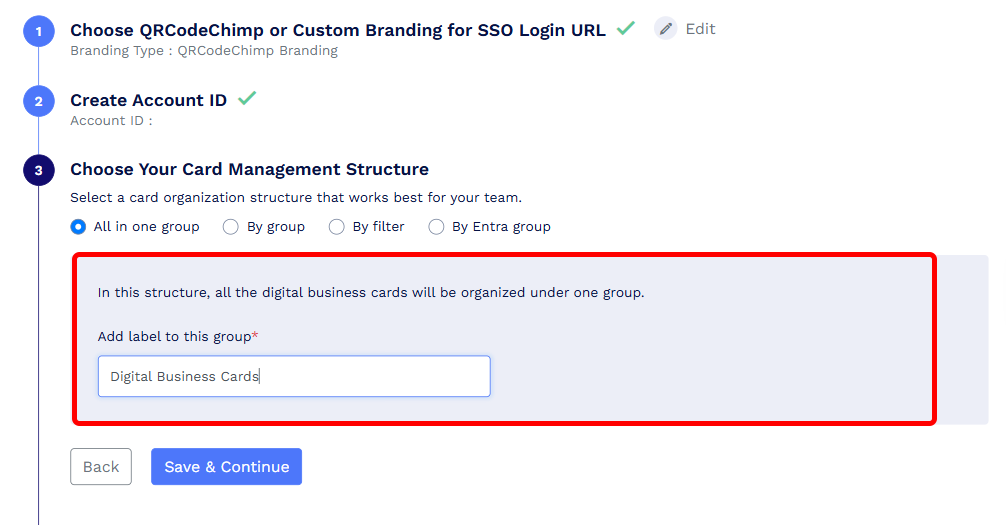
If you have a small team, putting all your digital business cards into one group is the easiest way to stay organized. Every card, regardless of role, department, or location, is assigned to a single label.
All cards are kept in one place. You don’t have to split or sort by role or filters. This keeps things simple, especially if you don’t need tight control or only manage a few cards.
Since there is only one group, choose a simple name, such as Company Directory or All Employees.
2. By group
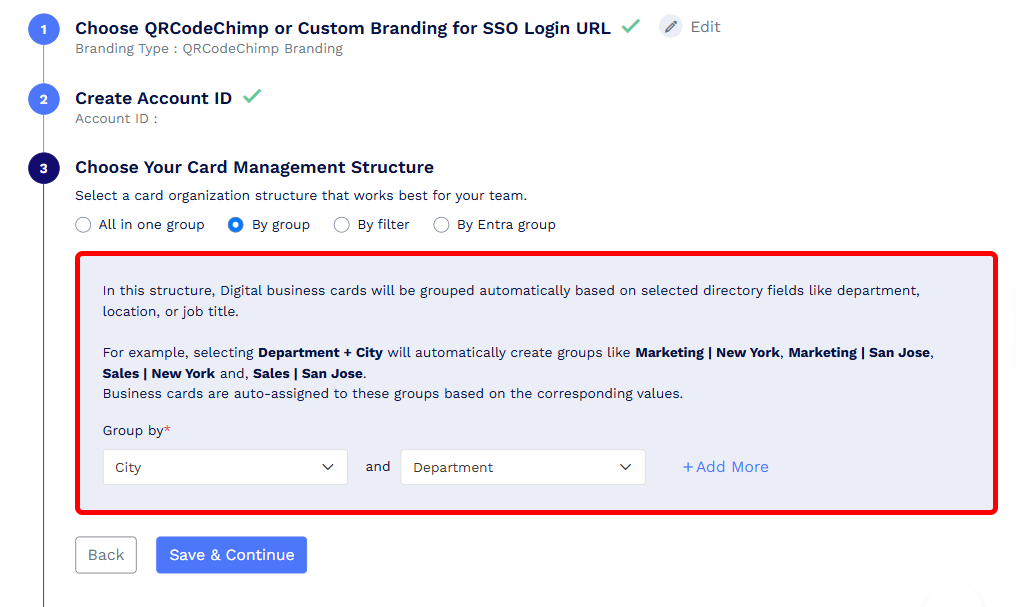
If your team has different departments, roles, or locations, organizing digital business cards by group keeps things simple and tidy without stressing you out. This method automatically sorts cards based on factors you set, eliminating the need to handle each card individually. You can select up to three fields.
Example:
1. One field – Department
It’ll create groups based on departments in your Active Directory (AD).
Development, Marketing, Sales, HR
2. Two fields – Department + Job Titles
It’ll create groups based on departments and job titles in your Active Directory (AD).
Marketing | Writer, Sales | Manager
3. Three fields – Country + Department + City
It’ll create groups based on countries, departments, and cities in your Active Directory (AD).
United States | Sales | California, Japan | Marketing | Tokyo
3. By filter
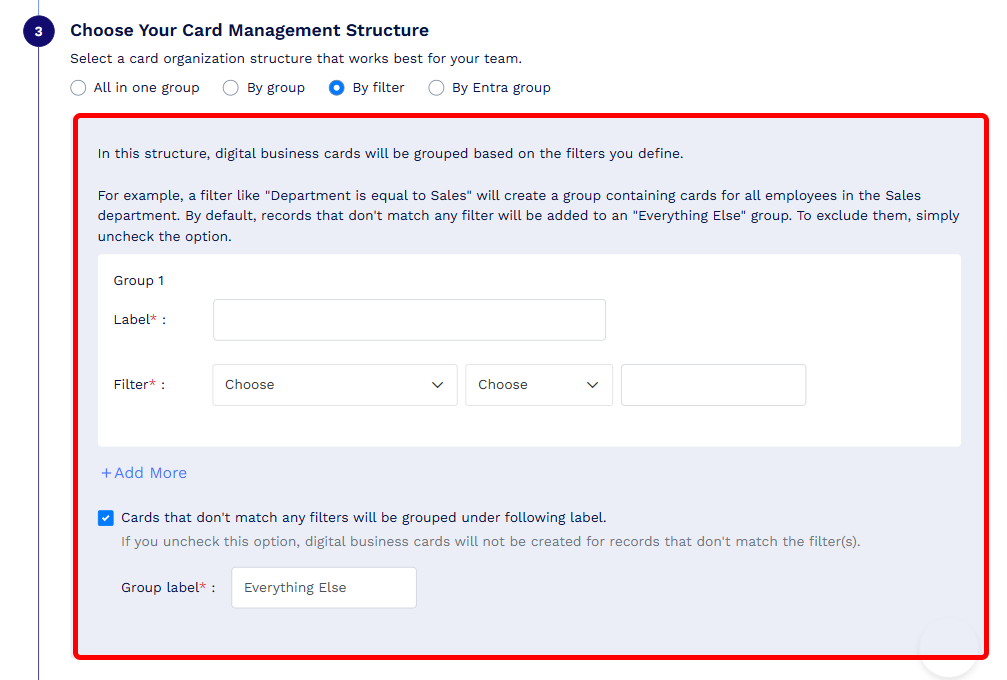
If your team has special needs or a more complex setup, grouping by filter gives you complete control. You create custom groups by setting exact rules, such as department, location, or job title (not limited to these), so you can be very specific about who belongs where.
This is also helpful when you want to create digital business cards for a select group of people, rather than for everyone. This will make cards for only those members who meet the criteria set by your filter.
You build filters to determine which cards are assigned to which groups. For example, you might create a group called Sales or New York. Cards that match those rules are grouped automatically, providing a flexible way to organize. You can add up to five filters.
Example:
Department Is equal to Sales will create a group of cards of people from the Sales Department.
Location Is equal to Tokyo will create a group of cards of people from Tokyo city.
Steps to organize cards by filter
Step 1: Enter a label for your filter
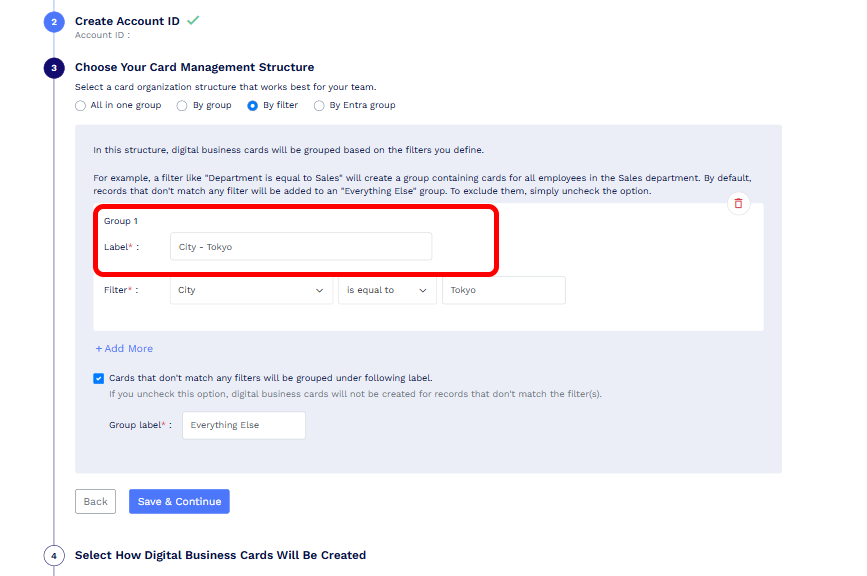
Step 2: Select your field.
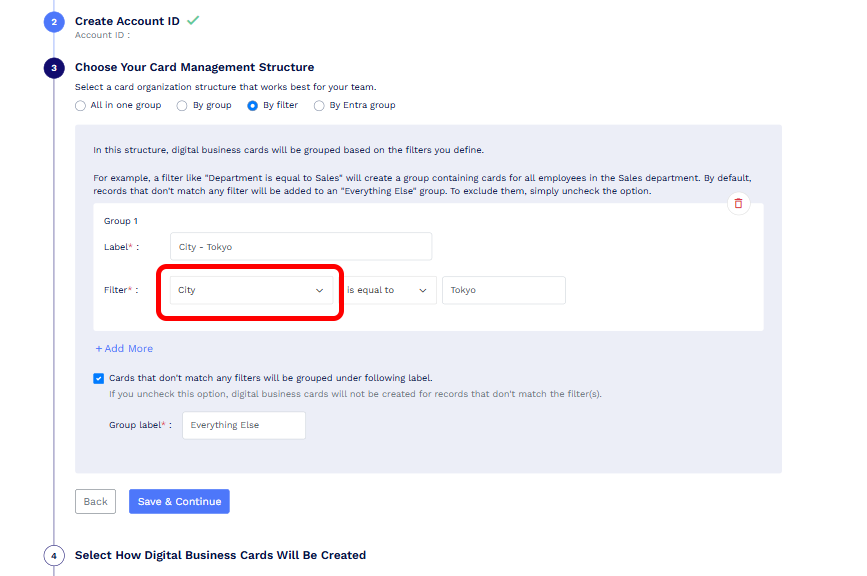
Step 3: Select is equal to or is not equal to.
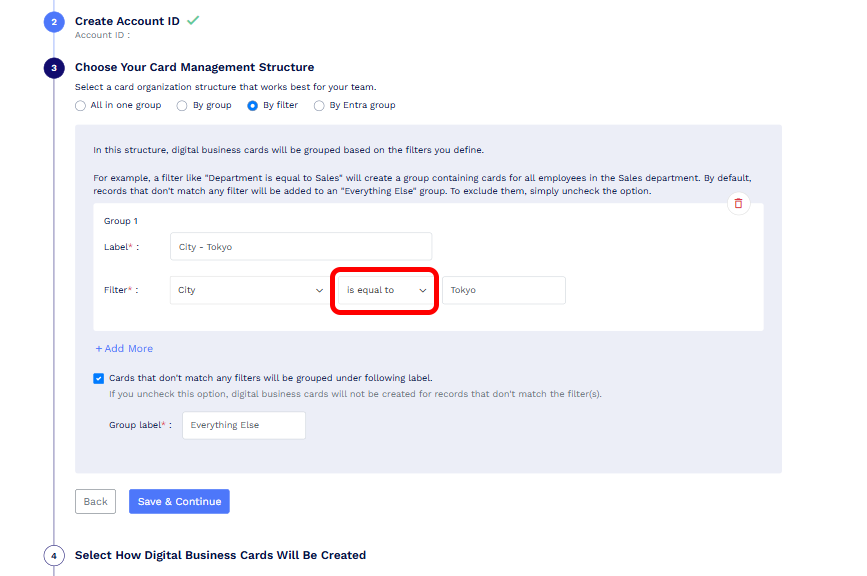
Step 4: Enter the parameter.
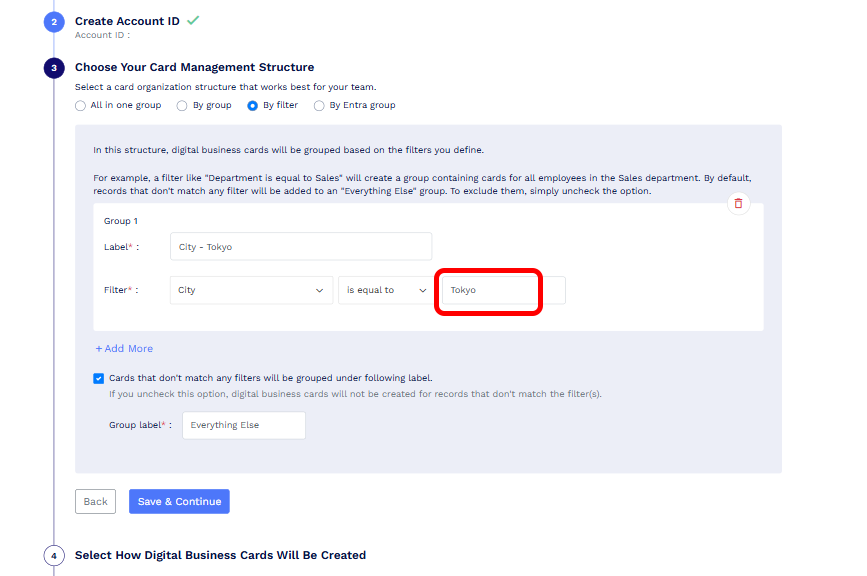
Step 5 (Optional): Ensure the Cards that don’t match any filters will be grouped under everything else is checked. (You can change the label for this group.)
This stores all the cards that do not match your filter in a group.
Name this group.
Step 6: Click Save & Continue.
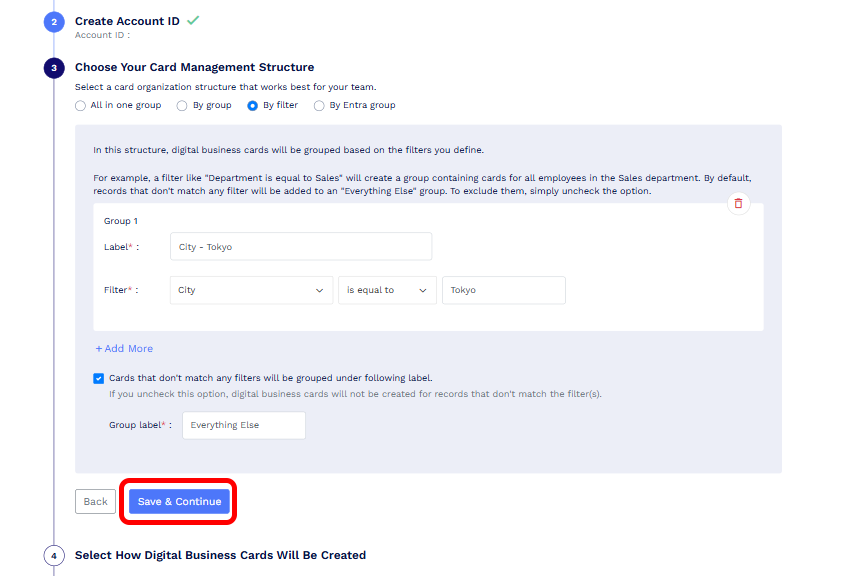
4. By Entra group
QRCodeChimp now lets you group digital business cards using the groups already set up in your Microsoft Entra ID directory.
When you choose Group by Entra ID, QRCodeChimp fetches the groups from your Entra ID account and automatically organizes employee cards according to those groups. This means you do not need to recreate your existing organizational structure inside QRCodeChimp.
For example, if your Entra ID directory already has groups such as Sales, Marketing, HR, or regional teams, QRCodeChimp can use those same groups when organizing the corresponding digital business cards.
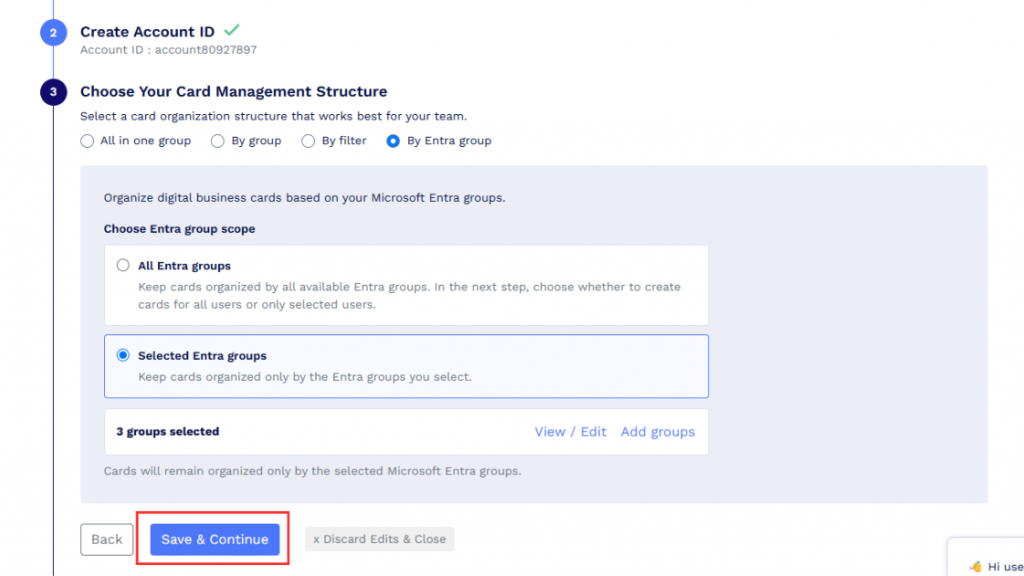
Step 1: Under Choose Your Card Management Structure, select By Entra group.
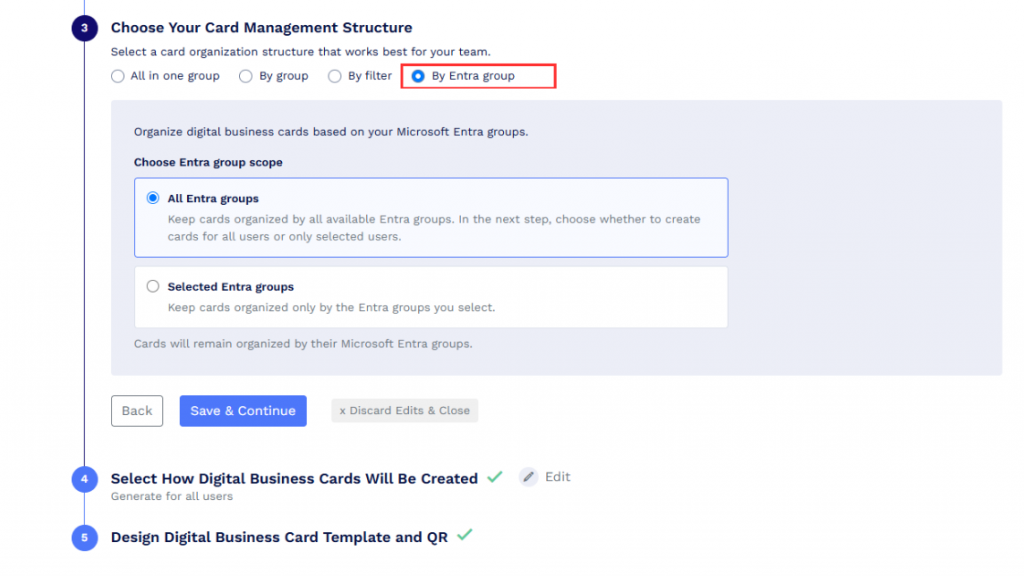
Step 2: Choose how you want to organize the cards:
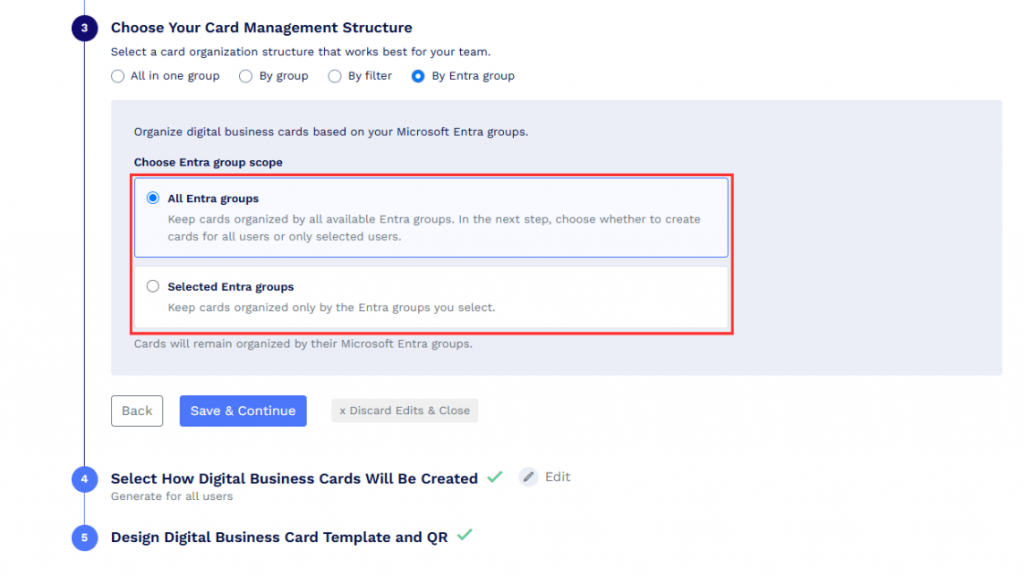
- Select All Entra groups to use all groups available in your Microsoft Entra ID directory.
- Select Selected Entra groups if you only want to use specific groups.
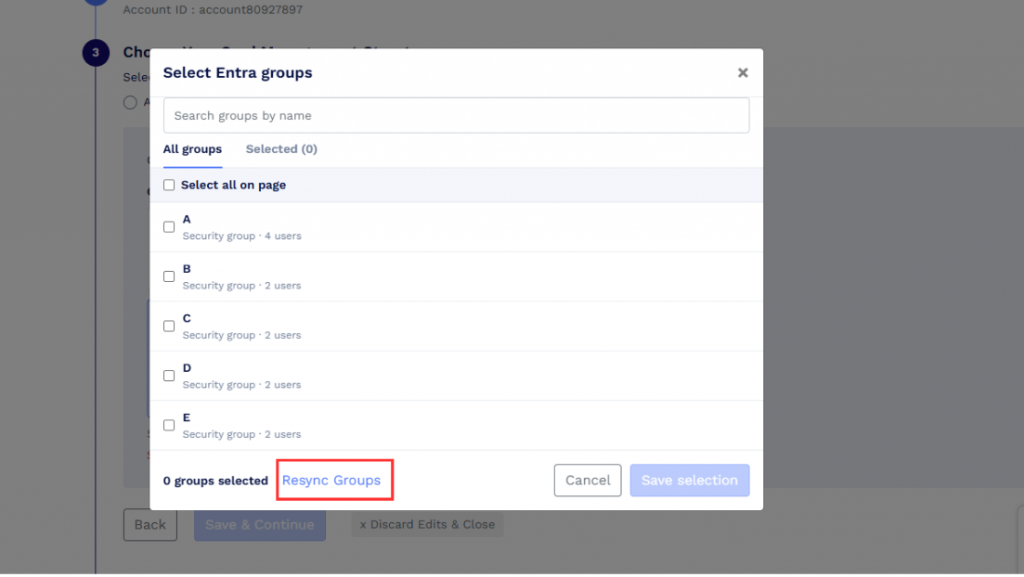
Step 3: If you choose Selected Entra groups, click Add groups. A popup will appear showing the groups fetched from your Microsoft Entra ID directory.
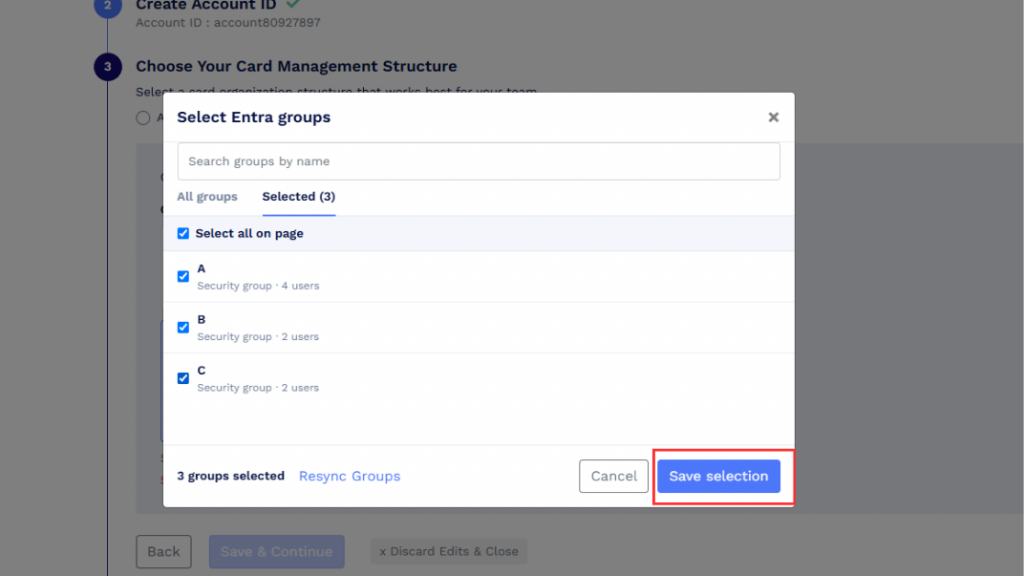
Select the groups you want to use, then click Save selection.
These are the same groups in your Azure Active Directory account.
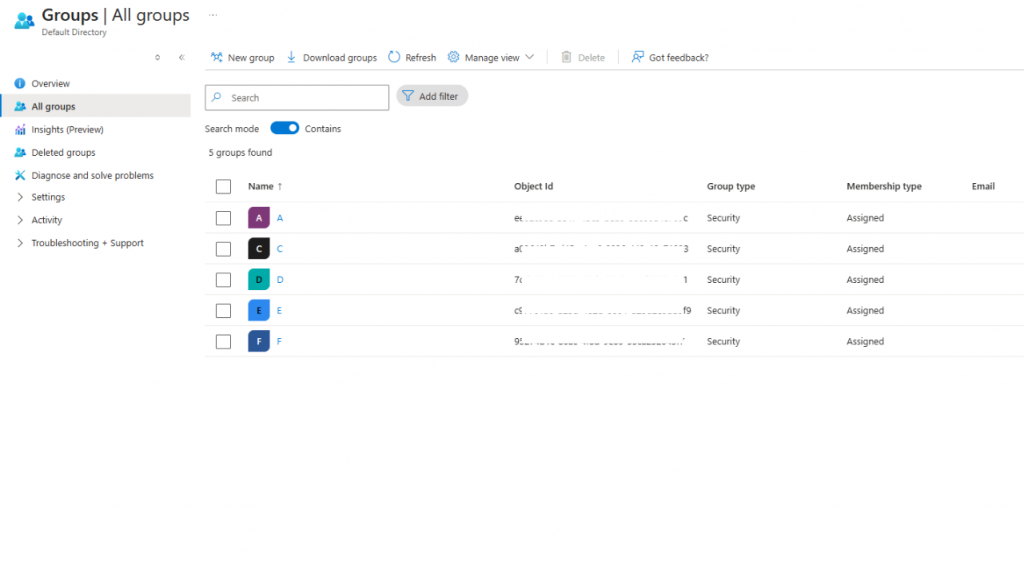
If you add new groups in Microsoft Entra ID later, reopen the group selection popup and click Resync Groups to fetch the latest groups.
Step 4: Once you’ve finished selecting groups, click Save & Continue.
Step 5: After saving the setup, go to Users & Groups from the left sidebar to view the added groups.
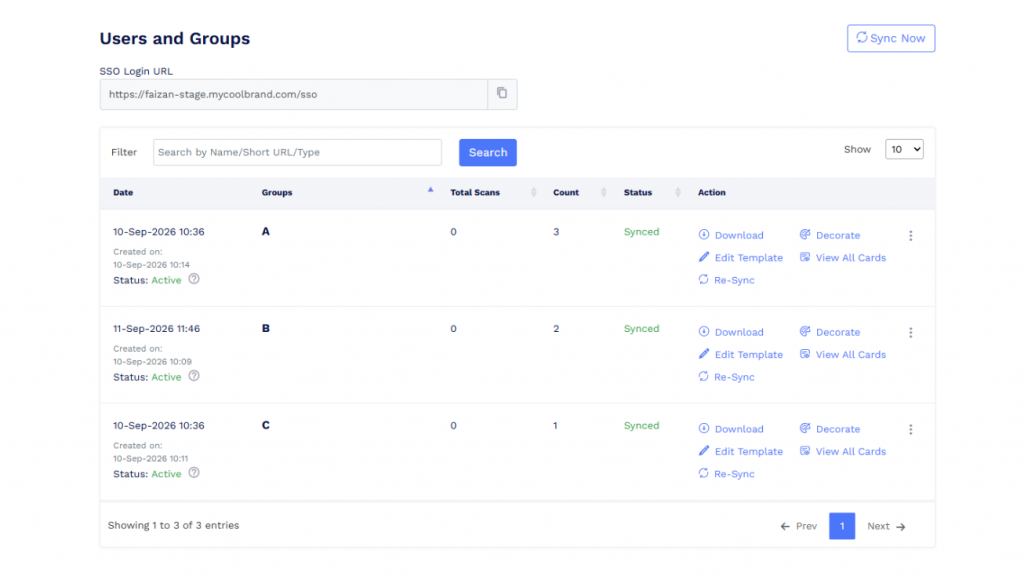
Here, you’ll see the Entra groups you selected, along with the digital business cards created under each group.
Wrapping up
Grouping digital business cards for teams isn’t just about staying organized. It’s about making your operations smoother, your updates faster, and your teams more self-sufficient.
Whether you’re setting up a unified company directory or tailoring access by region and role, QRCodeChimp Entra ID grouping gives you the flexibility to scale with ease.
Now that you know the options, it’s time to choose the method that best fits your team structure and put your card management on autopilot.
Frequently asked questions
Who should manage groups?
Give trusted admins or team leads the job. Limiting who can edit helps avoid mistakes and keeps things organized.
Can I change the grouping method later?
No. You can disconnect Entra ID from QRCodeChimp and reconnect it. Then you can change the grouping method, but it will discontinue the current digital business cards.
You may also like
How to Create a Circular QR Code With Logo + Best Practices and Mistakes to Avoid
Learn how to create a circular QR code (round or circle) with your logo, plus best practices, scannability tips, and mistakes to avoid. Free to start on QRCodeChimp.
Steps to Integrate Microsoft Entra ID (Azure AD) with QRCodeChimp
Learn how to connect Microsoft Entra ID with QRCodeChimp to automate digital business card creation, improve security, and simplify onboarding.
How to Combine Multiple Links Into One Link
Combine multiple links into one shareable link and QR code. Use it in bios, emails, messages, or print, and update your links anytime.
How to Use Bulk Upload in QRCodeChimp: Step-by-Step Guide
Learn how to use QRCodeChimp Bulk Upload to create multiple QR codes from CSV, XLS, or XLSX files, customize their design, and download the completed bulk.
Most Popular
Contact Sales