Sharing several links at once can quickly get messy. A long list of URLs makes an email or message harder to read, social profiles have limited space, and printed materials require people to manually type web addresses.
A simpler option is to combine multiple links into one shareable page. Instead of sending each URL separately, you share one page that contains all the destinations you want people to access.
That page can have its own URL for digital sharing and a QR code for print. Whether someone taps the link or scans the QR code, they reach the same collection of links.
- Can You Combine Multiple Links Into One?
- 3 Ways to Combine Multiple Links Into One
- How to Combine Multiple Links Into One Link With QRCodeChimp
- Where to Share Your Combined Link
- Link or QR Code: Which Should You Share?
- Tips for a Combined Link People Actually Use
- When Should You Use a Direct Link Instead?
- Bring Your Important Links Together
- Frequently Asked Questions
Can You Combine Multiple Links Into One?
Yes. You can create one landing page that brings several links together and then share a single URL for that page.
For example, instead of separately sharing your website, online store, portfolio, YouTube channel, Instagram profile, and booking page, you can place all of them on one page. People open one link and choose the destination they need.
This gives you one link for multiple links, making it easier to share several destinations without sending each URL separately.
The same page can also be connected to a QR code. This means you can use the URL where people can tap and the QR code where scanning is more convenient.
With a dynamic page, you can update, remove, or rearrange the links later without changing the URL or reprinting the QR code.
3 Ways to Combine Multiple Links Into One
There is more than one way to bring several links together. The best option depends on how often your links change, how much control you need over the page, and where you plan to share it.
| Method | Setup | Easy to update | QR code | Branding | Analytics |
|---|---|---|---|---|---|
| Multi-link page tool | Easy | Yes | Can be built in | High | Depends on tool and plan |
| Page on your own website | Requires website access | Yes | Created separately | High | Requires analytics setup |
| Shared document or page | Easy | Yes | Created separately | Limited | Usually limited |
A page on your own website gives you greater control but may require more setup and maintenance. A shared document is quick to create but typically offers less branding and a less polished experience.
A dedicated multi-link solution works well when you want something that can be created quickly, updated easily, and shared through both a URL and a QR code.
How to Combine Multiple Links Into One Link With QRCodeChimp
QRCodeChimp’s Multi-URL solution lets you create one page for your links and gives you both a shareable page URL and a QR code.
Step 1: Open the Multi-URL QR Code Generator
Sign in to your QRCodeChimp account and open Multi-URL QR Code Generator.
Choose your page code carefully. It becomes part of your linko.page URL and cannot be changed after the page is saved.
Step 2: Choose a template
Select a layout that works for the type of links and content you want to share.
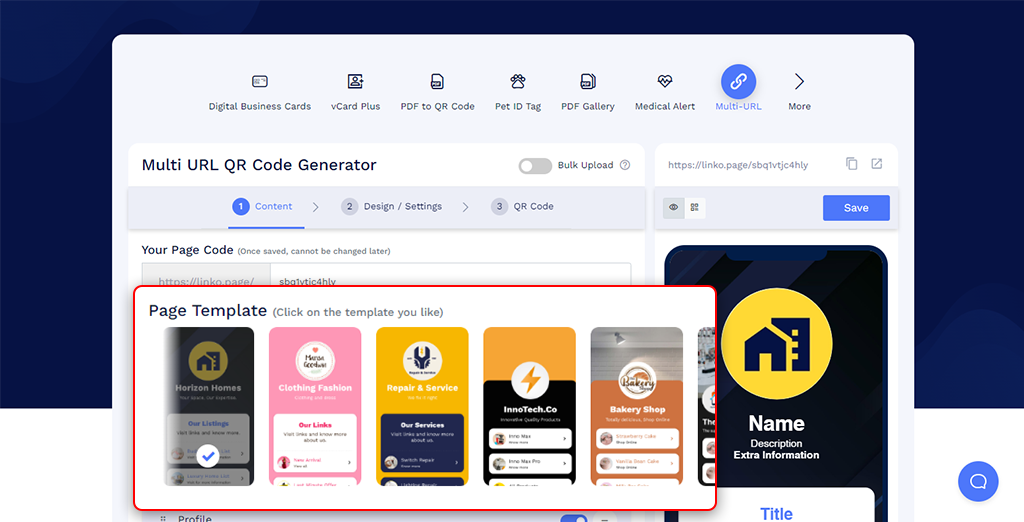
You can customize the design later, so focus first on choosing a clear structure.
Step 3: Add your links
Add the destinations you want people to access and give each one a clear label.
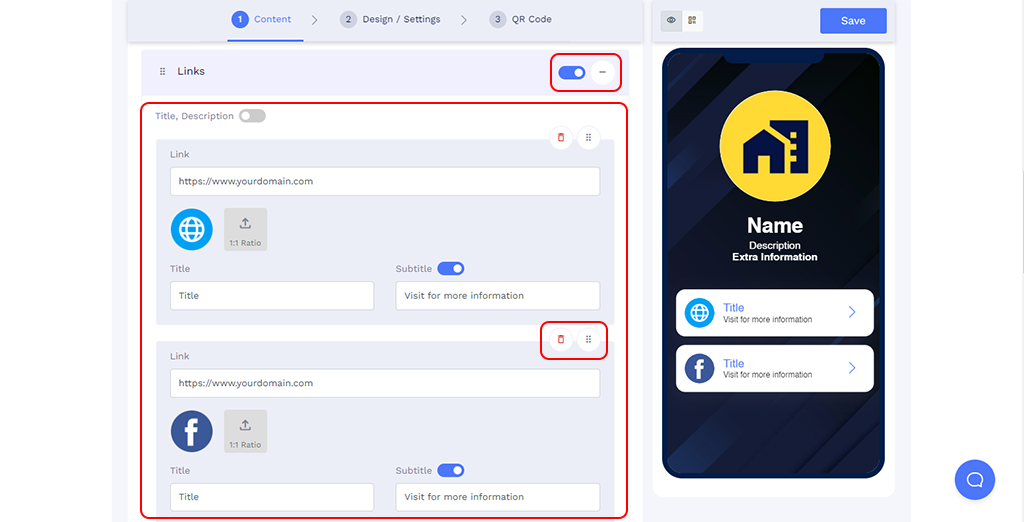
Instead of vague labels such as “Click Here,” use descriptive text such as “View Portfolio,” “Shop New Arrivals,” “Book a Call,” or “Download Brochure.”
Put the most important link first so visitors can quickly find the main action.
Step 4: Customize the page
Adjust the page design to suit your brand. You can personalize elements such as colors, fonts, backgrounds, and other page components.
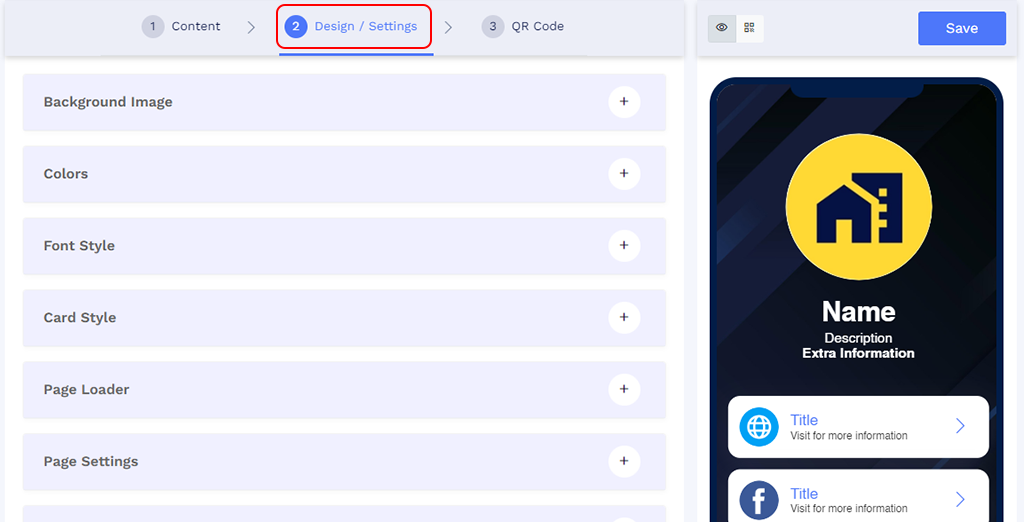
You can also customize the QR code so it fits naturally with your branding while remaining easy to scan.
Step 5: Save and share
Save your page once everything is ready.
Copy the page URL when you want to share your links digitally. Download the QR code when people will access the page from printed or physical materials.
You can also combine links into one QR code, so people scanning from print reach the same page and choose the destination they need.
💡Read more: For the complete setup, including contact details, additional components, saved page styles, and QR customization, see our step-by-step guide to creating a QR code for multiple links.
Where to Share Your Combined Link
Once you have one page for your links, you can use it anywhere you would otherwise need to share several separate URLs.
✅ Social media bios
A combined link works well when you want one profile link to lead visitors to several destinations.
For example, your page could include your website, latest content, shop, newsletter, portfolio, or booking page. When something changes, you update the page instead of replacing the link everywhere you have shared it.
A Multi-URL page can therefore also work as a link-in-bio page.
✅ Email signatures
An email signature can quickly become crowded if you add separate links to your website, portfolio, calendar, resources, and social profiles.
Instead, use one clean link that leads to the destinations most relevant to the people receiving your emails.
For example, a consultant could link to one page containing their services, case studies, calendar, and contact information.
✅ WhatsApp, SMS, and direct messages
Sending several URLs in one message can make it difficult for the recipient to understand which one to open first.
A single organized link keeps the message shorter and lets the recipient choose what they need from one page.
A salesperson, for example, could share one link containing a product brochure, demo video, customer story, and meeting-booking page instead of sending four separate URLs.
✅ Resumes and portfolios
A single page can bring together:
- Resume
- Portfolio
- LinkedIn profile
- Certificates
- Work samples
- Contact details
The page URL can be added to a digital resume, while its QR code can be placed on a printed version.
✅ Invitations and event details
One page can simplify information sharing when guests need access to several resources, such as:
- Venue and directions
- Schedule or itinerary
- Registration details
- Accommodation information
- Photo gallery
- Other event resources
You can share the page URL digitally and place the QR code on invitations, event signage, or other printed materials.
✅ Printed materials
A combined page is particularly useful when several resources need to be accessible from a brochure, product package, flyer, poster, display, or sign.
Rather than printing several QR codes or long URLs, use one QR code and let the landing page organize the choices.
For example, product packaging could use one QR code to provide a setup video, user manual, warranty registration, customer support, and reorder link.
Link or QR Code: Which Should You Share?
You do not have to choose one or the other.
| Share the page URL | Share the QR code |
|---|---|
| Social media bios | Product packaging |
| Emails | Posters |
| Messages | Flyers and brochures |
| Digital documents | Displays and signage |
| Online profiles | Presentation screens |
Use the page URL when people can tap it directly. Use the QR code when scanning is more convenient.
Both can open the same Multi-URL page, so you only need to maintain one set of links.
Tips for a Combined Link People Actually Use
- Put the most important link first: Make the primary action easy to find without scrolling.
- Use descriptive labels: “Download Product Guide” is clearer than “Learn More.”
- Keep only relevant links: Too many choices can make the page harder to use.
- Review links regularly: Remove outdated destinations and update time-sensitive content.
- Use engagement data when available: If certain links receive more clicks, consider moving them higher.
- Choose your page code carefully: Once the page is saved, the page code cannot be changed.
When Should You Use a Direct Link Instead?
Combining links is useful when people genuinely need a choice.
If there is only one action you want someone to take, sending them directly to that destination is often better.
Use a direct link or QR code when the goal is simply to:
- Make a payment
- Submit one form
- Register for one event
- Open one product page
- Download one specific resource
The simplest rule is this: use a multi-link page when the destinations belong together and users may reasonably need different resources. Use a direct link when there is one clear action.
Bring Your Important Links Together
You do not need to send a separate URL every time you want to share another resource.
A single multi-link page can bring your important destinations together, give people one clean link to open online, and provide a QR code for offline sharing.
You can then update what appears on the page without replacing the URL or reprinting the QR code.
Frequently Asked Questions
Can I combine two links into one?
Yes. You can create a landing page containing the two links and share the single URL of that page. The same method works whether you have two links or several.
Can I put multiple links in one link?
Yes. You can place multiple links on one landing page and then share the single URL of that page. People open the link and choose the destination they want.
Is it free to combine multiple links into one?
You can create a Multi-URL QR code using QRCodeChimp’s Free plan, subject to the plan’s applicable dynamic QR code and scan limits.
Paid plans provide higher limits and additional features.
Can I change the links after sharing the page?
Yes. A dynamic Multi-URL page can be updated after it has been shared.
You can replace, remove, add, or rearrange links while continuing to use the same page URL and QR code.
Is a multi-link page the same as a URL shortener?
No. A URL shortener normally creates a shorter version of one destination URL.
A multi-link page brings several destinations together behind one shareable page. Visitors open the page and choose which link they want to follow.
Can I replace multiple QR codes with one QR code?
Yes, when the destinations belong together.
Instead of displaying several QR codes, you can put the destination links on one Multi-URL page and create a single QR code for it. People scan once and choose the resource they need.
Separate QR codes may still be better when each destination serves a different purpose or needs to be measured independently.
Can I use the combined link as a link-in-bio page?
Yes. A QRCodeChimp Multi-URL page has its own shareable URL, so you can use it in your social media bio as a single destination for several links.
The same page also comes with a QR code, allowing you to share those links through offline materials.
What is a multi-link QR code?
A multi-link QR code opens a page containing multiple links instead of sending users directly to one destination.
Users scan once and then choose the link they want to open.
You may also like
How to Create a Circular QR Code With Logo + Best Practices and Mistakes to Avoid
Learn how to create a circular QR code (round or circle) with your logo, plus best practices, scannability tips, and mistakes to avoid. Free to start on QRCodeChimp.
How to Group Cards in QRCodeChimp Entra ID Setup
Learn to organize digital business cards effectively using QRCodeChimp Entra ID grouping. Simplify card management by group, filter, or all-in-one.
Steps to Integrate Microsoft Entra ID (Azure AD) with QRCodeChimp
Learn how to connect Microsoft Entra ID with QRCodeChimp to automate digital business card creation, improve security, and simplify onboarding.
How to Create One QR Code for Multiple Links
Learn how to create one QR code for multiple links. Add websites, social profiles, videos, PDFs, and more, then update links without reprinting.
Most Popular
Contact Sales