You hand out printed syllabi on the first day of class. Students tuck them into folders or backpacks, and within a couple of weeks, some are missing. You email links, post files in the LMS, and still hear the same question: “Where’s the reading list?”
This is an access problem rather than a discipline issue or a technology gap.
Classrooms are physical spaces, whereas teaching materials are digital. Students move constantly between the two. Every time a link changes, a file updates, or a handout goes missing, momentum breaks. Over a semester, that friction quietly eats into teaching time.
QR codes remove that friction by fixing the last mile of access. A single scan takes a student to the intended resource without typing URLs, hunting through email threads, or ambiguity about which version is current. You keep teaching while students stay focused.
This guide shows how educators use QR codes to distribute syllabi, assignments, and study materials in a way that is simple to implement, flexible over time, and measurable in real classrooms.
Why QR codes fit naturally into teaching workflows
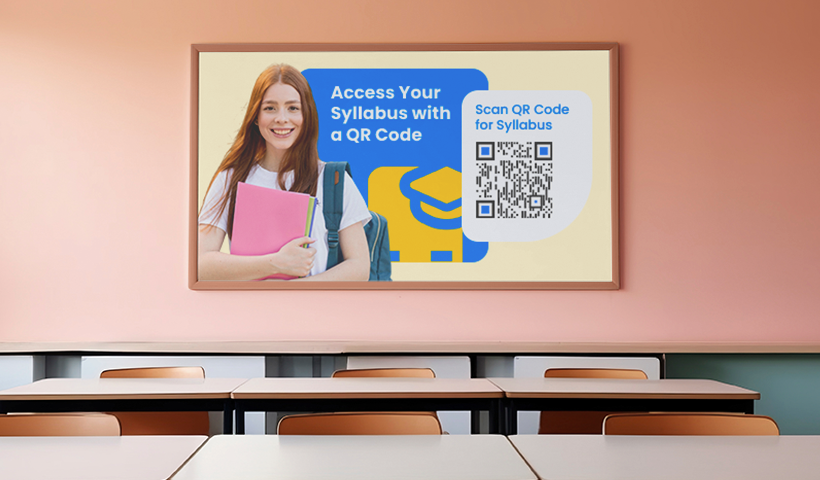
For most educators, the challenge isn’t content creation; it’s content delivery as files live across LMS platforms, cloud folders, PDFs, and email attachments. Students end up with broken links, outdated versions, or access blocked by permissions.
QR codes address this by providing a single, scannable link that connects the physical classroom to digital content. Students use the phone camera to land exactly where educators want them.
What makes QR codes especially effective in education is their durability. With dynamic QR codes, you can update the destination without changing the printed code. That means you stop reprinting materials whenever anything changes. Over a term, that small shift adds up to meaningful time and cost savings.
QR codes also give you visibility. Scan analytics show which materials students access and when. Instead of guessing whether students opened a file, you can see patterns and respond accordingly.
The three QR code patterns that cover most courses
Despite the variety of teaching styles, most course materials fall into one of three categories: content that changes often, content that stays fixed, and collections of related files. QR codes map cleanly to these patterns.
1. Living documents: Google Docs QR codes
Some materials are never truly finished. Weekly schedules, lab instructions, collaborative notes, and feedback forms evolve throughout the semester. For these, Google Docs QR codes work best.
You generate a single QR code that links to the document, then update the file as needed. Students always see the latest version without scanning a new code. This is especially useful for rolling syllabi or lab protocols that change week to week.
2. Finalized content: PDF QR codes
Some materials should remain stable. Final syllabi, study guides, readings, rubrics, and certificates fall into this category. PDF QR codes are ideal here.
PDFs preserve formatting across devices, can be downloaded for offline use, and don’t require a login once properly shared. Students can save and annotate them in their preferred apps, which is especially helpful in low-connectivity environments.
A common classroom use is posting laminated QR codes that link to formula sheets or reference guides. Students scan once, save the PDF, and reuse it throughout the term.
Also Read: Top Uses of a PDF to QR Code in Education
3. Resource libraries: PDF Gallery QR codes
When you have many documents, such as readings, slides, past exams, and lab manuals, PDF Gallery QR codes offer the cleanest experience. Instead of sharing multiple links, you provide one QR code that opens a curated library. Files are organized by week or topic, and you can add or remove documents without changing the code. For students, this reduces cognitive load. For educators, it simplifies maintenance.
Using QR codes across learning environments
- In physical classrooms, QR codes work best when they are integrated into the room itself. A syllabus QR code on the wall helps late enrollees catch up. An assignment QR code on a bulletin board links students from instructions to resources in one step. Study stations with grouped QR codes let students access materials between classes without waiting for assistance.
- Beyond the classroom, QR codes extend learning across campus. Libraries use them to link shelves to research guides or citation help. Hallway posters can connect visual summaries to deeper explanations. Departments can maintain QR-linked syllabi archives or tutoring resources that stay current year after year.
- In remote and hybrid settings, QR codes still matter. Displaying a scannable code in slide decks or recorded lectures gives students instant access without interrupting the flow of teaching. Including QR codes in mailed course packets helps remote learners bridge the gap between physical materials and digital content.
Implementing QR codes with QRCodeChimp
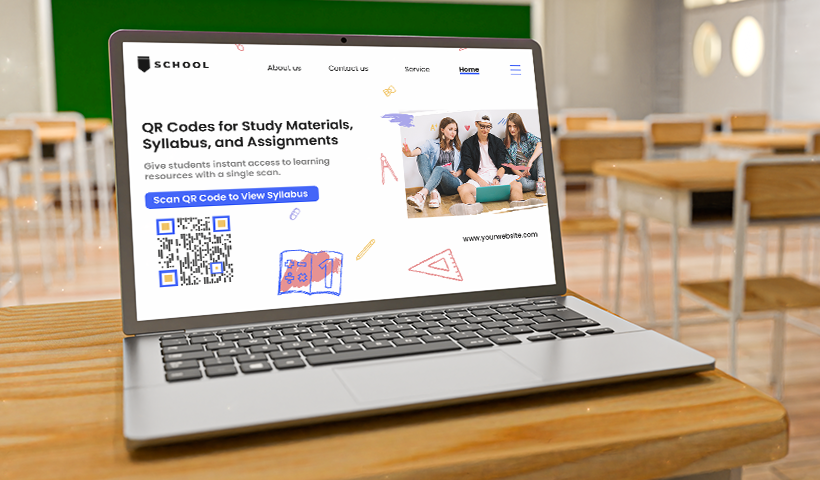
Setting up QR codes with QRCodeChimp does not require technical expertise. Here’s an easy step-by-step method you can follow:
Creating a Google Docs QR code
- Prepare the document: Set sharing to “Anyone with the link can view” unless collaboration is required.
- Generate the QR code: In QRCodeChimp, choose the URL solution and paste the shareable link.
- Add context: Use labels like “Scan for syllabus” or “Weekly assignments.” Include course code and term.
- Test before distributing: Scan on multiple devices and confirm permissions.
Creating a PDF QR code
- Finalize the PDF: Compress large files and add bookmarks for long documents.
- Host reliably: Use QRCodeChimp file hosting or stable platforms like Google Drive.
- Generate and brand: Upload the file and apply simple branding so students recognize official materials.
- Place strategically: Handouts, LMS pages, and classroom posters work best.
Building a PDF Gallery
- Organize first: Group files by week or topic. Name them consistently.
- Set up the gallery: Upload PDFs, add short descriptions, and create clear categories.
- Design the landing page: Include a brief orientation note and institutional branding.
- Maintain over time: Add new files, archive old ones, and review analytics.
Best practices that make a difference
QR codes work best when they are easy to scan and clearly labeled. Follow these guidelines to create smart and legible QR codes.
Technical basics
- Size: Minimum 2 × 2 cm for handouts; larger for wall posters.
- Print quality: 300 DPI or higher; avoid glare.
- Testing: Always scan before mass printing.
Accessibility
- Add a short URL below the code.
- Ensure linked documents are screen-reader friendly.
- Use high contrast if customizing the design.
Pedagogical habits
- Demonstrate scanning on day one.
- Use consistent file naming.
- Keep a master list of course QR codes.
Privacy and compliance considerations
- Never link to documents with personal student data.
- Review sharing permissions mid-term.
- Respect copyright and licensing.
- Prefer links you control and can maintain long-term.
Use QRCodeChimp’s dynamic QR codes so that you can update destinations or disable access without changing the printed code.
What educators actually gain
The benefits of QR codes are incremental but meaningful as follows:
⌛ Time savings: A professor teaching four sections spends ~5 minutes per class session sharing links. Over a 15-week term, that’s ~10 hours recovered by using fixed QR codes.
📄 Paper reduction: A 150-student course avoids over 2,000 printed pages by switching to scannable PDFs and galleries.
📊 Engagement insight: Scan analytics show which materials students actually access, enabling targeted reminders rather than guesswork.
Start small, then build
Teaching is already complex. Access to materials shouldn’t be.
When students know exactly where to find the syllabus, assignments, and study resources, you reduce interruptions, save instructional time, and create a smoother learning rhythm. QR codes aren’t about adding another tool to your stack. They’re about simplifying the last mile between your classroom and your content.
Start with one improvement – a living syllabus, a formula sheet, or a reading library. Test it for a week and observe what changes. Small infrastructure shifts often create outsized classroom impact.
Frequently asked questions
Do students need a special app to scan QR codes?
No. Most modern smartphones can scan QR codes directly using the native camera app. Students simply open their camera, point it at the code, and tap the link that appears.
What happens if I update a document after printing the QR code?
If you use a dynamic QR code, you can update the destination link at any time without reprinting the code. Students will automatically see the updated content when they scan it. Static QR codes cannot be edited after creation.
Are QR codes secure for academic use?
QR codes are secure as long as the linked content is properly permission-controlled. Always review sharing settings, avoid linking to documents containing sensitive student data, and follow institutional compliance guidelines, such as FERPA, where applicable.
What if some students don’t have smartphones?
Include a short backup URL below the QR code. This ensures students can manually type the link on a shared device, laptop, or library computer if needed.
Can I track whether students are accessing materials?
Yes, if you use dynamic QR codes with analytics enabled. You can view scan counts and usage patterns to understand which materials are being accessed and when. This helps you reinforce important resources at the right time.
You may also like
Valentine’s Day 2026 Retail Playbook: Lessons from 2025 You Can’t Afford to Ignore
Discover what worked in 2025 and how to use QR codes in Valentine’s Day 2026 to boost in-store conversions, reduce drop-off, and drive measurable retail sales.
Simplifying Document Access in Real Estate with QR Codes
Learn how QR codes simplify real estate document access. Share brochures, disclosures, and closing files securely with dynamic, trackable QR codes.
How to Build Meaningful Connections at Conferences
Build meaningful connections at conferences with these practical networking tips. Learn how to start authentic conversations, follow up, and nurture professional relationships.
12 Practical Applications of QR Codes in Co-working Spaces
Learn practical ways to use QR codes in co-working spaces to create smarter, more connected workspaces—from streamlined check-ins to simplified meeting room bookings and payments.
Most Popular
Contact Sales
