You’re all set. Your card is live and ready to share.
But before you do, take two minutes to set up these features. They work quietly in the background and make sure every interaction you have turns into a contact you can actually follow up with.
And if you haven’t created your digital business card yet, read on to see what’s possible so you know exactly what to do once you create yours.
Key Takeaways:
- Capture leads automatically with QRCodeChimp digital business cards.
- Use Contact Exchange Form to collect contacts instantly.
- Scan physical business cards with AI Card Reader.
- Customize lead capture forms for better-qualified prospects.
- Turn every interaction into a follow-up-ready contact.
Scan Physical Cards on the Spot
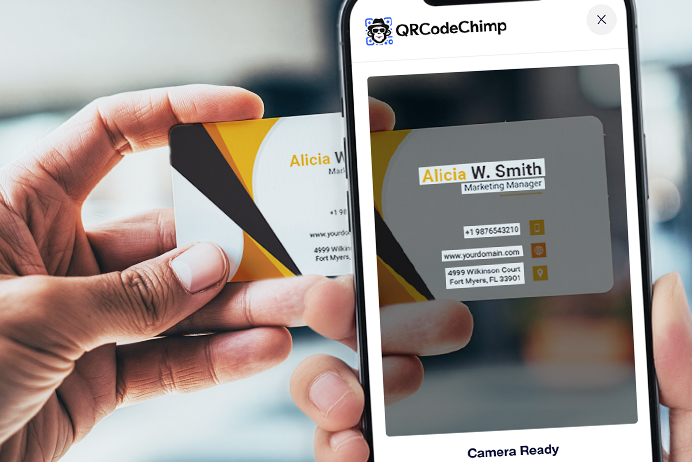
You’ll still receive paper cards at meetings and events. Instead of piling them up and manually adding them later, use the Card Scanner to capture them instantly.
Point your camera at any physical card, review the details, and save directly to your Contacts section. Done!
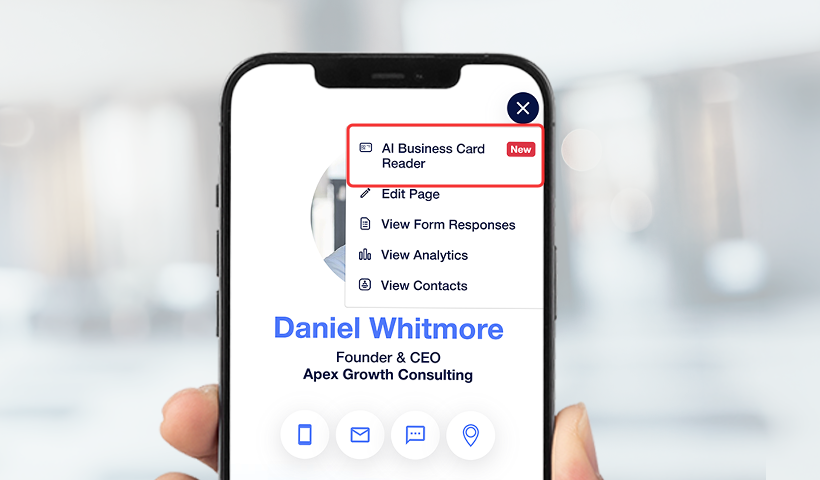
🔎 Where to find it: Open the hamburger menu on your digital business card and click “AI Business Card Reader.”
Collect Contacts Every Time Someone Saves Your Card
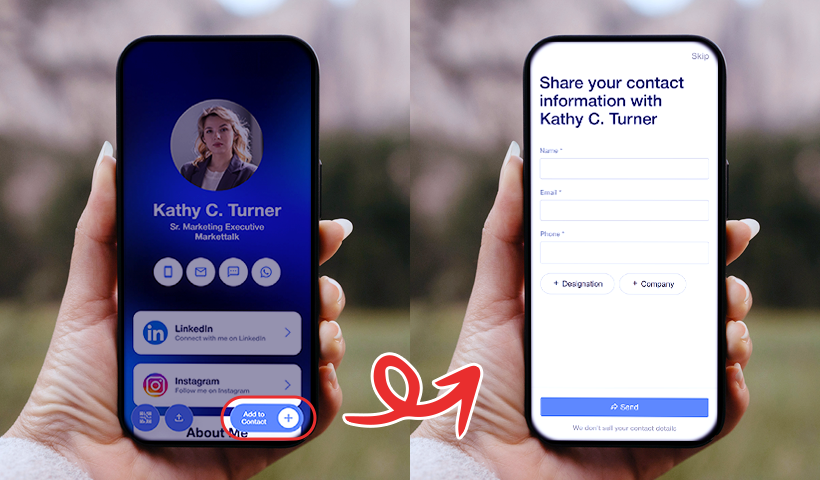
When someone saves your digital business card, the Contact Exchange Form automatically prompts them to share their details in return.
No follow-up needed. No “hey, can you send me your number?” texts. Just a clean, mutual exchange in the moment.
Enable it once, and it works every time.
🔎 Where to find it: Enable the “Contact Exchange Form” toggle in the Contact Us section of your digital business card.
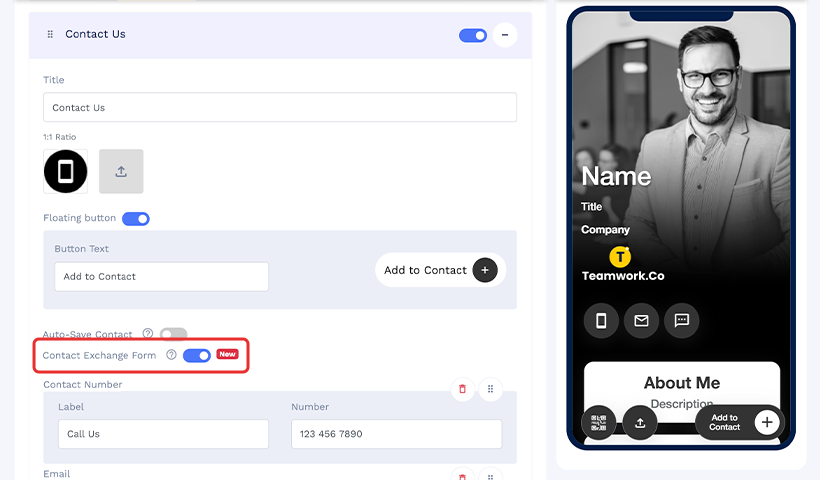
👉 Step-by-step guide to setting up the Contact Exchange Form
Capture the Details That Matter for Your Business
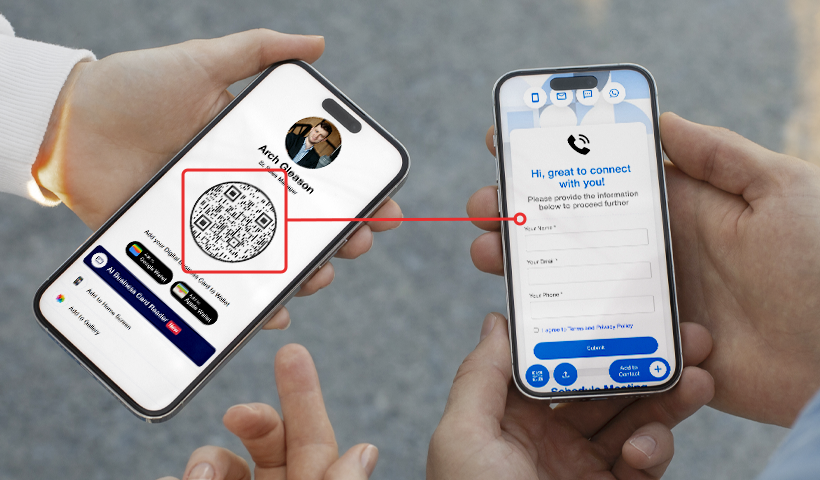
Sometimes a name and number aren’t enough. The Lead Collection Form lets you add a customizable form to your card so you can collect exactly what you need before your first follow-up.
Set it up to ask for requirements, timelines, areas of interest, or anything else relevant to your work. Choose how and when the form appears, and walk into every follow-up conversation already knowing what the person needs.
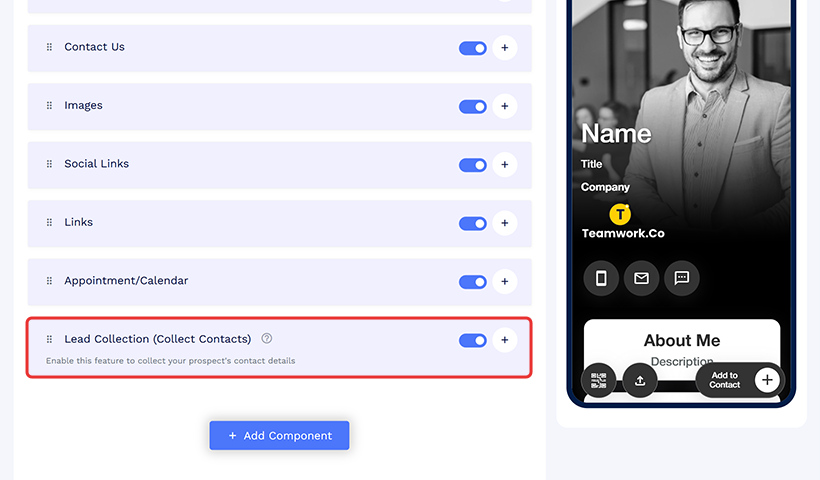
🔎 Where to find it: Enable the” Collect Contacts” section on your digital business card and configure your fields and display preferences.
You’re Two Minutes Away from a Card That Captures Leads on Autopilot
Your card is ready. These features take moments to enable and will quietly do the work for you from here on.
Frequently asked questions
How does QRCodeChimp help with digital business card lead generation?
QRCodeChimp enables digital business card lead generation through features like contact exchange forms, lead collection forms, and QR code sharing, allowing you to capture contacts automatically with every interaction.
How do I collect leads using a QRCodeChimp digital business card?
You can collect leads by enabling the Contact Exchange Form and Lead Collection Form in your QRCodeChimp dashboard, so users can share their details when they view or save your card.
Can QRCodeChimp automatically save contacts from my digital business card?
Yes, QRCodeChimp automatically collects and stores contact details when someone submits their information through your card’s contact exchange or lead capture forms.
Does QRCodeChimp support scanning physical business cards?
Yes, QRCodeChimp offers an AI Business Card Reader that lets you scan physical cards and instantly save contact details to your account.
What information can I collect with QRCodeChimp lead capture forms?
With QRCodeChimp, you can collect standard details like name, email, and phone number, along with custom fields such as business needs, timelines, and preferences.
Where can I enable lead generation features in QRCodeChimp?
You can enable lead generation features in the Contact Us section and “Collect Contacts” settings of your QRCodeChimp digital business card dashboard.
Is QRCodeChimp better than traditional business cards for lead generation?
Yes, QRCodeChimp digital business cards are more effective because they automate contact collection, enable instant sharing via QR codes, and eliminate manual follow-ups.
You may also like
How to Group Cards in QRCodeChimp Entra ID Setup
Learn to organize digital business cards effectively using QRCodeChimp Entra ID grouping. Simplify card management by group, filter, or all-in-one.
QR Code Surveys: How to Get People to Scan and Respond
A QR code survey makes feedback easier to access, but the code alone doesn't generate responses. This guide explains how to create a QR code survey that earns the scan and keeps respondents moving to submission.
Digital Business Card Statistics in 2026: Usage, Applications, Adoption, and Top Players
Discover some important statistics for digital business cards, including the market size of digital business cards, along with their key drivers, how people use them, and much more.
How Retail Stores Can Collect Customer Feedback Without Staff Prompts
Set up a feedback QR code for retail stores to collect customer feedback without relying on staff prompts. Learn where to place it and improve responses.
Most Popular
Contact Sales
