An in-store survey is most useful when answered by people who actually visited the store. The same goes for event feedback, workplace check-ins, and other location-specific forms. In these cases, where a response comes from matters just as much as the response itself.
That’s why QRCodeChimp has introduced geofencing for Form QR Codes. You can now restrict form access to specific geographic locations, helping you collect more relevant responses and prevent unwanted submissions from outside your designated areas.
Here’s how geofencing works and how to set it up.
Key Takeaways:
- Geofencing restricts form access to designated geographic locations.
- Collect more relevant responses from specific physical locations.
- Add multiple geofencing locations to a single Form QR Code.
- Control out-of-area scans with custom messages or URL redirects.
- Use geofenced forms for events, retail, attendance, and inspections.
How does geofencing for Form QR Codes work?
Geofencing creates a virtual boundary around a physical location. When someone scans your QR code, the system checks whether their device is within that boundary before allowing access to the form.
In QRCodeChimp, you configure a geofence using two things:
- Location coordinates: The latitude and longitude of the location where you want the form to be accessible. For example, 43.0709° N, 76.1703° W.
- Geofence radius: The distance around those coordinates within which access is permitted. You can specify the radius and its unit.
Suppose you’re organizing a trade show and want to collect feedback from visitors at the venue. You can create a Form QR Code and set a geofence with a 200-meter radius around the venue.
When an attendee scans the QR code, QRCodeChimp checks their location (with the user’s permission). If they’re within the permitted area, the form opens. If they’re outside, access is restricted according to your configured settings.
The system uses precise device location when available. If it cannot obtain that location, you can choose what happens next, including whether to use an approximate IP-based location.
Note: Geofencing restricts access to the form, not the scanning of the QR code itself. Anyone can scan the code, but access to the form depends on their location and your settings.
How to set up geofencing for Form QR Codes with QRCodeChimp
Setting up geofencing takes just a few steps. Follow this guide to create a location-restricted form QR code.
Step 1: Open the Form QR Code solution
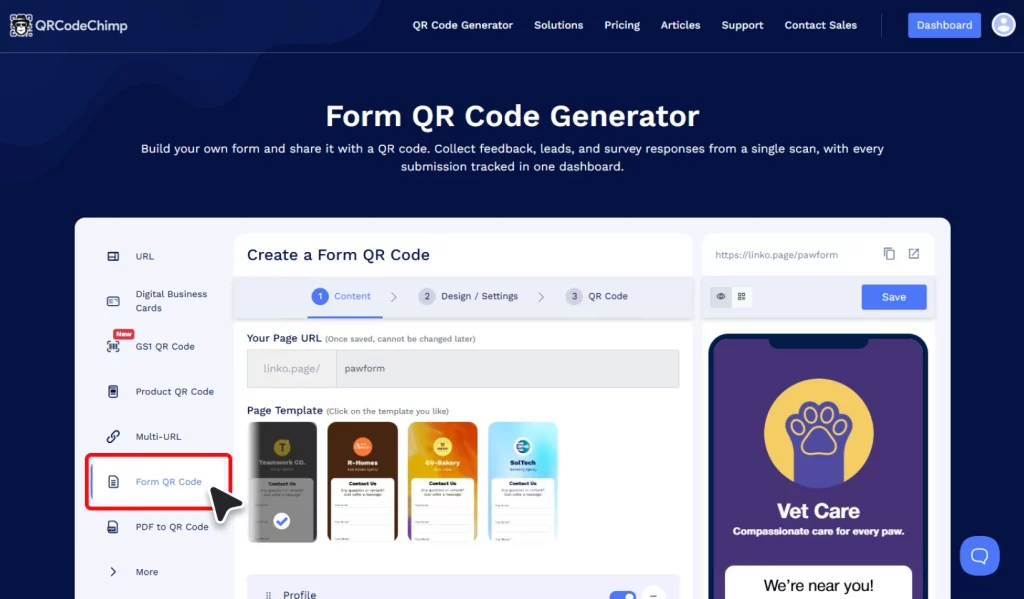
Log in to your QRCodeChimp account and navigate to the Form QR Code solution.
Step 2: Create your form
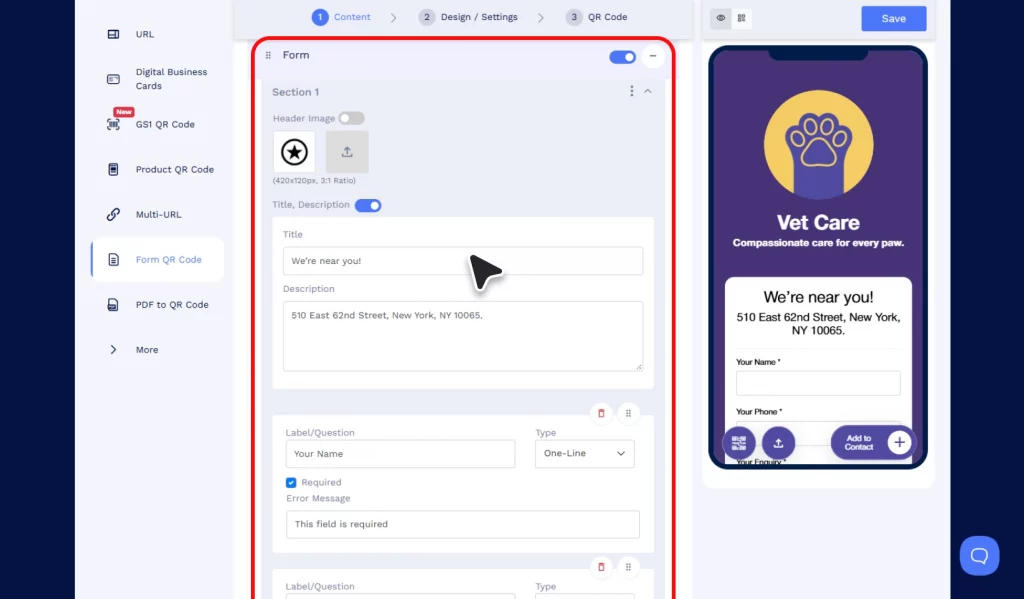
In the Content tab, add the form details and fields you want respondents to fill out. Depending on your purpose, these could include contact information, feedback questions, ratings, or other relevant details.
Step 3: Go to Design/Settings
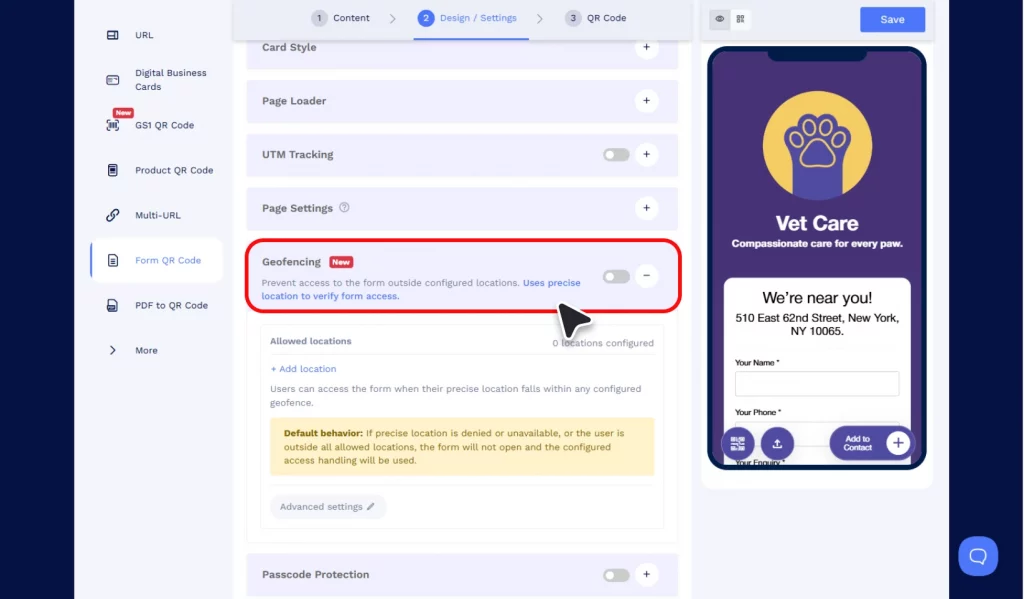
Open the Design/Settings tab and locate the Geofencing section.
Step 4: Enable geofencing
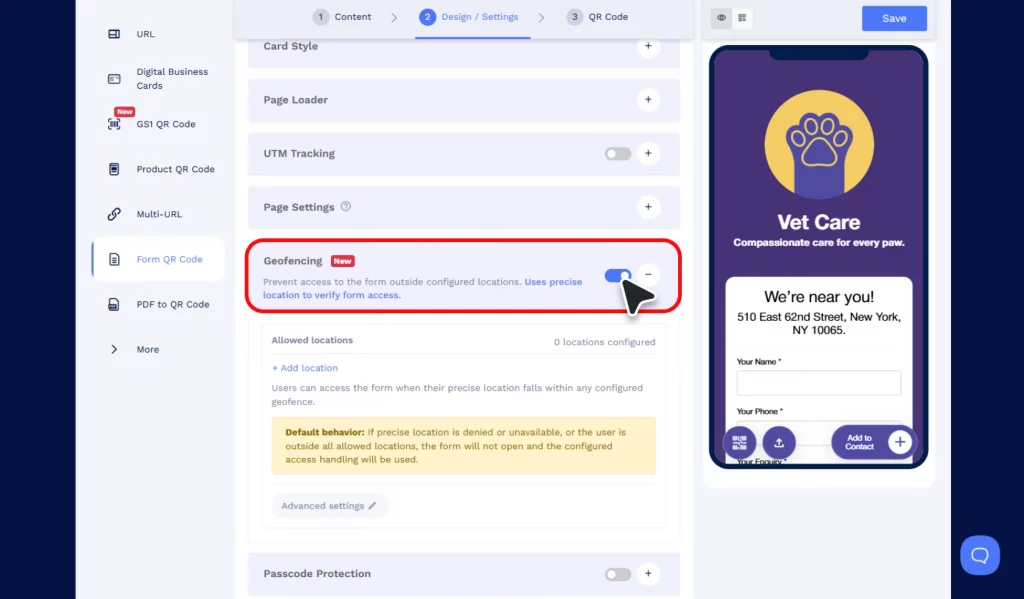
Turn on the Geofencing option to configure the locations where your form should be accessible.
Step 5: Add an allowed location
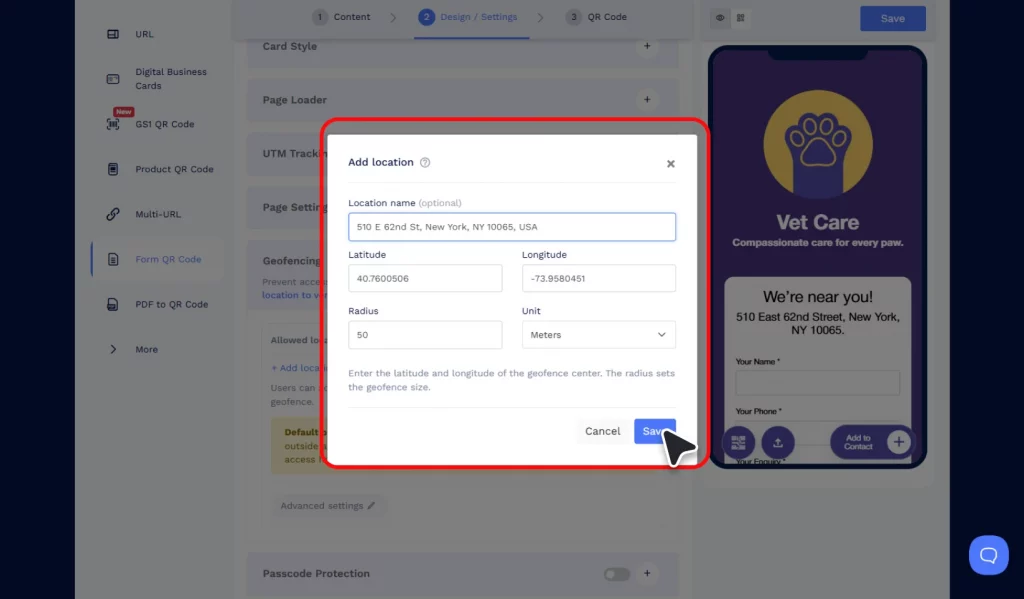
Click “+ Add location” and enter the following details:
- Latitude: The north-south coordinate of your location.
- Longitude: The east-west coordinate of your location.
- Radius: The distance around your chosen coordinates where form access is allowed.
- Unit: The measurement unit for the radius.
How to get the coordinates? Open Google Maps, find your desired location, and click on it. A small pop-up will appear at the bottom of the screen, displaying the location’s coordinates (latitude and longitude).
Once you have the coordinates, enter them carefully, as they determine the center of your geofence. Add other permitted locations if your campaign needs to cover multiple sites.
Note: You can add multiple geofencing locations to the same Form QR Code, allowing users to access the form from any of the configured locations.
Step 6: Configure Advanced Settings
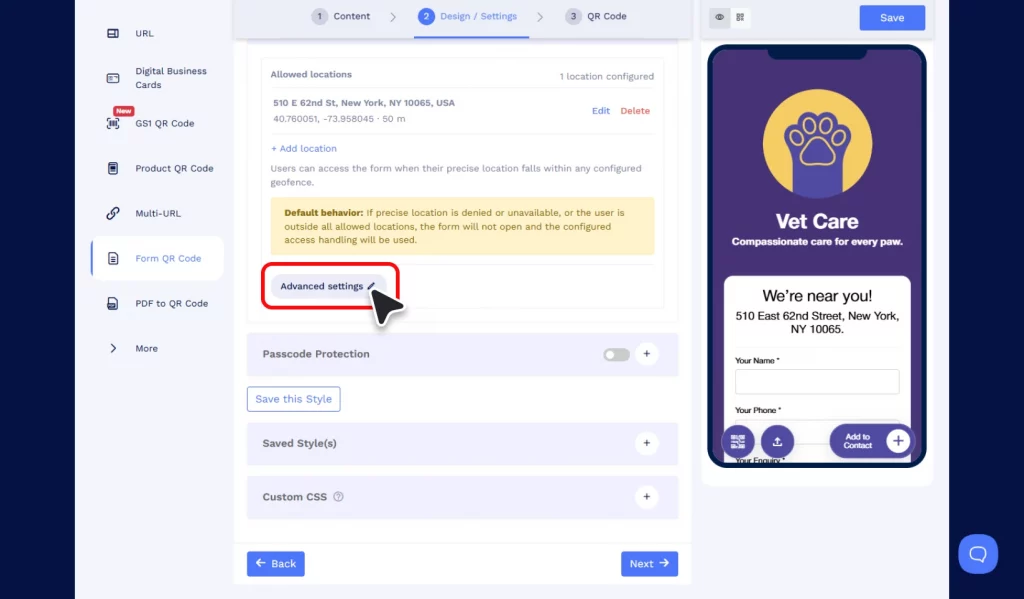
Under Advanced Settings, decide what happens when a scan is outside the permitted area or the user’s precise location is unavailable.
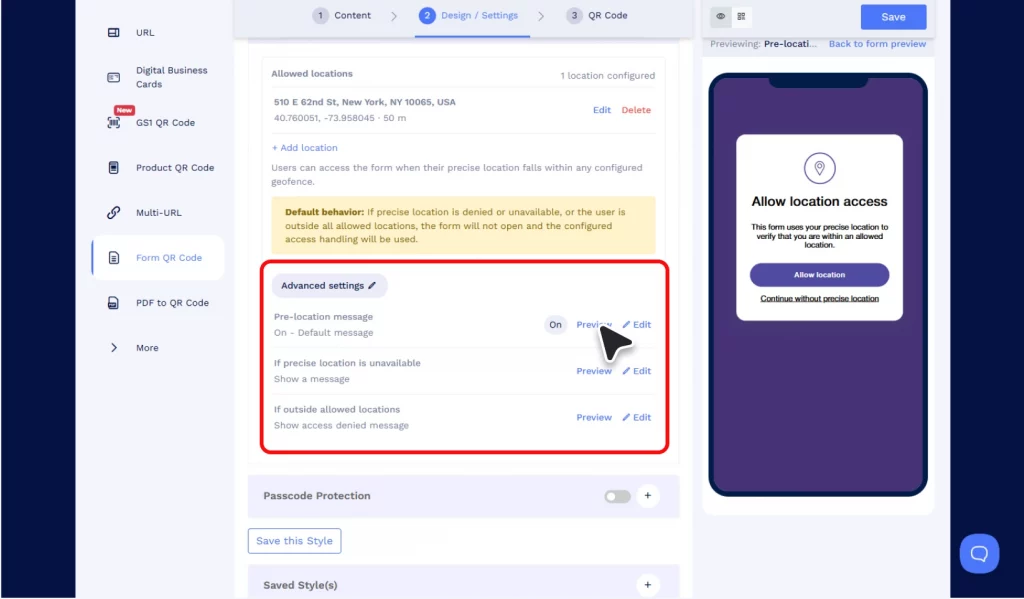
Depending on the situation, you can configure the following actions:
- Show a message: Display a custom message explaining why the form cannot be accessed.
- Redirect to a URL: Send the user to another webpage instead of showing the form.
- Use approximate IP-based location: When precise location is unavailable, use the device’s IP address to estimate its location.
Keep in mind that IP-based location is less accurate than precise device location, especially for smaller geographic boundaries.
For users who deny location permission,
Step 7: Save your QR code
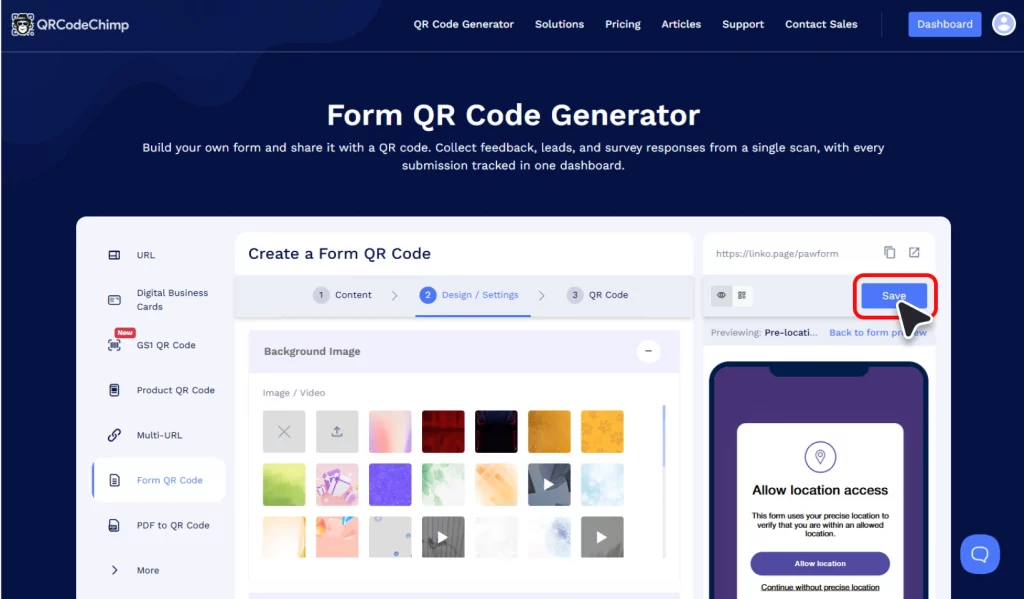
Review the geofence locations, radius, and advanced settings. Customize your QR code design if needed, then save it.
Step 8: Download and deploy
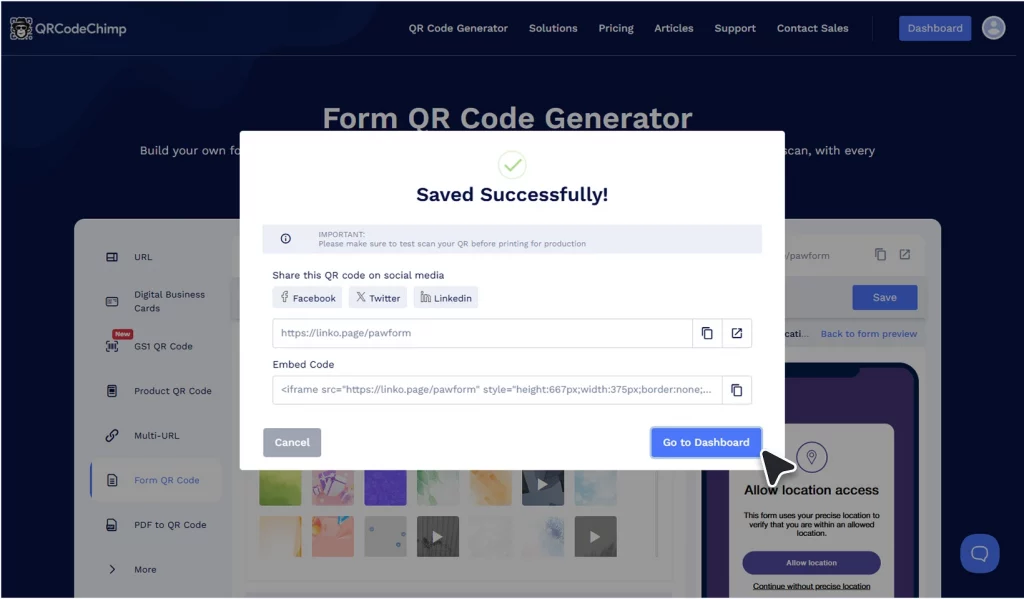
Download your QR code and place it at the intended locations, such as store counters, event entrances, office premises, or promotional displays.
Before distributing it widely, test the code to confirm that the form behaves as expected both inside and outside the configured area.
Benefits of geofencing for Form QR Codes
Geofencing gives you greater control over where people can access your forms, helping you collect more relevant, location-specific responses. Here are some of the ways it can help.
1. Collect more relevant, location-specific responses
When a form is intended for people at a particular location, responses from elsewhere may not be useful. For example, a restaurant can restrict its dine-in feedback form to the restaurant premises, helping collect more relevant feedback from customers who are physically present.
2. Reduce unwanted or out-of-location submissions
QR codes can be photographed and shared with anyone. Geofencing helps prevent people outside the designated area from accessing the form, even if they have its link. This reduces unwanted submissions from outside your target location, although it doesn’t completely prevent location spoofing.
3. Run location-specific campaigns
Retailers can restrict promotional forms, giveaways, and contests to customers visiting particular stores. For example, a brand running an in-store giveaway can use a geofenced Form QR Code to limit participation to people within the store’s designated geographic area.
4. Support on-site attendance and operational forms
Organizations can use geofencing for employee check-ins, site inspections, and other location-specific forms. For example, a construction company can restrict an inspection form to its project site, helping ensure that responses come from devices within the designated work area.
5. Manage forms across multiple locations
Businesses operating across several branches, stores, or venues can configure multiple permitted locations for their forms. This makes it easier to collect responses across approved sites while restricting access from elsewhere, without relying solely on the physical placement of QR codes.
Common use cases of geofencing for Form QR Codes
From collecting event feedback to managing on-site operations, here are five practical ways businesses can use geofenced Form QR Codes.
1. Event feedback and surveys
A conference organizer can place Form QR Codes at session exits to collect speaker ratings, presentation feedback, and suggestions. By setting a geofence around the venue, the organizer can make these forms accessible to attendees while they’re at the event.
2. In-store customer feedback
A restaurant chain can place Form QR Codes on tables or receipts to collect feedback on food quality, service, and dining experience. Each outlet can have a geofenced form that customers access while visiting the restaurant.
3. Employee attendance and check-ins
A company can place Form QR Codes at office entrances for employee check-ins. Employees scan the code when arriving and submit details such as their name, employee ID, and shift. The geofence restricts form access to the designated office area.
4. Field inspections and site reporting
A construction company can use geofenced forms for daily site inspections. Supervisors visit the assigned location, scan the QR code, and submit safety checklists, equipment conditions, and site photographs. Each form can be restricted to its respective project site.
5. Location-specific promotions and giveaways
A retail brand launching a new product can display Form QR Codes at participating stores for an exclusive giveaway. Customers visiting those stores can scan the code and enter their details to participate. The form remains accessible only within the configured store locations.
Best practices for using geofencing for Form QR Codes
A few simple precautions can help you avoid location-related access issues and improve the respondent experience.
Choose a practical geofence radius
Avoid setting an unnecessarily small radius, as device location can be inaccurate, especially indoors. A narrow geofence around a large venue could block genuine visitors. Choose a radius that reasonably covers the intended area and test it before launching your campaign.
Make your access restriction messages clear
If someone scans the QR code outside the allowed area, explain why the form is unavailable. Instead of a generic error, display a message such as “This form is available only to visitors at our event venue.” This helps avoid confusion and unnecessary support requests.
Plan for users who cannot share their precise location
Some users may deny location permission or have location services disabled. Configure an appropriate fallback, such as displaying a message, redirecting to another page, or using approximate IP-based location. Remember that IP-based estimates may be unreliable for small geographic areas.
Test the QR code at the actual location
Before printing and distributing your QR codes, test them at the intended location and outside the permitted area. Also check what happens when location permission is denied. Testing across different devices and networks can help identify access issues before your campaign goes live.
Explain why location access is required
Users should understand why they’re being asked to share their location. A simple message like “Please allow location access to confirm you’re at the event venue” provides clarity. Only collect and retain location information you genuinely need, and follow applicable privacy requirements.
Final thoughts
QR codes make forms easy to share, but not every form should be accessible from every location.
With QRCodeChimp’s new geofencing feature, you can define where your Form QR Code can be accessed and configure what happens when someone scans it from outside the permitted area.
Whether you’re collecting feedback at an event, running an in-store promotion, or managing location-specific operational forms, geofencing gives you another way to control who can participate.
Frequently asked questions
What is geofencing in a Form QR Code?
Geofencing is a feature that restricts access to a QR code-linked form based on the user’s geographic location. You define an allowed area using latitude, longitude, and a radius. Users within that area can access the form, while those outside are restricted according to your settings.
Can I configure multiple locations for the same Form QR Code?
Yes. QRCodeChimp provides an “+ Add Location” option to configure permitted locations. This is useful for businesses that want to make a form accessible across multiple stores, branches, or event venues.
What happens if someone scans the QR code outside the geofenced area?
The form remains inaccessible under the location restriction. Depending on your advanced settings, you can display a custom message or redirect the user to another URL.
What happens if a user denies precise location access?
QRCodeChimp lets you configure how to handle cases where precise location is unavailable. You can show a message, redirect the user, or use an approximate IP-based location to evaluate access. IP-based location may be less reliable for small geographic areas.
Is geofencing available on all QRCodeChimp plans?
Geofencing for Form QR Codes is available on QRCodeChimp’s Pro plan and above. You can check the pricing page for current plan availability.
Does geofencing guarantee that the person submitting the form is physically present?
No. Geofencing checks the reported location of the user’s device, but location accuracy can vary, and device location can sometimes be manipulated. It is useful for location-based access control but shouldn’t be treated as definitive proof of physical presence.
You may also like
Top 5 Best QR Code Survey Tools to Collect Feedback and First-Party Data
Let’s look at the top 5 QR code survey platforms that let you create a survey form, generate a QR code for it, and manage responses, all within a single platform.
QR Code Surveys: How to Get People to Scan and Respond
A QR code survey makes feedback easier to access, but the code alone doesn't generate responses. This guide explains how to create a QR code survey that earns the scan and keeps respondents moving to submission.
How To Create an RSVP QR Code for Any Event
Create an RSVP QR code using a customizable form, Event Ticket RSVP, Google Forms, or WhatsApp. Compare four methods and follow the steps.
How Gyms Can Use Form QR Codes for Membership Inquiries and Feedback
Use Form QR Codes for gyms and fitness studios to collect inquiries and class feedback. Turn every scan into useful member data with QRCodeChimp's custom forms.
Most Popular
Contact Sales