Getting customers to leave Google reviews is often less about willingness and more about timing. A happy customer may leave your store, restaurant, clinic, salon, or service location satisfied, but once they walk away, the review is easy to forget.
Google Review cards help solve that problem. They give customers a simple physical prompt at the moment they are most likely to respond. A customer can scan a QR code, tap an NFC card, or tap a review tag and go directly to your Google review page.
QRCodeChimp lets you create and customize the Google Review QR code for your card. If you want tap-to-review functionality, you can pair it with a programmable NFC card or tag sourced separately.
In this guide, you will learn what Google Review cards are, how NFC tap cards and QR code review cards work, how to create one, how to set up a Google Review tap tag, and where to use them to collect more honest customer feedback.
- What are Google Review cards?
- How do Google Review cards work?
- Google Review card vs. Google Review tap tag
- Why businesses use Google Review cards
- How to create a Google Review card
- How to set up a Google Review tap tag
- Where to use Google Review cards
- Google Review card best practices
- Mistakes to avoid
- Should you buy ready-made Google Review cards or create your own?
- Conclusion
- Frequently asked questions
What are Google Review cards?
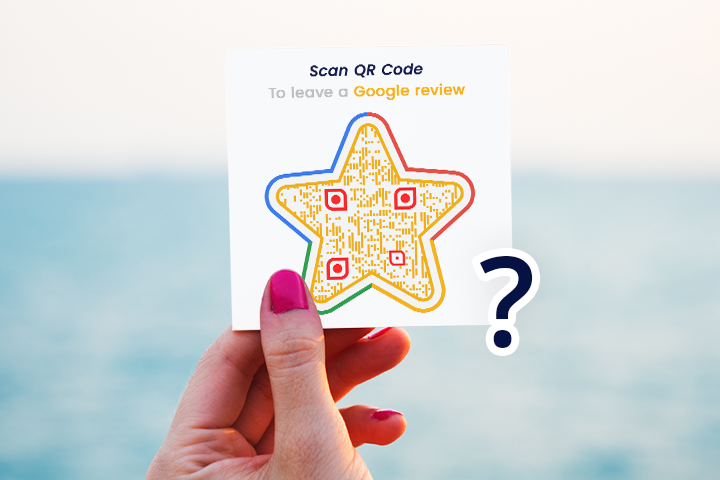
Google Review cards are physical cards that send customers to your Google review page. They can use a printed QR code, NFC technology, or both.
When customers scan the QR code or tap the NFC card with their phone, they are taken to your Google review link. They do not need to search for your business, open your Google Business Profile manually, or find the review section on their own.
Businesses use Google Review cards at counters, reception desks, tables, checkout areas, service desks, delivery packages, appointment areas, and post-service touchpoints.
A Google Review card is also called a Google review tap card, NFC Google Review card, tap-to-review card, or QR code review card.
How do Google Review cards work?
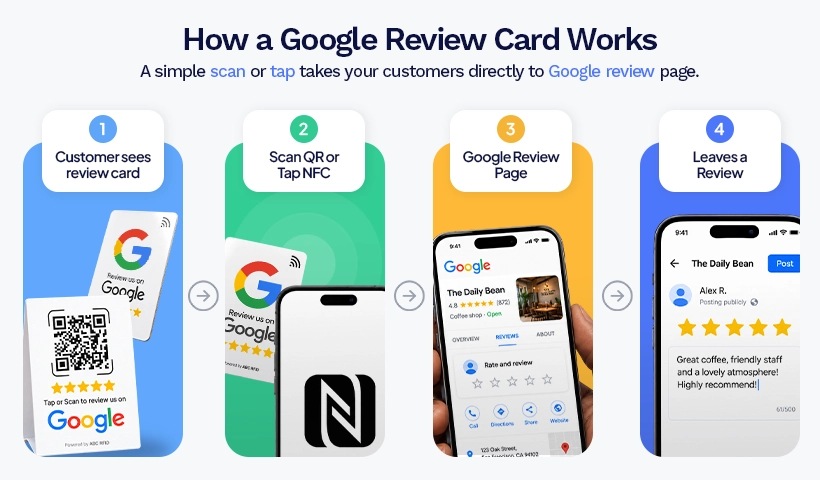
Google Review cards work by connecting a physical card to your Google review link.
QR code review card
A QR code review card has a printed QR code on it. Customers scan the code with their phone camera and open your Google review page.
This is the simplest option because most smartphone users already know how to scan QR codes. It also works well on printed materials such as cards, table tents, invoices, receipts, packaging inserts, posters, and counter displays.
NFC Google Review card
An NFC Google Review card uses near-field communication (a short-range wireless technology built into most modern smartphones) to open your Google review link when a customer taps the card with their phone.
This creates a quick tap-to-review experience, especially at counters, reception desks, salons, clinics, restaurants, retail stores, and service locations.
QR code and NFC together
Using both NFC and QR codes gives customers the option to tap or scan. NFC gives customers a fast tap option. The QR code acts as a backup for phones where NFC is turned off, unsupported, or not detected. A printed QR code also makes the purpose of the card visible, so customers immediately understand what to do.
Google Review card vs. Google Review tap tag
Google Review cards and tap tags work in a similar way, but they are used differently.
A Google Review card is usually a printed card that can sit on a counter, table, desk, or service area. It may include your logo, a review message, a QR code, and an NFC chip.
A Google Review tap tag is usually a smaller NFC sticker, tag, or chip that can be placed on a counter display, product stand, packaging, table, window, reception desk, or service device. Customers tap the tag to open the review page.
Use a review card when you want a branded, visible review prompt. Use a tap tag when you want a compact NFC prompt in a fixed location.
Why businesses use Google Review cards
Google Review cards make review collection easier at the point of experience. Instead of asking customers to search for your business later, you give them a clear scan or tap action while the interaction is still fresh.
✅ They reduce customer effort
A customer does not need to type your business name, choose the correct Google profile, or look for the review button. The card sends them directly to the review page.
✅ They make the review request visible
A visible review prompt reminds customers to leave feedback without requiring staff to explain the process.
✅ They support both walk-in and service-based businesses
Google Review cards work well for restaurants, salons, clinics, retail stores, hotels, repair shops, gyms, real estate offices, consultants, event businesses, and field service teams.
✅ They help staff ask naturally
Staff members can say:
“Thank you for visiting us. If you would like to share your experience, you can scan or tap this card to leave us a Google review.”
How to create a Google Review card
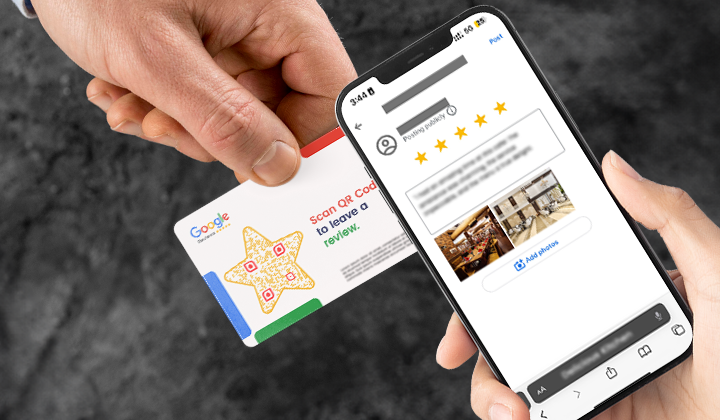
You can create a Google Review card using your Google review link, a QR code, and, if needed, a programmable NFC card or tap tag.
Step 1: Get your Google review link
Open your Google Business Profile and copy your review link. This is the link that sends customers directly to your Google review page.
Make sure you copy the link for the correct business location. If you manage multiple locations, each location should have its own review link.
Step 2: Create a Google Review QR code
Open QRCodeChimp’s Google Review QR Code Generator and paste your Google review link. Generating a Google Review QR code on QRCodeChimp is free.
If you make the QR code dynamic, you can track scans and update the review URL later without reprinting the QR code.
Customize the QR code with your brand colors, logo, and suitable design elements. Keep the design clean enough to scan easily.
For detailed steps with screenshots, read How to Create a Google Review QR Code.
Step 3: Download the QR code for printing
Download your Google Review QR code in a high-quality format suitable for print.
Use the QR code on your review card design. Keep enough white space around the code and do not make it too small.
Step 4: Buy a programmable NFC card or tap tag
Choose an NFC card or tap tag that can store a URL and can be read by modern smartphones.
A card is better for a branded handout or counter display. A tap tag is better for fixed placements such as a counter, table, desk, stand, or package.
Before buying in bulk, test a small batch to confirm that the card or tag works well with common smartphones.
Step 5: Write your Google review link to the NFC card
Use an NFC writing app on your phone. NFC Tools is a widely used option available for both Android and iOS. Open the app, choose URL as the record type, paste your Google review link, then hold your phone over the NFC card or tag to write it.
After writing the link, test the card before locking it. Locking prevents future editing, so only lock the NFC card or tag when you are sure the link is correct.
Step 6: Print the QR code on the card
Add the QR code to the card design with clear surrounding text.
Use simple copy such as:
- Scan or tap to leave a Google review
- Share your experience on Google
- Tell us how we did
- Your feedback helps us improve
Step 7: Test both tap and scan
Before placing the card in front of customers, test both actions.
Tap the NFC card with different phones. Scan the QR code from different distances and lighting conditions. Confirm that both actions open the correct Google review page.
If you have multiple business locations, check that each card opens the correct location’s review page.
How to set up a Google Review tap tag
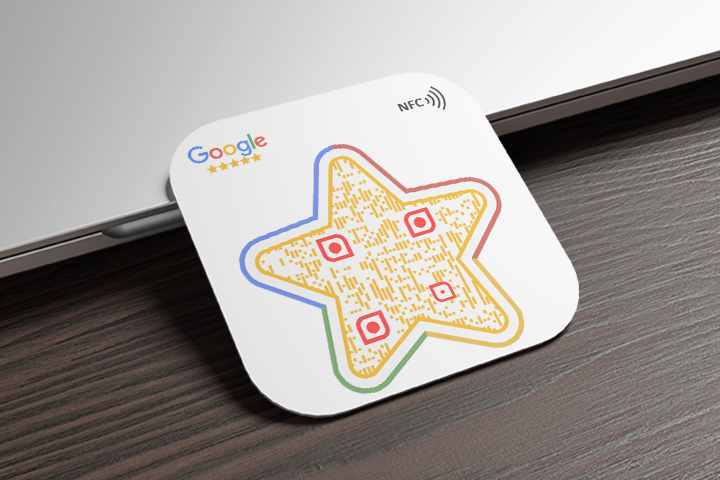
A Google Review tap tag is a small NFC tag that opens your Google review page when customers tap it with their phone.
The setup is similar to the NFC process described above: copy your Google review link, write it to a programmable NFC tag using an NFC writing app, and test it before use.
When setting up a tap tag, also consider:
- Choose the right tag format. Depending on the placement, you may use an NFC sticker, table tag, counter tag, or small display tag.
- Test it after placement. Surface material and placement can affect NFC readability, so test the tag where customers will actually use it.
- Add clear instructions. Use short text such as “Tap to review us on Google” or “Tap here to share your experience.”
- Add a QR code when possible. A QR code gives customers another way to reach the review page if they do not use NFC.
For better accessibility, pair the tap tag with a printed QR code whenever possible.
Where to use Google Review cards
The best placement depends on when customers are most likely to feel ready to leave feedback.
Restaurants and cafes
Place Google Review cards on tables, billing trays, takeaway counters, packaging, or near the payment area.
Enjoyed your visit? Scan or tap to leave us a Google review.
Retail stores
Place review cards near the checkout counter, on shopping bags, in product inserts, or at the customer service desk.
Thank you for shopping with us. Scan or tap to share your experience.
Salons and spas
Place cards at reception, near mirrors, on appointment cards, or at the payment desk.
Happy with your visit? Scan or tap to review us on Google.
Clinics and healthcare practices
Place review cards at checkout, on appointment desks, or in follow-up materials.
Your feedback helps us improve. Scan or tap to review your visit.
Hotels and guesthouses
Place cards at reception, in rooms, on checkout desks, in room folders, or on thank-you cards.
How was your stay? Scan or tap to review us on Google.
Service and repair businesses
Place cards on service reports, invoices, vehicle handover documents, job completion forms, or field service kits.
Was our service helpful? Scan or tap to leave a Google review.
Events and local businesses
Use review cards at booths, registration desks, help counters, workshops, pop-ups, and community events.
Visited us today? Scan or tap to share your experience.
Google Review card best practices
Use these best practices to make your Google Review cards easy to notice, use, and scan or tap.
- Ask at the right moment. Ask after the customer has received value — after a meal, purchase, appointment, consultation, delivery, hotel stay, or completed service.
- Use neutral review language. Ask customers to share their experience honestly.
- Keep the design simple. A review card should be easy to understand at a glance. Use a clear QR code, short instruction, and enough contrast.
- Use both NFC and QR code. QR codes are visible and widely understood. NFC adds convenience. Using both gives customers more than one way to reach the review page.
- Train your team. Staff should know when to present the card and what to say. Keep the request polite and optional.
- Create separate cards for each location. If you have multiple branches, create unique Google Review cards for each location. This helps avoid reviews going to the wrong profile.
- Track QR code scans. If you use dynamic QR codes, track scan performance by placement. Comparing results from counters, tables, packaging, invoices, and reception desks helps identify which touchpoints generate the most engagement.
Mistakes to avoid
Avoid these common mistakes to ensure your Google Review cards work smoothly and create a clear experience for customers.
- Using the wrong review link. Always test the link before printing or programming the NFC card. A wrong link can send customers to the wrong location or page.
- Printing the QR code too small. Small QR codes may fail to scan, especially on cards, table tents, or packaging. Keep the code large enough and maintain clear spacing around it.
- Relying only on NFC. Some customers may not know how to use NFC, may have it turned off, or may use a phone where tap detection fails. Add a QR code as a backup.
- Locking the NFC card too early. Do not lock the NFC card until you have tested the link. Once locked, it may not be editable.
- Asking for 5-star reviews. Avoid copy such as “Leave us a 5-star review.” Ask for honest feedback instead.
- Offering rewards for reviews. Do not offer discounts, gifts, freebies, cashback, future purchase benefits, contest entries, or free items in exchange for Google reviews.
- Using one card for multiple locations. Each location should have its own review link and card. This helps customers review the right profile.
Should you buy ready-made Google Review cards or create your own?
You have two options.
You can buy ready-made Google Review tap cards from NFC card providers and online marketplaces. This is convenient if you want a finished physical product quickly.
Creating your own gives you more control over the QR code design, branding, print layout, and review link. With QRCodeChimp, you can create a custom Google Review QR code for free and use it on your own review cards, NFC cards, tap tags, posters, table tents, packaging, and other printed materials. If you use a dynamic QR code, you can also track scans and update the destination without reprinting.
Conclusion
Google Review cards make it easier for customers to review your business at the moment their experience is fresh. A QR code gives customers a simple scan option, while NFC tap cards and tap tags create a quick tap-to-review experience.
Using both QR and NFC gives customers the choice to scan or tap. Whichever setup you choose, place the card where customers naturally pause, keep the message clear, and test every card before using it.
Frequently asked questions
What is a Google Review card?
A Google Review card is a physical card that sends customers to your Google review page using a QR code, NFC tap, or both.
How does an NFC Google Review card work?
An NFC Google Review card stores your Google review link. When a customer taps the card with a compatible smartphone, the phone opens the review page automatically.
What is a Google Review tap tag?
A Google Review tap tag is a small NFC tag that opens your Google review page when tapped with a smartphone. It can be placed on counters, tables, desks, packaging, displays, or service areas.
How do I set up a Google Review tap tag?
Copy your Google review link, write it to the NFC tap tag using an NFC writing app such as NFC Tools, test it on multiple phones, and place it where customers can easily tap it. Add a QR code nearby when possible.
Can I use a QR code and NFC on the same Google Review card?
Yes. Using both gives customers a quick tap option through NFC and a visible scan option through the QR code. The QR code also provides an alternative if NFC is turned off, unsupported, or not detected.
How do I create a Google Review card?
Get your Google review link, create a free Google Review QR code on QRCodeChimp, print the QR code on a card, write the same review link to an NFC card if needed, and test both scan and tap actions before using it.
Where can I buy a Google Review card or tap card?
Ready-made Google Review tap cards and NFC review cards are available from NFC card providers and online marketplaces such as Amazon. You can also create your own card by generating a custom Google Review QR code with QRCodeChimp and adding it to your card design. If you want tap functionality, pair it with a programmable NFC card or tag sourced separately.
Do Google Review cards help get more reviews?
They can help by making the review process easier and more visible. They work best when placed at the right customer touchpoints and used with a polite, neutral review request.
Can I create Google Review cards for multiple locations?
Yes. Create a separate review link, QR code, NFC card, or tap tag for each business location so customers review the correct Google Business Profile.
What should I write on a Google Review card?
Use short and neutral text such as “Scan or tap to leave a Google review,” “Share your experience on Google,” or “Your feedback helps us improve.”
Is it free to create a Google Review QR code?
Yes. Creating a Google Review QR code on QRCodeChimp is free. You can customize the design, download it for print, and use it on cards, tap tags, table tents, packaging, and other materials.
You may also like
How to Group Cards in QRCodeChimp Entra ID Setup
Learn to organize digital business cards effectively using QRCodeChimp Entra ID grouping. Simplify card management by group, filter, or all-in-one.
Field Locking for Digital Business Cards: Share Access Without Losing Control
Learn how QRCodeChimp’s field locking for digital business cards helps teams control edits, protect brand details, and maintain consistency at scale.
How to Save a Digital Business Card on iPhone and Android?
Want to know how to save digital business cards on your smartphone? Explore our article to learn the easy steps to save a digital business card on iPhone and Android.
Touchless Menu QR Code for Restaurants: A Practical Setup Guide
Learn how to create, place, test, and update a touchless menu QR code for your restaurant while giving guests convenient mobile menu access.
Most Popular
Contact Sales