White label merchandise lets you offer ready-to-use digital products under your own brand without building the underlying technology from scratch. With QRCodeQRCodeChimp, you can create QR- and NFC-enabled products in batches, configure subscription settings, and manage everything from one place.
This guide walks you through the complete process of creating and managing White Label Merchandise on QRCodeChimp, from setting up a codes list and generating a batch to downloading QR codes and managing the batch settings.
Standard set-up for all QRCodeChimp’s white label products
📌If you’re new to white label merchandise, you might not have set up the white label account. Check the Step-by-Step Guide to Set Up Your White Label Merchandise Account.
If you’ve already completed the account setup, proceed with the following steps.
“The steps below use Digital Business Cards as an example. The same process applies to all QR code solutions available in QRCodeChimp.“
Step 1: Log in to your QRCodeChimp account.

Step 2: Click Dashboard at the top right.

Step 3: In the left panel, find FOR RESELLERS and click White Label Merchandise NFC / QR Codes.

Step 4: Click Create New Codes List.

Note: The steps mentioned above are the initial steps commonly applicable for all five products: Digital Business Cards, Pet ID Tags, Medical Alerts, URL QR Codes, and Google Review Cards.
The next step is to choose the specific product. We’ll check the creation process for each merchandise and start with digital business cards.
Step 5: Enter a name for your QR Codes List and select the QR code type based on what you want to create. For this tutorial, we’ll create Digital Business Cards.

Step 6: Then click Create.

Step 7: In the Action column next to your list, click Generate New Batch.

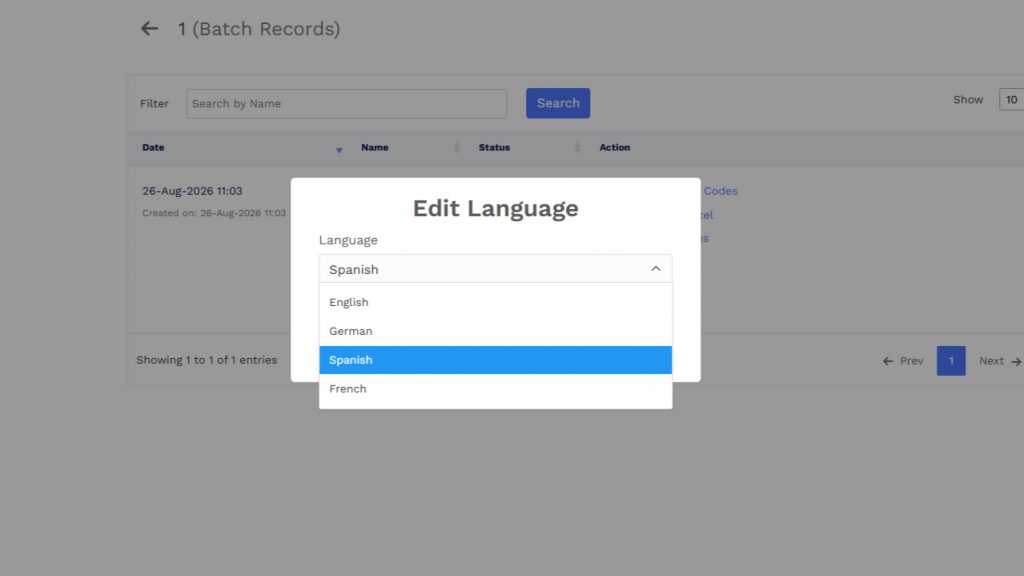
Step 8: Enter a Batch Name and Quantity (number of digital business cards you want in this batch). You can also select the Language for this batch. The selected language will be applied across the claiming process. Then, click Next.
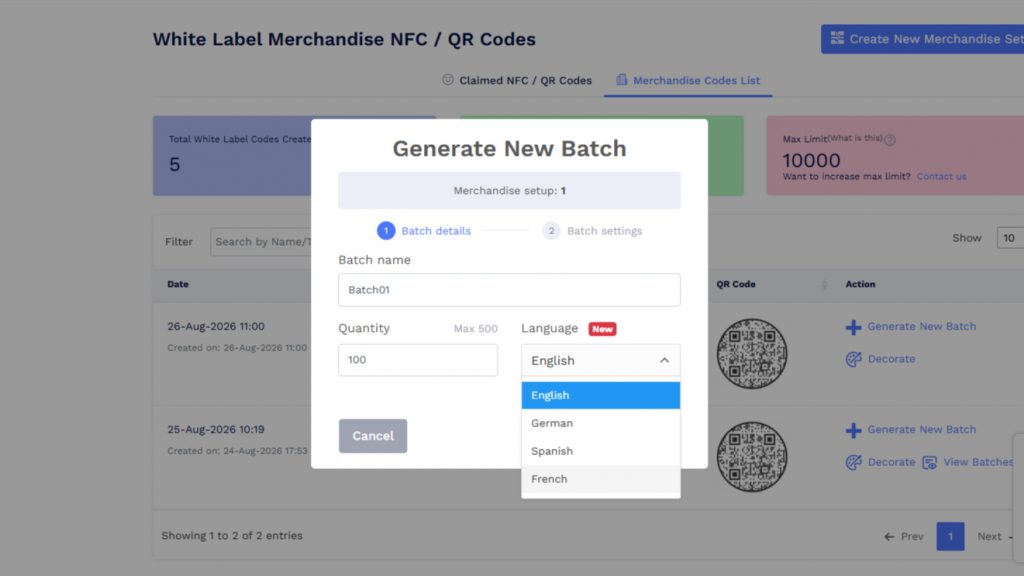
Step 9: Add Subscription and AI Business Card Reader settings.
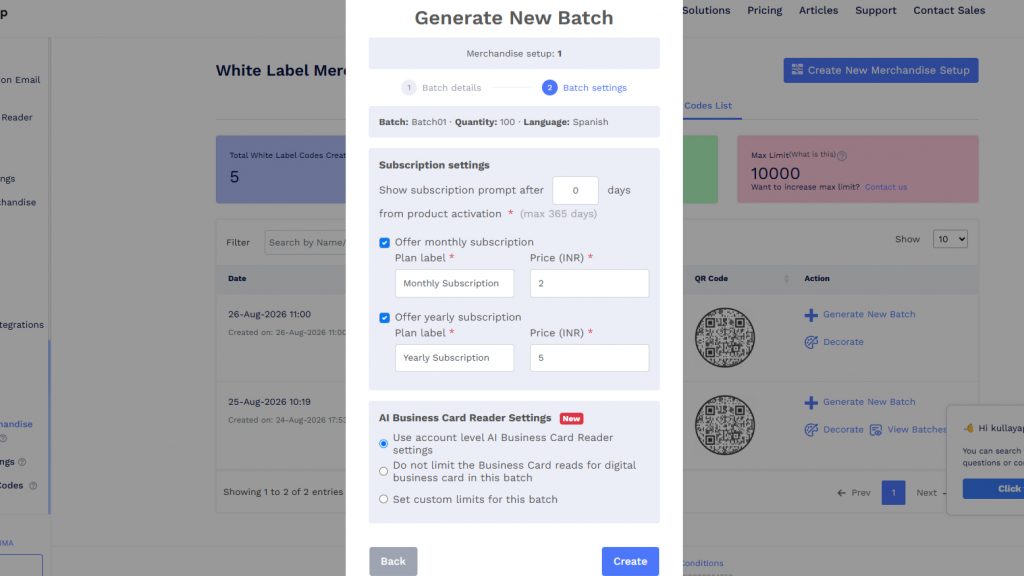
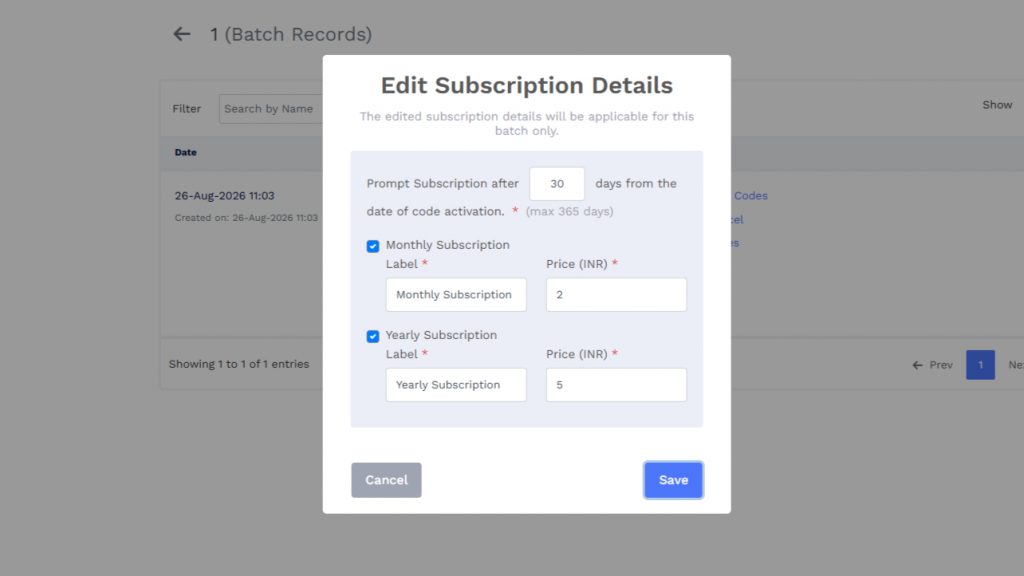
Show subscription prompt after *** days from product activation. = Number of days after which the user will be prompted to renew the product.
Offer monthly subscription Plan label * = The label text for monthly subscription, such as Monthly Subscription, Monthly Price, Payment, and more.
Offer yearly subscription Plan label * = Monthly price for the product.
Yearly Subscription Label * = The label text for yearly subscription, such as Yearly Subscription, Annual Price, Payment, and more.
Monthly/Yearly Subscription Price * = Monthly/Yearly price for the product.
Then, configure the AI Business Card Reader Settings.
Important notes:
- AI Business Card Reader Settings apply only to digital business cards. For other solutions, this option will not appear.
- For QR code solutions other than Digital Business Cards, if the subscription option is not enabled, the Batch Settings option will remain disabled.
Step 10: Enter the details and click Create.
Step 11: In the Action column, you will see Processing… The creation process may take a few minutes. Please be patient.
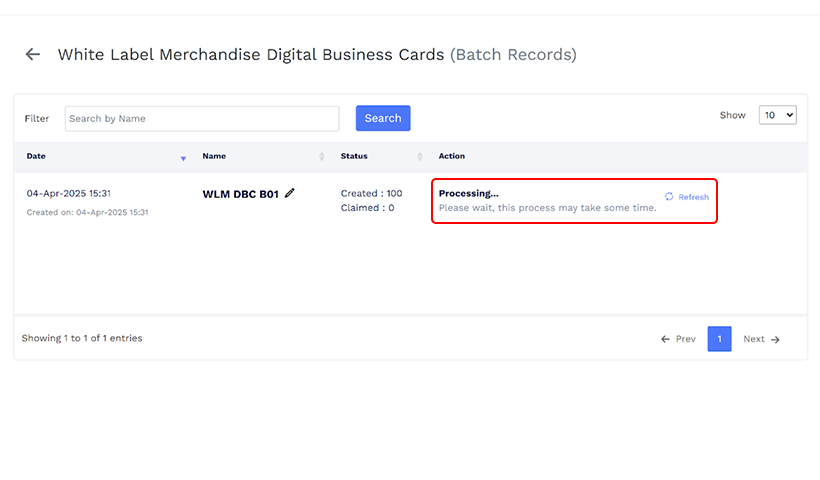
You can also click the Refresh button next to it to check if it’s done. You can see the number of created and claimed products in the Status column.
Step 12: Once your products are created, the Action column will have the options to Download QR Codes, Download Excel, and View QR Codes.
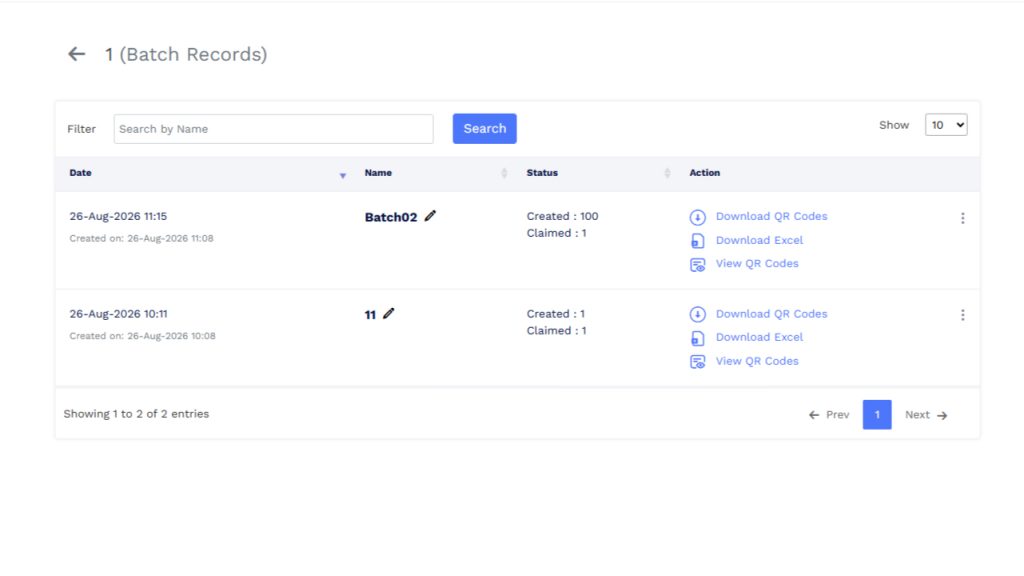
You can click on the 3 dots in the Action column to edit Subscription Details, Language, and AI Business Card Reader Settings.
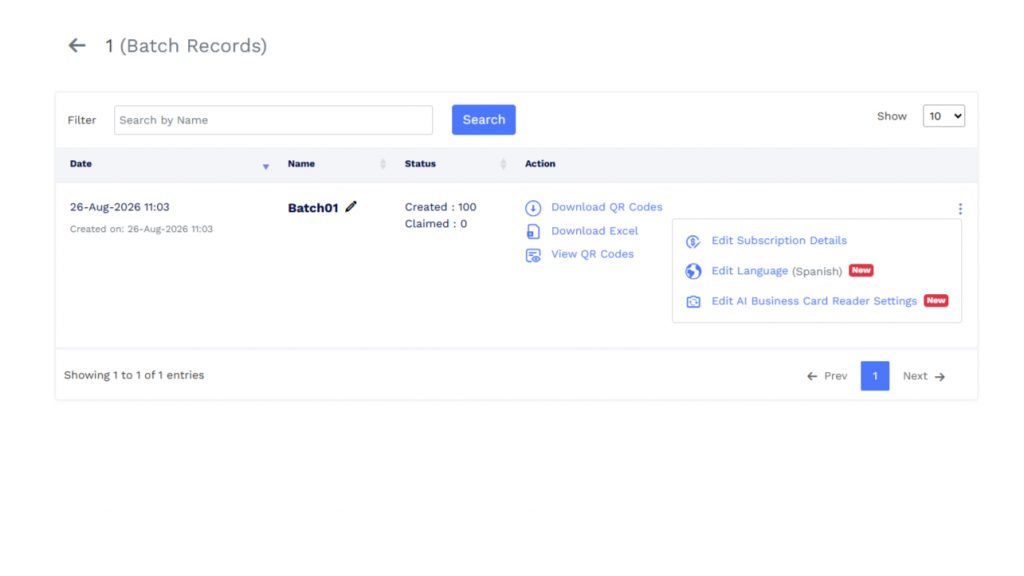
If you have not enabled the subscription model, you will only see the options to edit the language and Ai business card reader settings.
Step 13: Download QR Codes– Downloads all the digital business cards in this batch.

You will have a few options to download your products when you click on them. You can choose the file format and size that best fit your requirements.
Note: Tick the box. Add the name below the QR to ensure all the downloaded QR codes have a serial number. This will help you with organization.
Step 13.1: Click Download, and you’ll see a message as in the screenshot. Click OK.

Wait a while, and your White Label Merchandise Digital Business Cards will be downloaded as a .zip file on your computer.
Step 13.2: Download Excel- Downloads an Excel sheet for all the digital business cards in this batch.

The URLs of all your White Label Merchandise Digital Business Cards will be downloaded in an Excel spreadsheet on your computer.
Step 14: View QR Codes– Shows all the digital business card QR codes in this batch.

Step 15: Edit Subscription, Language, and AI Business Card Reader Details– As discussed in Step 12, you can edit the previously set details for this batch by clicking on 3 dots in the Action column.
Change the Subscription details:
Change the Language details:
Change AI Business Card Reader settings:
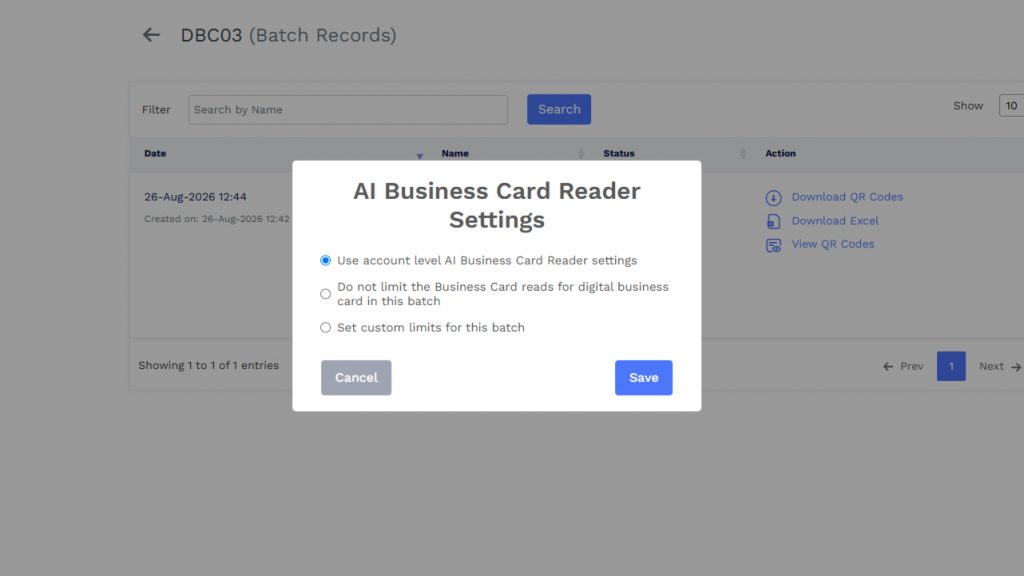
As mentioned earlier, AI Business Card Reader settings will appear for digital business cards only. They don’t apply to other QR code types.
Does the process differ by solution?
No. The steps above use Digital Business Cards as an example, but the process is exactly the same for all White Label Merchandise solutions available in QRCodeChimp.
Regardless of the solution you select, you can follow the same steps from creating a codes list and generating a batch to configuring subscription details, downloading the codes, and managing the batch.
The only thing that changes is the solution you select when creating the codes list.
Conclusion
Creating your white label merchandise products on QRCC is straightforward. QRCodeChimp’s platform simplifies batch generation, subscription management, and product distribution, giving you complete control to scale your business efficiently. Whether you’re providing Digital Business Cards or Medical Alerts, this intuitive process ensures quality, consistency, and convenience for you and your customers.
Frequently asked questions
What are white label merchandise (WLM) products?
White label merchandise refers to the products that are already available for reselling under your own brand.
How long does it take to generate a batch of products?
Batch creation typically takes just a few minutes, depending on the batch size. You can refresh the status anytime to check the completion.
Can I edit subscription details after creating a batch?
Yes, subscription details can be easily edited even after the products have been created.
What file formats are available for downloading QR codes?
QRCodeChimp lets you download QR codes in various formats and sizes to match your needs, typically including PNG, JPG, and PDF.
Why should I add serial numbers below QR codes?
Adding serial numbers helps you manage and organize products more efficiently, especially for large batches or multiple product types.
You may also like
Edible QR Codes: How to Make Them + Real-world Examples
An edible QR code is a scannable QR code printed or formed from materials safe to eat. Here's how to make edible QR codes, what to watch out for, and how to put them to good use.
GS1 Application Identifiers Explained: GTIN, Batch, Serial, Expiry, and More
This guide explains the most important GS1 Application Identifiers used for product identification, traceability, retail, and packaging.
Steps to Integrate Microsoft Entra ID (Azure AD) with QRCodeChimp
Learn how to connect Microsoft Entra ID with QRCodeChimp to automate digital business card creation, improve security, and simplify onboarding.
How to Create One QR Code for Multiple Links
Learn how to create one QR code for multiple links. Add websites, social profiles, videos, PDFs, and more, then update links without reprinting.
Most Popular
Contact Sales