When companies create digital business cards for teams, employees may need access to update their own information. But not every field should be editable by every cardholder.
Details such as the company name, business website, logo, branding, and other approved information often need to remain under admin control.
QRCodeChimp’s field locking feature makes this possible. It lets account owners decide whether each eligible field should be editable, read-only, or hidden from users with edit access.
Field locking is available on the Pro plan and above.
Key Takeaways:
- Field locking controls exactly what shared users can edit.
- Lock entire sections or individual fields for precise control.
- Locked fields can be set to Read-only or completely hidden.
- Directory and SSO updates override field locking restrictions.
- Field locking helps maintain brand consistency across team cards.
How field locking works

Field locking controls what users can view and modify after card editing access is shared through Share Access.
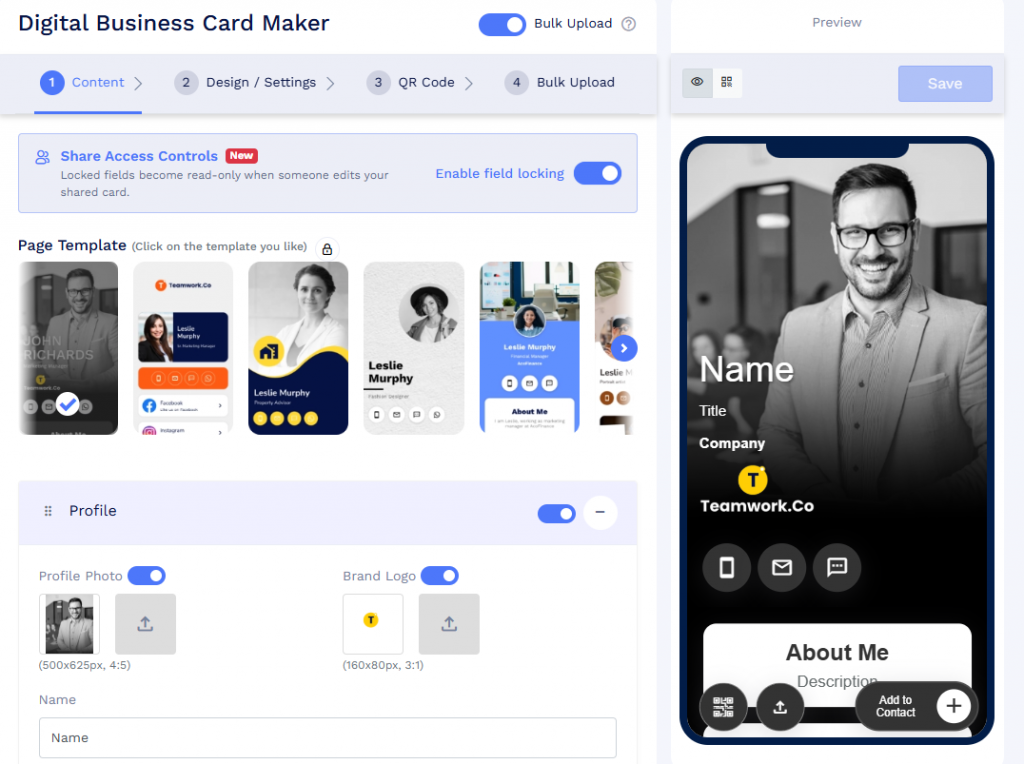
For bulk-created digital business cards, turn on Enable field locking under Share Access Controls in the bulk upload flow.
For Active Directory and SSO-based cards, field locking controls appear during template design after the integration is configured. Fields mapped from Active Directory or SSO are already read-only in QRCodeChimp and are excluded from these controls. Field locking applies only to the remaining editable fields.
Enable field locking
Once field locking is enabled, lock icons appear beside eligible sections and fields. Select a lock icon to configure how the section or its fields should appear to users with edit access.
Choose section-level or field-level locking
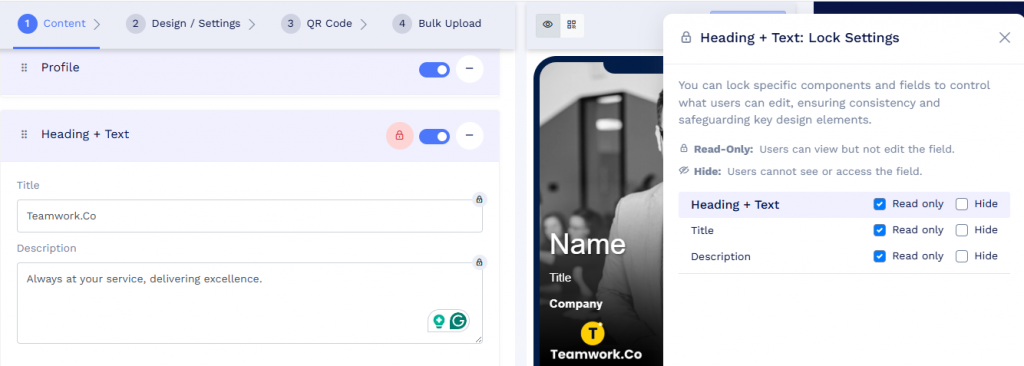
Admins can choose one of two ways to configure permissions for a section.
Section-level locking applies the same setting across all eligible fields in that section. For example, every eligible field in the Heading + Text section can be made read-only or hidden.
Individual field-level locking provides more precise control. Admins can configure each eligible field separately, such as keeping the brand logo read-only while allowing employees to update their profile photo.
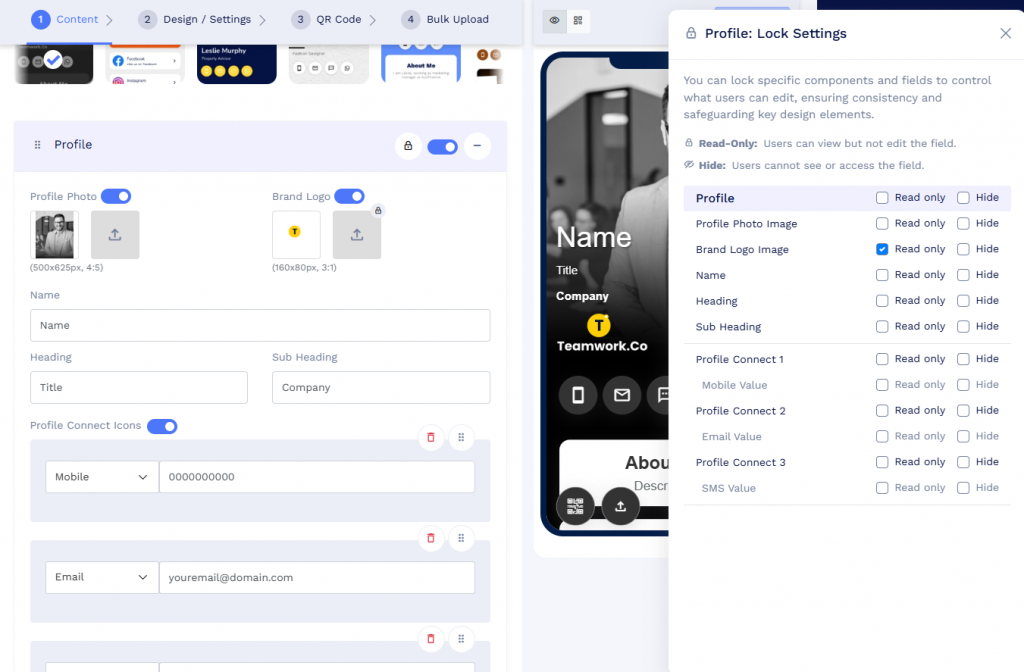
Admins choose either section-level locking or individual field-level locking for a section, depending on the level of control they need.
Read-only and hidden fields
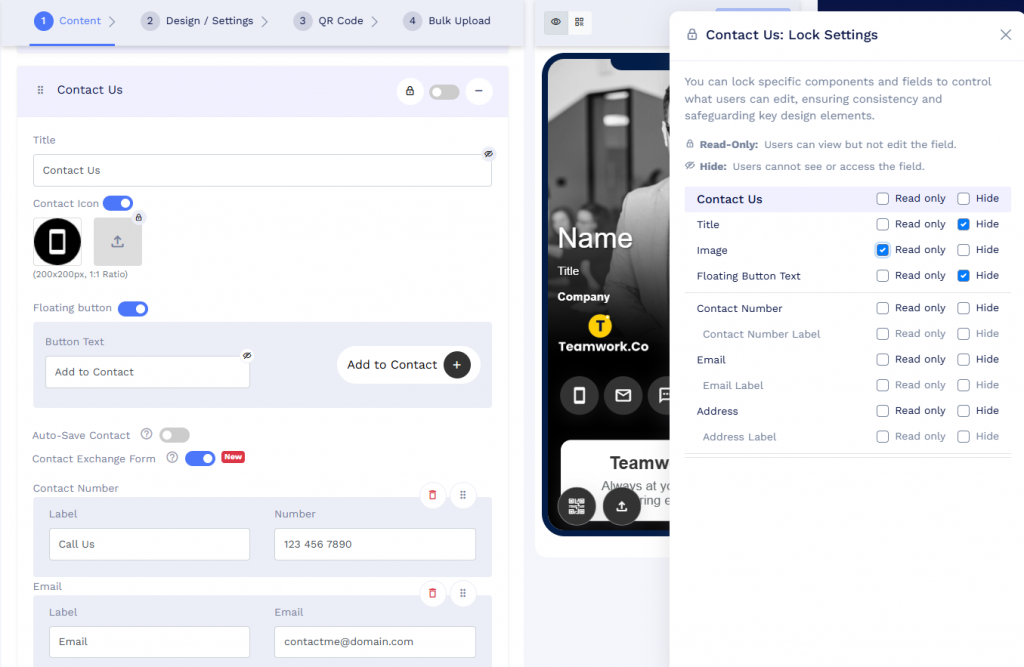
Every field is editable by default. You can lock a field and set it to one of two states:
- Read-only: The user can view the field in edit mode but cannot change it.
- Hidden: The field does not appear to the user in edit mode.
For example, an organization can make the business website read-only, or hide it from employee edit mode, while continuing to display the approved website on every published card.
Hiding a field affects only edit mode. It does not remove the field from the digital business card landing page. If the field is configured to display on the card, visitors can still see it.
Users with edit access already cannot add, remove, or rearrange card components. Field locking adds more granular control over the information inside those components.
Who field locking applies to
Field locking applies only to users who receive card editing access through Share Access.
The main account and authorized sub-accounts can continue updating locked or hidden fields. In other words, field locking controls what users with shared edit access can view and modify. It does not restrict admins from managing those fields.
For Active Directory and SSO-based cards, mapped fields remain controlled by the connected identity provider. When mapped information is updated in Active Directory or SSO and syncs with QRCodeChimp, the corresponding card information is updated.
To know how field locking works with Azure Directory and SSO integration, check this.
Why teams need field locking
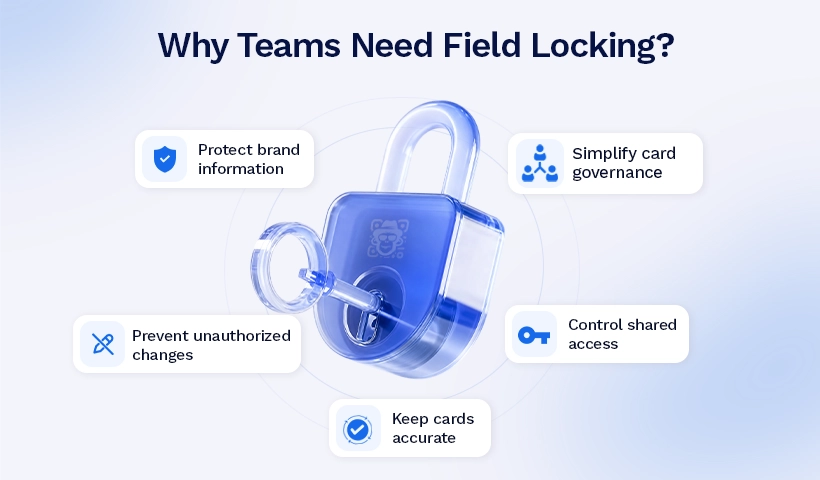
Field locking helps organizations share editing access without giving up control over company-managed information.
It allows teams to:
- Protect approved company and brand information
- Reduce accidental or unauthorized changes
- Keep employee cards accurate and consistent
- Give employees access only to the fields they need
- Simplify card governance across large teams
For example, a company can allow employees to update their profile photo while keeping the company logo and business website under admin control.
Important points to know
Here are a few things to keep in mind.
✅ Permissions can be changed later
Field locking settings are not fixed at creation. Admins can change an eligible field’s permission to editable, read-only, or hidden whenever required.
✅ New fields start unlocked
New sections and fields are not locked automatically. Admins must configure their permissions after adding them.
✅ Admins can update locked values
For bulk-created cards, the main account or an authorized sub-account can update locked values directly or through a spreadsheet upload.
When a bulk template contains locked fields, QRCodeChimp displays a confirmation prompt before re-uploading data. This helps prevent accidental changes to protected information.
✅ Some fields are not eligible
Certain fields cannot be locked because of how they function, including some fields designed to collect or process user input. Only eligible sections and fields display field-locking controls.
Better governance without limiting employees
Field locking gives organizations a practical way to share card editing access while keeping important information under admin control.
Employees can update permitted fields, while admins can make company-managed details read-only or remove them from edit mode. This helps protect branding, reduce cleanup, and maintain consistency across digital business cards created through bulk upload, Active Directory integration, and SSO integration.
Frequently asked questions
What is field locking for digital business cards?
Field locking lets account owners control which fields shared-access users can edit on their digital business cards. You can lock entire sections or individual fields to protect information such as the company name, logo, or other brand-related details.
What is the difference between Read-only and Hide?
Read-only lets the shared user see a locked field but prevents them from editing it. Hide removes the field from their editing interface completely. Neither option affects what appears on the published digital business card.
Does field locking apply to subaccounts?
No. Field locking only applies to users with share-edit access. Subaccounts with full access retain the same administrative permissions as the account owner.
Does field locking prevent directory or SSO updates?
No. Directory integrations and SSO remain authoritative. Updates from your directory can still change card information regardless of field locks, including updates made through manual or automatic synchronization.
What happens when I add a new field or section?
New fields and sections are unlocked by default. If you want to prevent shared-access users from editing them, an admin must manually enable field locking for those new components.
You may also like
How to Group Cards in QRCodeChimp Entra ID Setup
Learn to organize digital business cards effectively using QRCodeChimp Entra ID grouping. Simplify card management by group, filter, or all-in-one.
Steps to Integrate Microsoft Entra ID (Azure AD) with QRCodeChimp
Learn how to connect Microsoft Entra ID with QRCodeChimp to automate digital business card creation, improve security, and simplify onboarding.
How to Combine Multiple Links Into One Link
Combine multiple links into one shareable link and QR code. Use it in bios, emails, messages, or print, and update your links anytime.
How to Use Bulk Upload in QRCodeChimp: Step-by-Step Guide
Learn how to use QRCodeChimp Bulk Upload to create multiple QR codes from CSV, XLS, or XLSX files, customize their design, and download the completed bulk.
Most Popular
Contact Sales