An Apple Wallet business card puts your contact details within quick reach on an iPhone or Apple Watch. Instead of handing over a printed card or asking someone to type your number, you can open your card from Apple Wallet, show its QR code, and let the other person view and save your details on their phone.
Apple Wallet does not replace your digital business card. It works as a fast access layer for it, so your card stays live, current, and easy to share during in-person conversations. This guide explains what an Apple Wallet business card is, how to create and customize one with QRCodeChimp, and how to add a business card to Apple Wallet.
- What Is An Apple Wallet Business Card?
- How To Create An Apple Wallet Business Card
- How To Add A Business Card To Apple Wallet
- Apple Wallet Business Card Vs A Printed Card
- Benefits Of An Apple Wallet Business Card
- Best Practices For Your Apple Wallet Business Card
- Create Your Apple Wallet Business Card With QRCodeChimp
- Frequently Asked Questions
What Is An Apple Wallet Business Card?
An Apple Wallet business card is a Wallet pass that links to your live digital business card. Once saved to Apple Wallet, it gives you quick access to your QR code business card through the familiar Wallet interface on iPhone and Apple Watch.
The pass acts as a shortcut to your digital business card. Your digital card can include your name, phone number, email address, job title, company details, website, social links, location, portfolio, documents, videos, and more. Apple Wallet simply makes that card easier to open and show when you meet someone.
Each pass includes a QR code. When you show the pass, the other person can scan the code, open your digital business card, and save your contact details if they choose.
How To Create An Apple Wallet Business Card
Creating an Apple Wallet business card in QRCodeChimp happens in two stages. First, you create and save your digital business card. Then, you customize its Apple Wallet pass.
Before customizing the pass, make sure your digital business card includes a Profile Name and Subheading. Apple Wallet requires both fields to generate the pass.
Step 1: Create your digital business card in QRCodeChimp and save it. If you already have a card, skip to the next step.
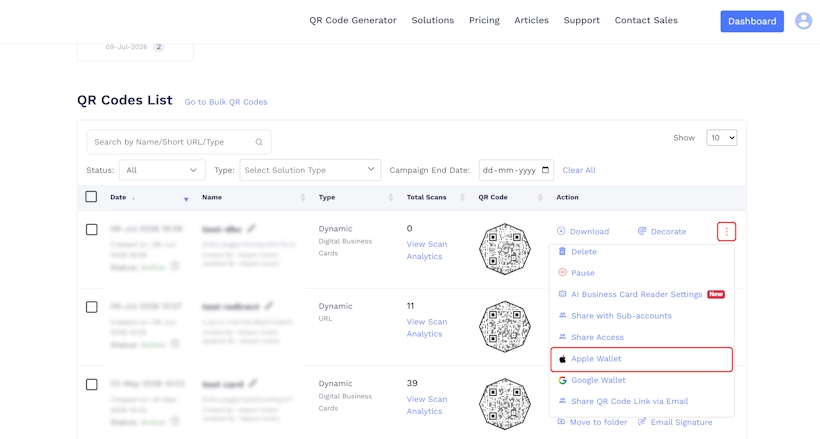
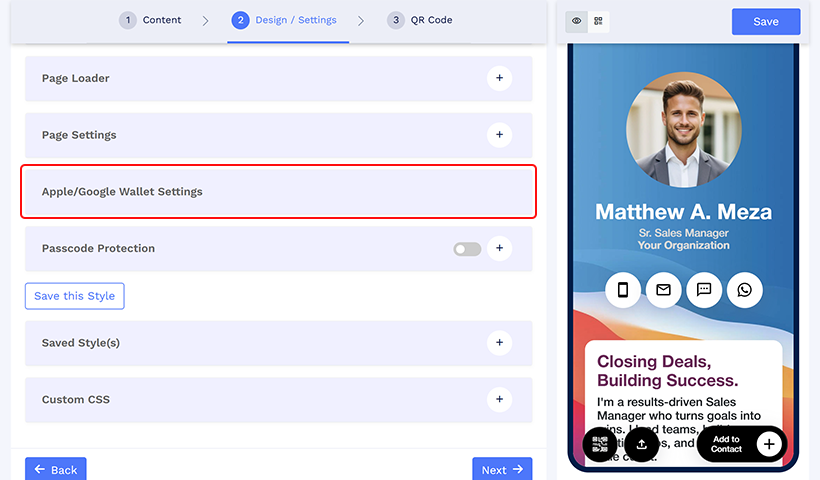
Step 2: Open the Apple Wallet settings in either of two ways:
- From the dashboard: Find your card, click the More (3 dots) menu, and select Apple Wallet.
- While editing the card: Open the card for editing, go to the Design/Settings tab, and click Apple/Google Wallet Settings.
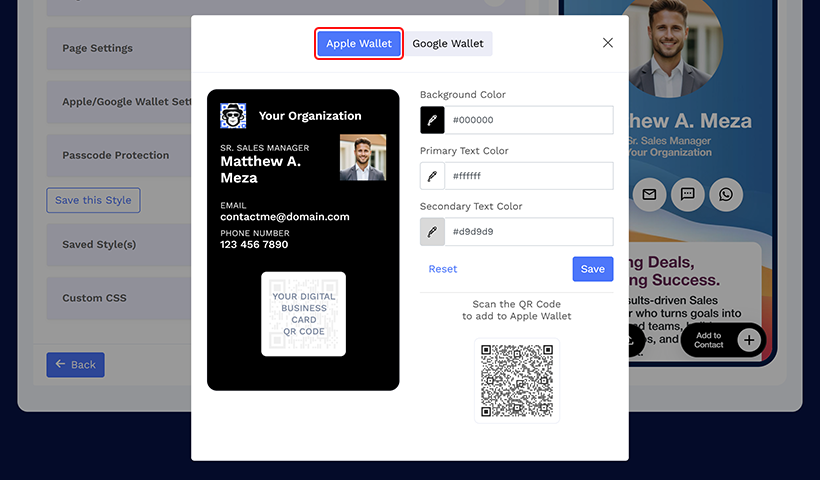
Step 3: In the customization pop-up, select the Apple Wallet tab if not already selected.
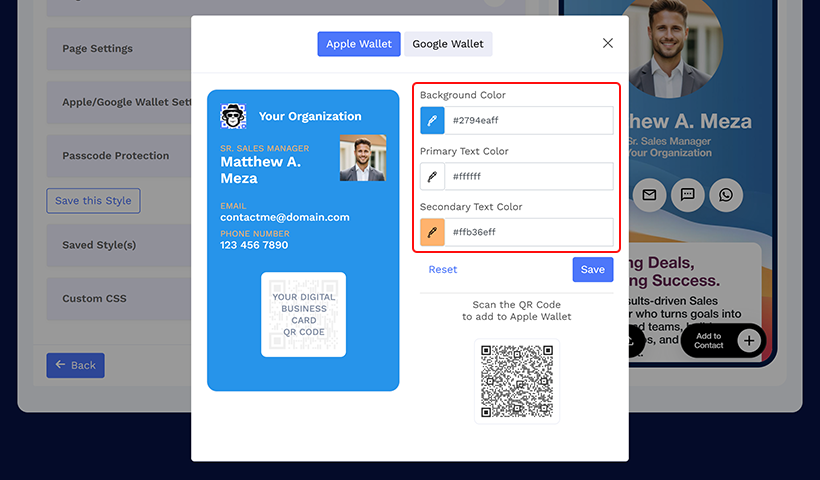
Step 4: Set your colors to match your brand. Choose a background color, primary text color, and secondary text color. You can use hex codes for a precise brand match. The live preview on the left updates as you make changes.
Step 5: Click Save to apply the design, then close the pop-up. Your Apple Wallet business card is ready to share.
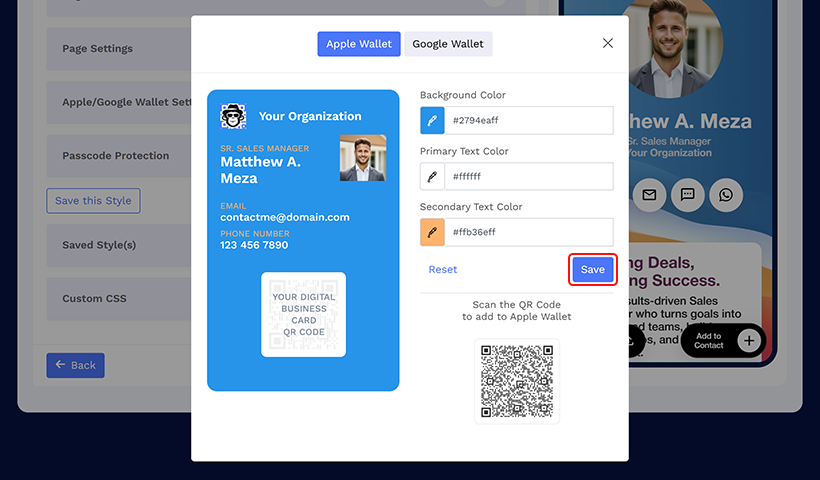
Because the QR code opens your live digital business card, anyone who scans it always sees your latest details.
One thing to note: the Wallet pass itself is saved as a snapshot. If you change the pass colors or the fields displayed on the pass, such as the Profile Name or Subheading, you will need to add the card to Apple Wallet again for those changes to appear on the pass. The digital business card behind the QR code updates automatically either way.
How To Add A Business Card To Apple Wallet
You can add your digital business card to Apple Wallet from an iPhone. This gives you quick access to your card during meetings, events, client visits, and networking conversations.
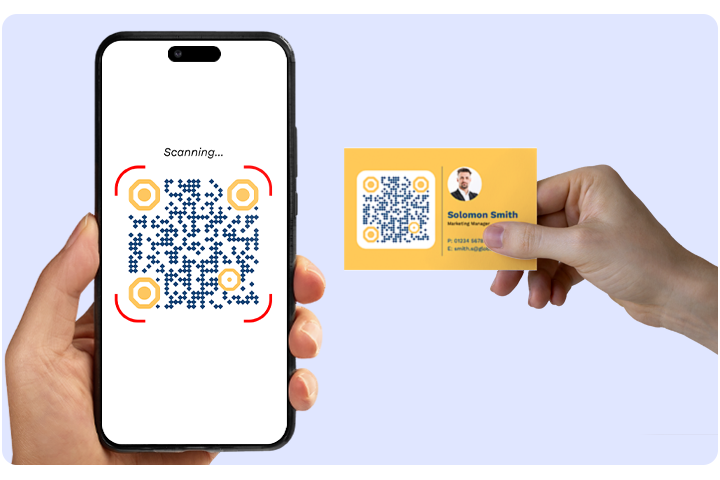
Step 1: Scan the digital business card QR code with an iPhone.
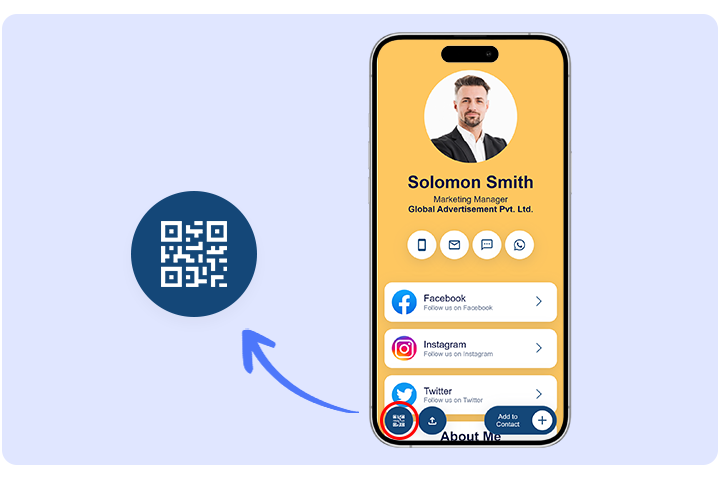
Step 2: Tap the QR code icon on the digital business card page.
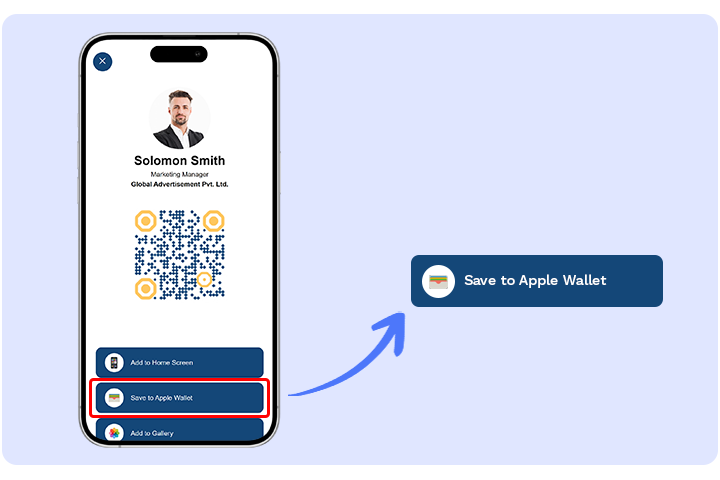
Step 3: Tap Save to Apple Wallet.
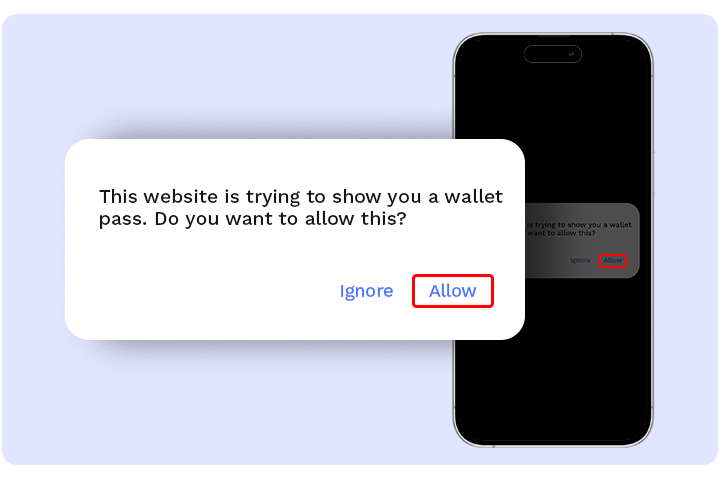
Step 4: Tap Allow so the pass can open.
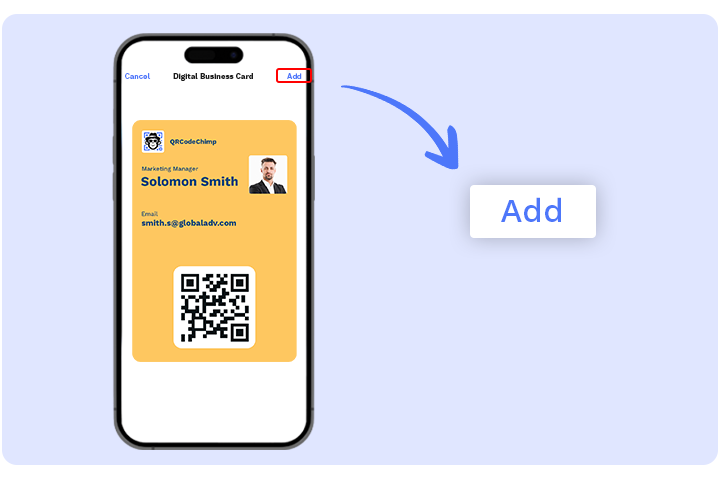
Step 5: Tap Add. The card is now saved in Apple Wallet and ready to share.
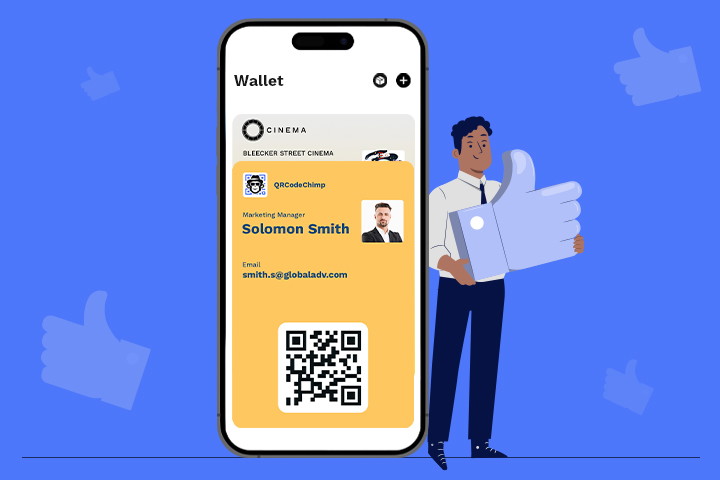
Once added, open Apple Wallet whenever you want to share your card. Show the QR code, and the other person can scan it to view your digital business card.
Watch this quick video to see how to add your digital business card to Apple Wallet step by step.
Apple Wallet Business Card Vs A Printed Card
The value of an Apple Wallet business card becomes clearer when you compare it with a printed card and a plain digital card link. Printed cards are fixed. Links are useful, but they can get buried in chats or emails. Apple Wallet keeps your card easy to access at the moment you need it.
| Printed Card | Digital Card Link | Apple Wallet Business Card | |
|---|---|---|---|
| How It Is Shared | Handed over in person | Sent as a link or QR code | Shown from Apple Wallet and opened by QR scan |
| Updating Information | Requires reprinting | Opens the latest live card | Opens the latest live card |
| Brand Presentation | Fixed after printing | Depends on card design | Wallet pass can be styled to match your brand |
| Cost After A Change | New print run required | No reprint cost | No reprint cost |
| Scan Analytics | Not available | Available | Available |
A printed card is frozen once it leaves the printer. An Apple Wallet business card stays connected to your live digital card, keeps sharing simple, and helps you track engagement from offline networking.
💡 For a detailed comparison, see physical vs digital business cards.
Benefits Of An Apple Wallet Business Card
An Apple Wallet business card is useful because it removes small points of friction from networking. You do not need to search for a link, carry printed cards, or worry about sharing outdated information.
It also supports better follow-up. When your card is easier to access and scan, more people can view your details, save your contact, and take the next step.
- Quick access: Your card is available from Apple Wallet whenever you need it.
- Contactless sharing: The other person scans your QR code and opens your digital business card without typing anything.
- Always current: Your digital business card can be updated when your role, number, link, or company details change, and anyone scanning your pass sees the latest version.
- Better brand consistency: Custom colors help your Wallet pass match your personal or company branding.
- Lower reprint waste: You do not need a new print batch every time your information changes.
- Measurable engagement: Scan analytics help you understand how often people interact with your card.
For professionals, this means fewer missed follow-ups. For businesses, it means more consistent contact sharing across sales teams, recruiters, consultants, event teams, and field staff.
Best Practices For Your Apple Wallet Business Card
A good Apple Wallet business card should be easy to scan, easy to understand, and useful after the first interaction. The goal is not just to share a card. The goal is to help the other person act while the conversation is still fresh.
✅ Keep the design clean
Use a simple, branded design that reads well on a small screen. Choose colors with enough contrast and avoid anything that makes the pass look crowded.
The Wallet pass is only the access point. Keep it clean and let your digital business card carry the deeper information.
✅ Add only what earns its place
Your digital business card should include the details a new contact actually needs. Add your name, designation, company, phone number, email address, website, and relevant social profiles.
Depending on your role, you can also include a portfolio, brochure, booking link, location, product page, video, or form. Avoid adding too many links if they do not support a clear business goal.
✅ Make the next action clear
Decide what you want a new contact to do after scanning your card. They may need to save your contact, book a meeting, visit your website, view your portfolio, submit a form, or contact your sales team.
Make that next step easy to find on your digital business card.
✅ Keep your card updated
Review your card whenever your role, phone number, website, calendar link, address, product page, or brand assets change. This is one of the biggest advantages over printed business cards.
For teams, centralized digital business cards help keep employee information accurate and reduce outdated contact sharing.
If you change your pass design or the fields shown on the pass, remember to add the card to Apple Wallet again so the pass reflects the update.
✅ Use it where in-person networking happens
Apple Wallet business cards work best in moments where speed matters: trade shows, conferences, client meetings, real estate visits, recruitment events, retail consultations, sales calls, and business networking sessions.
The easier your card is to open, the more likely you are to share it at the right moment.
💡 For more guidance, see what to put on a digital business card.
Create Your Apple Wallet Business Card With QRCodeChimp
QRCodeChimp helps you create a digital business card, customize its Apple Wallet pass, and share it with a QR code. You can update your card details anytime, maintain a branded look, and use the same card across meetings, events, sales visits, and everyday networking.
For individuals, this means your card is always ready on your phone.
For businesses, it helps standardize contact sharing across teams. Employees can use branded digital business cards at trade shows, conferences, client meetings, stores, and field visits. Companies can reduce reprinting, improve brand consistency, support faster follow-up, and track engagement from offline interactions.
Frequently Asked Questions
Is an Apple Wallet business card free to create?
Yes. You can create a digital business card and add it to Apple Wallet with QRCodeChimp’s free plan. Paid plans add advanced features for users and businesses that need more customization, scale, and team management.
Do I need the Apple Wallet app to share my card?
You need Apple Wallet to store your own card as a Wallet pass. The other person can still open your digital business card by scanning the QR code or using your card link, even if they do not save it to Apple Wallet.
Can I add a QR code to Apple Wallet?
Yes. With QRCodeChimp, your Apple Wallet business card includes a QR code that links to your digital business card. You can save the pass to Apple Wallet and show the QR code whenever you want to share your contact details.
Does it work on Apple Watch?
Yes. Once the pass is saved in Apple Wallet, it can be available on a paired Apple Watch, making it easy to show your card from your wrist.
Can I change my card after it has been saved?
Yes. The Wallet pass links to your live digital business card, so when you update your card details in QRCodeChimp, anyone who scans the QR code sees the latest information. Changes to the pass itself work differently. If you update the pass colors, Profile Name, or Subheading, you will need to add the card to Apple Wallet again for the updated pass to appear on your device.
What about Android users?
QRCodeChimp supports Google Wallet as well. Android users can save a compatible digital business card pass to Google Wallet, while iPhone users can use Apple Wallet.
Is an Apple Wallet business card better than a printed business card?
An Apple Wallet business card is easier to update, faster to access, and more measurable than a printed card. Printed cards can still work in some settings, but they cannot show live updates, links, media, forms, or scan analytics.
You may also like
GS1 Application Identifiers Explained: GTIN, Batch, Serial, Expiry, and More
This guide explains the most important GS1 Application Identifiers used for product identification, traceability, retail, and packaging.
How to Group Cards in QRCodeChimp Entra ID Setup
Learn to organize digital business cards effectively using QRCodeChimp Entra ID grouping. Simplify card management by group, filter, or all-in-one.
Steps to Integrate Microsoft Entra ID (Azure AD) with QRCodeChimp
Learn how to connect Microsoft Entra ID with QRCodeChimp to automate digital business card creation, improve security, and simplify onboarding.
Blurry QR Code? Why It Happens and How to Fix It
Blurry QR code? Learn what causes poor QR clarity and how to fix low resolution, resizing, compression, printing, and design issues for reliable scanning.
Most Popular
Contact Sales