GPS tracking is an excellent way to understand where your QR codes are being scanned, not just when or how often they are scanned. By capturing the precise location of each scan (with user permission), you can unlock valuable geographic insights that help you fine-tune your campaigns, target specific regions, and make smarter marketing decisions.
In this guide, we’ll show you how to enable GPS tracking on the QRCodeChimp platform and start using location data to help boost your campaign performance.
Steps to enable GPS tracking on QRCodeChimp
At QRCodeChimp, you can enable QR code GPS tracking in two ways:
- Individual URL-type solutions (non-component-based solutions)
- Component-based solutions
Let’s explore each setting.
1. Setting for individual URL-type solutions

Select a solution, such as the URL solution provided here. Click the checkbox next to ‘Track precise location’ and save it.
2. Setting for component-based QR code solutions
Step 1: Select a component-based QR code solution, such as Digital Business Cards.
Step 2: Navigate to the ‘Design/Settings’ tab. Scroll down, and find ‘Page Settings’.
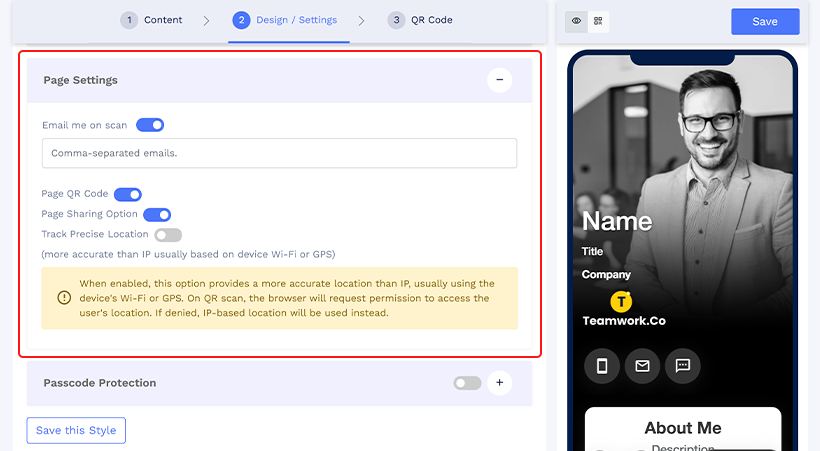
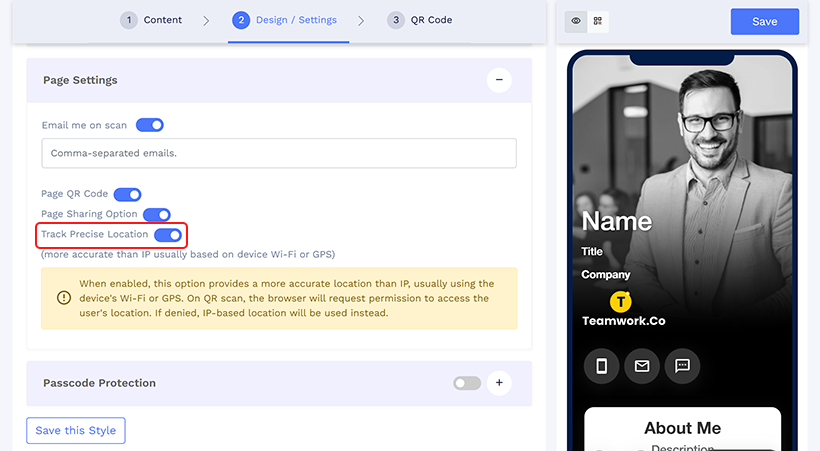
Step 3: Enable ‘Track precise location’ by switching the toggle on. Then, save it.
How does QRCodeChimp’s GPS tracking work?
Once the GPS feature is enabled, users will be prompted to grant permission to access their GPS location when they scan the QR code. If permission is granted, the precise location will be recorded. If denied, the system will fall back to capturing the IP address.
- This GPS tracking feature is available to users with Pro and above plans, except for two solutions: the PET ID tag and medical alert solutions.
Where will you find GPS analytics on QRCodeChimp?
To locate GPS analytics on QRCodeChimp, follow these steps.
Step 1: Navigate to the ‘Dashboard.’
Step 2: Select the QR code from the ‘QR Codes List’ section for which you want GPS analytics.
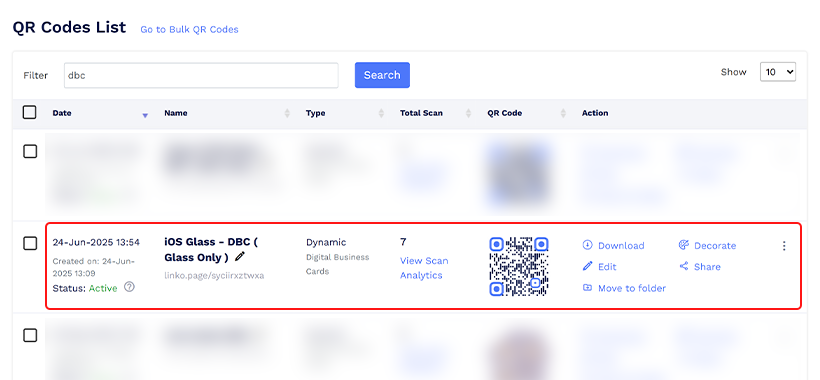
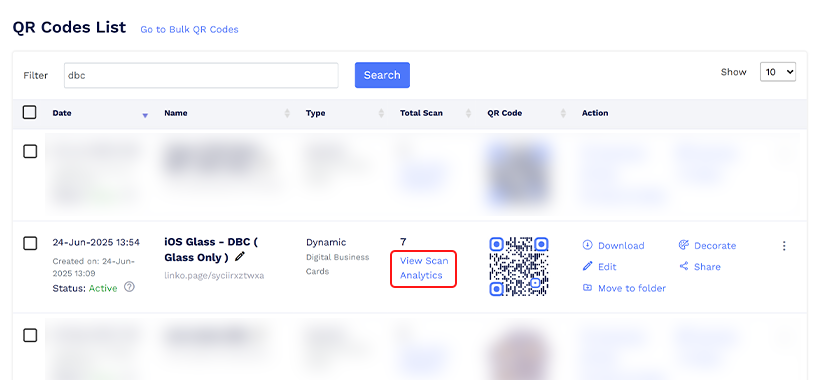
Step 3: Click ‘View Scan Analytics’ for the selected QR code.
Step 4: Scroll down to the page bottom, and you’ll see ‘Geo Analysis’ displaying the country, state/region, and city of users who grant their location permission.

You can also share and export the analytics data.
Conclusion
Enabling GPS tracking on your QR codes provides more than just engagement metrics — it offers location-based intelligence that can significantly enhance your marketing strategy. With just a few simple steps on QRCodeChimp, you can start collecting geographic data (with user consent) to understand better your audience’s behavior and tailor campaigns to specific regions.
While GPS data collection depends on user permissions, even fallback IP tracking can provide valuable insights. For businesses seeking to optimize outreach and enhance local impact, GPS-enabled QR codes provide a smart, data-driven advantage.
Frequently asked questions
How to enable GPS tracking on QR code scan?
To enable GPS tracking on QR code scanning, follow these steps:
- Log in with QRCodeChimp
- Select a QR code solution
- Enable the ‘Track precise location’ feature
- Save and done.
Can I create a GPS-enabled QR code for free on QRCodeChimp?
Yes, you can create a GPS-enabled QR code for free only for Pet ID tags and medical alert solutions.
You may also like
How to Create a Circular QR Code With Logo + Best Practices and Mistakes to Avoid
Learn how to create a circular QR code (round or circle) with your logo, plus best practices, scannability tips, and mistakes to avoid. Free to start on QRCodeChimp.
GS1 Application Identifiers Explained: GTIN, Batch, Serial, Expiry, and More
This guide explains the most important GS1 Application Identifiers used for product identification, traceability, retail, and packaging.
How to Group Cards in QRCodeChimp Entra ID Setup
Learn to organize digital business cards effectively using QRCodeChimp Entra ID grouping. Simplify card management by group, filter, or all-in-one.
Steps to Integrate Microsoft Entra ID (Azure AD) with QRCodeChimp
Learn how to connect Microsoft Entra ID with QRCodeChimp to automate digital business card creation, improve security, and simplify onboarding.
Most Popular
Contact Sales
