You’re checking your QR code analytics and suddenly notice scans from countries you’ve never targeted. Maybe it shows a scan from Brazil when your campaign is running in Berlin.
Confusing? Definitely.
Alarming? Maybe.
But in most cases, it’s not a sign of foul play.
Here’s the thing: An inaccurate QR code scan location is a common issue. And it happens for reasons that are usually technical, not malicious. From VPNs to shared links, there are numerous ways that data can become compromised.
The good news? You can clean it up. Let’s look at why these strange locations show up and how you can get clearer, more reliable data.
- Common reasons your QR code scan location is not accurate
- Difference between IP-based and GPS-based tracking
- GPS tracking in analytics (and lat-long)
- How to fix inaccurate QR code scan location data
- What’s worth worrying about and what isn’t
- Best practices to improve QR code scan location accuracy
- Conclusion
- Frequently asked questions
Common reasons your QR code scan location is not accurate
So your QR code shows a scan from a city you’ve never heard of. That’s frustrating, mainly when accurate data drives your decisions. Before jumping to conclusions, here are the usual suspects behind location mix-ups.
VPNs and proxy servers can confuse the scan location
Many people use VPNs or proxies to hide their real location. When they scan your QR code, the system logs the VPN server’s location, not theirs.
That’s why a user in Chicago might show up as someone scanning from Amsterdam.
Device vs. network location: why scans may show the wrong place
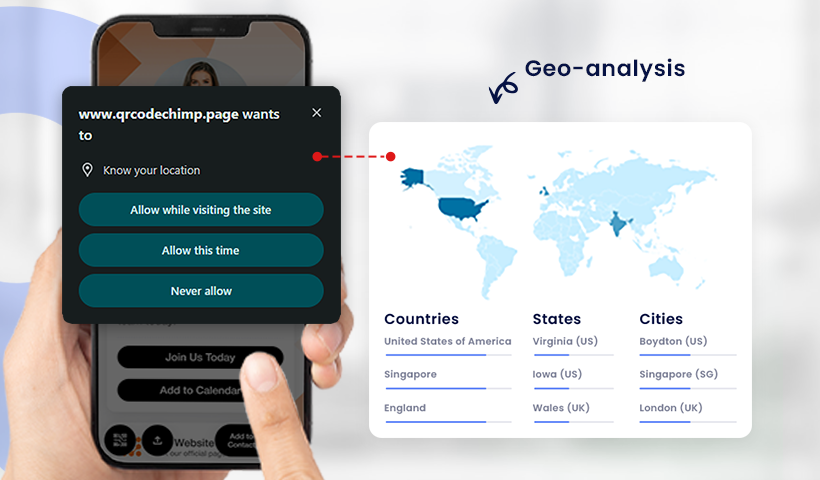
- GPS location (device-based) is accurate but requires permission.
- IP address (network-based) is the fallback, and it’s less reliable.
If users deny GPS access, your system relies on IP location, which may reflect their internet provider’s hub, rather than their actual location.
Scans from bots and cloud services aren’t real users
Sometimes, automated systems like social media bots, preview tools, or spam filters scan your QR code before a human ever does.
These appear as scans from cloud servers, such as AWS, Azure, or Google Cloud, with unusual or distant IP addresses.
Link sharing leads to scans from unexpected locations
Maybe you only printed the QR code in one store. But someone shared the link with someone from another location.
Now it’s being scanned by someone halfway across the world. It’s still your QR code, but outside your intended audience.
QR codes reused or shared without your knowledge
This happens more often than you’d think. A colleague reused your code in a different campaign. Or a third party printed it again.
When codes circulate without control, scan locations will appear in unexpected places.
Difference between IP-based and GPS-based tracking
When you encounter unusual scan locations, the root cause is often related to how location data was captured. Was it pulled from the user’s device or just estimated from their internet connection?
Why it matters
The method used affects accuracy. If you rely only on IP tracking, you’ll probably see more false flags. If you enable GPS, you’ll get much better precision if users allow it.
Quick comparison
| Feature | IP-based tracking | GPS-based tracking |
|---|---|---|
| How it works | Uses the Internet IP address | Uses the phone’s GPS hardware |
| Accuracy | Low to moderate (can be off by miles) | High (often within a few meters) |
| User Permission | Not needed | Needs the user to allow location access |
| Fallback option | Always available | Only works if the user says yes |
| Best use case | Rough regional data | Exact location of QR code scan |
What this means for you
If you’ve been wondering why your QR code scan location is not accurate, it’s likely because the system had to fall back to IP-based tracking. GPS tracking, when enabled, solves that.
To obtain cleaner data, ensure GPS tracking is enabled where available, particularly for QR codes associated with critical or location-sensitive campaigns.
GPS tracking in analytics (and lat-long)
- Availability: GPS (“Precise Location”) works only on dynamic QR codes and requires user consent at scan time. It’s a paid feature on Pro and above.
- Exports & plan note: Ultima and above can export detailed scan data to Excel. When GPS is captured, the export includes GPS-LAT,LONG (along with GPS-CITY/STATE/ZIPCODE/COUNTRY).
How the columns behave (as seen in the sample report):
- IP columns (IP-CITY, IP-STATE, IP-ZIPCODE, IP-COUNTRY) are always filled for every scan.
- GPS columns (GPS-CITY, GPS-STATE, GPS-ZIPCODE, GPS-COUNTRY, GPS-LAT,LONG) are filled only if:
- the QR has Track Precise Location enabled, and
- the end user grants the browser’s location permission at scan/open.
Example (what you’re seeing):
An Email Signature QR’s landing page was opened on a desktop behind a VPN. The IP columns show New York City, NY and sometimes Ashburn, VA (common VPN/data-center egress). Because Precise Location was enabled and the user allowed location access, the GPS columns recorded Austin, TX, and GPS-LAT,LONG contains the precise coordinates. This is expected: IP = network endpoint; GPS = user-granted device/browser location. If the user denies permission, GPS fields stay blank and only IP data appears.
How to fix inaccurate QR code scan location data
Identifying unusual scan locations can disrupt your reporting, marketing attribution, or campaign confidence. But the fix is often simple and in your control.
Here’s how to improve accuracy and trust your scan data again.
Turn on GPS tracking where it’s available
If your plan supports it (Pro and above), GPS tracking provides precise scan locations, down to the street level. When someone scans your QR code, they’re prompted to share their location. If they agree, you get GPS-level accuracy. If they don’t, the system falls back to IP tracking.
Good to know:
- GPS tracking is on by default for eligible new QR codes.
- Pet Tags and Medical Alert codes include GPS tracking, even on the Free plan.
Add UTM tags and monitor analytics
Location isn’t everything. You should also track how people found your QR code.
Use UTM parameters to tag your campaigns:
- utm_source=flyer
- utm_medium=print
- utm_campaign=summer_sale
Then monitor performance in tools like Google Analytics (GA4). This helps you spot when a scan appears in an unexpected location but originated from a known source.
Want more help?
How to set up UTM tracking on QRCodeChimp
Train your team on how (and where) to distribute
Sometimes, inaccurate data can come from well-meaning individuals, such as a colleague printing the code in the wrong location or uploading it to a shared drive.
Keep your internal team aligned:
- Share clear guidelines on where to publish or print.
- Use version control for QR campaigns.
- Restrict editable access if needed.
Want more help?
Check out How to Enable GPS Tracking for QR Code Scan Location for deeper setup and troubleshooting.
What’s worth worrying about and what isn’t
Scan locations across random locations can trigger alarm bells. But most of the time, it’s not a breach or a bot attack. It’s just how IP tracking and link sharing work.
Still, it’s smart to know when to raise a brow and when to shrug it off.
When you should be concerned
Some scan data is worth a second look, especially if it doesn’t match your campaign’s intent.
Watch out for:
- Sudden spike from a suspicious region you’ve never targeted.
- Repeated scans from unfamiliar locations (potentially due to scraping or automation).
- Unusual timing, like dozens of scans in the middle of the night from unrelated regions.
If that happens, check:
- Was the QR code shared outside the intended audience?
- Is the QR code public when it should be private?
- Are there security settings on the URL or landing page (e.g., password)?
These checks help you rule out misuse or unintended distribution.
Learn more: Password Protected QR Codes: The Ultimate Guide
When it’s probably nothing
You can relax if:
- You see occasional scans from random regions, especially one-offs.
- The scan comes from a known preview tool, social platform, or short URL redirect.
- A user scanned the code while traveling or using a VPN.
These aren’t red flags, they’re technical noise.
In short, if your QR code scan location is not accurate, don’t panic. Most cases are harmless. Stay alert, but don’t let technical quirks distract you from your focus.
Best practices to improve QR code scan location accuracy
Here’s how to refine location accuracy and minimize false readings.
Use dynamic QR codes with tracking tools
Static codes can’t tell you much beyond the scan itself. Dynamic QR codes, on the other hand, let you:
- Update the destination URL anytime
- Track scans in real time
- Capture detailed analytics, including location (if enabled)
They’re flexible and data-rich, ideal for ongoing campaigns.
Enable GPS tracking when available
Whenever your plan allows, turn on GPS tracking. It provides you with precise, permission-based location data instead of rough estimates based on IP addresses.
Already on a Pro or higher plan? GPS is enabled by default for new QR codes. Ensure you’re using the correct settings.
Keep distribution tight and documented
If your QR code ends up somewhere it shouldn’t, so will your scan data.
To avoid that:
- Track where and how each QR code is shared or printed
- Avoid using the same code across unrelated campaigns
- Set clear rules within your team or agency for reuse and distribution
Conclusion
If your QR code scan location is not accurate, you’re not alone. It’s usually a mix of technical quirks, such as VPNs, IP tracking limits, or link sharing. The key is knowing what to watch for and using the right tools to stay ahead. GPS tracking, dynamic codes, and clean distribution go a long way in ensuring the trustworthiness of your data.
Frequently asked questions
Why is my QR code scan location not accurate?
Most likely, the system used IP tracking because the user had not allowed GPS access. IP data is often tied to network hubs, not actual locations. VPNs, proxies, and cloud scans can also skew results.
Can I always get GPS-based location data?
Only if the user grants permission during the scan. Without it, the system defaults to IP-based tracking, which is less accurate.
How can I improve scan location accuracy?
- Use dynamic QR codes
- Turn on GPS tracking (available for Pro plans and above)
- Control distribution tightly
- Add UTM tags for better campaign insights
Are scans from unfamiliar places something to worry about?
Usually not. Random locations often result from link sharing or technical reasons. You should only worry if you see suspicious spikes or repeated scans from unknown sources.
Can someone reuse my QR code without me knowing?
Yes, anyone can reuse a QR code if they’ve saved or copied it. To prevent this, monitor usage and set controls when needed.
You may also like
Are QR Codes Effective for Marketing? What Research Shows
Are QR codes effective for marketing? See what current research shows, what drives scans, and how to measure engagement, conversions, and ROI.
How to Write High-Converting QR Code Call to Action Phrases (50+ Examples)
Learn the CTA formulas, design tips, and 60+ examples that boost QR Code scans and conversions plus how to test and measure them using QRCodeChimp tools.
Event Ticket Validation With QR Codes: How It Works and What It Prevents
Stop ticket fraud and speed up event entry with QRCodeChimp QR code ticket validation app. Discover secure, fast check-ins and real-time tracking for any event.
How To Create an RSVP QR Code for Any Event
Create an RSVP QR code using a customizable form, Event Ticket RSVP, Google Forms, or WhatsApp. Compare four methods and follow the steps.
Most Popular
Contact Sales
