Collecting leads through a form is useful only when your team can act on them.
With QRCodeChimp’s Salesforce integration, you can send data collected through your QRCodeChimp forms directly to Salesforce. You don’t need to transfer responses manually or route them through another automation tool.
Connect your Salesforce account, select the Salesforce object, and map your form fields to the corresponding Salesforce fields. When someone submits the form, QRCodeChimp stores the complete response and sends the mapped data to Salesforce.
This guide walks you through the complete setup.
- How the QRCodeChimp and Salesforce integration works
- What you need before you start
- Steps to connect QRCodeChimp Forms with Salesforce
- Test your Salesforce integration
- Check the response in QRCodeChimp
- Check the Salesforce integration status
- Verify the Contact in Salesforce
- Why check both Form Responses and Integration Details?
- Common issues to check
- Conclusion
- Frequently asked questions
How the QRCodeChimp and Salesforce integration works
The flow is straightforward:
Form submission → QRCodeChimp Form Responses → Field mapping → Salesforce
When someone submits your QRCodeChimp form:
- QRCodeChimp records the complete form response.
- The Salesforce integration checks the object and field mappings you configured.
- The mapped values are sent to Salesforce.
- Salesforce creates the corresponding record.
- QRCodeChimp records the integration status so you can check whether the data was sent successfully.
An important point here is that QRCodeChimp does not automatically send every form field to Salesforce.
Only the fields you map are included in the Salesforce action.
For example, your form might collect:
- Name
- Phone
- Your Inquiry
If you map only Name, Email, and Phone, all four values remain available in QRCodeChimp. However, only the three mapped fields are sent to Salesforce.
What you need before you start
Make sure you have:
- A QRCodeChimp account with access to the Salesforce integration
- A Salesforce account you can authorize
- A QRCodeChimp form with the fields you want to collect
- Permission to install or upgrade the QRCodeChimp package in Salesforce
- The required fields available in the Salesforce object you want to use
It also helps to decide where the form response should go in Salesforce before you begin.
In this guide, we will use the Contact object.
Steps to connect QRCodeChimp Forms with Salesforce
Follow these steps to integrate Salesforce with QRCodeChimp Forms.
Step 1: Create or open your QRCodeChimp form
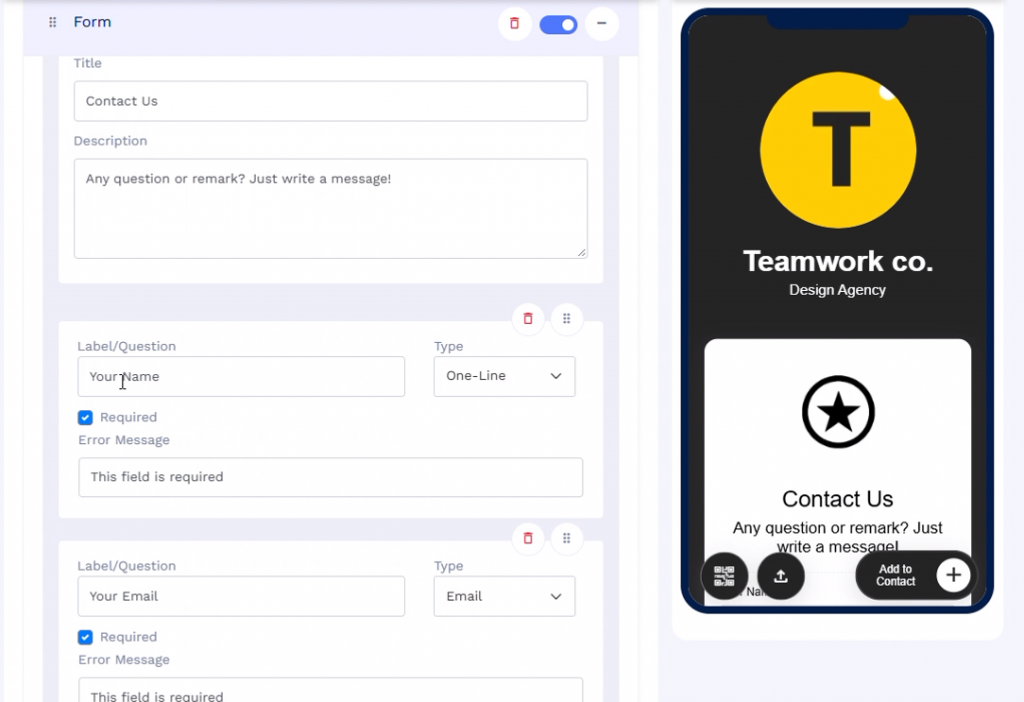
Sign in to QRCodeChimp and create a Form QR Code. If you already have a form, open it for editing. Set up the fields you want visitors to complete.
For example:
- Name
- Phone
- Your Inquiry
Complete the rest of your form settings as needed.
Step 2: Open Form Integration Settings
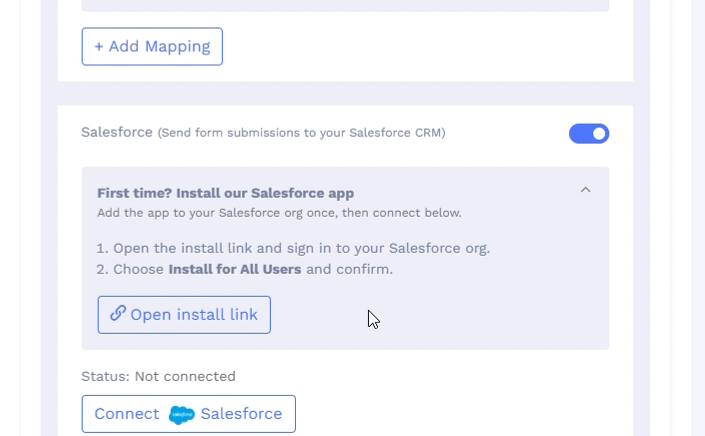
Scroll down to Form Integration Settings in the form editor.
Find the Salesforce integration and enable it.
If you are connecting Salesforce for the first time, QRCodeChimp will provide an option to install the QRCodeChimp package in your Salesforce organization.
Click Open install link to continue.
Step 3: Sign in to your Salesforce account
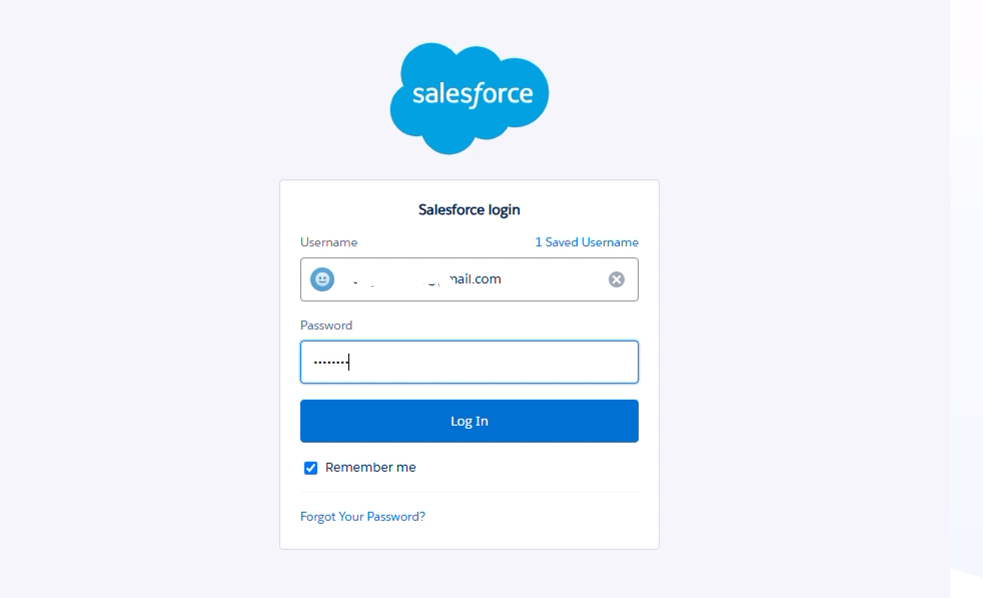
The installation link will open Salesforce. Choose the Salesforce account or organization you want to connect. Sign in if required. Make sure you select the Salesforce organization where you want the QRCodeChimp form data to be sent.
Step 4: Install the QRCodeChimp package in Salesforce
Salesforce will open the QRCodeChimp package installation page. If the package has already been installed, you may see an option to upgrade it instead. Salesforce provides installation access options such as:
- Install for Admins Only
- Install for All Users
- Install for Specific Profiles
Choose the option that matches your organization’s Salesforce setup.
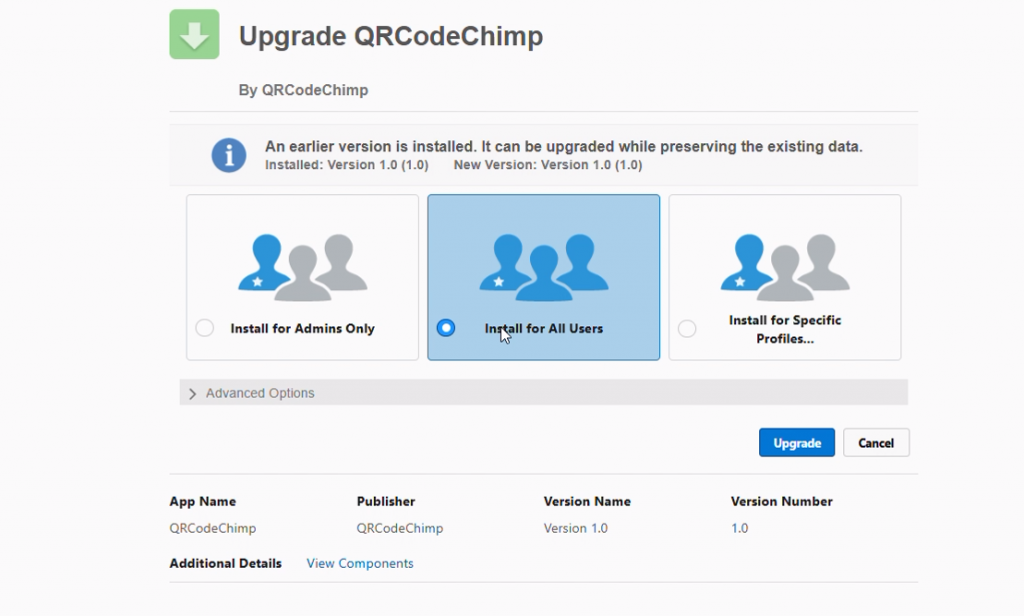
In this example, Install for All Users is selected. Continue with the installation or upgrade. Wait until Salesforce confirms that the process is complete.
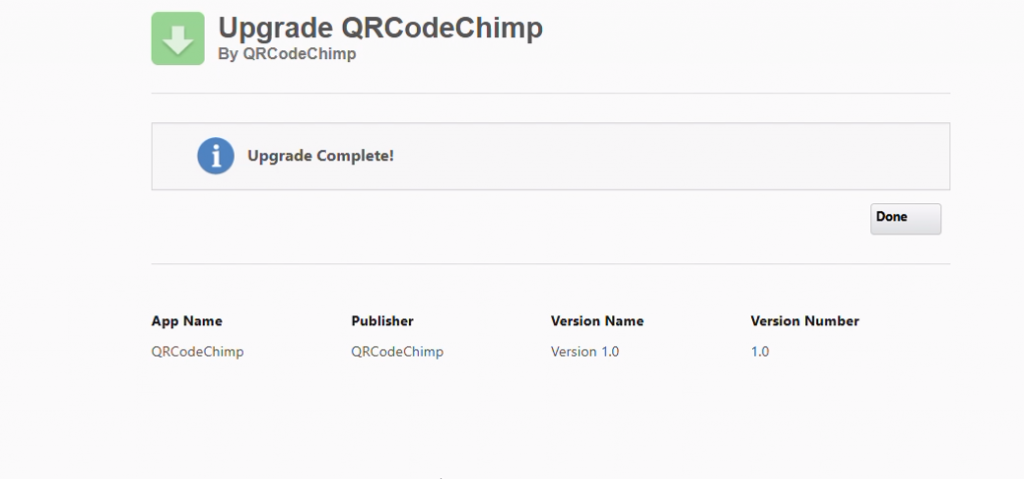
Note: You may need the appropriate Salesforce permissions to install or upgrade the package.
Step 5: Confirm the package installation
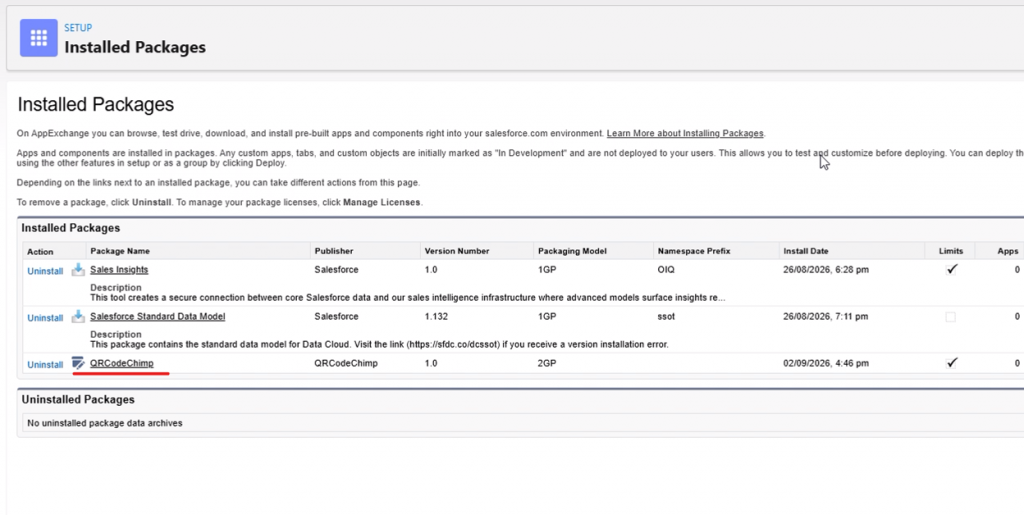
Once the installation is complete, you can confirm that the package is available in Salesforce.
Go to:
Salesforce Setup → Installed Packages
Look for QRCodeChimp in the list. Once the QRCodeChimp package appears there, return to QRCodeChimp to continue the setup.
Step 6: Connect your Salesforce account
Return to the Salesforce section under Form Integration Settings.
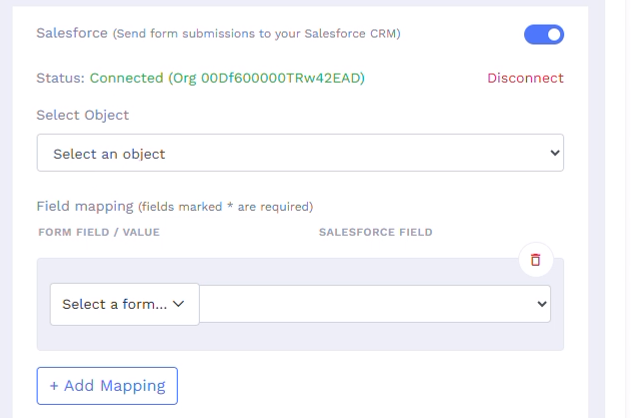
Click Connect Salesforce.
Complete the Salesforce authorization process. Once authorization is successful, you will be redirected back to QRCodeChimp. QRCodeChimp will now show Salesforce as Connected.
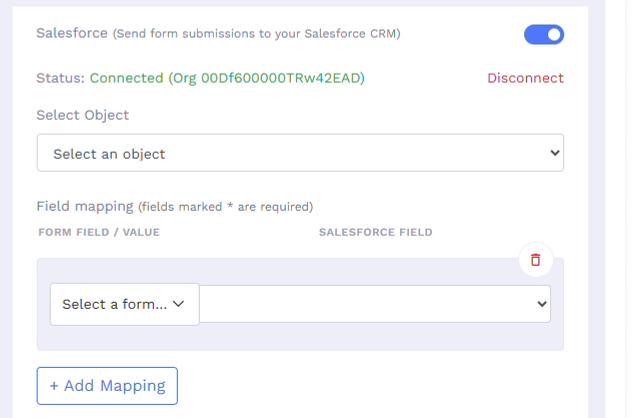
If you manage more than one Salesforce organization, check the connected organization details before proceeding. This helps make sure your form responses go to the intended Salesforce account.
Step 7: Select the Salesforce object
Next, open the Select Object dropdown.
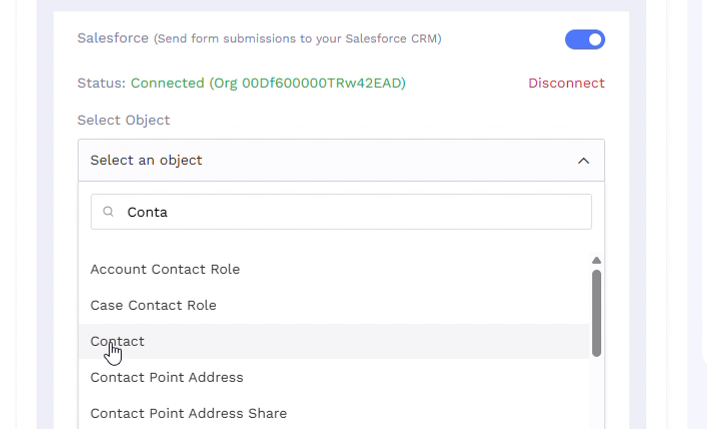
Choose the Salesforce object where you want QRCodeChimp to create the record. For this example, select Contact.
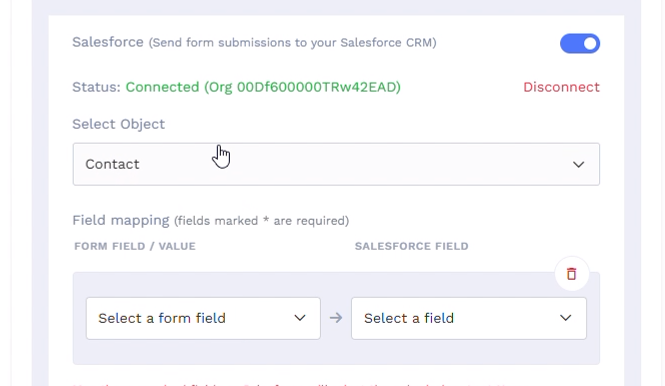
Your form responses will now be sent to Salesforce Contact records based on the field mappings you configure next.
Step 8: Map your QRCodeChimp fields to Salesforce
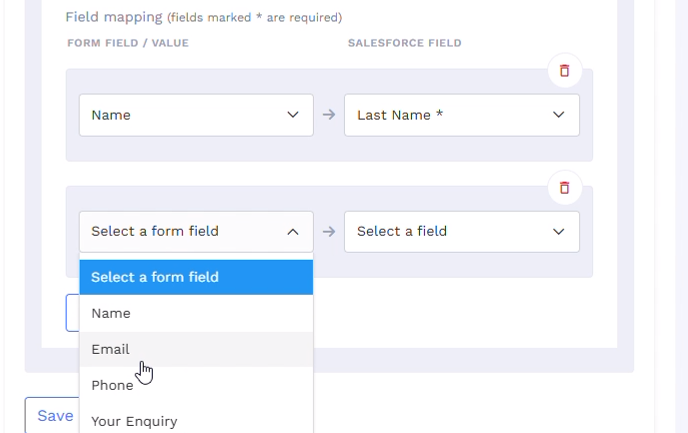
Now tell QRCodeChimp where each form value should go in Salesforce. For each form field you want to send, select the corresponding Salesforce field. In this example, the fields are mapped as follows:
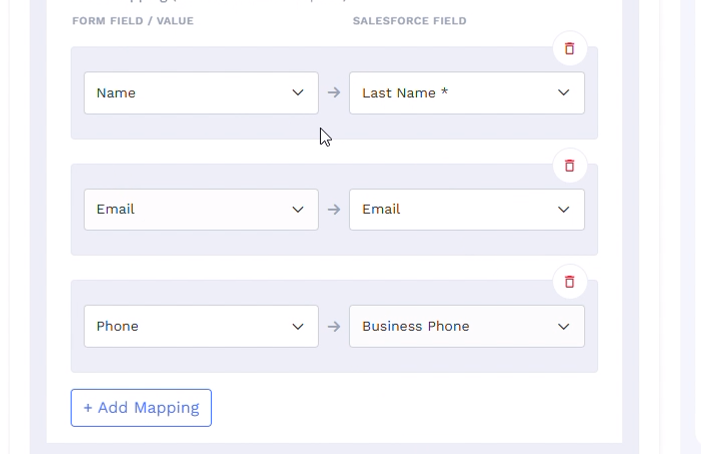
The Name field is mapped to Last Name because Salesforce requires a Last Name when creating a Contact.
Use + Add Mapping to add more field mappings if needed.
You only need to map the fields that you want to send to Salesforce. For example, suppose your form also contains Your Inquiry, but you do not map that field.
A visitor could submit:
- Name: Steeve
- Email: steeve@abindustries.com
- Phone: 8454875485
- Your Inquiry: Pricing inquiry
QRCodeChimp would retain all four values. Salesforce would receive only:
- Last Name: Steeve
- Email: steeve@abindustries.com
- Business Phone: 8454875485
If you also want the inquiry to appear in Salesforce, map it to an appropriate Salesforce field.
Step 9: Save your form
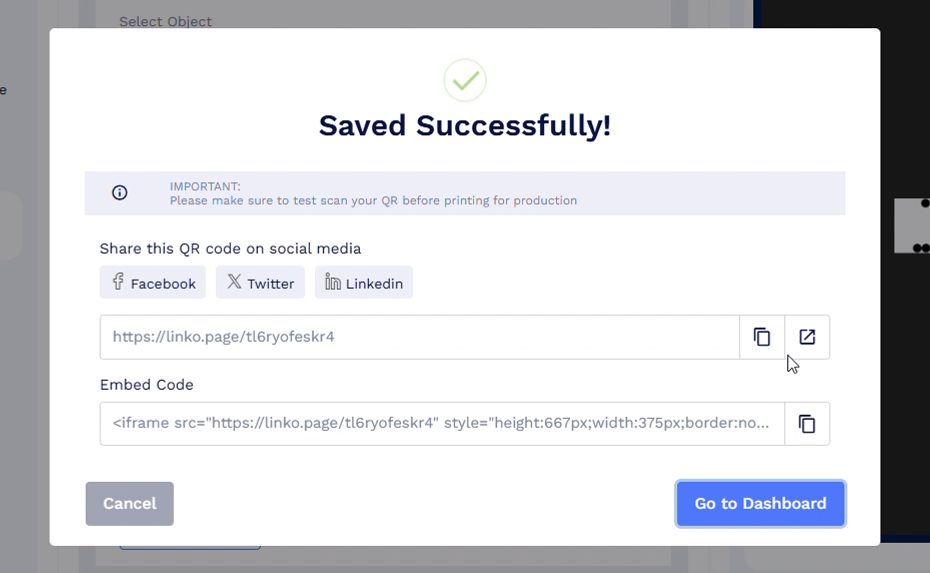
Once your Salesforce account, object, and field mappings are ready, save the Form QR Code. QRCodeChimp will confirm when your changes have been saved.
Your Salesforce integration is now configured.
Test your Salesforce integration
Before using the form in a live campaign, submit a test response. This lets you confirm that QRCodeChimp is receiving the form submission and that the mapped data is reaching Salesforce correctly.
Step 10: Open and fill out the live form
Open the form using its QR code or direct link.
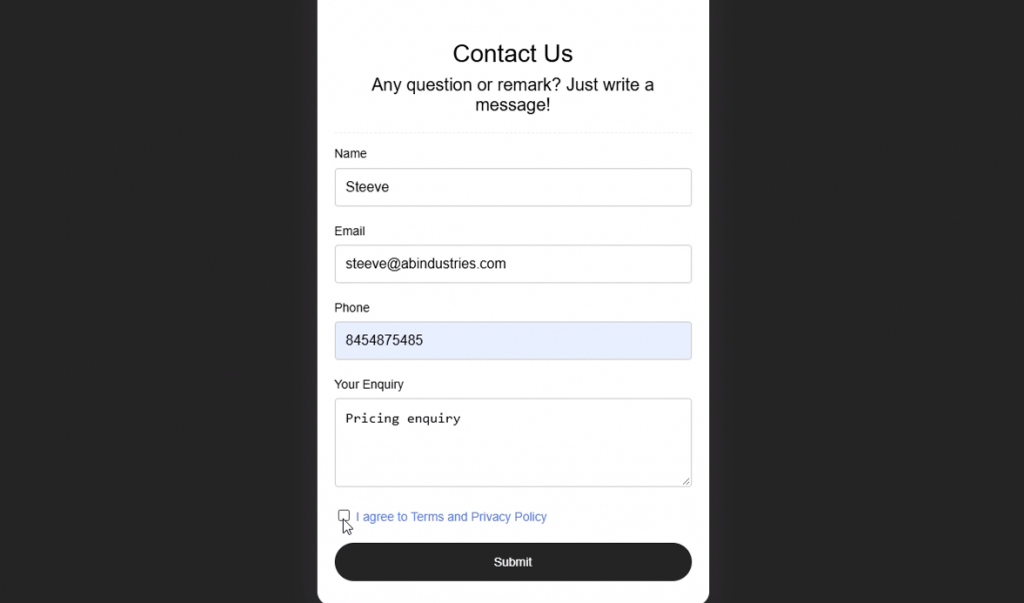
Enter recognizable test information.
For example:
- Name: Steeve
- Email: steeve@abindustries.com
- Phone: 8454875485
- Your Inquiry: Pricing inquiry
Complete any required consent or form fields before submitting.
Step 11: Submit the form

Submit the completed form. You should see a confirmation message indicating that QRCodeChimp has received the response.
Check the response in QRCodeChimp
Receiving the form response is the first part of the process. You can check it directly from your QRCodeChimp dashboard.
Step 12: Open Form Responses
Go back to your QRCodeChimp dashboard and open Form Responses. Select the relevant form. Your test submission should appear in the response list along with the information entered by the user.
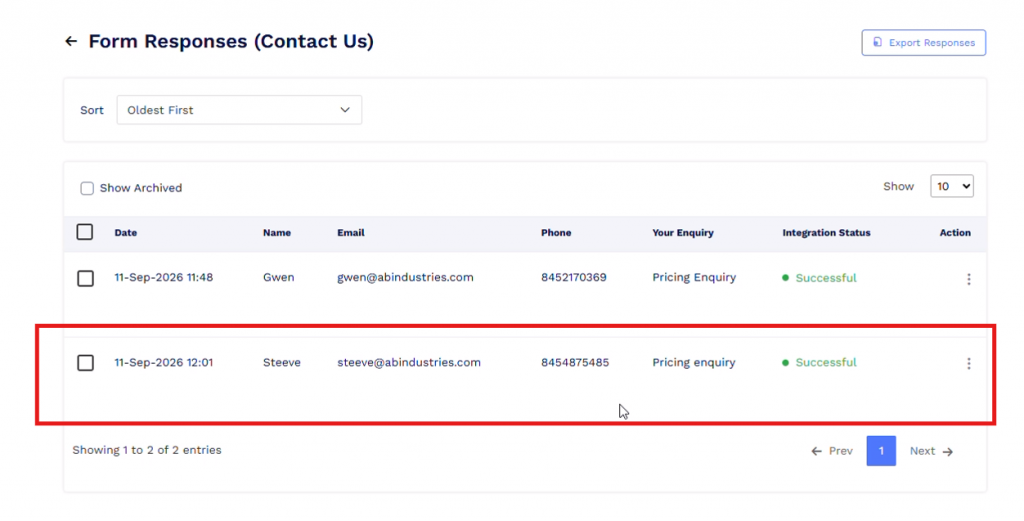
In this example, you can see Steeve’s name, email, phone number, and inquiry. This confirms that QRCodeChimp successfully received the form response.
Check the Salesforce integration status
Receiving the response in QRCodeChimp and sending the mapped data to Salesforce are two separate parts of the workflow. QRCodeChimp lets you check whether the Salesforce action was completed successfully.
Step 13: Open Integration Details
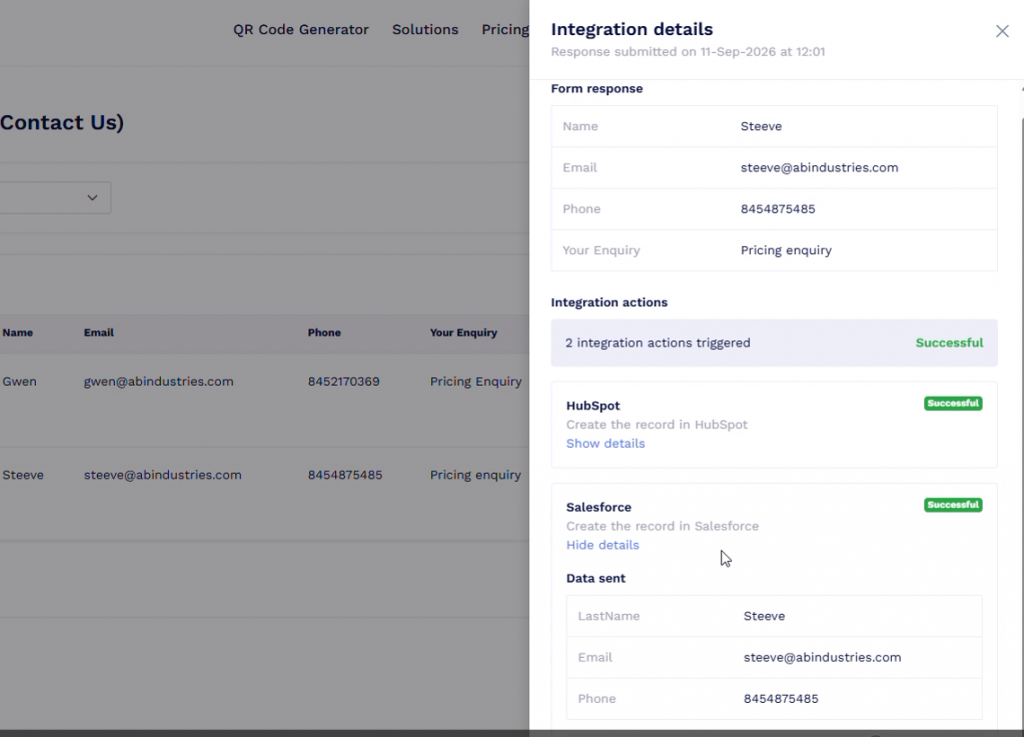
Open the Integration Details for the form response. Here, you can see the integrations triggered by that particular submission. If the same form is connected to more than one platform, each integration appears separately.
For example, if both HubSpot and Salesforce are connected, QRCodeChimp shows the status of each action independently.
Step 14: Verify that the Salesforce action succeeded
Check the status shown next to Salesforce. A successfully processed response will show the Salesforce action as Successful. Expand the Salesforce action to inspect the exact data QRCodeChimp sent.
For the example above, the data sent includes:
- LastName: Steeve
- Email: steeve@abindustries.com
- Phone: 8454875485
Notice that Pricing inquiry is not included.
That value remains available in the QRCodeChimp form response, but it was not sent to Salesforce because the Your Inquiry field was not mapped.
The integration details can also show when the Salesforce action was attempted.
Verify the Contact in Salesforce
Once the integration status shows as successful, confirm that the record exists in Salesforce.
Step 15: Open Contacts in Salesforce
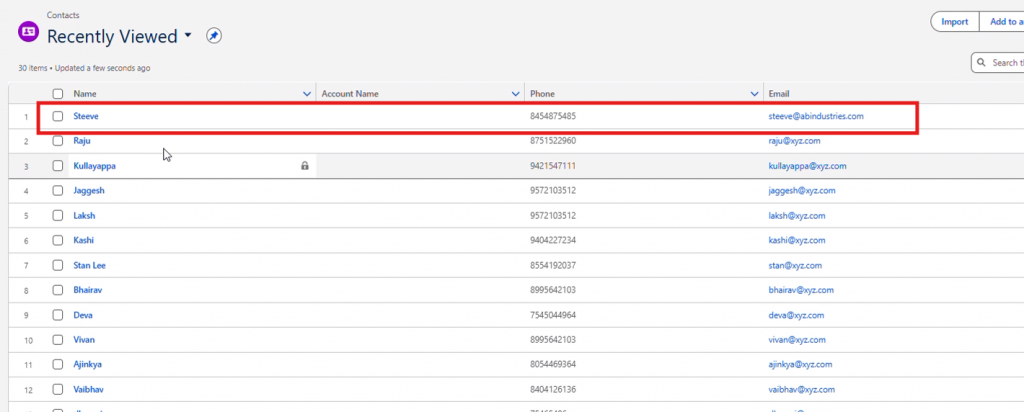
Open Salesforce and go to Contacts. You can use Recently Viewed or search for the name or email address used in your test submission. The new Contact should appear with the mapped information.
Step 16: Open the Salesforce Contact
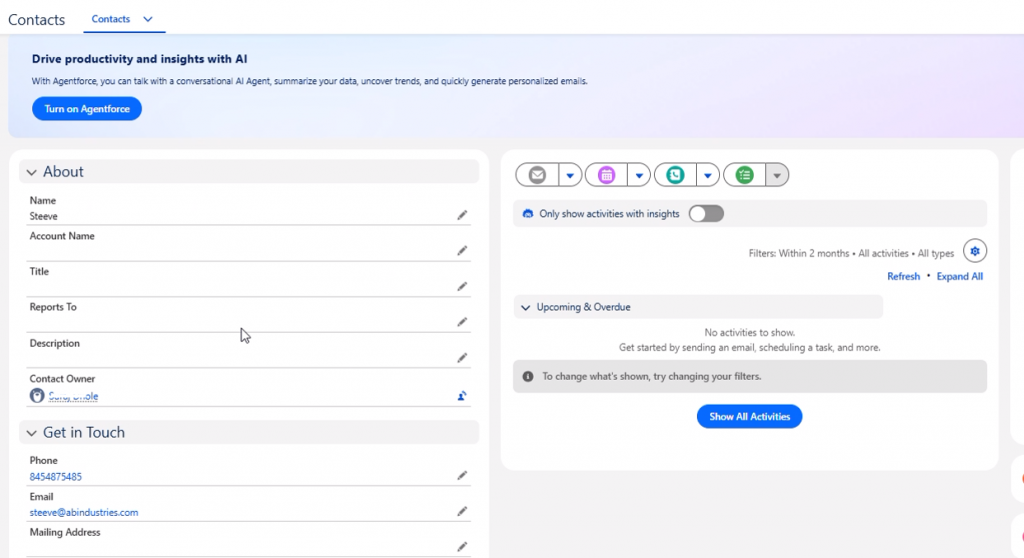
Open the Contact record. Check the fields that were mapped from QRCodeChimp. For this example, you should see:
- Name: Steeve
- Email: steeve@abindustries.com
- Phone: 8454875485
You have now completed the full flow:
Visitor submits form → QRCodeChimp stores response → mapped fields are sent → Salesforce Contact is created
Why check both Form Responses and Integration Details?
These two sections answer different questions.
Form Responses tells you:
Did QRCodeChimp receive the user’s submission?
Integration Details tells you:
Was the mapped data successfully sent to Salesforce? This distinction is useful when troubleshooting.
For example, a submission may appear correctly under Form Responses while the Salesforce action is still processing or has encountered a problem. Checking Integration Details helps you identify which part of the workflow needs attention.
Common issues to check
Here are some issues to check if your Salesforce integration is not working as expected.
Salesforce shows as disconnected
Return to Form Integration Settings and reconnect your Salesforce account. If you use multiple Salesforce organizations, make sure you authorize the correct one.
The QRCodeChimp package is not available in Salesforce
Check whether the package installation or upgrade was completed successfully.
Go to:
Salesforce Setup → Installed Packages
Confirm that QRCodeChimp appears in the list. If it does not, review your Salesforce permissions and complete the installation before reconnecting the integration.
The response appears in QRCodeChimp but not Salesforce
First, open Integration Details for that response. Check the Salesforce action status. Also confirm that you selected the correct Salesforce object during setup. If you are creating Contacts, for example, make sure Contact is selected.
Some form values are missing in Salesforce
Review your field mapping. QRCodeChimp sends the fields you map to Salesforce. A value can still appear in Form Responses even if it was not included in the Salesforce action.
For example, if Your Inquiry is not mapped, the inquiry will remain visible in QRCodeChimp but will not appear in the Salesforce Contact.
A field is being sent to the wrong Salesforce field
Return to the form editor and review your mappings. For example, confirm that your Name field is mapped to the intended Salesforce name field and that Phone is mapped to the correct phone field.
Correct the mapping and save the form again.
Salesforce cannot create the record
Check whether the Salesforce object has required fields that have not been mapped. For example, a Salesforce Contact requires a Last Name. In this setup, the QRCodeChimp Name field is mapped to Last Name so the required value is provided.
Your Salesforce organization may also have its own required fields or validation rules. Make sure your mappings provide the information your Salesforce configuration requires.
I added a new form field
Adding a field to your QRCodeChimp form does not automatically decide where that value should go in Salesforce. If you want the new value to be sent to Salesforce, return to Form Integration Settings and create the corresponding field mapping.
Save the form after updating the configuration.
Conclusion
Connecting QRCodeChimp Forms with Salesforce gives you a direct path from a form submission to your CRM.
Set up the Salesforce package and connection, choose the Salesforce object, and map the fields you want to send. QRCodeChimp can then keep the complete form response while sending the selected information to Salesforce.
You can also use Integration Details to check whether each Salesforce action succeeded and see exactly what data was sent. Before using your form publicly, submit a test response. Verify it under Form Responses, check the Salesforce integration status, and confirm the resulting record inside Salesforce.
Once the information appears in the right place, your form is ready to start routing new responses into your Salesforce workflow.
Frequently asked questions
Do I need a paid Zapier plan to use this Salesforce and QRCodeChimp integration?
No. QRCodeChimp supports direct Salesforce integration for Forms. You can connect Salesforce and configure your field mappings from QRCodeChimp.
Do I need to install anything in Salesforce?
Yes. You need to install or upgrade the QRCodeChimp package in your Salesforce organization as part of the integration setup.
Which Salesforce object can I send form data to?
QRCodeChimp lets you select the Salesforce object during the integration setup. In this guide, the Contact object is used.
How do I send a QRCodeChimp form response as a Salesforce Contact?
Select Contact as the Salesforce object. Then map your QRCodeChimp form fields to the corresponding Salesforce Contact fields.
For example:
- Name → Last Name
- Email → Email
- Phone → Business Phone
Does QRCodeChimp send every form field to Salesforce?
No. Salesforce receives the fields you map during setup. Other submitted fields can still remain available under QRCodeChimp Form Responses.
You may also like
Edible QR Codes: How to Make Them + Real-world Examples
An edible QR code is a scannable QR code printed or formed from materials safe to eat. Here's how to make edible QR codes, what to watch out for, and how to put them to good use.
QRCodeChimp vs. QRLynx: Which Is the Best Enterprise-Ready Platform for Your Business
QRCodeChimp vs. QRLynx: Discover why QRCodeChimp stands out with CRM integrations, enterprise digital business cards, GS1 QR codes, and advanced security.
How to Secure a PDF QR Code: Passcode, Password, and Campaign Expiry
You can protect a PDF Gallery with a passcode, set an expiry date for a PDF QR code, or password-protect the PDF file itself. This guide walks you through all three methods, including how to set them up and when to use each one.
How to Add Custom Text to QR Code Stickers
Learn why we added custom text to QR code stickers, and how you can add it to increase your QR code scans and engagement.
Most Popular
Contact Sales