A PDF QR code makes sharing documents incredibly easy. But when you’re sharing an internal handbook, a confidential client proposal, or a time-sensitive document, convenience alone isn’t enough. You also need control over who can access it and for how long.
The good news is that you have several ways to manage access. You can protect a PDF Gallery with a passcode, set an expiry date for a PDF QR code, or password-protect the PDF file itself.
This guide walks you through all three methods, including how to set them up and when to use each one.
Key Takeaways:
- PDF Gallery passcodes restrict access to the entire gallery.
- Session timeouts control how long a gallery stays unlocked.
- Campaign dates control QR code access, not PDF file availability.
- PDF passwords protect files even after downloading or sharing.
- Combine security methods for stronger control over sensitive documents.
- When should you secure a PDF QR code?
- Method 1: Create a passcode-protected QR code for PDFs
- Method 2: Campaign expiry for time-sensitive PDF QR codes
- Method 3: Create a QR code for a password-protected PDF file
- Which method should you choose?
- Best practices for sharing protected PDFs through QR codes
- Share your PDFs with greater control
- Frequently asked questions
When should you secure a PDF QR code?
Not every PDF needs a password or an expiry date. But in some situations, unrestricted access could expose sensitive information or keep outdated documents available longer than intended.
Here are some common scenarios:
- Internal company documents: Employee handbooks, training materials, and internal policies may be intended only for people within your organization.
- Confidential business information: Financial reports, client proposals, contracts, and pricing agreements may contain details you don’t want widely shared.
- Time-sensitive documents: Event schedules, limited-time offers, examination materials, and launch documents may need to be accessible only during specific dates.
- Private document collections: Project files or partner resources may need to be shared with a selected group for a limited period.
Each situation calls for a different level of control.
With that said, let’s explore three methods you can use to manage PDF access through QR codes.
Method 1: Create a passcode-protected QR code for PDFs
If you’re sharing several PDFs with a specific group, passcode protection is a convenient option.
QRCodeChimp’s PDF Gallery QR code lets you organize multiple documents on a single page and protect the gallery with a passcode. Only people who know the passcode can open it.
The passcode applies to the entire gallery, not individual PDFs. Once someone enters the correct passcode, they can access all documents in the gallery without entering another gallery passcode.
You cannot assign different gallery passcodes to individual PDFs. If certain documents need separate protection, create different galleries or use file-level passwords. You can also create a PDF Gallery with just one document.
How to add passcode protection to a PDF Gallery
1. Log in to QRCodeChimp and open the PDF Gallery QR Code generator.
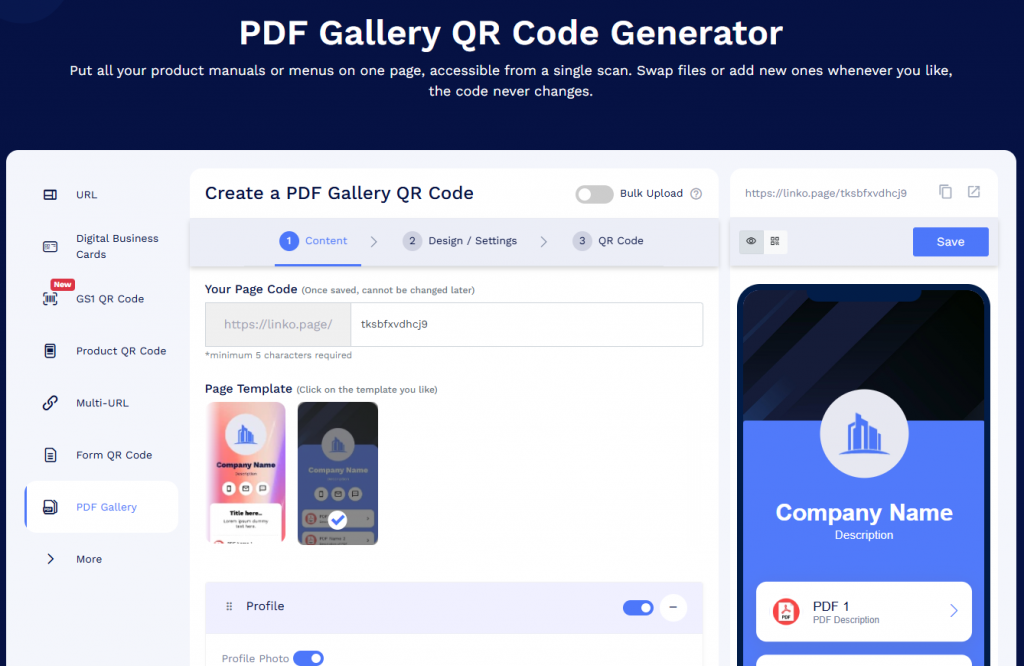
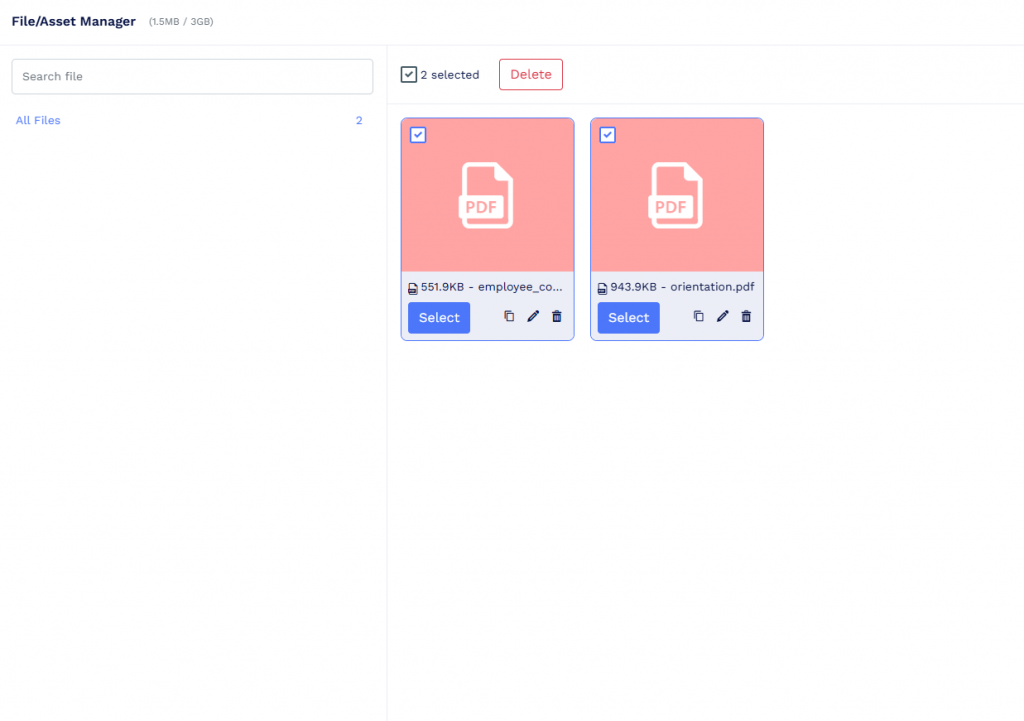
2. Select a template and upload the PDF files you want to share.
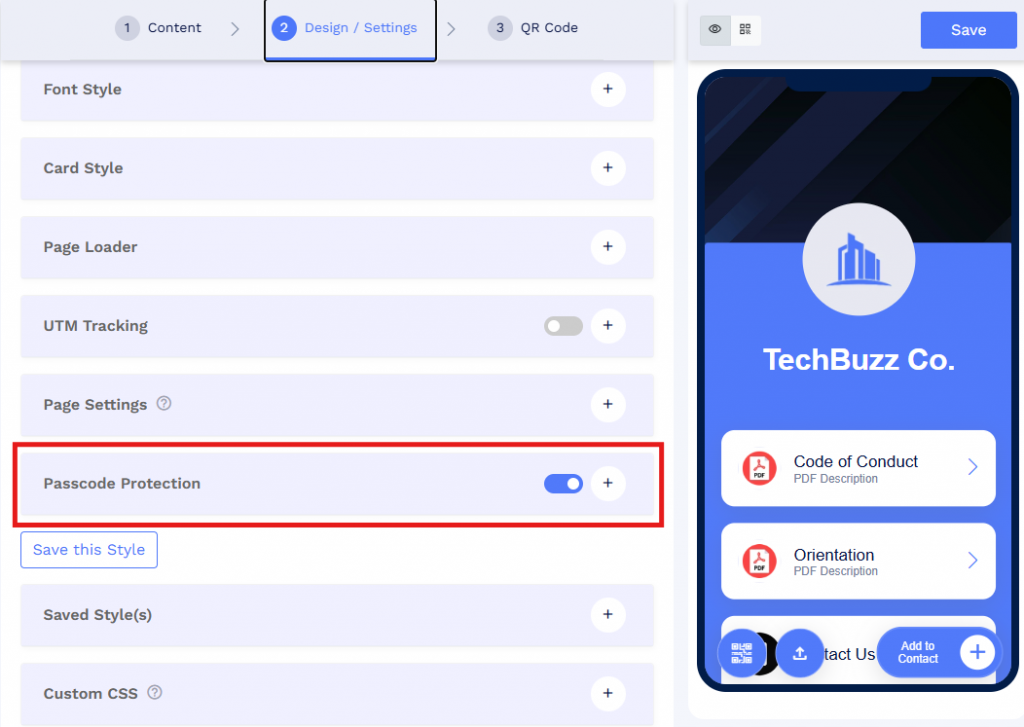
2. Open the Design / Settings tab and enable Passcode Protection.
4. Enter your preferred passcode.
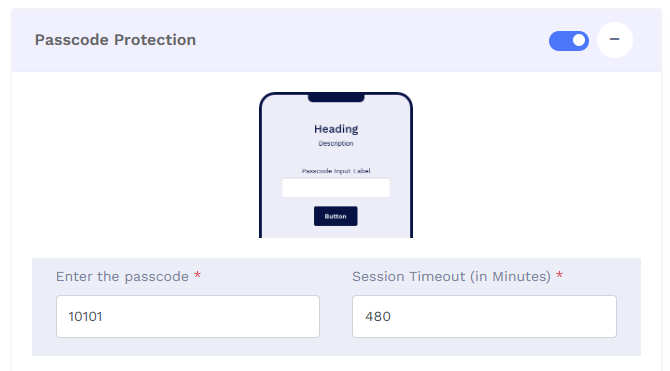
5. Optionally, set a Session Timeout duration in minutes.
6. Save your QR code and scan it to test the passcode screen before sharing.
When someone scans the QR code, they’ll see a passcode screen. The gallery opens once they enter the correct passcode.
How does the session timeout work?
A session timeout determines how long the PDF Gallery stays unlocked after someone enters the passcode. This way, frequent visitors don’t have to enter it every time they return.
For example, suppose you set a 120-minute timeout. Someone enters the passcode at 10:00 AM and revisits the gallery at 11:00 AM in the same browser. It opens without asking again. If they return at 12:01 PM, they’ll need to enter the passcode again.
The unlocked session applies only to that browser. Switching browsers or devices requires the passcode, even before the timeout ends.
Choose a shorter timeout for sensitive documents and a longer one for frequently accessed resources.
Method 2: Campaign expiry for time-sensitive PDF QR codes
QRCodeChimp lets you set Campaign start and End dates for dynamic QR codes, including PDF and PDF Gallery QR codes. The start date determines when the QR code becomes active, while the end date determines when it stops working.
This allows you to prepare and share QR codes in advance while controlling their availability.
How to set an expiry date for a PDF QR code
1. Create a PDF QR code and enable Make dynamic. You can also use a PDF Gallery QR code.
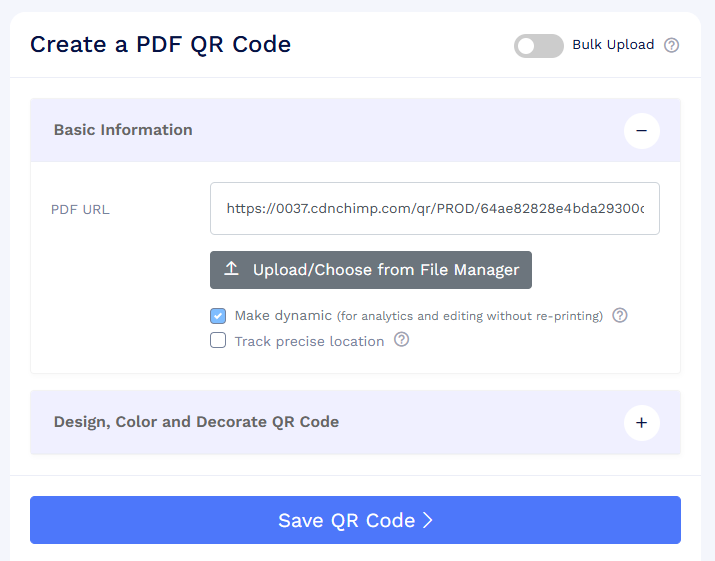
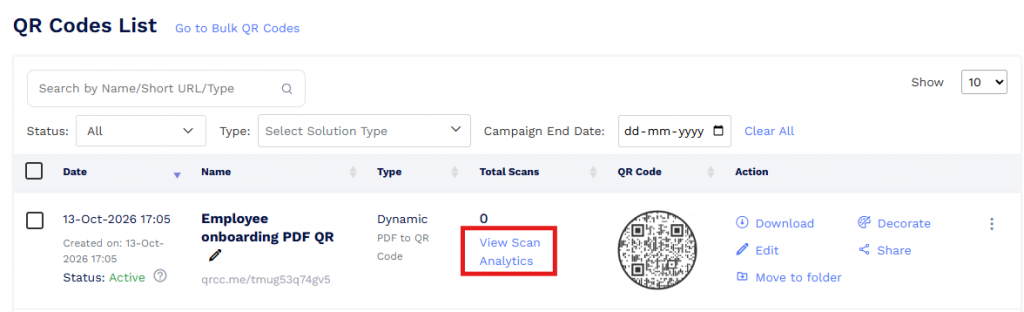
2. Go to your QRCodeChimp Dashboard and locate the QR code.
3. Click View Scan Analytics.
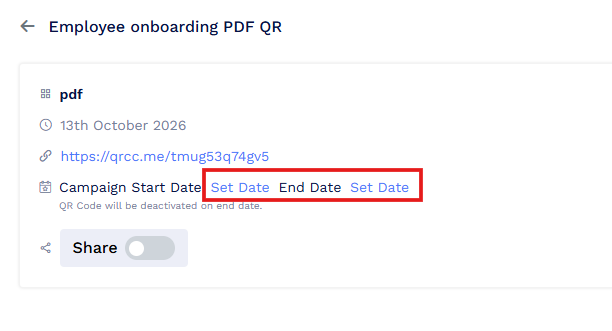
4. Find the Campaign Start Date and Campaign End Date settings.
5. Select your preferred dates and save the changes.
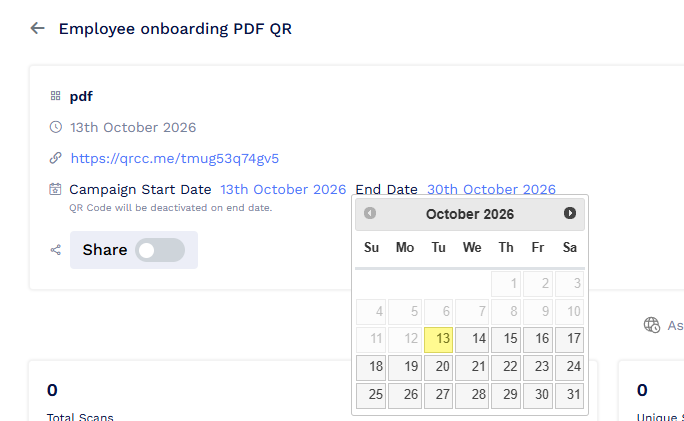
Your QR code will follow the selected campaign dates. Check your account’s time zone when setting the schedule.
What happens after the QR code expires?
Once the campaign ends, anyone who scans the QR code will see a standard message indicating it’s no longer available. You can extend its availability by updating the campaign end date in the analytics settings.
Remember that the expiry date applies to the QR code, not the underlying PDF file.
For example, if you create a QR code for a 30-day promotional offer, the code stops working after the campaign ends. However, people who downloaded the PDF can still access their copies. A directly accessible file URL may also continue working.
When should you use campaign expiry?
Campaign expiry is useful whenever documents have a defined availability period.
- Events: Share venue maps, schedules, and briefing packs around an event.
- Promotional campaigns: Limit QR code access to offers or price lists during a campaign.
- Education: Schedule access to assignments and exam-related documents.
- Business proposals: Set an expiry date for time-sensitive proposals.
- Product launches: Activate QR codes for launch documents on a planned date.
Campaign dates control when a QR code works, not who can access it. Anyone who scans an otherwise unrestricted QR code during its active period can view the content. For private documents, combine expiry dates with password protection.
Method 3: Create a QR code for a password-protected PDF file
The first two methods restrict access through the gallery or QR code. But what if you want the PDF itself to remain protected, even after someone downloads or forwards it?
You can password-protect the PDF using a trusted editor before uploading it to QRCodeChimp.
Unlike a gallery passcode, a PDF password protects the file itself. Anyone who opens it via a QR code, direct link, or downloaded copy must enter the password.
How to create a QR code for a password-protected PDF
Step 1: Add a password to your PDF
Open the document in a trusted PDF editor such as Adobe Acrobat. Choose the option that requires a password to open the file, not just to edit or print it. Save the PDF and reopen it to confirm that the password prompt appears.
Step 2: Upload the protected PDF to QRCodeChimp
Open the PDF QR Code generator and upload your password-protected document. You can also add it to a PDF Gallery if you’re sharing multiple files.
Step 3: Create and save your QR code
Customize and save the QR code. Then test it on Android and iOS devices to confirm that the PDF opens correctly after entering the password.
Step 4: Share the password separately
Share the QR code with your intended recipients and send the password through a separate channel. Avoid displaying both together, as this could allow unintended access.
Can you change the PDF password later?
Yes. You’ll need to create a new password-protected version of the PDF and replace the existing file in your dynamic QR code. You won’t need to reprint the QR code.
However, downloaded copies of the previous PDF will still open with the old password. Anyone who knows that password can also share it with others.
Tip: Avoid uploading confidential PDFs to unfamiliar online tools for password protection. Use a trusted PDF editor instead.
Which method should you choose?
Each method serves a different purpose. Here’s a quick comparison to help you choose.
| Your requirement | Recommended method |
|---|---|
| Restrict access to a collection of PDFs with one passcode | Method 1: PDF Gallery passcode protection |
| Make a QR code work only during a specified period | Method 2: Campaign expiry |
| Protect a PDF even after it’s downloaded or forwarded | Method 3: Password-protected PDF |
Combining methods for better protection
You can also combine these methods when documents need additional protection.
For example, suppose you’re sharing a confidential client proposal for a limited review period. You could password-protect the PDF and set a campaign end date for its QR code. The client would need the password to open the file, while the QR code would stop working after the review period.
For a collection of sensitive documents, you could combine all three controls:
- Gallery passcode: Restricts access to the document collection.
- Campaign expiry: Controls how long the QR code remains active.
- PDF passwords: Protect individual files wherever they’re opened.
Use different passwords for the gallery and PDF files. These measures help restrict unintended access but don’t replace individual user permissions or a dedicated document management system.
Best practices for sharing protected PDFs through QR codes
Whichever method you choose, a few precautions can make document sharing safer.
- Use strong passwords and passcodes. Avoid predictable combinations and reusing credentials across documents.
- Share access details separately. Never display the password alongside the QR code in a public location.
- Test before sharing. Check the password prompt and PDF viewing experience on different devices.
- Update passcodes when needed. Change gallery passcodes when someone no longer requires access. Previously downloaded files won’t be affected.
- Use dynamic QR codes. They allow you to update documents or pause QR code access without reprinting.
- Monitor scan analytics. Unusual scan activity may indicate wider sharing, although analytics don’t identify who read a document.
Remember that these methods cannot prevent authorized recipients from forwarding documents or sharing their contents. For individual authentication, detailed access logs, or user-specific access revocation, consider using a secure document portal.
Share your PDFs with greater control
QR codes make document sharing easy, and the right settings help you control access. Use a PDF Gallery passcode for document collections, campaign dates for time-sensitive materials, and file-level passwords when PDFs need protection beyond the QR code.
You can also combine these methods depending on your requirements.
If you want to create a PDF Gallery QR code, click here.
Frequently asked questions
Can I add passcode protection to a regular PDF QR code?
No. QRCodeChimp supports passcode protection on certain landing-page solutions, including PDF Gallery. For a single PDF, upload it to a gallery or password-protect the file itself.
Does a PDF Gallery passcode protect each PDF individually?
No. One passcode unlocks the entire gallery, giving access to all its documents. However, individual PDFs with file-level passwords will still require those passwords.
Can I give different passcodes to different PDFs within one gallery?
No. You’ll need separate galleries or file-level passwords if different documents require different access restrictions.
Can I change the gallery passcode without creating a new QR code?
Yes. Edit your existing PDF Gallery QR code, update the passcode under Design / Settings, and save. The printed QR code remains unchanged.
What happens when the session timeout expires?
Visitors must enter the passcode again when reopening the gallery. With a 10-minute timeout, they can revisit it in the same browser during that period without entering it again.
Can I set an expiry date on a static PDF QR code?
No. Campaign scheduling requires a dynamic QR code. Enable Make dynamic when creating a regular PDF QR code.
Can I extend the expiry date of an existing PDF QR code?
Yes. Open View Scan Analytics, update the campaign end date, and save your changes.
Will a downloaded PDF stop working when the QR code expires?
No. Expiry only deactivates the QR code. Downloaded files remain accessible, although password-protected PDFs still require their file-opening passwords.
You may also like
Portfolio QR Codes: Share Your Work with One Scan
A portfolio QR code lets people scan straight to your work from a resume, card, or exhibition label. See which type fits, from PDF to online gallery.
PDF QR Codes for Government: Share Public Documents with One Scan
Use PDF QR codes for government to share public notices, citizen forms, service guides, safety instructions, transport schedules, and public documents with one scan.
PDF QR Codes for Education: Share Notes, Assignments, and Study Material
Use PDF QR codes for education to share notes, assignments, lesson plans, study guides, exam instructions, and classroom resources with one scan.
QR Code Generator for Multiple PDF Files: Share Multiple PDFs with One Scan
Create a QR code for multiple PDF files with QRCodeChimp’s PDF Gallery QR Code. Share brochures, manuals, catalogs, guides, and documents from one mobile friendly page.
Most Popular
Contact Sales