A guest may enjoy the food, thank the staff, and still leave without writing a Google review.
For restaurants, the review window is short. Once diners leave the table, pay the bill, or collect their takeaway order, the moment starts to fade. By the next day, even a happy guest may forget to search for your restaurant and leave feedback.
A Google Review QR code for restaurants helps solve this timing problem. It gives guests a direct scan path to your Google review page while the dining experience is still fresh.
This guide explains where to place review QR codes in your restaurant, when to ask guests, how to train staff, and how to use reviews to improve your service.
- What is a Google Review QR code for restaurants?
- Restaurant review cards vs. Google Review QR codes
- 5 ways restaurants can use Google Review QR codes
- What to avoid saying near a restaurant review QR code
- Best practices for restaurant Google Review QR codes
- How to create a Google Review QR code for your restaurant
- Conclusion
- Frequently asked questions
What is a Google Review QR code for restaurants?
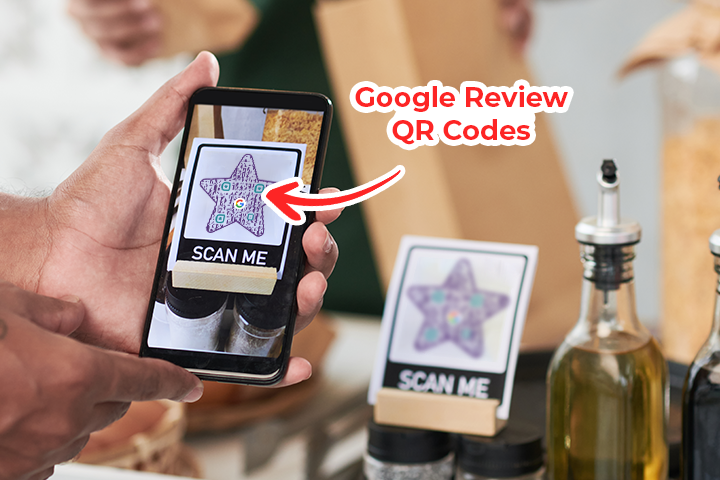
A Google Review QR code is a QR code that sends guests directly to your restaurant’s Google review page. When diners scan it, they can open the review page and share their feedback.
Instead of asking guests to search for your restaurant on Google, find the right listing, and look for the review option, you give them one direct scan path.
Restaurants can place Google Review QR codes on:
- Bills and receipts
- Table tents
- Menu cards
- Counter displays
- Takeaway packaging
- Delivery inserts
- Loyalty cards
- Digital menus
- Follow-up messages
The goal is to make it easy for guests to review your restaurant at the right moment.
Restaurant review cards vs. Google Review QR codes
Many restaurants use printed review cards, comment cards, or feedback forms. These can be useful for collecting private feedback, but they do not help your Google review profile.
| Method | Best for | Limitation |
|---|---|---|
| Comment cards | Private feedback inside the restaurant | Feedback stays offline unless manually processed |
| Verbal requests | Personal interaction with guests | Guests may forget after leaving |
| Follow-up emails | Repeat customers and reservations | Emails can be missed |
| Google Review QR codes | Sending guests directly to your Google review page | Needs clear placement and timing |
A restaurant review QR code gives guests a direct path to leave public feedback on Google. It reduces steps and helps capture reviews while the experience is still fresh.
5 ways restaurants can use Google Review QR codes
A Google Review QR code works best when it is placed where guests naturally pause, pay, wait, or reflect on their experience.
1. Add QR codes to bills and receipts
For restaurants, timing is everything. The best review request happens after the guest has experienced the food, service, and atmosphere, but before they mentally move on.
The bill moment is the strongest placement for this reason. The meal is complete. The guest has formed an opinion. If the experience was good, a polite review request feels natural. And the guest does not need to remember your restaurant later or search for your Google profile manually.
Add the QR code to printed receipts, bill folders, payment slips, or digital receipts.
Suggested messages:
- Enjoyed your meal? Scan to leave us a Google review.
- Tell us how we did.
- Your feedback helps other guests find us.
- Review your dining experience on Google.
Keep the message neutral.
2. Use table tents and counter cards
Table tents and counter cards keep the review request visible without interrupting the guest.
For dine-in restaurants, place the QR code where guests can see it after ordering or near the end of the meal. For cafes, bakeries, and quick-service restaurants, counter cards near the payment area work well.
The QR code should not compete with too many other messages on the same surface. Keep the design simple and the instruction clear.
Example copy:
Had a good experience? Scan to share your feedback on Google.
3. Add QR codes to takeaway and delivery packaging
Restaurants are no longer limited to dine-in experiences. Takeaway, delivery, cloud kitchens, bakeries, and cafes can collect reviews using QR codes placed on packaging.
Add a Google Review QR code to:
- Takeaway bags
- Food boxes
- Cup sleeves
- Delivery inserts
- Thank you cards
- Packaging stickers
The best moment is when the guest receives the food and the experience is still fresh.
Suggested message:
Happy with your order? Scan to leave us a Google review.
This is especially useful for restaurants that rely on delivery platforms or repeat local customers.
4. Connect review QR codes with digital menus
If your restaurant already uses a QR code menu, guests are comfortable scanning at the table. You can use that familiarity to support review collection.
Do not replace your menu QR code with a review QR code. Instead, place the review request at a natural point in the dining journey, such as:
- On the bill
- On the table tent below the menu QR code
- In the post-meal follow-up message
- On the digital menu’s thank-you or feedback section
The key is timing. Guests should see the review prompt after they have experienced the food and service, not before.
5. Train staff to ask naturally
Even the best QR code placement works better when staff know how to mention it.
Your front-of-house team does not need a long script. A short, polite request at the right moment is enough.
Example:
“Thank you for dining with us. If you would like to share your experience, you can scan this QR code and leave us a Google review.”
Train staff to make this ask when presenting the bill, handing over takeaway orders, or thanking guests at checkout. Include brief role-play in team meetings so staff feel comfortable with the request.
The goal is not to pressure guests. The goal is to make the review option visible and easy.
What to avoid saying near a restaurant review QR code
Your message should be short, polite, and neutral. Avoid anything that pressures guests toward a positive review or hints at compensation.
Avoid phrases like:
- Leave us a 5-star review
- Get a discount for reviewing us
- Show your review to claim an offer
- Review us for a free item
- Only share if you had a great experience
The goal is to ask for honest feedback. Neutral wording builds trust and keeps the review process credible.
Best practices for restaurant Google Review QR codes
Small execution details can make a meaningful difference in scan rates.
✅ Make the QR code easy to scan
Use enough contrast, leave white space around the QR code, and print it at a size guests can scan comfortably.
A QR code on a table tent or bill folder should be scannable from a short distance. A QR code on a poster or counter display should be larger. Always test before printing in bulk.
✅ Place the QR code where guests pause
Place it where the review request matches the natural pause in the guest’s journey. Strong placements include bill folders, receipts, table tents, checkout counters, takeaway packaging, delivery inserts, and thank you cards.
✅ Use dynamic QR codes for multiple branches and placements
If your restaurant has multiple locations, create a separate Google Review QR code for each branch. This ensures guests review the correct location.
Dynamic QR codes from QRCodeChimp let you track scan data by location, update the destination without reprinting, and compare performance across branches, counters, campaigns, or packaging placements from one dashboard. This helps identify which touchpoints drive the most reviews and where to focus your efforts.
Respond to reviews regularly
Getting more reviews is only part of restaurant reputation management. Responding matters too.
Thank guests for positive reviews. Respond to negative reviews calmly and professionally. If the same feedback appears repeatedly, use it to improve food quality, service, wait times, cleanliness, or staff training.
How to create a Google Review QR code for your restaurant
Creating a Google Review QR code takes under two minutes.
Copy your Google review link from your Google Business Profile, paste it into the QRCodeChimp Google Review QR Code Generator, customise the design with your logo and brand colours, test the QR code on a phone, and download it for print or digital use.
For detailed steps with screenshots, read the full guide: How to Create a Google Review QR Code.
Conclusion
Restaurants get more Google reviews when the review request is easy, visible, and timed well.
A Google Review QR code helps guests reach your review page with one scan. Place it on bills, receipts, table tents, takeaway packaging, digital menu flows, and follow-up messages so diners can share feedback while the experience is still fresh.
Frequently asked questions
What is a Google Review QR code for restaurants?
A Google Review QR code for restaurants sends diners directly to the restaurant’s Google review page. Guests can scan the code and leave feedback without searching for the restaurant manually.
Where should restaurants place Google Review QR codes?
Restaurants can place Google Review QR codes on bills, receipts, table tents, takeaway packaging, delivery inserts, counter displays, loyalty cards, and follow-up messages.
What is the best time to ask restaurant customers for a Google review?
The best time is after the dining experience, usually when presenting the bill, completing payment, handing over takeaway orders, or sending a post-meal follow-up message.
Can I add a Google Review QR code to my digital menu?
Yes. If guests already scan a digital menu, you can add a review prompt to the digital experience or place a separate Google Review QR code on the table tent, bill, or follow-up message. The review request should appear after the guest has experienced the meal.
Should each restaurant location have its own Google Review QR code?
Yes. Multi-location restaurants should create a separate Google Review QR code for each branch so guests review the correct location. Dynamic QR codes also allow you to track and compare scan performance across locations without reprinting.
How can restaurants know which QR code placement works best?
Restaurants can create separate dynamic Google Review QR codes for different placements, such as bills, table tents, takeaway packaging, receipts, and counter displays. Comparing the scan rate for each code helps identify which touchpoints guests are most likely to use.
You may also like
Google Review Cards: Collect Reviews by Scan or Tap
Google Review cards use a QR code, NFC tap, or both to send customers to your review page. Learn how they work, how to create one, and where to use them.
QR Code Ideas for Restaurants: 9 Practical Uses
Explore practical QR code ideas for restaurants, including menus, online ordering, feedback, reservations, offers, events, and customer engagement.
Touchless Menu QR Code for Restaurants: A Practical Setup Guide
Learn how to create, place, test, and update a touchless menu QR code for your restaurant while giving guests convenient mobile menu access.
How to Use Digital Business Cards in Your Marketing Strategy
Use digital business cards in your marketing strategy to capture leads, track scans, connect offline touchpoints, and improve follow-up.
Most Popular
Contact Sales
